

Are you curious about how many people visit your WordPress site each day? Knowing your visitor count is more than just a number—it helps you understand your audience and grow your website effectively.
Adding a visitor counter to your WordPress site is easier than you might think. You’ll discover simple, step-by-step methods to add a visitor counter that fits your style and needs. Keep reading, and by the end, you’ll have a clear picture of your website’s traffic right at your fingertips.
Credit: www.monsterinsights.com
Choose The Right Visitor Counter Plugin
Choosing the right visitor counter plugin is important for your WordPress site. A good plugin shows accurate visitor numbers and fits your site’s style. It also works well with other tools you use. This helps you keep track of your site’s traffic easily and clearly.
Many visitor counter plugins are available. Each has different features and designs. Picking the right one saves time and avoids problems later. It also improves your site’s user experience.
Popular Visitor Counter Plugins
Several visitor counter plugins are popular among WordPress users. WP Visitor Statistics offers detailed data and easy setup. Visitors Counter provides simple, clean counters with basic features. Count per Day tracks visitors and page views with graphs. These plugins have good reviews and regular updates.
Factors To Consider When Selecting A Plugin
Check if the plugin is easy to use. Look for clear settings and simple installation. Ensure the plugin shows real-time visitor data. Make sure it does not slow down your website. Choose a plugin that fits your site’s design. Compatibility with your WordPress version is vital. Also, check if the plugin is updated often. Support availability is important if you face issues.
Credit: www.monsterinsights.com
Install And Activate The Plugin
Adding a visitor counter to your WordPress site starts with installing and activating a plugin. This process is simple and takes just a few steps. The right plugin helps you track your site’s visitors easily. Follow these instructions to get the plugin up and running quickly.
Accessing The WordPress Plugin Directory
Log in to your WordPress dashboard first. Look for the “Plugins” menu on the left side. Click on “Add New” below it. This opens the WordPress Plugin Directory. Here, you can search for visitor counter plugins. Use the search bar to find one that suits your needs.
Steps To Install The Plugin
After finding a visitor counter plugin, click the “Install Now” button. WordPress downloads and installs the plugin automatically. This usually takes a few seconds. Wait until the installation finishes before moving on.
Activating The Plugin
Once installed, the “Install Now” button changes to “Activate.” Click “Activate” to enable the plugin on your site. Activation lets the plugin start working immediately. You can now access its settings from the dashboard to customize the visitor counter.
Configure Plugin Settings
Configuring the plugin settings is a key step to make your visitor counter work well. It lets you control how the counter looks and functions on your WordPress site. This part of setup helps you match the counter with your site design and track visitors accurately.
Customizing Counter Appearance
Choose the style of your visitor counter. Pick colors and fonts that fit your site’s theme. You can set the size of the numbers and decide if you want to show total visits or just current visitors. Some plugins offer icon or image options to make the counter more attractive. Keep the design simple and clear for easy reading.
Setting Visitor Tracking Options
Select how the plugin counts visitors. Decide if you want to track unique visitors or total hits. You can exclude visits from admins or logged-in users to get real visitor data. Some plugins allow setting a time frame to count repeated visits. Adjust these options to get the most useful visitor statistics for your site.
Managing Display Locations
Choose where the counter appears on your website. Options often include sidebar widgets, footer areas, or inside posts and pages. Some plugins let you use shortcodes to place the counter anywhere. Test different spots to find the best visibility without disturbing your site layout. Keep the counter in a visible but non-intrusive place.
Add Visitor Counter To Your Website
Adding a visitor counter to your WordPress website helps track how many people visit. It shows your site’s popularity and user activity. You can display the counter in different ways depending on your skill level and site design. This guide covers three simple methods to add a visitor counter.
Using Widgets To Display Counter
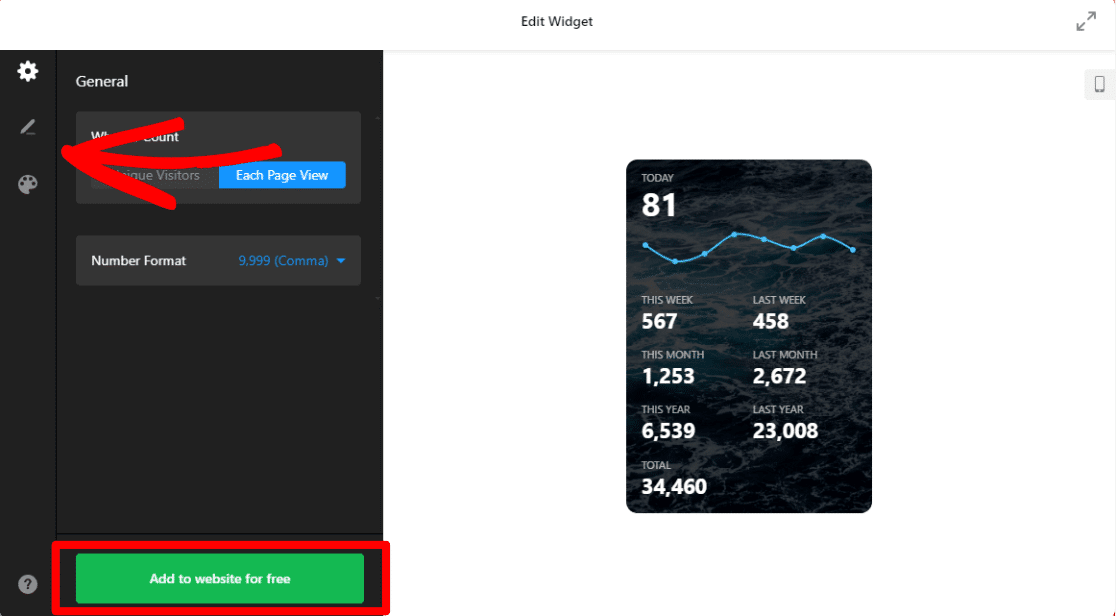
Widgets are the easiest way to add a visitor counter. Most visitor counter plugins offer a widget. Go to your WordPress dashboard and find the Appearance > Widgets section. Drag the visitor counter widget to your sidebar or footer. Customize the settings, like display style and position. Save your changes and check your site. The counter will show up instantly.
Embedding Shortcodes In Posts Or Pages
Shortcodes let you insert a visitor counter inside posts or pages. Install a visitor counter plugin that supports shortcodes. Copy the shortcode provided by the plugin. Open the post or page editor where you want the counter. Paste the shortcode in the content area. Update or publish the page. The visitor counter will appear exactly where you placed it.
Adding Counter To Theme Files
For advanced users, adding a visitor counter to theme files offers more control. Locate the theme file where you want the counter, like header.php or footer.php. Insert the PHP code snippet given by the visitor counter plugin. Save the changes and upload the file if needed. This method embeds the counter site-wide in the chosen location. It requires basic coding knowledge.
Verify Visitor Counter Functionality
Verifying the visitor counter functionality is a key step after installation. It ensures the counter works correctly and displays accurate data. Proper verification helps avoid errors and improves user trust. Take time to confirm the counter is visible and counts visitors properly.
Testing Counter Visibility
Check if the visitor counter appears on your website. Visit your site from different devices and browsers. Make sure the counter is easy to find and reads clearly. Sometimes themes or plugins hide the counter. Refresh the page to see if the number updates. This simple test confirms the counter is active.
Checking Visitor Count Accuracy
Track the visitor count over time. Note the number shown before and after new visits. Open your site in a private browser to test unique visits. Compare numbers with your website analytics tool. The counts should match closely. If not, check the plugin settings for errors. Accurate counting builds confidence in your site’s data.
Troubleshoot Common Issues
Troubleshooting common issues with your WordPress visitor counter is important. It ensures your counter works correctly. This section covers problems you may face and how to fix them. Clear visitor data helps you understand your audience better.
Counter Not Showing Up
Check if the plugin is activated in your dashboard. Sometimes, the widget may not be added to your site. Verify the placement in the sidebar or footer settings. Clear your browser cache to refresh the page. Disable any caching plugins temporarily to see if they block the counter. Update the plugin to the latest version for better compatibility.
Incorrect Visitor Counts
Visitor numbers may count bots or repeated visits. Use plugins that filter out bot traffic for accurate data. Check plugin settings for options to exclude specific IPs or users. Confirm your site’s cache is not serving old visitor data. Sync your counter with Google Analytics for better tracking if possible. Avoid using multiple counters that can cause conflicts.
Plugin Compatibility Problems
Some visitor counter plugins conflict with other WordPress plugins. Test by deactivating other plugins one by one to find the issue. Check if your WordPress version supports the plugin. Update WordPress and plugins regularly to reduce errors. Look for alternative visitor counters if problems persist. Contact the plugin developer for support if needed.

Credit: www.youtube.com
Frequently Asked Questions
How Do I Add A Visitor Counter To WordPress?
You can add a visitor counter using plugins like WP Visitor Statistics or Visitor Counter Plugin. Install, activate, and configure the plugin to display the counter on your site easily.
Are Visitor Counters Important For WordPress Sites?
Yes, visitor counters help track traffic and user engagement. They provide insights into your audience size and site popularity, aiding in marketing and content strategies.
Can I Customize The Visitor Counter’s Appearance?
Most visitor counter plugins offer customization options. You can change colors, styles, and display formats to match your website’s design and branding effortlessly.
Will Adding A Visitor Counter Slow Down My Site?
A well-coded visitor counter plugin has minimal impact on site speed. Choose lightweight, regularly updated plugins to ensure your website performance remains optimal.
Conclusion
Adding a visitor counter to your WordPress site helps track your audience easily. It shows how many people visit your pages every day. You can use simple plugins or code to add this feature. Keep the counter visible but not distracting for your visitors.
Regularly check the counter to understand your site’s popularity. This small step improves your website’s interaction and growth. Start today and watch your visitor numbers clearly. Simple, quick, and useful for every WordPress user.


