
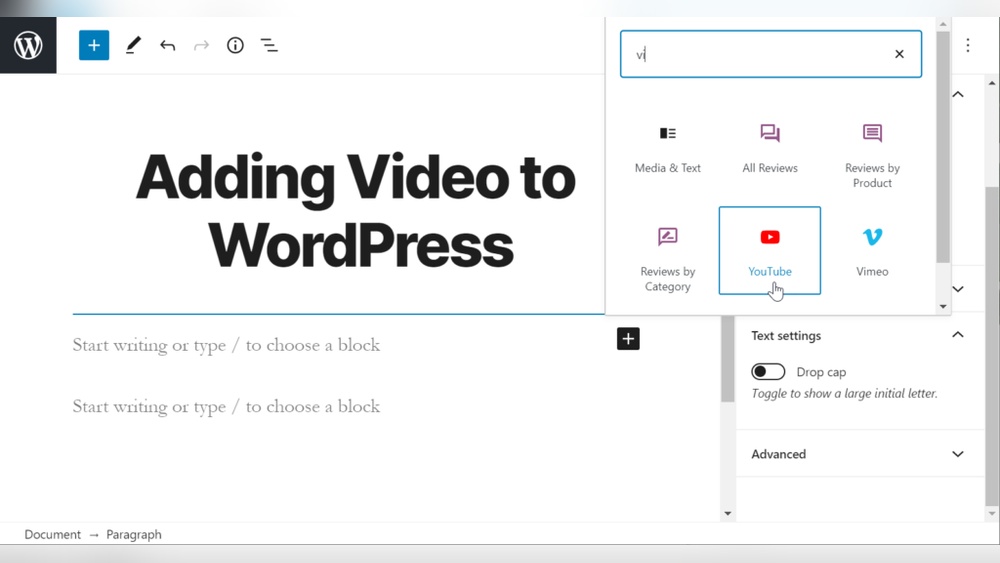
Are you looking to make your WordPress site more engaging and dynamic? Adding videos is one of the best ways to grab your visitors’ attention and keep them coming back.
But if you’re unsure how to add videos to WordPress, you’re not alone. This guide will walk you through simple, step-by-step methods that anyone can follow—no tech skills needed. By the end, you’ll know exactly how to showcase your videos and boost your site’s impact.
Ready to make your content stand out? Let’s dive in!
Choosing The Right Video Format
Choosing the right video format is important for your WordPress site. The correct format ensures your videos play smoothly. It also helps your site load faster. Visitors enjoy watching videos without delays or errors. Selecting the best format saves you storage space and bandwidth. This section explains the supported formats and tips to optimize size and quality.
Supported Video Formats In WordPress
WordPress supports several popular video formats. The most common are MP4, WebM, and Ogg. MP4 works well on almost all browsers and devices. WebM is a good choice for modern browsers. Ogg is less common but still supported by WordPress. Using these formats ensures your videos play for most visitors. Avoid rare formats that might not load properly.
Optimizing Video Size And Quality
Large videos slow down your website. Compress videos to reduce file size without losing quality. Use tools like HandBrake or online compressors. Aim for a balance between quality and size. Keep videos under 100MB if possible. Choose the right resolution for your site design. For example, 720p is enough for most blogs. Smaller files load faster and improve user experience.
Credit: www.wpexplorer.com
Uploading Videos Directly To WordPress
Uploading videos directly to WordPress gives full control over your content. Videos become part of your site without relying on other platforms. This method suits small videos and simple hosting needs. Large files may slow your site or exceed hosting limits. Keep video size and format in mind for best results.
Using The Media Library
The Media Library stores all files, including videos. To upload, go to your WordPress dashboard and click “Media”. Select “Add New” and drag your video file or click to browse. WordPress supports common formats like MP4 and MOV. After uploading, your video appears in the library for easy access.
You can edit the video details here. Add titles, descriptions, and captions. These help with SEO and user experience. Use the file URL to link the video elsewhere on your site.
Embedding Videos In Posts And Pages
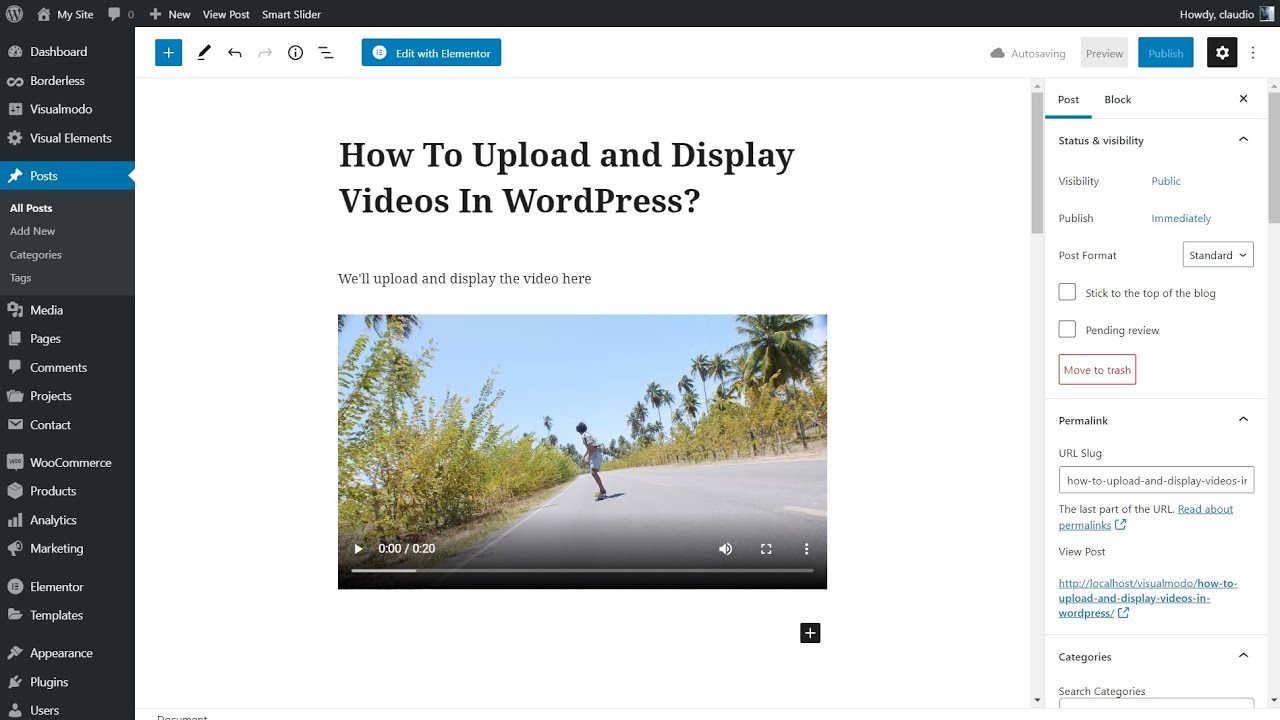
Embedding videos makes them play directly on your page. Open the post or page editor. Click the “+” button to add a new block. Choose the “Video” block for direct uploads or “File” block for links. Select your uploaded video from the Media Library.
The video shows in the editor with playback controls. Customize the size and alignment. Publish or update the page to see your video live. Visitors watch the video without leaving your site.
Embedding Videos From External Platforms
Embedding videos from external platforms is a simple way to enhance your WordPress site. It keeps your site fast and saves storage space. Most video platforms provide easy embed codes. You just need to copy and paste them into your posts or pages.
This method also offers better video quality and player controls. Plus, it allows viewers to interact with the video platform features. Below are steps to embed videos from popular sites.
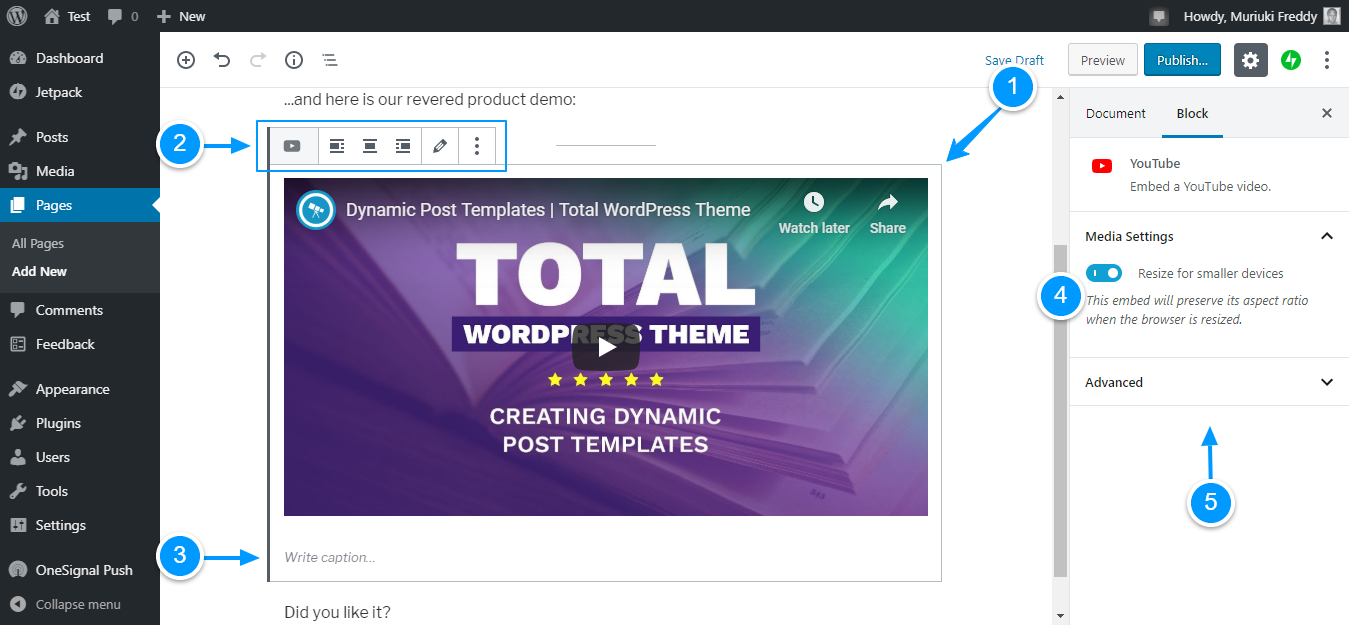
Adding Youtube Videos
Find the video you want on YouTube. Click the “Share” button below the video. Then click “Embed” and copy the code that appears. In WordPress, open your post or page editor.
Switch to the “Text” or “HTML” view and paste the embed code where you want the video. Update or publish your content. The video will show up with YouTube controls and options.
Embedding Vimeo Content
Go to Vimeo and open the video you like. Click the “Share” icon on the video player. Copy the embed code from the popup box. In WordPress, paste this code in the “Text” editor of your post.
You can adjust the video size in the embed code if needed. Save your changes and view the post to see the Vimeo video. It plays smoothly with Vimeo’s player features.
Other Video Hosting Services
Many video services offer embed codes similar to YouTube and Vimeo. Sites like Dailymotion, Wistia, and Facebook provide easy sharing options. Find the video, get the embed code, and paste it into WordPress.
Make sure to use the HTML editor in WordPress. This keeps the video code intact and working. Embedding from external services helps keep your site fast and professional.
Using WordPress Video Plugins
Using WordPress video plugins makes adding videos easier and more flexible. Plugins help you embed videos from different sources. They also improve how videos look and behave on your site. Many plugins offer extra features like video galleries and playback controls. These tools save time and enhance user experience.
Popular Video Plugin Options
Several popular plugins work well for video integration. Video Embed & Thumbnail Generator creates thumbnails automatically. WP Video Lightbox shows videos in a popup window. YouTube Embed Plus supports YouTube videos with many settings. FV Player offers advanced playback options and subtitles. These plugins cover basic to advanced video needs.
Customizing Video Display And Features
Most plugins allow you to change how videos appear. Adjust sizes to fit your page layout. Enable or disable autoplay and loop options. Add captions or subtitles for better accessibility. Choose thumbnail images to attract viewers. Control video player colors and controls. Customizing videos helps match your website style.
Enhancing Video Seo
Enhancing video SEO helps your videos get found by search engines. It boosts visibility and drives more traffic to your site. Simple steps can improve your video rankings and user engagement.
Adding Titles And Descriptions
Give each video a clear, descriptive title. Use keywords that match what people search for. Write short descriptions that explain the video’s content well. This helps search engines understand your video better. It also encourages visitors to watch your videos.
Using Video Schema Markup
Video schema markup is code that describes your video to search engines. It shows details like length, thumbnail, and upload date. Adding this markup improves how your video appears in search results. It can increase clicks and views on your videos.
Credit: www.youtube.com
Troubleshooting Common Issues
Adding videos to WordPress can sometimes bring small issues. These problems can stop your videos from playing or uploading properly. Fixing these issues quickly keeps your site running smooth. This section covers common video problems and easy fixes.
Video Playback Problems
Videos may not play due to browser issues or file types. Check if your video format is supported by WordPress, such as MP4. Clear your browser cache to remove old data. Slow internet or large video files cause buffering delays. Use smaller files or compress videos to improve speed. Disable conflicting plugins that might block video playback. Test your videos on different browsers to spot issues.
Fixing Upload Errors
Upload errors often happen because of file size limits set by your host. Increase the maximum upload size in your WordPress settings or ask your hosting provider for help. File permissions can block uploads. Make sure your wp-content/uploads folder has the right permissions. A weak internet connection can cause uploads to fail. Try uploading videos with a stable connection. Rename your video file to remove spaces or special characters. This prevents file name errors during upload.
Credit: www.youtube.com
Frequently Asked Questions
How Do I Embed Videos In WordPress Posts?
To embed videos, simply paste the video URL directly into your WordPress post editor. WordPress automatically converts it into a video player using oEmbed support for platforms like YouTube and Vimeo.
Can I Upload Videos Directly To WordPress?
Yes, you can upload videos via the Media Library. However, hosting videos on WordPress can slow your site. Use external platforms for better performance.
What Video Formats Does WordPress Support?
WordPress supports common formats like MP4, WebM, and Ogg. MP4 is the most widely compatible format for smooth playback across devices.
How To Add Videos Using WordPress Blocks?
Use the “Video” block in the Gutenberg editor. Upload your video or insert a URL to add videos easily without plugins.
Conclusion
Adding videos to WordPress can boost your site’s appeal. Videos catch attention and explain ideas clearly. Use the built-in tools or plugins to upload easily. Keep your videos short and relevant for better impact. Test your site on different devices to ensure smooth playback.
Regularly update your content with fresh videos to engage visitors. Start adding videos today and see your site come alive. Simple steps can make your WordPress site more dynamic and fun.



