

Adding videos to your WordPress blog can transform the way you connect with your audience. Imagine grabbing your reader’s attention instantly and keeping them engaged longer.
If you’ve ever wondered how to make your posts more dynamic and memorable, this guide is for you. You’ll discover simple steps to add videos effortlessly, even if you’re new to WordPress. By the end, you’ll know exactly how to enhance your blog and make your content stand out.
Ready to boost your blog’s impact? Let’s dive in!
Credit: www.wpbeginner.com
Benefits Of Adding Videos To Blogs
Adding videos to your WordPress blog offers many benefits. Videos catch readers’ attention quickly. They make your content more lively and interesting. Videos can explain ideas better than text alone. Many visitors prefer watching videos over reading long paragraphs. This keeps them on your site longer. Videos also help share your message clearly and simply. Below are some key benefits of using videos in blogs.
Boosting Engagement
Videos grab attention fast. Visitors stay longer on pages with videos. This means more chances to connect with your audience. Videos invite comments, likes, and shares. They encourage readers to interact with your content. This builds a loyal community around your blog.
Improving Seo
Search engines favor pages with videos. Videos increase the time visitors spend on your site. This signals your content is valuable. Videos also improve your chances of appearing in search results. Using relevant keywords in video titles and descriptions helps too. This drives more organic traffic to your blog.
Enhancing User Experience
Videos make content easier to understand. They break up long text blocks and add variety. Videos appeal to different learning styles and preferences. Visitors enjoy a richer, more dynamic experience. This keeps readers coming back for more.

Credit: www.youtube.com
Choosing The Right Video Format
Choosing the right video format is key to adding videos on your WordPress blog. It affects how fast your video loads and how it plays on different devices. Picking the correct format helps you reach more viewers and keeps your site running smoothly.
Supported File Types
WordPress supports popular video formats like MP4, WebM, and Ogg. MP4 is the most common and works on almost all browsers. WebM offers good quality and smaller file size. Ogg is less common but still supported by many browsers. Use these file types to make sure your video plays for everyone.
Video Quality And Size
High-quality videos look great but can slow down your site. Large files take longer to load and can frustrate visitors. Balance quality and file size by compressing your video. Aim for good clarity without making the file too big. This keeps your blog fast and your videos clear.
Optimizing For Web
Optimize videos for the web by using modern codecs like H.264 for MP4. Compress files using tools like HandBrake or online compressors. Choose the right resolution, usually 720p or 1080p, to save bandwidth. Use streaming or lazy loading to improve user experience. These steps help your videos load quickly and play smoothly on all devices.
Uploading Videos Directly To WordPress
Uploading videos directly to WordPress lets you keep videos on your own site. It gives control over video files and how they show up. You do not rely on other platforms for hosting. This method fits small videos best to avoid slow loading times.
WordPress has built-in tools to upload and manage videos easily. These tools help place videos exactly where you want in your posts or pages. Below are simple ways to upload videos directly to WordPress.
Using The Media Library
The Media Library stores all your uploaded files, including videos. To add a video, go to your WordPress dashboard. Click on “Media” and then “Add New.”
Drag your video file into the upload box or select it from your computer. WordPress supports common formats like MP4, MOV, and AVI. After uploading, your video appears in the Media Library for easy access.
Embedding Video Blocks
Use the block editor to insert videos into posts or pages. Click the plus (+) icon to add a new block. Select the “Video” block from the list.
Choose “Media Library” to pick your uploaded video or upload a new one here. The video block shows a preview of your video on the page. You can move the block to change its position in your content.
Managing Video Settings
WordPress lets you adjust video settings for better display. Click the video block to see options like autoplay, loop, and muted.
You can also add captions or alternative text for accessibility. Adjust the video size to fit your page design. These settings improve user experience and site performance.
Credit: www.wpbeginner.com
Embedding Videos From External Platforms
Embedding videos from external platforms is a smart way to enrich your WordPress blog. It saves space on your server and lets visitors watch videos without leaving your page. Many popular platforms offer easy-to-use embed codes. These codes allow you to insert videos smoothly and quickly. Below are simple methods for adding videos from top platforms.
Youtube Embeds
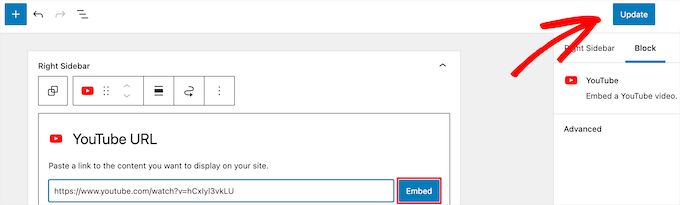
YouTube is the most popular video platform worldwide. To embed a YouTube video, find the video you want on YouTube. Click the “Share” button below the video. Then, select “Embed” and copy the code provided.
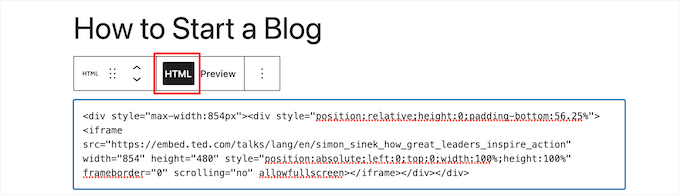
Go to your WordPress post editor. Switch to the HTML or Text mode. Paste the embed code where you want the video to appear. WordPress will display the video automatically on your blog page.
Vimeo Integration
Vimeo offers high-quality videos and a clean player design. Find the Vimeo video you want to add to your post. Click the “Share” icon and copy the embed code shown.
In your WordPress editor, paste this code into the HTML section. The video will appear in your blog with full playback controls. Vimeo videos load fast and look professional.
Other Popular Platforms
Platforms like Dailymotion, Facebook, and TikTok also allow video embedding. Look for the “Share” or “Embed” option on each platform. Copy the embed code they give you.
Paste the code into your WordPress post’s HTML editor. This process works the same for almost all video sites. Embedding videos from various sources keeps your content fresh and engaging.
Customizing Video Appearance
Customizing the appearance of videos on your WordPress blog helps improve viewer experience. Simple tweaks make videos look professional and easier to use. Adjust settings like controls, captions, and playback for better engagement.
Adjusting Player Controls
Player controls let users play, pause, and change volume. You can show or hide these controls in WordPress. Use the video block settings to toggle controls on or off. Showing controls gives users more freedom to interact with the video.
Adding Captions And Subtitles
Captions make videos accessible for all viewers. Upload a subtitle file like .vtt or .srt in the video block settings. Captions help people who are deaf or hard of hearing. They also improve SEO by adding text that search engines read.
Setting Autoplay And Loop Options
Autoplay starts the video automatically when the page loads. Loop repeats the video continuously. These options are available in video settings on WordPress. Use autoplay carefully; some visitors prefer to start videos themselves.
Optimizing Video Performance
Videos make blogs more interesting and engaging. But videos can slow down your site. Slow sites lose visitors fast. Optimizing video performance keeps your blog fast and smooth. It also improves user experience and SEO.
Using Video Compression Tools
Large videos take longer to load. Compressing videos reduces their file size. Smaller files load faster without losing quality. Use tools like HandBrake or online compressors. This helps keep your blog quick and responsive.
Implementing Lazy Loading
Lazy loading delays video loading until needed. Videos load only when the visitor scrolls to them. This reduces the initial load time of your page. WordPress plugins like Lazy Load can help. It saves bandwidth and improves page speed.
Choosing A Reliable Hosting Service
Good hosting supports fast video delivery. It has strong servers and good bandwidth. Choose hosts with video-friendly plans. A reliable host prevents buffering and downtime. Your visitors get a smooth video experience every time.
Troubleshooting Common Video Issues
Adding videos to your WordPress blog can boost engagement and make your content lively. Sometimes, videos may not work as expected. Troubleshooting helps fix common video problems fast.
Below are simple solutions for common video issues. They help keep your blog running smoothly.
Video Not Playing
Check the video format. WordPress supports MP4 best. Other formats may not play well.
Clear your browser cache. Old files can cause playback issues. Try reloading the page.
Ensure the video file is fully uploaded. Incomplete uploads stop videos from playing.
Slow Loading Times
Large video files take longer to load. Compress videos before uploading.
Use a reliable hosting service. Slow hosts delay video loading.
Try a content delivery network (CDN). It speeds up video delivery worldwide.
Compatibility Problems
Test your video on different browsers. Some browsers may not support certain video types.
Update your WordPress theme and plugins. Outdated software causes conflicts.
Use standard video players. Custom players may not work on all devices.
Frequently Asked Questions
How Do I Embed Videos In A WordPress Blog Post?
To embed videos, use the WordPress block editor. Select the “Video” block or paste a YouTube/Vimeo URL directly. WordPress automatically embeds supported videos, making the process quick and simple without extra plugins.
Can I Upload Videos Directly To My WordPress Site?
Yes, you can upload videos directly via the Media Library. However, hosting large videos may slow your site. Using external platforms like YouTube is often better for performance and bandwidth.
What Video Formats Does WordPress Support?
WordPress supports common video formats like MP4, WebM, and Ogg. MP4 is the most widely compatible format across browsers and devices, ensuring smooth playback for your visitors.
How To Optimize Videos For Faster Loading On WordPress?
Compress videos before uploading to reduce file size. Use plugins or external platforms like YouTube. Also, enable lazy loading to improve page speed and user experience.
Conclusion
Adding videos to your WordPress blog makes content more lively. Videos help visitors understand your message better. They keep readers on your site longer. Use simple steps to upload or embed videos easily. Choose the right video format for fast loading.
Test your blog on different devices to ensure it looks good. Videos can boost your blog’s reach and engagement. Keep practicing to improve your skills. Start adding videos today and watch your blog grow.


