
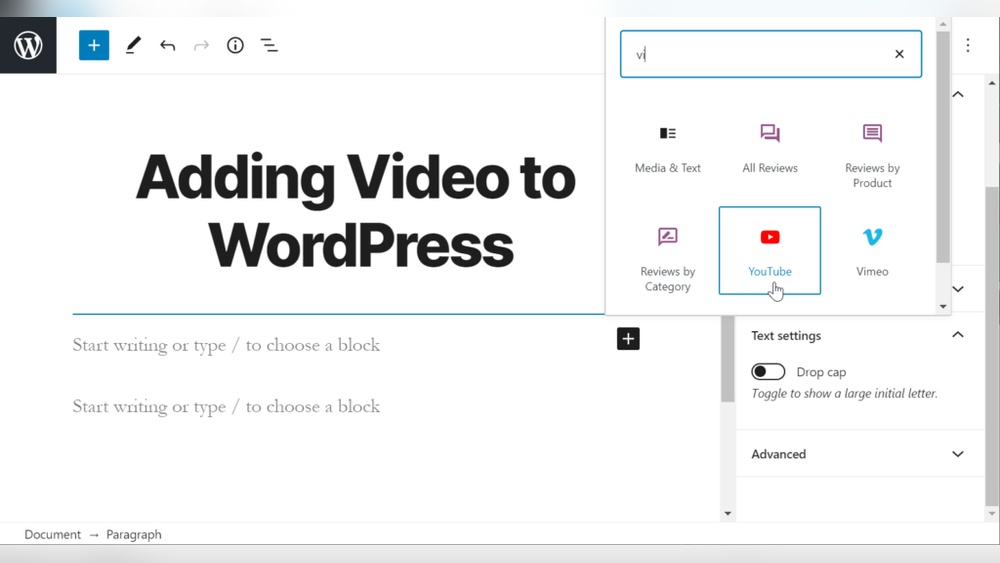
Are you looking to make your WordPress page more engaging and dynamic? Adding a video is one of the best ways to grab your visitors’ attention and keep them interested.
But if you’re unsure how to do it, don’t worry—you’re in the right place. This guide will show you simple, step-by-step methods to add videos to your WordPress page quickly and easily. By the end, you’ll have the skills to make your site stand out and connect better with your audience.
Ready to boost your page with videos? Let’s dive in!

Credit: thewebsitearchitect.com
Choose The Right Video Format
Choosing the right video format matters for your WordPress page. The format affects how fast your video loads and how well it plays on different devices. Some formats work better on phones, while others suit desktop screens. Picking the right one helps visitors watch your video without trouble.
Understanding Popular Video Formats
MP4 is the most common video format for WordPress. It works on almost all browsers and devices. MP4 files are small and keep good video quality. This format is easy to upload and play on WordPress pages.
When To Use Webm Format
WebM is a newer video format. It is lighter and loads faster on web pages. WebM works well on modern browsers like Chrome and Firefox. Use it if you want quicker video playback and smaller file size.
The Role Of Ogg Format
OGG is less common but still useful. It plays on many browsers and keeps good quality. OGG files are open-source, which means they are free to use. Choose OGG if you want a free and flexible video format.
Check Browser Compatibility
Not all browsers support every video format. MP4 works almost everywhere. WebM and OGG need newer browsers. Test your video on different browsers to ensure it plays smoothly.
Balancing Quality And File Size
High-quality videos look great but can be large. Large files slow down your page. Choose a format and settings that keep good quality but stay small in size. This improves user experience and site speed.
Upload Video To WordPress Media Library
Uploading a video to the WordPress Media Library is the first step to adding video content on your page. The Media Library stores all files used in your website. Videos you upload here can be easily inserted into posts or pages.
This method keeps your video organized and ready for use anytime. It also helps manage your site’s content without relying on external links.
Access The WordPress Dashboard
Start by logging into your WordPress dashboard. This is the control center for your website’s content and settings. You need access to upload files to the Media Library.
Open The Media Library
Find the “Media” option in the left sidebar menu. Click on it to open the Media Library. Here you see all images, audio, and video files stored on your site.
Upload Your Video File
Click the “Add New” button at the top of the Media Library page. You can drag and drop your video file or select it from your computer. Wait for the upload to finish before proceeding.
Check Video Details
After uploading, click on the video in the Media Library. Check the file name, size, and URL. The URL is important for embedding the video on your page.
Embed Video Using Block Editor
Embedding a video on a WordPress page is simple using the Block Editor. This editor helps you add videos without extra plugins or code. Videos make your content more engaging and keep visitors on your site longer.
The process involves adding a video block, inserting the video URL, and adjusting the block settings. Each step is clear and easy to follow.
Add Video Block
Start by opening the WordPress page or post where you want the video. Click the plus (+) icon to add a new block. Choose the “Video” block from the list. This block allows you to upload or embed videos directly.
Insert Video Url
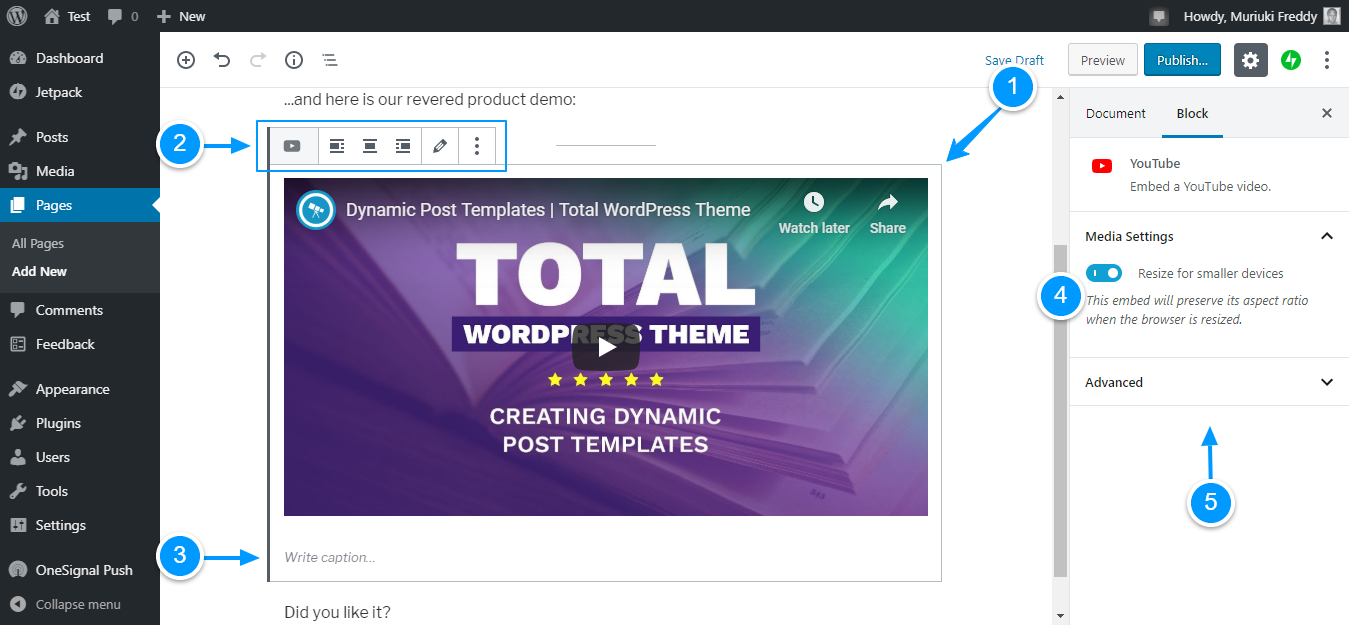
After adding the video block, paste the video URL into the block field. You can use URLs from popular platforms like YouTube or Vimeo. WordPress will automatically embed the video for you. No need to worry about any coding.
Adjust Block Settings
Once the video appears, customize its settings on the right panel. Change the video alignment to fit your page layout. You can also add a caption or enable autoplay if needed. These options help your video blend well with your content.
Credit: www.wpexplorer.com
Use Shortcodes For Video Embedding
Shortcodes offer a simple way to embed videos on your WordPress pages. They save time and keep your content clean. Instead of writing complex code, shortcodes let you add videos using small snippets.
Using shortcodes helps control video size and appearance easily. You can customize settings without touching HTML or CSS. This method works well for both self-hosted videos and external links.
What Are WordPress Video Shortcodes?
Shortcodes are small code pieces inside square brackets. WordPress reads these codes and shows the video on the page. They are easy to use and remember.
How To Use The Video Shortcode
Write URL where you want the video. Replace “URL” with your video link. WordPress will display the video player automatically.
Customizing Video Shortcodes
You can set width and height using width=”600″ height=”400″. Add these inside the shortcode. For example: URL.
Embedding Videos From Different Sources
Shortcodes support many video formats and sources. You can embed MP4 files hosted on your server. They also work for videos from external URLs if allowed.
Add Videos With Page Builders
Page builders make adding videos to WordPress pages simple and fast. They offer easy drag-and-drop tools. No coding skills are needed. Videos can improve your page’s look and keep visitors interested.
Using page builders, you place video widgets or modules right where you want. You can adjust settings like size, alignment, and autoplay. These tools support many video sources like YouTube, Vimeo, and self-hosted files.
Elementor Video Widget
Elementor’s Video Widget lets you add videos with one click. Drag the widget to your page area. Then, paste the video URL from YouTube or Vimeo.
You can set video size and alignment easily. Choose to show controls or autoplay the video. Elementor also allows custom thumbnails for your videos. This widget works well on all devices and screen sizes.
Beaver Builder Video Module
Beaver Builder has a Video Module for quick video embedding. Drag the module to your chosen row or column. Enter the video URL from popular platforms or upload your own file.
The module supports video alignment and responsive design. You can enable or disable video controls. Beaver Builder’s interface is clean and user-friendly. It helps you add videos without extra plugins.
Credit: www.youtube.com
Optimize Video For Faster Loading
Videos make WordPress pages more lively and engaging. But large video files can slow down your site. Slow sites frustrate visitors and hurt search rankings. Optimizing videos helps pages load faster. Faster loading keeps visitors happy and improves SEO.
Compress Video Files
Compressing video files reduces their size without losing quality. Smaller files load quicker and use less bandwidth. Use tools like HandBrake or online compressors to shrink videos. Choose formats like MP4 for better compression and compatibility. Aim for a balance between quality and file size.
Use Lazy Loading
Lazy loading delays video playback until the user scrolls to it. This prevents videos from loading all at once. It saves resources and speeds up initial page load. WordPress supports lazy loading by default for images and videos. Enable it to improve site speed and user experience.
Enhance Video Appearance
Enhancing the appearance of videos on your WordPress page makes your content more attractive. It also improves user engagement and helps visitors stay longer on your site. Simple tweaks can make a big difference in how your videos look and feel.
Customize Video Player
Customizing your video player helps match your website’s style. You can change colors, controls, and size. Many WordPress plugins let you pick a player skin that fits your brand. A clean and simple player design keeps viewers focused on your video.
Set the player to auto-hide controls for a neat look. Choose a player that works well on mobile devices too. This ensures everyone has a smooth viewing experience.
Add Captions And Thumbnails
Captions make your videos easier to understand. They help visitors who speak different languages or watch without sound. Adding captions also boosts SEO by including important keywords.
Thumbnails are the small images viewers see before playing a video. Pick a clear, eye-catching thumbnail to attract clicks. Custom thumbnails show what the video is about at a glance.
Troubleshoot Common Video Issues
Adding videos to your WordPress page can improve user engagement. Sometimes, videos may not work as expected. Troubleshooting common video issues helps ensure smooth playback. This section covers solutions for typical problems you might face.
Fix Video Not Playing
Check the video format first. WordPress supports MP4, WebM, and Ogg formats. Using other formats may cause playback issues.
Clear your browser cache and reload the page. Sometimes, cached files stop videos from loading.
Disable browser extensions that block content. Ad blockers or privacy tools can prevent videos from playing.
Ensure your video file is not corrupted. Uploading a damaged file stops it from working properly.
Resolve Upload Errors
Check your file size. WordPress has upload limits that may block large videos.
Increase the upload limit in your hosting settings or use a plugin to manage this.
Verify your internet connection. Slow or unstable networks can cause upload failures.
Rename your video file using simple characters. Avoid spaces and special symbols.
Try uploading the video through the WordPress media library instead of the page editor.
Frequently Asked Questions
How Do I Embed A Video On A WordPress Page?
To embed a video, simply click the “+” button, select the Video block, then upload or paste the video URL. WordPress supports YouTube, Vimeo, and self-hosted videos easily.
Can I Add Videos From Youtube To WordPress Pages?
Yes, you can add YouTube videos by pasting the video URL into the Video block or using the Embed block. WordPress automatically converts the link into an embedded video player.
What Video Formats Does WordPress Support For Uploading?
WordPress supports MP4, M4V, WebM, MOV, WMV, AVI, and OGV formats for video uploads. MP4 is the most recommended for compatibility and performance.
Is It Possible To Customize Video Display On WordPress Pages?
Yes, you can customize video size, alignment, and playback controls directly within the Video block settings. Additional plugins offer advanced customization options.
Conclusion
Adding a video to your WordPress page is simple and effective. Videos help visitors understand your message better. Use the steps shared to embed videos smoothly. Choose the right video format and size for quick loading. Keep your page neat and user-friendly.
Regularly update your content to stay relevant. This small change can boost visitor engagement. Start adding videos today and watch your site improve.



