
Are you looking to make your WordPress site stand out with eye-catching videos? Adding videos can transform your website from ordinary to extraordinary, engaging your audience like never before.
Imagine the impact of a captivating video that tells your story, showcases your products, or highlights your services. You don’t need to be a tech wizard to do this; with a few simple steps, you can seamlessly integrate videos into your WordPress theme.
In this guide, you’ll discover how to effortlessly add videos to your site, making it more dynamic and interactive. So, if you’re eager to elevate your website and capture your visitors’ attention, keep reading. Your path to a more vibrant and engaging website experience starts here!
Choosing The Right Video Format
Picking the correct video format is crucial. It affects video quality and loading speed. The most popular format is MP4. It works on almost every device. MP4 is also good for web use. Another format is WebM. It is an open-source option. It provides high-quality video with small file sizes.
Some people use OGV. It is less common but supported by Firefox. Ensure your video format is compatible with all browsers. This way, everyone can watch your video. Also, check the video resolution. High resolution is nice but can slow down your site. Use a balance between quality and speed.
Credit: www.wpzoom.com
Preparing Your Video For Upload
Easily enhance your WordPress site by adding videos to your theme. First, prepare your video file for upload. Use the WordPress media library to insert and customize your video.
Optimizing Video Size
Making your video size smaller is important. Smaller files upload faster. They also take less space. Use tools to compress videos. Compression keeps quality good. Smaller videos play smoothly. Large files may cause delays.
Choosing The Correct Resolution
Video resolution affects how clear it looks. Higher resolution means better quality. But it needs more space. Choose a resolution that fits your needs. 720p or 1080p are common choices. They look good and are not too large. Match resolution with your theme’s layout. This makes sure the video fits well.
Uploading Video To WordPress Media Library
First, log in to your WordPress dashboard. Find the Media section on the left. Click on Add New. A new page will open. You will see an upload button. Click it to choose your video. Your video will start uploading. Wait for it to finish. Once done, the video will appear in the library. It is now ready to use on your site. This process is simple and quick.
Embedding Video Using WordPress Block Editor
The Video Block is easy to use in WordPress. First, open your post or page. Click the plus icon to add a new block. Select “Video” from the list. Now, you can upload or choose a video. Upload from your computer or select from the library. Once added, the video will appear on your page. This block makes adding videos simple and fast.
Customize your video settings to suit your needs. Click on the video block to see options. You can change the video size and position. There are also options for autoplay and loop. Want to add a caption? You can do that too. These settings help make your video more engaging. Adjust them to fit your style and audience needs.
Adding Video With Shortcodes
Shortcodes are tiny bits of code. They help add content to your site. In WordPress, these codes are simple to use. They make adding video easy. You only need to copy and paste them. They are like magic tools. You put them in your page or post. Then, they show the video. No need for hard coding skills. Just use the right shortcode. Your video will appear on the site.
First, find the correct shortcode. It usually looks like this: URL. Next, open the WordPress editor. Choose a page or post. Then, paste the shortcode where you want the video. Save your changes. The video will now show up. It’s quick and simple. Just make sure the URL is correct. Your audience will see the video instantly.
Utilizing Video Plugins
Many plugins can help add video to a WordPress theme. Some popular ones are VideoPress, Embed Plus, and WP Video Lightbox. VideoPress is great for its simplicity. It lets you upload videos easily. Embed Plus supports YouTube videos. It adds extra features like live streaming. WP Video Lightbox allows videos to open in a popup. This makes it look neat and tidy.
First, find the plugin you like in the WordPress store. Click Install, then Activate. Go to the plugin settings to adjust options. Each plugin has different settings. Some let you choose video size. Others let you change the player controls. Make sure to save your settings. Now, you can add video to your posts. It is that easy!
Embedding Videos From Third-party Platforms
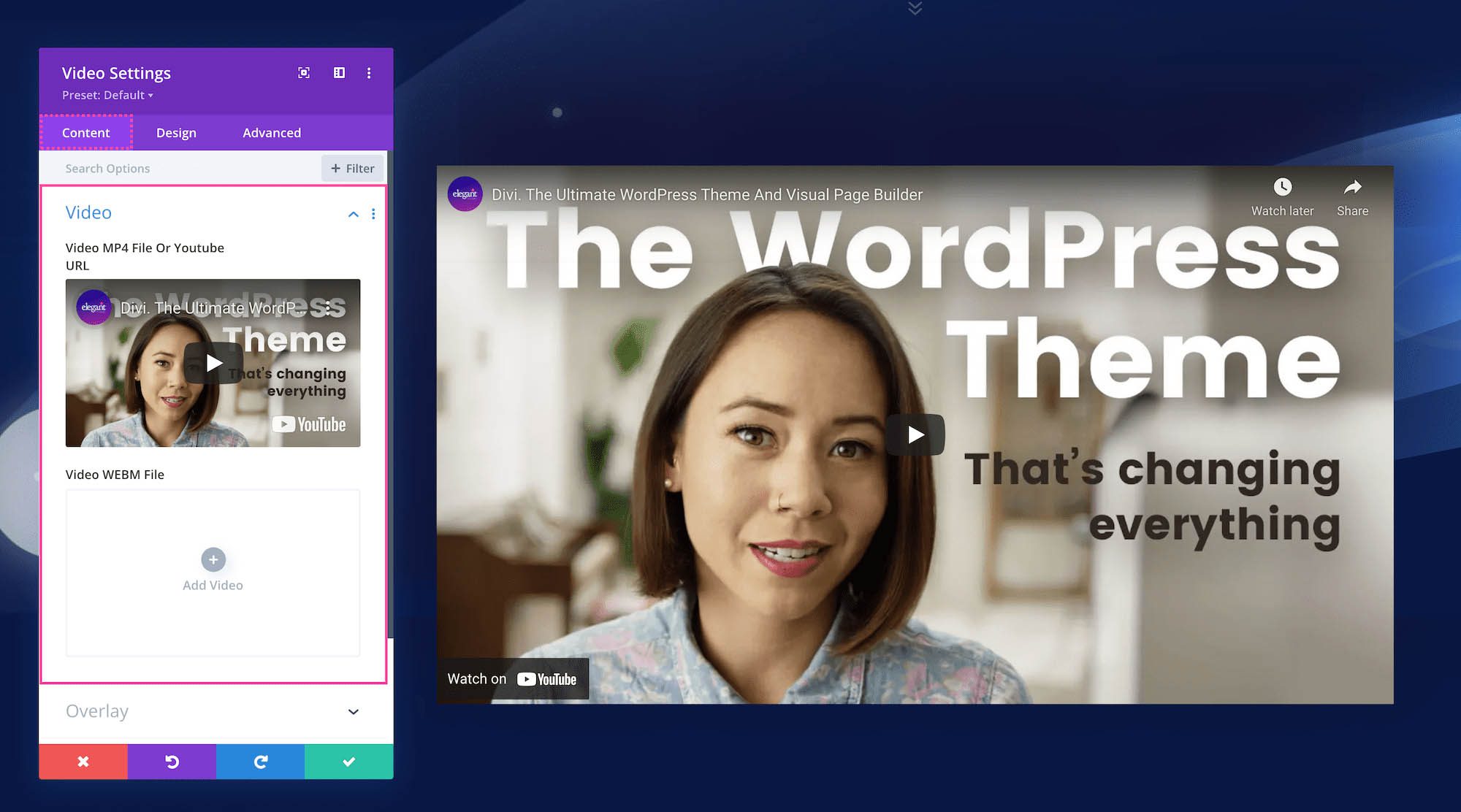
YouTube and Vimeo offer easy video sharing. Copy the video link. Paste it into your WordPress post or page. WordPress will automatically embed the video. This makes video sharing simple. It’s a quick way to add videos to your site.
Customizing embedded videos can enhance your site’s look. Adjust video size to fit your theme. Use options to hide video controls. You can set videos to autoplay. It’s important to keep users interested.
Some themes let you change video borders. This makes videos match your site’s design. Always test your videos. Ensure they work on all devices. Keeping videos mobile-friendly is crucial. It improves user experience.

Credit: thewebsitearchitect.com
Troubleshooting Common Video Issues
Adding videos to a WordPress theme can enhance user engagement. To troubleshoot common video issues, check video formats and compatibility. Optimize video settings in the media library for smooth playback, ensuring the content is visible and accessible to all users.
Resolving Playback Problems
Videos may not play smoothly. Check your internet connection first. A slow connection affects playback. Ensure the video format is supported. Formats like MP4 and WebM are best. Clear the browser cache if problems persist. This can fix playback issues. Update your browser to the latest version. Older versions may cause problems. If using plugins, ensure they are updated too. Some plugins affect video playback.
Improving Video Load Times
Fast loading videos keep users happy. Optimize the video size before uploading. Large files take longer to load. Use video compression tools. These tools reduce file size. Choose a reliable hosting service. Good hosting speeds up loading times. Implement lazy loading for videos. This loads videos only when needed. Keep the number of videos on a page low. Too many videos slow down the page.
Credit: www.elegantthemes.com
Frequently Asked Questions
How Do I Embed A Video In WordPress?
To embed a video in WordPress, simply copy the video URL from platforms like YouTube or Vimeo. Paste it directly into your post or page editor. WordPress automatically converts it into an embedded video. Ensure your theme supports video embedding for optimal display.
Can I Add Videos Using A Plugin?
Yes, you can add videos using plugins like Video Embed & Thumbnail Generator or WP Video Popup. These plugins offer additional features like custom video players and responsive design. Search for them in the WordPress plugin directory, install, and activate to enhance your video embedding experience.
Why Is My Video Not Displaying Correctly?
Your video might not display correctly due to theme compatibility issues or incorrect URL format. Ensure your theme supports video content and verify the video link. Check for plugin conflicts or outdated WordPress versions. Updating your theme or plugins might resolve the issue.
Does Video Affect Website Loading Speed?
Yes, videos can affect loading speed if not optimized. Use compressed video files and consider lazy-loading techniques. Lazy-loading allows videos to load only when visible to users. This improves performance and ensures faster load times, enhancing user experience and SEO.
Conclusion
Adding video to your WordPress theme enhances user experience. Videos engage visitors and convey messages effectively. They make your site more interactive and appealing. Follow simple steps to integrate videos smoothly. Use plugins or built-in features for easy video embedding.
Ensure videos are optimized for faster loading. Keep them relevant to your content and audience. Test on multiple devices for compatibility. With video, your WordPress site becomes more dynamic. Start embedding today and see improved visitor retention. Videos can transform your site into a more vibrant space.
Enjoy the benefits of multimedia content.


