

Are you looking to add a new user to your WordPress site but unsure where to start? Managing users is key to running a smooth website, whether you want to give someone admin access or just let them contribute content.
In this guide, you’ll discover simple, step-by-step instructions that anyone can follow—no tech skills needed. By the end, you’ll feel confident giving the right permissions to the right people, keeping your site secure and organized. Ready to take control of your WordPress user management?
Let’s dive in.
Credit: www.greengeeks.com
User Roles In WordPress
User roles in WordPress control what users can and cannot do. Each role has specific permissions. Assigning the right role helps keep your site safe and organized.
WordPress offers five main user roles. Each role fits different needs and tasks. Understanding these roles makes managing your site easier.
Administrator
The Administrator has full control over the website. They can add, edit, or delete any content. They manage plugins, themes, and settings. This role is for trusted users only.
Editor
Editors manage all content on the site. They can publish, edit, or delete posts by any user. They cannot change site settings or install plugins. Editors focus on content quality and organization.
Author
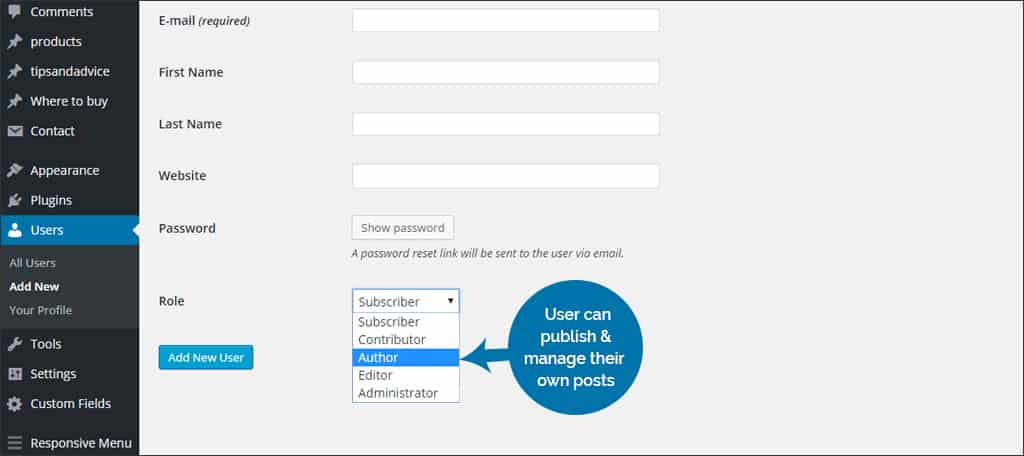
Authors can write, edit, and publish their own posts. They cannot edit or delete others’ posts. Authors do not manage site settings. This role suits regular content creators.
Contributor
Contributors can write and edit their own posts. They cannot publish posts. Editors or Administrators must approve their work. Contributors do not upload files or images.
Subscriber
Subscribers can only manage their profiles. They cannot write or edit posts. This role is for users who need to read content or leave comments. It offers minimal access to the site.
Accessing The Users Section
Accessing the Users section in WordPress is the first step to managing site members. This area lets you add, edit, or remove users quickly. It is simple to find and use, even for beginners.
You need to log in to your WordPress dashboard to start. The dashboard is the control center for your website. From there, you can access all settings, including user management.
Logging Into The WordPress Dashboard
Open your web browser and enter your site’s login URL. Usually, it looks like yoursite.com/wp-admin. Enter your username and password. Click the login button to enter the dashboard.
Finding The Users Menu
Look at the left side of the dashboard. You will see a menu with many options. Find the one labeled “Users.” Click on it to open the user management section.
Understanding The Users Section Layout
The Users section shows a list of all registered users. You can see their usernames, roles, and emails here. Above the list, there are buttons to add new users or edit existing ones.
Adding A New User
Adding a new user to WordPress is simple and quick. It helps you manage your website better. You can give different people access to your site. Each user can have specific permissions. This keeps your website safe and organized.
Follow these steps to add a new user easily.
Filling Out User Details
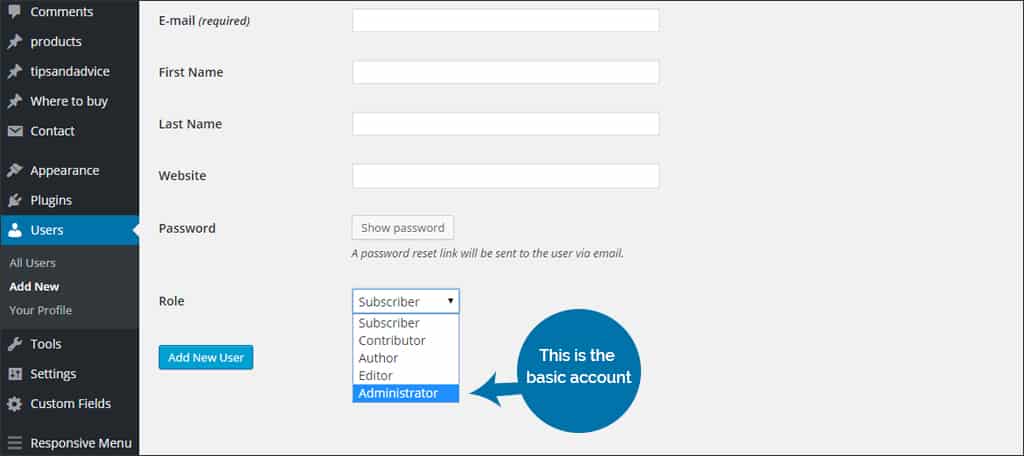
Start by going to the WordPress dashboard. Click on “Users” and then “Add New.” Enter the new user’s username. Use a unique name for easy identification. Add the user’s email address next. This is important for notifications and password resets. You can also fill in the first and last name. It helps keep your user list clear. Optionally, add a website URL if relevant. Finally, write a short bio if needed. This appears on author pages if used.
Selecting The User Role
Choose the right user role carefully. WordPress offers roles like Subscriber, Contributor, Author, Editor, and Administrator. Each role has different access rights. Subscribers can only read content. Contributors can write but not publish. Authors can publish and manage their own posts. Editors can manage all posts and pages. Administrators have full control of the site. Pick the role that matches the user’s tasks. This keeps your site secure and running smoothly.
Setting A Password
Create a strong password for the new user. WordPress suggests a secure password automatically. You can accept it or create your own. Make sure the password is hard to guess. Use a mix of letters, numbers, and symbols. Send the password to the user safely. You can also let WordPress email the new user their login details. This completes the user setup. The user can now log in and start working.
Inviting Users Via Email
Inviting users via email is a simple way to add new members to your WordPress site. This method lets you send an invitation link directly to the user’s email. They can join your site by accepting the invite and setting up their account.
This process saves time and keeps user management easy. You don’t have to create accounts manually or share passwords. The new user receives a secure link and can start working on your site right away.
How To Send An Invitation Email
First, log in to your WordPress dashboard. Navigate to the “Users” section and click “Add New.” Enter the new user’s email address. Choose the right role for the user, such as Subscriber or Editor. Check the box that says “Send User Notification.” Click “Add New User.” The invitation email will be sent automatically.
What The User Sees In The Invitation
The user gets an email with a link to join your site. The email explains their role and what they can do. When they click the link, they set their username and password. This step makes their account active and ready to use.
Tips For Managing Invited Users
Keep track of who you invite. Check user roles to avoid giving too many permissions. Remove inactive users to keep your site secure. Remind users to check their spam folder for the invitation email.
Managing Existing Users
Managing existing users in WordPress is important to keep your site organized. It helps you control who can do what. You can update user details, change their roles, or remove users you no longer need.
This section explains how to handle these tasks easily in WordPress.
Editing User Information
To edit user information, go to the WordPress dashboard. Click on “Users” to see all users. Select the user you want to edit. Change their name, email, or other details. Save the changes to update the profile. This keeps user info current and accurate.
Changing User Roles
User roles control what users can do on your site. You can change a user’s role anytime. Go to “Users” and pick the user. Find the “Role” dropdown menu. Choose a new role like Subscriber, Editor, or Administrator. Save your changes to apply the new role. This helps manage permissions easily.
Deleting Users
Deleting users removes them from your site. Visit the “Users” list in the dashboard. Hover over the user and click “Delete.” WordPress asks what to do with their content. Choose to delete or assign it to another user. Confirm the deletion to finish. This keeps your user list clean and secure.
Credit: www.greengeeks.com
Using Plugins To Add Users
Using plugins to add users in WordPress simplifies the process. Plugins offer extra features that the default system does not have. They help manage user roles, permissions, and profiles easily. This method saves time and reduces errors during user setup.
Popular User Management Plugins
Several plugins stand out for adding and managing users. User Role Editor allows easy role changes and custom roles. WPForms lets you create custom registration forms. MemberPress supports membership sites with user control. Ultimate Member offers front-end user registration and profiles. These tools fit different needs and skill levels.
Benefits Of Plugins
Plugins make user management simple and fast. They let you control who can see and do what. You can customize registration forms to collect needed information. These tools reduce manual work and avoid mistakes. Plugins also improve site security by managing permissions carefully. They help create a smooth experience for both admins and users.
Best Practices For User Management
Managing users in WordPress requires care and attention. Proper user management helps keep the site safe and organized. It also ensures that users have the right access to perform their tasks. Follow these best practices to maintain control and security on your WordPress site.
Security Tips
Always use strong passwords for all user accounts. Weak passwords can make your site vulnerable. Encourage users to change passwords regularly. Limit login attempts to prevent hacking. Use two-factor authentication for extra security. Keep WordPress and all plugins updated. Remove inactive or unused user accounts promptly. Regularly review user activity to spot unusual behavior.
Role Assignment Strategies
Assign roles based on the user’s needs and skills. Avoid giving admin rights to everyone. Use the least privilege principle to reduce risks. Editors can manage content but not site settings. Authors can write posts but not publish others’ work. Subscribers have limited access, mainly for comments. Review roles often and adjust as needed.

Credit: www.youtube.com
Frequently Asked Questions
How Do I Add A New User In WordPress?
To add a new user, go to your WordPress dashboard. Navigate to Users > Add New. Fill in the user details and assign a role. Click “Add New User” to save.
What User Roles Can I Assign In WordPress?
WordPress offers several roles: Administrator, Editor, Author, Contributor, and Subscriber. Each role has different permissions. Choose based on the user’s responsibilities and access needs.
Can I Add Multiple Users At Once In WordPress?
By default, WordPress doesn’t support adding multiple users simultaneously. However, you can use plugins like “Import Users from CSV” to bulk upload users efficiently.
How Do I Manage User Permissions In WordPress?
Manage permissions by assigning appropriate roles to users. For custom permissions, use plugins like “User Role Editor” to modify capabilities as needed.
Conclusion
Adding a user to WordPress is simple and quick. Just follow the steps carefully. You can control what each user can do on your site. This keeps your site safe and organized. Remember to choose the right role for every user.
Managing users well helps your website grow smoothly. Try adding users today to share tasks easily.


