

Are you looking to add a user login to your WordPress site but don’t know where to start? Having a login feature can transform your website, letting you control who accesses content and creating a more personalized experience for your visitors.
Whether you want to build a membership site, offer exclusive content, or simply manage user accounts better, adding a login is the key step. You’ll discover simple, clear steps to set up a secure and user-friendly login system on your WordPress site—no technical jargon, just easy-to-follow guidance.
Keep reading, and you’ll have your login feature up and running in no time!
Why Add User Login
Adding user login to a WordPress site brings many benefits. It creates a secure space for visitors and site owners. User login helps manage content and user access easily. It also builds a community around your website. Understanding why to add login can guide your site’s growth.
Benefits For Site Owners
User login lets site owners control who sees what content. You can offer exclusive content to logged-in users only. This increases the value of your site. Managing user roles becomes simple with login features. You can track user activities and improve site security. It helps in collecting user data for better marketing. User login also reduces spam by limiting content access.
Advantages For Users
Users get a personalized experience after logging in. They can save preferences and access special content. Login allows users to interact with the site easily. It enables commenting, posting, or buying products safely. Users feel more connected to the site. Login also makes it easy to track orders or history. Overall, it improves user satisfaction and trust.
Credit: www.malcare.com
Choosing The Right Plugin
Choosing the right plugin is a key step to add user login to your WordPress site. The plugin controls how users register, log in, and manage their accounts. Picking a plugin that fits your needs makes the process easier and improves user experience.
Many plugins offer different features, designs, and security levels. Some are simple and lightweight. Others include advanced options like social login or custom fields. Understanding what each plugin offers helps you decide what suits your site best.
Popular Login Plugins
Several plugins are widely used for WordPress login systems. WPForms lets you create custom login forms easily. Theme My Login matches your site’s design for a seamless look. LoginPress offers stylish login page templates and customization options. Ultimate Member supports user profiles and memberships. Nextend Social Login allows users to log in with social media accounts.
Features To Look For
Security is a top feature to check. Plugins should support strong passwords and protect against attacks. Customization matters too. You want to change colors, logos, and form fields to match your brand. Easy setup saves time, especially for beginners. Look for plugins with clear instructions and good support. Compatibility with other plugins and WordPress updates keeps your site stable. Extra features like social login or email verification add value but may not be necessary for all sites.
Installing The Plugin
Installing a plugin is the first step to add user login to your WordPress site. Plugins extend the site’s features without coding. The process is simple and quick.
This guide covers installing and activating the plugin for user login.
Step-by-step Installation
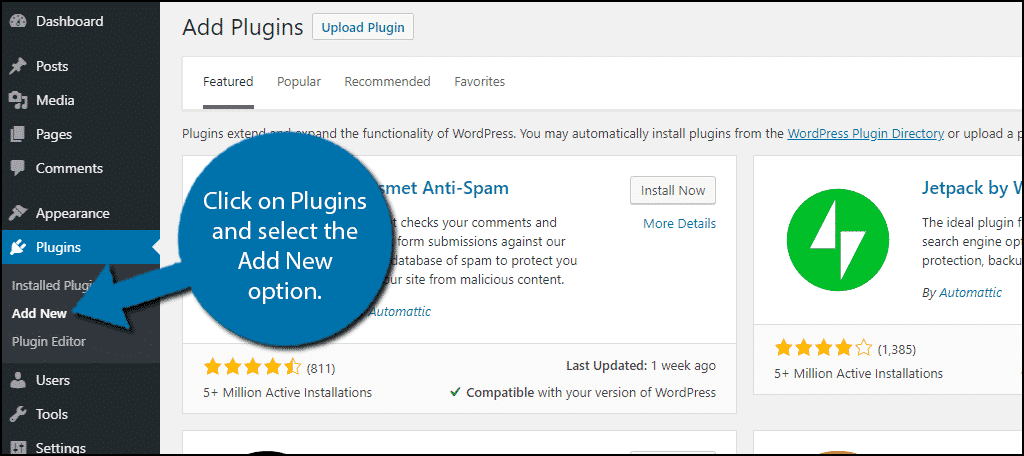
Log in to your WordPress dashboard. On the left menu, click “Plugins.” Then select “Add New.”
Use the search box to find a user login plugin. Popular ones include “User Login,” “WPForms,” or “LoginPress.”
Find the plugin that fits your needs. Click “Install Now” next to it. Wait a few seconds for WordPress to download and install the plugin.
Activating The Plugin
After installation, the “Install Now” button changes to “Activate.”
Click “Activate” to enable the plugin on your site. The plugin is now ready for setup.
Check your WordPress menu for new options added by the plugin. This allows you to customize login settings.
Configuring Login Settings
Configuring login settings is a key step to secure your WordPress site. It controls how users access and interact with your site. Proper setup helps protect your content and manage who can join your community.
You can customize login forms, set user roles, and manage registration options. These settings shape the user experience and site security. Let’s explore each part in detail.
Customizing Login Forms
Custom login forms make your site look professional. You can change colors, logos, and fields. This helps users feel comfortable and trust your site. Plugins like WPForms or Theme My Login offer easy customization. Simple changes improve the user experience and make login fast.
Setting User Roles
User roles control what users can do on your site. WordPress has default roles like Administrator, Editor, Author, Contributor, and Subscriber. Assign roles carefully to protect your site’s content. For example, give editing rights only to trusted users. Correct roles keep your site safe and organized.
Managing Registration Options
Control who can register on your site. You can allow open registration or restrict it. Enable email verification to avoid fake accounts. You may also add captcha to block spam. These settings keep your user base real and secure. Manage registration to build a trusted community.
Adding Login Forms To Your Site
Adding login forms to your WordPress site lets visitors sign in easily. This feature helps control who sees your content. It also improves user experience. You can place login forms in several spots on your site. Choose the option that fits your site style and needs.
Using Shortcodes
Shortcodes are simple codes you insert into pages or posts. Many login plugins provide shortcodes. Copy the shortcode from your plugin’s settings. Paste it where you want the login form to appear. This method works great for custom pages. It keeps your site clean and organized. Visitors will see the login form right on the page.
Adding Widgets
Widgets add features to sidebars or footers. Most login plugins come with a widget option. Go to Appearance > Widgets in the WordPress dashboard. Drag the login widget to your sidebar or footer area. Customize the title and settings as needed. This method makes the login form easy to find. Visitors can log in from any page on your site.
Integrating With Menus
You can add login links directly to your site’s menu. This keeps the login option visible on all pages. Use a plugin that supports menu login links. Or add a custom link with the URL to your login page. Name the link clearly, like “Login” or “Sign In.” This method helps users find the login quickly. It also keeps your menu simple and clean.
Enhancing Security
Enhancing security is a key step when adding user login to your WordPress site. Protecting user accounts helps keep your site safe from hackers and spam. Simple security measures can stop many common attacks and keep your site running smoothly.
Enabling Captcha
Captcha blocks automated bots from logging in. It asks users to prove they are human by solving a small test. This stops fake login attempts and spam registrations. Many plugins offer easy ways to add Captcha to your login page.
Two-factor Authentication
Two-factor authentication adds a second step to login. Users enter their password first. Then, they must enter a code sent to their phone or email. This extra step makes it much harder for hackers to access accounts.
Limiting Login Attempts
Limiting login attempts reduces the chance of brute-force attacks. It blocks access after several failed tries. This prevents hackers from guessing passwords by trying many combinations. Most security plugins include this feature for easy setup.
Testing The Login Process
Testing the login process is a key step in securing your WordPress site. It ensures users can access their accounts smoothly. This step helps find any errors before real users face them. Proper testing saves time and prevents frustration later.
Creating Test Users
Create several test accounts with different roles. This checks if each user type logs in correctly. Use simple usernames and passwords for easy testing. Try logging in with each account to confirm access. Test the password reset option as well.
Troubleshooting Common Issues
Check for login errors like incorrect passwords or locked accounts. Clear browser cache and cookies if login fails unexpectedly. Disable conflicting plugins that may block login functions. Review your site’s login URL to ensure it’s correct. Keep an eye on error messages for clues.
Credit: wordpress.org
Managing Users After Setup
Managing users after setting up login on your WordPress site is important. It helps keep your site secure and organized. You can control what users do and update their details anytime. This section guides you on how to edit user profiles and remove or suspend users easily.
Editing User Profiles
WordPress allows you to edit user profiles from the dashboard. Go to the “Users” menu and select the user you want to edit. You can change their name, email, role, and password. Updating roles controls what users can access on your site. Always save changes to keep the profile updated.
Deleting Or Suspending Users
Removing inactive or unwanted users keeps your site safe. To delete a user, open the “Users” list and click “Delete” under their name. WordPress asks what to do with the user’s content. You can assign it to another user or delete it. Suspending users needs a plugin to block access without deleting. This helps manage users without losing data.
Credit: www.greengeeks.com
Frequently Asked Questions
How Do I Add A Login Form To My WordPress Site?
You can add a login form using plugins like WPForms or LoginPress. These plugins offer easy drag-and-drop features and customization. Simply install, activate, and configure the login form on your desired page or widget area.
Can I Customize The WordPress Login Page Design?
Yes, you can customize the login page using plugins like Custom Login Page Customizer. This lets you change logos, backgrounds, colors, and text to match your brand. No coding is required, making it simple and effective.
Is It Necessary To Use A Plugin For User Login?
Using a plugin is recommended for ease and added features. Plugins improve security, design, and user management. However, you can add custom code, but it requires development skills and is less flexible.
How To Secure The WordPress Login Page?
Secure your login page by enabling two-factor authentication, using strong passwords, and limiting login attempts. Plugins like Wordfence and Loginizer help protect against brute force attacks and unauthorized access.
Conclusion
Adding user login to your WordPress site helps create a better experience. It allows visitors to access special content easily. Plugins make the process quick and simple. Always choose secure passwords to protect your site. Test the login feature before going live.
Keep your site updated for safety and performance. With these steps, your site feels more personal and professional. Users will enjoy returning to your site often. Start adding user login today and see the difference.


