
Imagine a website where your content shines brilliantly, captivating your audience with every visit. The secret?
The strategic use of multiple headers. By learning how to add two headers to your WordPress theme, you can transform your site’s appearance and functionality. This guide will walk you through the steps to achieve that, ensuring your website not only looks professional but also stands out in the crowded digital space.
You might think it’s complex, but it’s simpler than you imagine. Stick with us, and you’ll discover how to enhance your website’s user experience, making it more engaging and visually appealing. Ready to elevate your WordPress game? Let’s dive in and unlock the potential of dual headers for your site!
Understanding WordPress Theme Structure
WordPress themes have a special layout. Each theme has files that shape the look. The files include header.php, footer.php, and others. Header.php is where the header design sits. It shows the top part of the website. This part can have the site logo, menu, and more.
Adding a second header needs changes in the theme files. You will need to create another header file. Name it something like header-second.php. This helps to keep things organized. After this, you can call this new header in the WordPress code. Knowing the structure is key. It helps in making changes without breaking the site.
Identifying Header Areas
The primary header is at the top of your website. It usually shows the logo and navigation menu. Most themes have a default spot for it. You can find it in the theme settings or customizer. This header is the first thing people see. Make it clear and neat.
The secondary header is below the primary header. It can show extra links or social media buttons. Sometimes it’s used for announcements. This header gives more info without cluttering the main view. Some themes allow you to add it in widget areas. Check your theme options for this feature.
Using Child Themes
Child themes let you change a WordPress theme. They save your edits. You can update the parent theme. Your changes stay safe. Child themes let you tweak designs. No worry about losing your work. They are easy to use. They help in learning WordPress coding. You can test new ideas. Mistakes do not harm the main theme. Child themes are a great tool for developers. They keep your site stable and updated.
First, create a new folder. Name it child theme. Make style.css and functions.php files. Link the child theme to the parent theme. Use @import in style.css. This grabs styles from the parent theme. Add more code in functions.php. Activate your child theme in WordPress. Now you can start customizing. Change layout, colors, or fonts. Always test your changes. Make sure they work well. Keep backups of your work. Child themes help you build a unique site.

Credit: www.elegantthemes.com
Modifying Header Code
First, go to your WordPress dashboard. Click on Appearance, then Theme Editor. You will see many files on the right side. Find the file named header.php. This is where you will make changes. Always make a backup before editing files. This keeps your site safe.
Open the header.php file. Look for the code that defines the header. Copy this code. Paste it below the original header code. Now, you have two headers. You can change the second header. Make it different from the first one. Save your changes and check your site. You should see two headers now. Easy and fun!
Adding A Second Header
First, you need to create the new header file. Name it as header-secondary.php. This file will hold the code for the second header. You can copy the existing header from header.php. Then, make changes to fit your needs. Add custom styles and elements to make it unique.
To show the second header, edit the theme files. Find the header.php file. Insert a get_template_part('header', 'secondary') line where you want the second header to appear. Save changes and check your site. You should see both headers now. Ensure styles do not conflict. Adjust CSS if necessary.
Styling The Headers
Enhance your WordPress theme by adding a second header for improved navigation. Use simple code snippets to customize your site’s appearance. Make your website more user-friendly and visually appealing with dual headers.
Customizing Css
Use CSS to make your headers stand out. Add color, size, and style to your headers. Use the font-size property to make text bigger or smaller. Choose colors with the color property. Add background colors using background-color.
Try different fonts to make your headers unique. You can use Google Fonts for more options. Add padding to give space around the text. The padding property helps with this.
Responsive Design Considerations
Make sure your headers look good on all devices. Use media queries to change styles for different screen sizes. Test on phones, tablets, and computers.
Keep headers readable on small screens. Avoid too much text. Use em or % for font sizes. This helps with scaling on different devices.
Testing And Troubleshooting
Easily add two headers to your WordPress theme by editing the header. php file. Customize each header section with unique styles. Ensure smooth functionality by testing changes in different browsers.
Common Issues
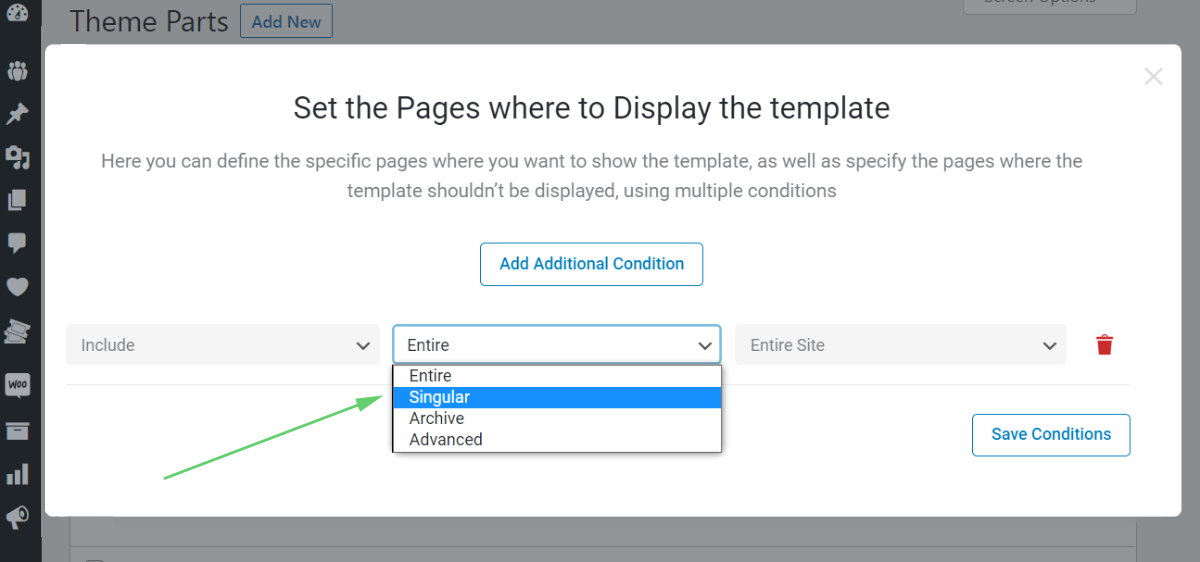
Some themes may not support two headers. Theme compatibility is important. Header conflicts can occur. This happens when styles overlap. Plugin interference can also be a problem. Plugins sometimes change header settings. Code errors are common. A missing bracket can cause issues. Always check your code.
Debugging Tips
Check your theme’s documentation. It may have specific instructions for headers. Use a child theme. This keeps your changes safe. Inspect element in your browser. Look at the code for errors. Disable plugins one by one. See if a plugin is causing issues. Clear cache regularly. Old cache can show outdated headers.
Credit: crocoblock.com
Utilizing Plugins For Multiple Headers
To add two headers, you need the right tools. Plugins make this easy. Elementor is a popular choice. It offers many features. WP Header Images is another good plugin. It helps with multiple headers. Header Footer Code Manager can also be useful. Choose the plugin that fits your needs best. Check their reviews before downloading. Many users share their experiences. This can help you decide.
After installing a plugin, you need to set it up. Go to the settings in your WordPress dashboard. Find the plugin you installed. Each plugin has its own setup steps. Read the instructions carefully. Follow them one by one. If you face issues, check online forums. Many people share solutions there. Adjust the settings to your liking. Test your site to see changes. Make sure everything looks right.
Future Maintenance
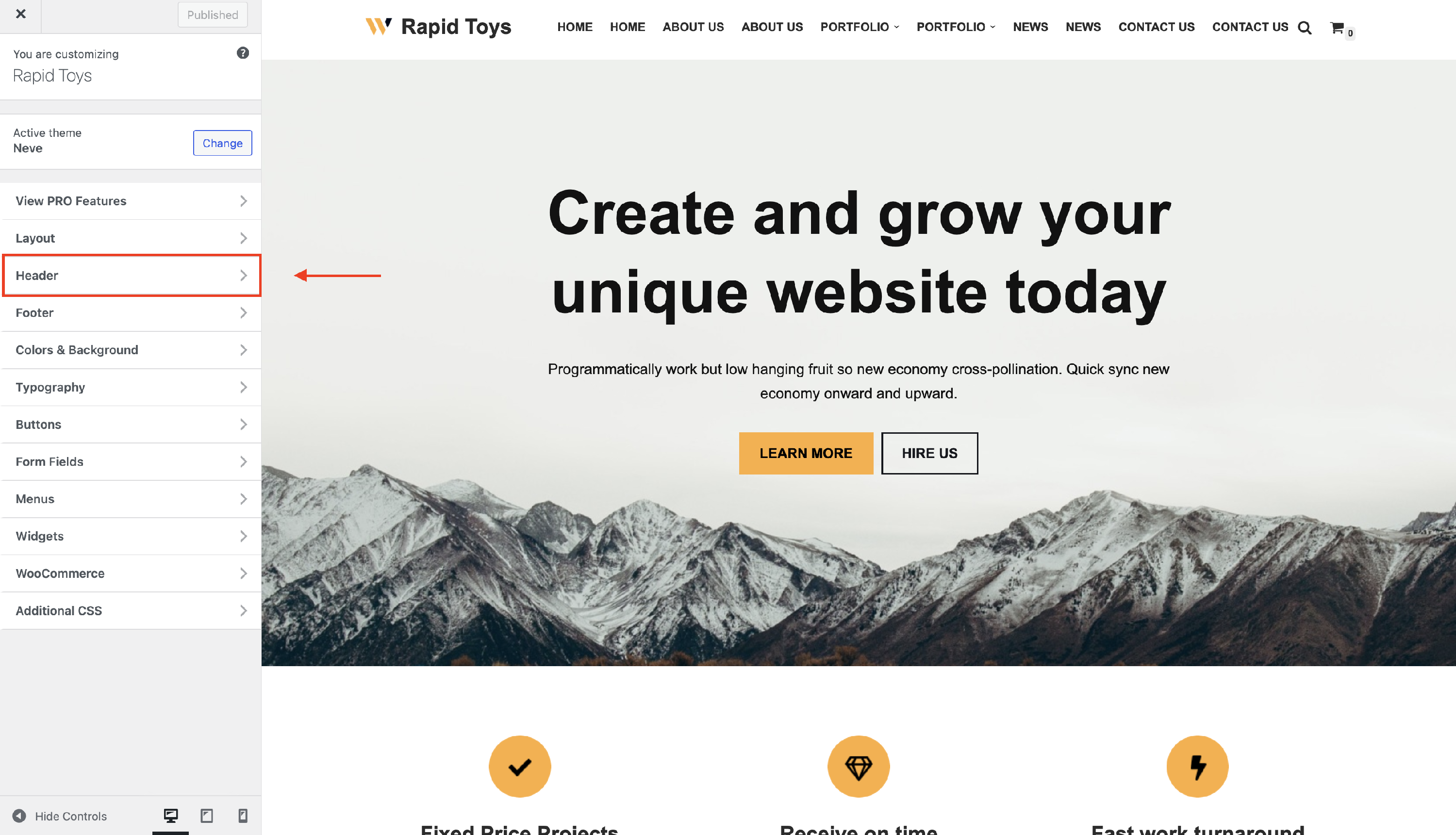
Keeping your theme updated is very important. Updates fix bugs and add new features. Always check for updates in the WordPress dashboard. Click on “Updates” to see if a new version is available. Update your theme by clicking the “Update Now” button. This keeps your site safe and running smoothly.
Check if your theme works with new plugins. Some plugins need certain theme features. Test plugins on a staging site first. This helps keep your main site safe. If a plugin breaks your site, you can remove it easily. Make sure your theme supports the latest WordPress version. This helps everything work well together.
Credit: docs.themeisle.com
Frequently Asked Questions
How Do I Add Multiple Headers In WordPress?
To add multiple headers in WordPress, first access your theme’s code files. Duplicate the header. php file and rename it. Customize the new header as needed. Integrate it by calling the new header in specific templates using `get_header(‘new-header-name’)`.
Can I Use Plugins For Multiple Headers?
Yes, plugins like “Multiple Headers” can simplify adding multiple headers in WordPress. Install the plugin, configure settings, and assign headers to different pages or templates. This method avoids direct code edits and provides a user-friendly interface for customization.
How Do I Customize Header Styles?
Customize header styles by editing the CSS in your theme’s style. css file. You can modify elements like background, font, and layout. Use custom CSS classes and IDs to target specific headers for personalized styling.
Is Coding Knowledge Required For Adding Headers?
Basic coding knowledge is helpful but not mandatory. You can use WordPress page builders or plugins to add headers without coding. These tools offer drag-and-drop interfaces and pre-designed elements to streamline header customization.
Conclusion
Adding two headers in a WordPress theme can enhance your site’s look. It’s a straightforward process with practice. Start by accessing the theme editor. Next, modify the header file. Use clear codes and follow instructions carefully. Remember to save changes.
Check how your site appears. With these steps, your site will have a polished and professional feel. Experiment with designs to find what suits best. Keep learning and exploring WordPress features. Enjoy building a website that stands out.


