

Want to make your WordPress site more lively and engaging? Adding a Twitter feed is one of the easiest ways to do it.
Imagine your visitors seeing your latest tweets without leaving your website. It builds trust, keeps your content fresh, and encourages people to follow you on social media. In this post, you’ll learn simple, step-by-step methods to add your Twitter feed to your WordPress site—no tech skills needed.
Keep reading, and you’ll have your feed up and running in no time!
Credit: smashballoon.com
Benefits Of Adding Twitter Feed
Adding a Twitter feed to your WordPress site brings many benefits. It helps keep your website fresh and active. Visitors see live updates without leaving your page. This makes your site more dynamic and interesting. The Twitter feed also builds trust by showing real-time social proof. Let’s explore some key advantages.
Increase User Interaction
A Twitter feed invites users to engage with your content. Visitors can see your latest tweets and reply or retweet directly. This interaction keeps people on your site longer. It encourages them to join conversations and share your messages. More interaction means a stronger connection with your audience.
Showcase Real-time Updates
Twitter feeds display your newest posts instantly. Your website visitors get fresh news and announcements in real time. This keeps your site content relevant and timely. It also helps highlight events, offers, or important changes quickly. Visitors appreciate up-to-date information without extra effort.
Enhance Website Content
A Twitter feed adds valuable content to your WordPress site. It complements your blog posts and pages with social insights. The feed shows opinions, trends, and user reactions related to your niche. This variety makes your site richer and more appealing. It also helps improve SEO by increasing content diversity.

Credit: elfsight.com
Preparing Your Twitter Account
Preparing your Twitter account is the first step to show your tweets on your WordPress site. It helps you control what visitors see. A well-prepared account makes your feed look clean and professional. Follow these steps to get your Twitter ready.
Make Your Profile Public
Your Twitter profile must be public to share tweets. A private profile hides tweets from visitors. Check your privacy settings in your Twitter account. Switch off the “Protect your Tweets” option. This change lets your WordPress site display tweets freely.
Choose Relevant Tweets
Select tweets that match your website’s theme. Relevant tweets keep visitors interested and engaged. Avoid tweets that may confuse or distract your audience. Review your recent tweets and delete any that do not fit. Plan future tweets to align with your site’s content.
Create A Twitter Widget
Twitter widgets help display your feed on WordPress easily. Visit the Twitter Publish page to start. Enter your Twitter profile URL and choose the widget type. Customize the look and size to fit your site. Copy the provided code to paste on your WordPress site.
Methods To Embed Twitter Feed
Embedding a Twitter feed on your WordPress site helps share updates and engage visitors. You can choose from several simple methods to add a live Twitter feed. Each method fits different skill levels and site setups. Pick the one that suits your needs best.
Using WordPress Plugins
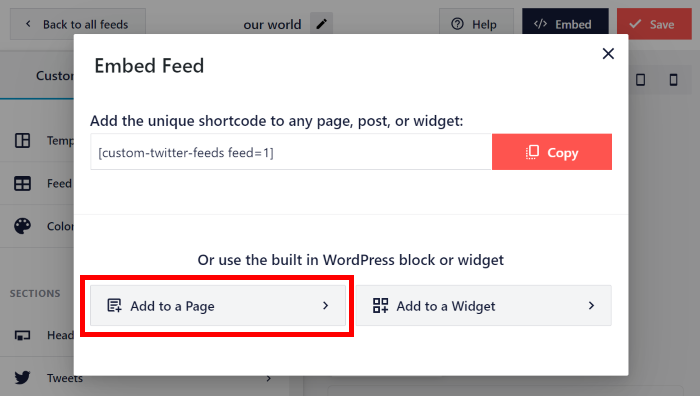
Plugins are the easiest way to add a Twitter feed. Many free and premium plugins exist. They handle the technical parts for you. Just install the plugin, connect your Twitter account, and customize the display. Plugins also offer options to control the look and behavior of the feed. This method requires little technical skill and saves time.
Manual Embedding With Twitter Widgets
You can embed Twitter feeds manually using Twitter’s own widgets. Visit the Twitter Publish site to create a widget code. Choose your feed type, such as user timeline or hashtag feed. Copy the generated code and paste it into your WordPress site’s HTML block or widget area. This method gives more control but needs basic knowledge of HTML.
Using Page Builders
Popular page builders like Elementor or Divi often include Twitter feed modules. These modules let you add and style feeds without coding. Drag the Twitter widget to your page, then connect your Twitter account. Customize the layout and appearance inside the builder interface. This method suits users who build pages visually and want quick results.
Step-by-step Plugin Installation
Adding a Twitter feed to your WordPress site is easier with the right plugin. Plugins help you show tweets without coding. This section guides you step-by-step on installing and setting up a plugin.
Follow these steps carefully to get your Twitter feed live fast. The process is simple and clear for all skill levels.
Selecting The Right Plugin
Choose a plugin that fits your needs. Check for good reviews and recent updates. Popular options include “Custom Twitter Feeds” and “Smash Balloon Social Post Feed.” Pick one that supports your WordPress version. Look for features like customization and ease of use. Avoid plugins that seem outdated or have few downloads.
Installing And Activating
Go to your WordPress dashboard. Click on “Plugins” then “Add New.” Use the search bar to find your chosen Twitter plugin. Click “Install Now” and wait a few seconds. After installation, click “Activate.” The plugin is now ready for setup. No technical skills needed here.
Configuring Plugin Settings
Open the plugin settings from the dashboard menu. Connect your Twitter account by entering your username or API keys. Adjust how the feed looks on your site. Choose the number of tweets to display and layout style. Save your settings to apply changes. Preview your site to see the feed in action.
Manual Twitter Widget Integration
Manual Twitter widget integration lets you add a live Twitter feed to your WordPress site. This method gives control over how your feed looks and works. It does not require extra plugins. You add a small piece of code directly to your site.
This approach is great for simple feeds or when you want to customize the display. It shows your latest tweets and keeps visitors updated with your Twitter activity.
Generating The Widget Code
Start by visiting Twitter’s official widget page. Log in with your Twitter account. Choose the type of timeline you want, like a user timeline or hashtag feed. Enter your Twitter handle or hashtag in the setup box.
Adjust settings such as height, width, and link color. Twitter will create a block of HTML code for you. Copy this code carefully. This code is what makes the feed appear on your site.
Adding Code To WordPress
Log in to your WordPress dashboard. Navigate to Appearance and then Widgets. Select a widget area where you want the Twitter feed to appear, like a sidebar or footer.
Add a Custom HTML widget. Paste the copied Twitter code inside this widget. Save your changes. Now, visit your site to see the live Twitter feed in action.
For adding to a post or page, switch to the HTML editor and paste the code there. Update or publish your content to display the feed.
Customizing Widget Appearance
Modify the widget code to change appearance. You can set width and height in the code directly. Use colors that match your site’s design for links and backgrounds.
Twitter offers options for light or dark themes. Choose the one that fits your site’s style. Custom styles help the feed blend smoothly with your website.
Test different settings and preview changes before finalizing. Keep the feed simple and easy to read for better user experience.
Optimizing Twitter Feed Display
Optimizing the Twitter feed display on your WordPress site helps keep visitors engaged. A well-designed feed fits your site style and shows relevant content. It also works well on any device. Simple tweaks can improve user experience and site speed.
Adjusting Feed Size And Layout
Set the feed width and height to match your site’s space. Avoid feeds that are too big or too small. Choose a layout style like a list or grid that fits your theme. A clean layout makes tweets easy to read and attractive.
Filtering Tweets
Show tweets that matter most to your audience. Filter out replies, retweets, or specific words. This keeps your feed focused and relevant. Filtering reduces clutter and highlights important updates or news.
Ensuring Mobile Responsiveness
Make sure your Twitter feed looks good on phones and tablets. Use responsive design settings or plugins that adapt the feed size automatically. A mobile-friendly feed improves visitor experience and keeps people on your site longer.
Troubleshooting Common Issues
Adding a Twitter feed to your WordPress site can boost engagement. Sometimes, the feed may not work as expected. This section helps fix common problems quickly.
Feed Not Showing Up
Check if the Twitter widget is properly connected to your account. Sometimes, the API keys or tokens expire. Refresh or re-enter these keys in your plugin settings. Clear your site cache to see updates. Disable other plugins that might block the feed. Also, ensure your theme supports widgets in the area where you place the feed.
Slow Loading Times
Twitter feeds can slow your site if too many tweets load at once. Limit the number of tweets displayed in settings. Use a caching plugin to store feed data temporarily. Optimize images and scripts on your site. Choose a reliable hosting service with good speed. Avoid placing multiple social feeds on the same page.
Widget Customization Problems
Customization issues often arise from conflicts with your theme’s CSS. Use the plugin’s built-in options to adjust colors, fonts, and sizes. Add custom CSS carefully if needed. Test changes on different devices to ensure proper display. Update your plugin and WordPress regularly to fix bugs. Check plugin documentation for specific customization tips.
Credit: flockler.com
Tips To Boost Engagement
Boosting engagement on your Twitter feed can bring more visitors to your WordPress site. Engaged users spend more time on your page and interact with your content. This section shares easy tips to increase interaction and keep your feed lively.
Encouraging User Interaction
Ask questions in your tweets to invite replies. Simple polls or opinions work well. Respond to comments quickly to keep conversations going. Show appreciation for user feedback. This makes visitors feel valued and more likely to return.
Integrating Hashtags And Mentions
Use relevant hashtags to reach a wider audience. Keep them specific and related to your content. Mention other users or brands to start a connection. This can lead to shares and more followers. Keep mentions natural and meaningful to avoid spam.
Regularly Updating Content
Update your Twitter feed often with fresh posts. Frequent updates keep your site dynamic and interesting. Share news, tips, or behind-the-scenes content. Avoid long gaps between tweets to maintain visitor interest. A lively feed encourages users to check back regularly.
Frequently Asked Questions
How Can I Embed A Twitter Feed On WordPress?
You can embed a Twitter feed using plugins or Twitter’s embed code. Plugins simplify the process and offer customization options. Alternatively, generate embed code from Twitter Publish and paste it into your WordPress widget or page.
Which WordPress Plugins Display Twitter Feeds Best?
Popular plugins include “Custom Twitter Feeds,” “Smash Balloon,” and “Twitter Feed. ” These plugins offer easy setup, responsive design, and customization. Choose one based on your site’s needs and desired feed style.
Is Adding A Twitter Feed To WordPress Free?
Yes, most basic Twitter feed plugins are free with optional premium features. Twitter’s embed code is also free. Premium versions offer advanced customization and support for a fee.
Can Twitter Feeds Slow Down My WordPress Site?
Improperly optimized feeds can slow your site. Use lightweight plugins and enable caching. Regularly update plugins to maintain speed and security.
Conclusion
Adding a Twitter feed to your WordPress site keeps your content fresh and social. It helps visitors see your latest updates without leaving your page. The steps are simple and require no coding skills. Choose a plugin or use Twitter’s embed code to start.
Keep your site active and engaging with live tweets. This small feature can make your website feel more connected and lively. Try it today and watch your site’s interaction grow. Easy to do, easy to enjoy!



