

Are you struggling to organize your website’s navigation? Adding items to your WordPress menu can seem tricky at first, but once you know the simple steps, it becomes second nature.
Your menu is the gateway to your best content, and getting it right means visitors stay longer and explore more. In this guide, you’ll learn exactly how to add pages, links, and categories to your WordPress menu quickly and easily.
Keep reading, and you’ll have a clean, user-friendly menu that boosts your site’s appeal and keeps your audience engaged.
Credit: www.wpbeginner.com
Accessing WordPress Menus
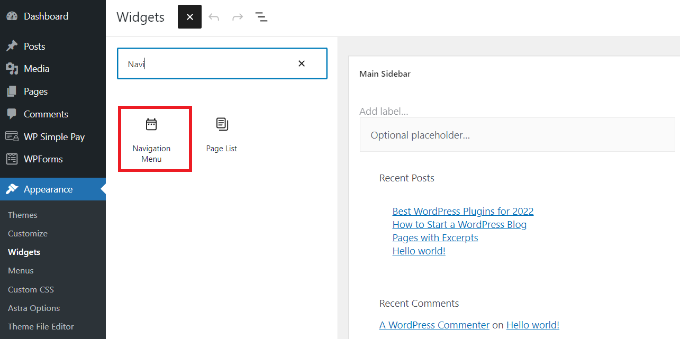
Accessing the WordPress menu is the first step to customizing your website’s navigation. Menus help visitors find important pages quickly. WordPress makes it easy to control menus from the dashboard. This section explains how to reach and understand menu settings.
Navigating To The Menu Settings
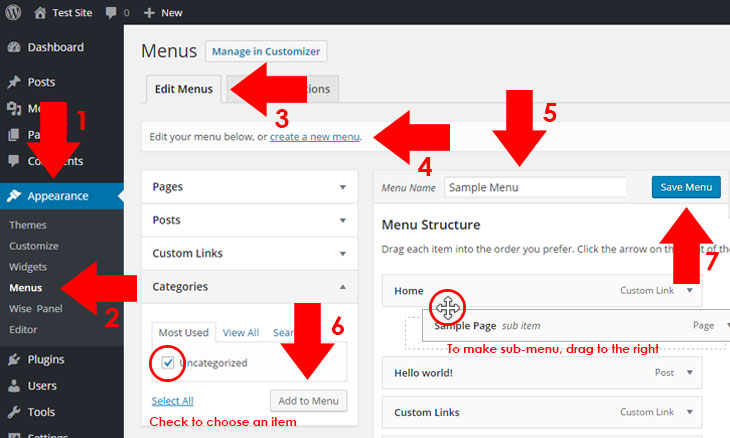
Start by logging into your WordPress dashboard. On the left side, find the “Appearance” tab. Click on it to open a list of options. Select “Menus” from this list. This brings you to the menu editor page. Here, you can create, edit, or delete menus. The interface is simple and clear. You will see a list of your current menus, if any exist.
Understanding Menu Locations
Menu locations are spots on your site where menus appear. Themes have different menu locations, like header or footer. You can assign menus to these locations in the menu settings. This tells WordPress where to display each menu. Knowing your menu locations helps organize your site better. It also improves user experience by guiding visitors through your content.
Creating A New Menu
Creating a new menu in WordPress is simple and helps organize your website. Menus guide visitors through your pages and posts. Setting up a clear menu improves user experience and site navigation.
Start by opening the WordPress dashboard. Navigate to the Appearance section and select Menus. Here, you can create a fresh menu tailored to your site’s needs.
Setting Up Your Menu Name
First, give your menu a unique name. This name helps you identify it later. Use simple words like “Main Menu” or “Footer Menu.” Avoid long or complex names. After typing the name, click the “Create Menu” button. Your menu is now ready for items.
Choosing Menu Display Options
Next, decide where your menu will appear on your site. WordPress offers different display locations based on your theme. Common options include Header, Footer, and Sidebar. Check the boxes for your preferred spots. This step ensures visitors see the menu where you want it.
Adding Items To Menus
Menus help visitors find important pages on your website. Adding items to menus lets you control what visitors see first. You can include different types of content to make navigation simple and clear.
This section explains how to add pages, posts, custom links, categories, and tags to your WordPress menu.
Adding Pages And Posts
Pages and posts are the basic building blocks of your site. To add them to a menu, go to the WordPress dashboard and open the Menus page.
On the left side, you will find lists of your pages and posts. Select the ones you want to include by checking the boxes.
Click the “Add to Menu” button. The items will appear in the menu structure on the right.
Drag and drop to rearrange their order. Save the menu to apply changes.
Including Custom Links
Custom links let you add any URL to your menu. This is useful for linking to external sites or special pages.
In the Menus page, find the “Custom Links” section on the left. Enter the URL and link text.
Press “Add to Menu.” The link will show up in the menu structure.
Move it where you want and save the menu.
Adding Categories And Tags
Categories and tags organize your posts. Adding them to menus helps visitors browse related content easily.
Look for the “Categories” and “Tags” panels on the Menus page. Choose the ones to include by checking the boxes.
Click “Add to Menu.” The items appear in the menu structure.
Arrange and save your menu for the changes to show on your site.
Credit: www.wpexplorer.com
Organizing Menu Structure
Organizing your WordPress menu structure helps visitors find pages quickly. A clear menu improves site navigation and user experience. You can change the order, group items, or remove what you do not need. These simple steps keep your menu neat and useful.
Reordering Menu Items
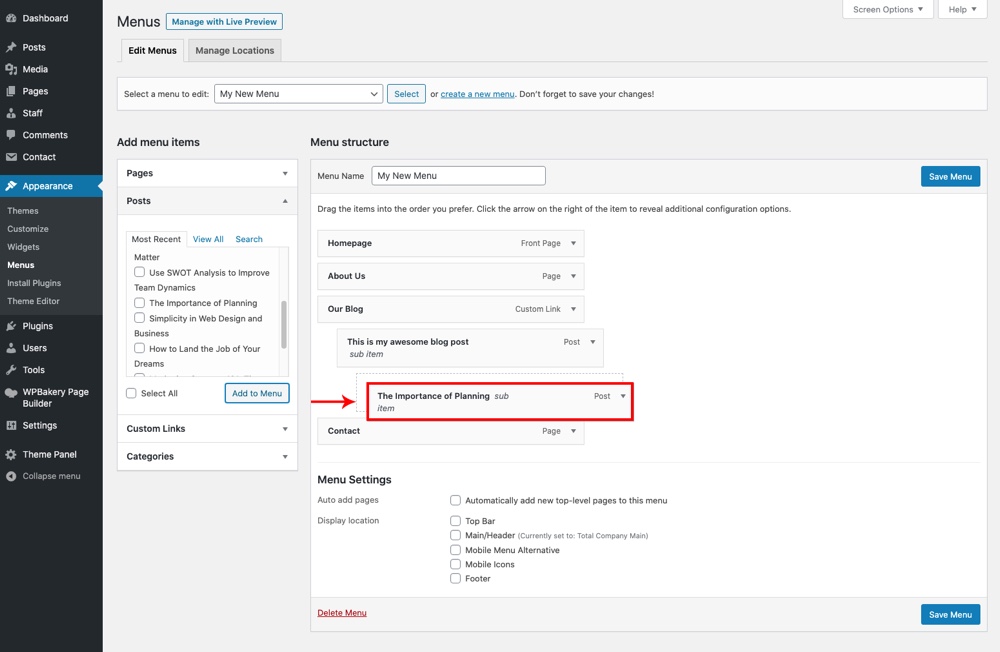
Drag and drop menu items to change their order. Place the most important pages first. This guides visitors to key content easily. Reordering takes just a few clicks in the menu editor. Check how the menu looks on your site after changes.
Creating Dropdown Menus
Dropdown menus group related items under one main link. Drag a menu item slightly to the right below another. This makes it a submenu item. Dropdowns save space and organize content logically. Visitors can explore sections without clutter.
Removing Unwanted Items
Remove menu items that are outdated or irrelevant. Click the arrow on the item and select “Remove.” A clean menu avoids confusion and clutter. Keep only links that help visitors navigate your site.
Saving And Previewing Menus
Troubleshooting menu issues in WordPress can save time and frustration. Menus sometimes do not show the right items or fail to display properly. Simple checks often fix these common problems quickly.
Fixing Missing Menu Items
Start by checking if the menu items are correctly added in the WordPress dashboard. Sometimes, items might not be saved properly. Refresh the menu editor and confirm all desired pages or links are selected.
Look at the menu location settings. Menus must be assigned to the correct theme location to appear on the site. If the location is not set, the menu will be invisible.
Clear your browser cache or try a different browser. Cached data can cause old versions of menus to display.
Resolving Display Problems
Inspect your site on different devices and screen sizes. Menus may look fine on desktop but break on mobile.
Deactivate plugins one by one to find conflicts. Some plugins interfere with menu functions or styles.
Switch to a default WordPress theme temporarily. Themes can cause display issues through incorrect menu coding.
Check for custom CSS rules that might hide or alter menu items. Removing or correcting these styles often restores proper display.
Troubleshooting Menu Issues
Menus guide visitors through your website. Basic WordPress menus work well for simple sites. Plugins help create menus that do more. They bring new styles and features. This makes navigation easier and more fun for users.
Plugins let you add icons, images, and custom designs. Some add animations or drop-down effects. Others help manage large menus with many items. These tools improve user experience and site appearance.
Popular Menu Plugins
Several menu plugins are popular among WordPress users. “Max Mega Menu” turns menus into large, multi-column panels. “WP Mega Menu” offers drag-and-drop menu building. “Responsive Menu” creates menus that look good on phones and tablets. These plugins are easy to install and use. They fit various website styles and needs.
Adding Advanced Features
Plugins add features like icons beside menu items. Some allow custom fonts and colors. Others support animated hover effects. You can include search boxes inside menus. Some plugins let you show images or videos within menus. These features make menus interactive and clear. They help visitors find content faster.
Credit: www.probewise.com
Frequently Asked Questions
How Do I Add A New Item To WordPress Menu?
To add a new item, go to Appearance > Menus in your WordPress dashboard. Select a menu or create one. Use the left panels to add pages, posts, or custom links. Click “Add to Menu” and then “Save Menu” to apply changes.
Can I Add Custom Links To My WordPress Menu?
Yes, WordPress allows adding custom links. In the Menus section, choose “Custom Links” on the left. Enter the URL and link text. Click “Add to Menu” and save. Custom links help direct visitors to external or specific pages.
How To Reorder Items In A WordPress Menu?
Reordering menu items is easy. Drag and drop items within the menu structure in the Appearance > Menus area. Place them in the desired order. Save the menu to update the navigation on your site instantly.
What Menu Locations Can I Assign In WordPress?
WordPress themes offer multiple menu locations like header, footer, or sidebar. After creating your menu, assign it to a location under “Menu Settings. ” This placement controls where the menu appears on your website.
Conclusion
Adding items to your WordPress menu is quick and simple. You can organize your site’s pages for easy navigation. Clear menus help visitors find what they need fast. Keep your menu updated as your site grows. Regular checks ensure links work correctly.
This small step improves your site’s user experience a lot. Try it today and see the difference.


