

Are you looking to make your WordPress posts stand out and grab your visitors’ attention right away? Adding a thumbnail image is one of the easiest ways to do that.
Thumbnails give your content a professional look and help readers quickly understand what your post is about. If you’ve ever wondered how to add a thumbnail image in WordPress but felt unsure where to start, this guide is made just for you.
By the end, you’ll know exactly how to create eye-catching thumbnails that boost engagement and make your website shine. Keep reading, and let’s make your WordPress site more attractive together!

Credit: wpmudev.com
Enable Featured Images
Enabling featured images in WordPress is a key step to add thumbnail images to your posts and pages. Featured images grab attention and improve the look of your site. Before you start, check if your theme supports featured images. Some themes have this feature turned off by default.
Check Theme Support
Go to your WordPress dashboard. Open the Appearance menu, then click on Themes. Find your active theme and check its description or documentation. Look for “Featured Images” or “Post Thumbnails” support. If your theme supports it, you will see the option to set a featured image in your post editor.
If you don’t see the option, your theme might not support featured images yet. No worries, you can add support manually.
Add Support Manually
To add featured image support, access your theme’s functions.php file. You can do this via the Appearance menu under Theme Editor. Add this code snippet to enable thumbnails:
add_theme_support('post-thumbnails');Save the file after adding the code. Now, go back to your post editor. The featured image option should appear. You can upload and set thumbnail images for your posts and pages.
Adding this support helps your content stand out. It also improves your site’s appearance on search engines and social media.
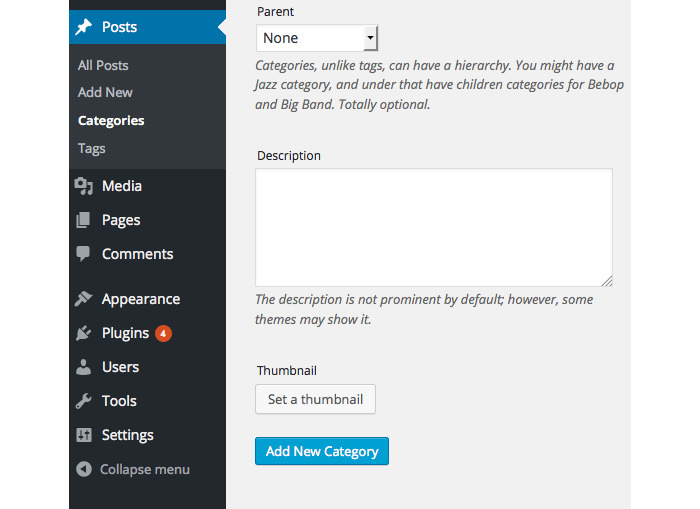
Credit: www.hongkiat.com
Upload Thumbnail Image
Uploading a thumbnail image in WordPress helps your posts look attractive. It also draws readers’ attention quickly. This section explains two simple ways to upload thumbnail images. Both methods are easy and fast.
Use Media Library
Start by opening your WordPress dashboard. Go to the Media Library from the sidebar menu. Here, you see all your uploaded images. Click on the “Add New” button at the top. Select the image file from your computer and upload it.
Once uploaded, open the post editor. Click on “Set Featured Image” in the sidebar. Choose your uploaded image from the Media Library. Click the “Set Featured Image” button. Your thumbnail image is now linked to the post.
Direct Upload In Post Editor
Open the post editor for the article you want to add a thumbnail to. Find the “Set Featured Image” option in the sidebar. Click on it, and the media popup appears. Click “Upload Files” at the top of the popup.
Select your image file from your computer. The file uploads immediately. Once done, click the “Set Featured Image” button. The thumbnail image attaches directly to your post without leaving the editor.
Set Featured Image In Posts
Setting a featured image in WordPress posts helps make your content more attractive. It gives readers a quick idea about the post. A featured image also appears in blog lists and social media shares. This section explains how to set a featured image easily.
Locate Featured Image Panel
Open the post editor in WordPress. Look on the right side of the screen. Find the box labeled “Featured Image.” If you cannot see it, click on “Screen Options” at the top. Check the box next to “Featured Image” to show the panel.
Select And Publish
Click on the “Set featured image” link inside the panel. Choose an image from your media library or upload a new one. Select the image and click the “Set featured image” button. The image will appear in the panel. Finally, save or publish your post to apply the featured image.
Customize Thumbnail Size
Customizing thumbnail size helps your WordPress site look neat and organized. It ensures images fit well in posts and pages. Different themes may require different thumbnail dimensions. Adjusting size improves page load time and user experience.
Adjust Settings In Media
WordPress has built-in media settings to control thumbnail size. Go to the dashboard, then click Settings > Media. You will see options for thumbnail width and height. Enter the size you want in pixels. Save changes to update the settings.
New images will use the updated thumbnail size. Old images need regeneration with a plugin. This keeps all thumbnails consistent across the site.
Use Custom Code
For more control, add custom code to your theme. Use the set_post_thumbnail_size() function in the functions.php file. This changes the default thumbnail size for your theme.
Example code:
set_post_thumbnail_size(150, 150, true);The numbers are width and height in pixels. The last parameter crops the image to fit.
Use add_image_size() to create extra thumbnail sizes. This helps if you need different sizes for various sections.
Troubleshoot Common Issues
Troubleshooting thumbnail images in WordPress can save time and improve your site’s look. Small issues often stop thumbnails from showing or cause poor image quality. Fixing these problems quickly keeps your blog professional. The following tips help solve common thumbnail troubles.
Thumbnail Not Showing
Check if the featured image is set for your post. Without it, WordPress cannot display a thumbnail. Clear your site cache after setting the image. Sometimes the old version stays visible.
Look for theme conflicts. Some themes do not support thumbnails or need special settings. Switch to a default theme and see if thumbnails appear. This test shows if the theme causes the issue.
Deactivate plugins one by one. A plugin might block thumbnails. Reactivate them after testing. This process finds the problem plugin.
Image Quality Problems
Use high-resolution images for thumbnails. Small or pixelated photos look unprofessional. Resize images before uploading to fit your site’s dimensions.
Check WordPress image settings. Go to Settings > Media and review thumbnail sizes. Adjust sizes to match your theme’s requirements.
Regenerate thumbnails after changing sizes. Use a plugin like Regenerate Thumbnails. This step updates all images to the new dimensions.

Credit: www.greengeeks.com
Use Plugins For Advanced Features
Using plugins for thumbnail images in WordPress offers more control and options. Plugins make it easy to customize thumbnails beyond the default features. They help save time and improve the look of your site. Many plugins provide tools for resizing, cropping, and displaying thumbnails in different styles. This section covers popular thumbnail plugins and their benefits.
Popular Thumbnail Plugins
Several plugins are widely used to manage thumbnails in WordPress. Regenerate Thumbnails helps recreate thumbnails after changing sizes. Simple Image Sizes allows you to add and edit custom thumbnail sizes easily. Featured Image From URL lets you set thumbnails using images hosted elsewhere. These plugins enhance the default thumbnail options and fit different needs.
Benefits Of Using Plugins
Plugins provide more flexibility in handling thumbnails. They save time by automating image resizing and cropping. They improve website appearance with various thumbnail styles and layouts. Plugins can fix issues like missing or broken thumbnails. They work well with different themes and page builders. Using plugins makes thumbnail management simple and efficient.
Frequently Asked Questions
How Do I Add A Thumbnail Image In WordPress?
To add a thumbnail image, open your post editor in WordPress. Locate the “Featured Image” box, click “Set featured image,” upload or select an image, then click “Set featured image. ” Finally, update or publish your post to save the thumbnail.
Can I Use Any Image Size For WordPress Thumbnails?
WordPress recommends using images at least 1200 x 628 pixels for thumbnails. This size ensures good quality across devices and social media. Smaller images may appear blurry or pixelated when displayed as thumbnails.
Why Is My WordPress Thumbnail Not Showing?
If your thumbnail isn’t showing, check if the “Featured Image” is set correctly. Also, ensure your theme supports thumbnails. Clear your cache and update plugins, as conflicts can prevent thumbnails from displaying properly.
How To Customize Thumbnail Dimensions In WordPress?
Go to “Settings” > “Media” in your WordPress dashboard. Here, you can adjust thumbnail width and height. Save changes and regenerate thumbnails using a plugin to apply new dimensions across existing images.
Conclusion
Adding thumbnail images in WordPress helps your site look better. It grabs visitors’ attention quickly. You can do it in just a few steps. Make sure each post has a clear thumbnail. This small change improves your site’s appeal and user experience.
Keep practicing to get comfortable with the process. Your WordPress posts will stand out more with thumbnails. Try adding them to every new post today. Simple, easy, and effective.


