
Imagine transforming your website into a visual masterpiece with just a few clicks. Exciting, right?
That’s the magic of adding themes in WordPress. Whether you’re looking to refresh your site’s look or starting from scratch, learning how to add themes can elevate your online presence instantly. As you dive into this simple yet powerful process, you’ll discover how easy it is to reflect your unique style and brand.
If you’re ready to captivate your audience and stand out in the digital crowd, stick with us. This guide will walk you through every step, ensuring your website not only looks stunning but also keeps visitors coming back for more. Are you ready to unleash your creativity and make your site shine? Let’s get started!

Credit: www.greengeeks.com
Choosing The Right Theme
First, think about what your website needs. Is it for a blog, a shop, or a personal site? Each type needs a different theme. List the features you need, like a contact form or a gallery. This makes choosing easier.
Themes come with many features. Some have sliders, others have custom menus. Check if the theme has what you need. If you need a blog, check for a blog layout. Explore the demo of each theme. It shows what your site can look like.
Responsive themes look good on phones and computers. Most people use phones to browse. Make sure the theme is mobile-friendly. Also, check if the theme is SEO-friendly. This helps your site rank better in search engines. A good theme helps attract more visitors.
Credit: thimpress.com
Locating Themes In WordPress
The WordPress Theme Directory is a great place to find themes. It has many options. You can find both free and paid themes. Use the search bar to look for themes. You can also filter results. Filters help you find themes by color or layout. Themes have different styles. Some are simple. Others are more detailed. Choose what fits your needs. Click on the theme to see more details. You can read user reviews. Reviews help you know what others think. Installing a theme from the directory is easy. Just click the install button.
Some themes are not on the WordPress site. These are from third-party providers. Many sites offer unique themes. These sites have their own features. Some themes have extra tools. Others have special designs. Check the site’s reviews before downloading. Reviews show if the site is good. Third-party themes can cost money. Look for themes that fit your budget. Compare prices and features. Always download themes from trusted sites. This keeps your website safe.
Installing A Theme
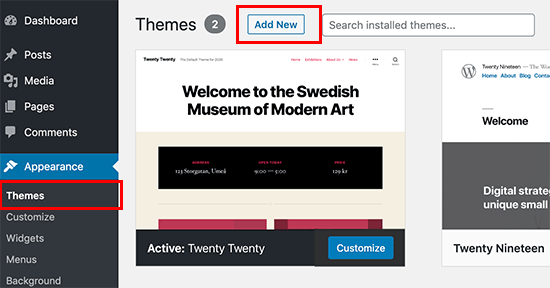
Open the WordPress dashboard. Find the Appearance menu. Click on Themes. Next, press the Add New button. Browse or search for a theme you like. Click Install on your chosen theme. Wait until the installation finishes. It’s very easy!
First, download a theme file from the internet. Ensure it is a .zip file. Go to the WordPress dashboard. Click on Appearance and then Themes. Click on the Add New button. Now, choose Upload Theme. Click Choose File and find your .zip file. Click Install Now and wait.
After installing, click Activate to use the theme. Check your website to see the new look. You can always change it later. Go back to the Themes page to switch themes. Every change is simple and quick.

Credit: wpmarmite.com
Customizing Your Theme
Explore the world of WordPress by adding themes effortlessly. Navigate to the dashboard, select ‘Appearance’, and click ‘Themes’. Discover thousands of styles, install your favorite, and watch your site transform instantly.
Using The WordPress Customizer
The WordPress Customizer helps you change your website’s look. It’s easy to use and changes appear in real-time. Find the Customizer in your dashboard. Click on Appearance, then Customize. You can adjust colors, fonts, and backgrounds. Try different styles and see what works best. Make sure your site looks good and easy to read.
Modifying Theme Settings
Themes come with settings you can change. These settings help you make your site unique. Open your dashboard and go to Appearance then Theme Settings. Here, you can adjust the layout and design. Some themes have extra options. Look around and explore what each setting does. This can make your site more personal and engaging.
Adding Widgets And Menus
Widgets add useful tools to your site. Menus help visitors find their way around. To add them, go to Appearance and choose Widgets or Menus. Drag and drop widgets where you want them. Create menus for easy navigation. This helps users find information quickly. Ensure your site is organized and user-friendly.
Testing Your Theme
Compatibility is very important for themes. Check if the theme works with your plugins. Look for any errors or conflicts. Use tools to scan for issues. Make sure your theme is up-to-date with WordPress.
Mobile use is popular now. Your theme should look good on phones and tablets. Test it on different devices. It must load fast and have easy navigation. The text should be clear and readable.
People use many browsers. Your theme should work on Chrome, Firefox, and Safari. Test it on all major browsers. Check for any display errors. Look for issues with layout or features. Fix problems quickly.
Maintaining Theme Updates
WordPress themes can be added by navigating to the dashboard, selecting ‘Appearance,’ and then ‘Themes. ‘ Use the ‘Add New’ button to explore the theme directory or upload your own. Regular updates ensure optimal performance and security, keeping your site fresh and functional.
Regular Updates And Security
Keeping your WordPress theme up-to-date is important. Updates fix bugs and improve security. Always check for updates in the theme section. New updates can protect your site from hackers. Updates also add new features. Your website stays safe and fresh.
Handling Theme Conflicts
Sometimes themes have conflicts. This can break your website. Check if your plugins work with your theme. Deactivate plugins one by one to find the problem. Testing can help you find the conflict. After finding it, you can fix it.
Backing Up Your Customizations
Save your theme changes before updates. This is called a backup. Use plugins like UpdraftPlus to save your work. A backup lets you restore your website. So, you won’t lose your custom changes.
Frequently Asked Questions
How To Install A WordPress Theme?
To install a WordPress theme, navigate to the dashboard. Click on “Appearance” then “Themes. ” Use the “Add New” button to browse themes. Once you find a theme you like, click “Install” and then “Activate” to apply it to your site.
Can I Change My WordPress Theme Later?
Yes, you can change your WordPress theme anytime. Go to “Appearance” in the dashboard, select “Themes,” and choose a new theme. Ensure your content looks good after switching themes, as layouts may vary.
Are Free WordPress Themes Reliable?
Free WordPress themes are generally reliable, especially from the official repository. They undergo reviews and updates. However, ensure the theme is from a reputable source to avoid security risks or lack of support.
How To Customize A WordPress Theme?
Customize a WordPress theme by accessing the “Customizer” under “Appearance. ” You can change colors, fonts, and layouts. Use widgets and menus for further personalization. Some themes offer additional customization options within their settings.
Conclusion
Adding themes to WordPress is simple and enhances your site’s look. Choose a theme that fits your style and purpose. Install it easily through WordPress’s dashboard. Customize your theme to match your brand or personal taste. Explore different features that themes offer to improve functionality.
Keep your site appealing and user-friendly. Regular updates ensure better performance and security. Enjoy experimenting with themes and watch your site transform. Remember, a great theme can make your website more engaging. Keep it fresh, keep it unique. Happy theming!


