
Are you looking to give your WordPress site a fresh, polished look? Adding theme typography can be a game-changer.
It’s not just about choosing a font; it’s about creating a cohesive visual identity that speaks to your audience and enhances their experience. Imagine a website where every element feels seamlessly integrated, drawing visitors in and keeping them engaged. With the right typography, you can convey your brand’s personality and make your content more readable and appealing.
In this guide, you’ll discover simple yet effective steps to enhance your site’s typography, even if you’re not a tech wizard. Ready to transform your WordPress site and captivate your audience? Let’s dive in!
Understanding Theme Typography
Typography is the art of arranging letters. It makes text easy to read. Good typography catches the reader’s eye. It keeps them on your page. Fonts, sizes, and colors all play a part. They make your site look nice. They also make it easy to read. Typography helps your site feel right. It can feel fun or serious. This depends on the fonts you use.
| Element | Description |
|---|---|
| Font | The style of the letters |
| Size | How big or small the text is |
| Color | The color of the letters |
| Spacing | Space between letters and lines |
Choosing The Right Fonts
Selecting fonts enhances your WordPress theme’s look. Easily add typography through theme settings or plugins. Choose readable fonts that match your site’s style for a professional appearance.
Web-safe Fonts
Most computers have web-safe fonts. They work well on all browsers. Examples include Arial, Times New Roman, and Verdana. These fonts are easy to read. They load quickly on websites. Picking web-safe fonts ensures your site looks consistent. Readers will not see weird symbols. Use them for a simple website. They are a safe choice for beginners. Bold headings stand out with these fonts.
Custom Fonts
Custom fonts make a website unique. They are not on all computers. You must load them from a server. They can be stylish and modern. Google Fonts offer many choices. Popular ones are Roboto and Open Sans. They bring personality to a site. Use custom fonts for special occasions. They may slow down loading times. Test them before using widely. Choose carefully to match your brand.
Using Google Fonts
Adding Google Fonts to WordPress is easy. First, visit the Google Fonts website. Choose the font you like. Next, click on the “Select this style” button. You will see a link. Copy this link. Now, go to your WordPress dashboard. Find the “Appearance” section. Click on “Editor”. Paste the link in the header file. Save your changes. Your site now has a new font!
Google Fonts are free to use. They offer many styles. You can choose from many fonts. This makes your site look unique. Also, they load fast. This helps your site speed. Good site speed is important. It keeps visitors happy.
Credit: themeisle.com
Customizing Typography In WordPress
The WordPress Customizer helps change font styles. It’s simple to use. First, go to your dashboard. Click on Appearance, then Customize. Here, you find options to change fonts. Try different styles. See what fits best. Make sure your text is easy to read. This helps your audience enjoy your site more.
CSS makes your fonts look better. Find the style.css file in your theme. Add custom CSS for fonts. Change size, color, or style. Use font-family to pick a font. Use font-size to adjust the size. Always preview changes. Make sure everything looks good. This keeps your site neat and tidy.
Plugins For Typography
Enhance your WordPress site by adding theme typography through plugins. These tools allow easy customization of fonts and styles. This improves site aesthetics and readability, helping engage visitors effectively.
Top Typography Plugins
WordPress has many plugins for typography. These plugins make your website look better and are easy to use. Some popular ones are Easy Google Fonts, Typography, and WP Google Fonts. They help you change your site’s font style and size.
Installing And Using Plugins
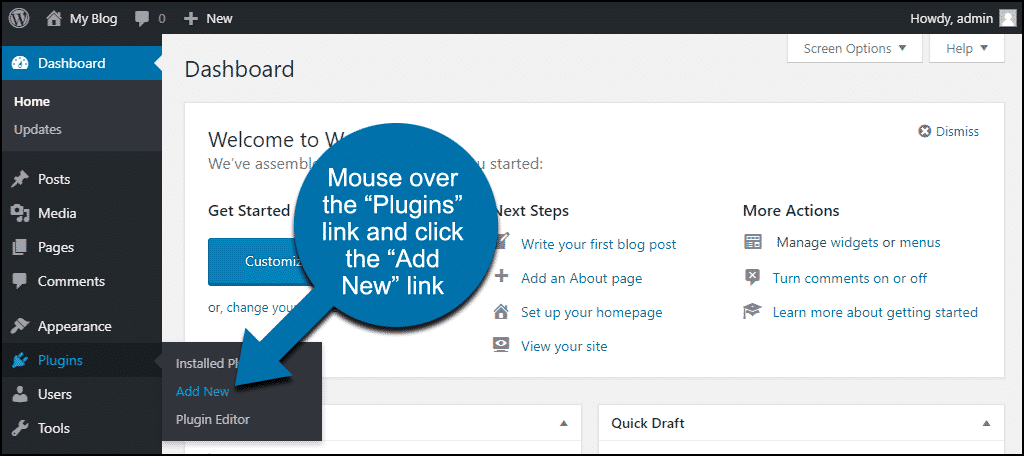
First, go to your WordPress admin dashboard. Click on “Plugins” and then “Add New“. Search for the typography plugin you want. Click “Install Now“, then “Activate“. After activation, go to “Settings” to adjust the fonts. Choose from many font styles and sizes. Save the changes to see new fonts on your site.
Responsive Typography
Using responsive typography makes text look good on all devices. Mobile users need clear and easy-to-read fonts. Adjusting font size for different screens is key. This helps in better readability.
Use CSS media queries to change font size. This is based on screen size. For small screens, use smaller fonts. On bigger screens, increase font size. This makes text readable everywhere.
Flexible units like em or rem can help. They adjust based on parent elements. This keeps text size consistent.
Use viewport units for dynamic scaling. They adapt to screen width. This ensures text fits well on any device.
Best Practices For Typography
Adding theme typography in WordPress enhances your site’s visual appeal. Utilize the WordPress Customizer to adjust fonts easily. Explore Google Fonts for more variety and style to improve readability.
Readability And Accessibility
Good typography helps people read better. Use simple fonts like Arial or Verdana. These fonts are easy on the eyes. Make sure the text size is big enough. People should not need to squint. Use high contrast between text and background. Black text on a white background works well. This helps everyone see better, especially people with sight problems. Ensure your site is friendly for screen readers. Add alt text to images. This helps people who cannot see well.
Consistency Across Pages
Keep your text style the same on all pages. Use the same font and size for headings. The body text should look the same everywhere. This makes your site look neat and tidy. People can find things easily. A consistent style builds trust. It shows you care about your site. It also helps people remember your brand. Consistency makes your site easy to read. This is very important for your visitors.

Credit: wordpress.com
Troubleshooting Typography Issues
Typography issues often occur due to theme conflicts or plugin compatibility. Fonts may not display as expected. Sometimes, text size or style looks wrong. These problems can confuse site visitors.
Start by checking your theme settings. Ensure the correct font is selected. Next, look at plugin settings. Some plugins may override your theme. Try disabling them one by one. See if the issue resolves. If not, use the WordPress Customizer. Adjust typography settings there. Always clear your browser cache after changes. This ensures the latest version loads. If problems persist, consult the theme’s support team. They can offer specific advice.
Credit: www.greengeeks.com
Frequently Asked Questions
How Can I Customize Theme Typography In WordPress?
To customize theme typography, you can use the WordPress Customizer. Navigate to Appearance > Customize, then select Typography. Here, you can adjust font styles, sizes, and weights to suit your design preferences. Some themes offer advanced typography settings, allowing you to specify different fonts for headings and body text.
What Are The Best Plugins For Typography?
Popular typography plugins include Easy Google Fonts and WP Typography. Easy Google Fonts lets you add Google Fonts without coding. WP Typography enhances text readability and provides advanced features like hyphenation and kerning. Both plugins are user-friendly and can significantly improve your website’s typography and design aesthetics.
Can I Use Google Fonts In WordPress?
Yes, you can use Google Fonts in WordPress. Many themes support Google Fonts by default. Alternatively, use plugins like Easy Google Fonts. This plugin allows you to choose from hundreds of fonts and apply them to your site’s headings and body text without any coding knowledge.
Why Is Typography Important In WordPress Themes?
Typography is crucial for readability and user engagement. It affects how visitors perceive your content and navigate your site. Good typography enhances user experience, making information easy to digest. Consistent fonts and styles across your site create a cohesive look, improving your site’s overall aesthetic appeal.
Conclusion
Mastering typography in WordPress enhances your site’s visual appeal. This guide helps you add theme typography with ease. Choose fonts that reflect your brand’s personality. Use plugins for simple installation. Customize styles to suit your website’s look. Test and review changes for a seamless appearance.
Consistent typography improves readability and user experience. Stay creative and keep experimenting with different styles. Your website will look polished and professional with the right typography choices. Don’t forget to update regularly for fresh, engaging content. Enjoy transforming your WordPress site with beautiful typography!


