
Are you ready to give your WordPress site a brand-new look? Adding a purchased theme can be the perfect way to transform your website’s appearance and functionality.
Whether you’re looking to create a more professional image or simply want a fresh design, installing a new theme can make all the difference. But if you’re feeling overwhelmed or unsure of where to start, don’t worry—you’re not alone. Many WordPress users find themselves in the same boat, eager to upgrade their site but hesitant about the technical steps involved.
This guide will take you through the process step-by-step, ensuring you can add your newly purchased theme with confidence and ease. By the end, you’ll be ready to unveil a stunning new look that captures your brand and captivates your audience. Ready to dive in? Let’s get started!
Why Use A Purchased Theme
Premium themes often come with better support. They have more features than free themes. Many offer professional designs. This makes your site look modern and unique. You can get regular updates to keep your site safe.
Customization options are vast. This means you can change the look easily. You do not need coding skills. Many themes have drag-and-drop builders. This helps in designing without hassle. You can also find SEO tools built-in. These help your site rank better.

Credit: wptheming.com
Finding The Right Theme
Research helps find the best theme. Reviews show what others think. Check how many stars a theme has. Read comments from users. These tell if a theme is good. Look for themes that fit your site. Choose a theme that matches your style. Make sure the theme works with WordPress. It must be easy to use.
Compatibility matters for themes. Check if the theme works with your plugins. Some themes may not work with all plugins. This can cause problems. Choose themes that get updated often. Updates fix bugs and add new features. Test the theme on different devices. It should look good on phones and computers.
Downloading Your Theme
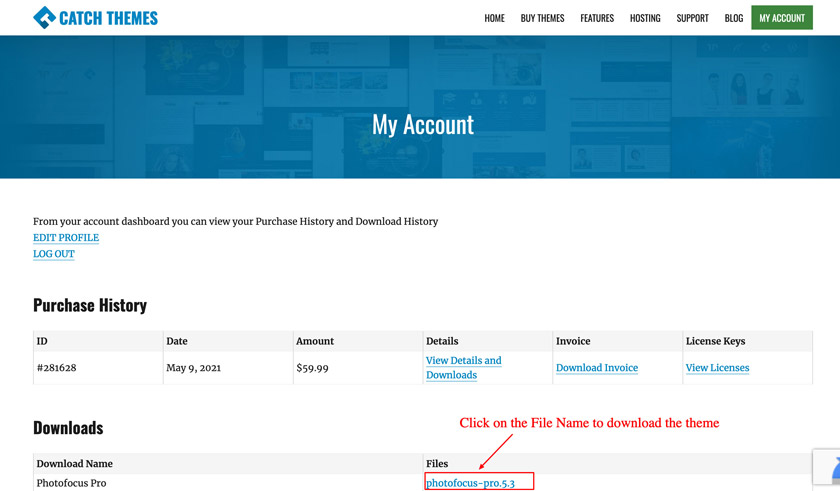
First, log into your account on the theme marketplace. Find the theme you bought. Click on the download button. Wait for the download to finish. Check your downloads folder for the theme file.
Theme files come in a .zip format. This is a compressed file. Inside, there are many files. Look for .php, .css, and .js files. These are important for your site. Sometimes, there are extra files. Read the documentation for details. Follow any special instructions given.
Installing The Theme
First, log into your WordPress Dashboard. Click on the Appearance tab. Then choose Themes. Next, click on the Add New button. You will see an Upload Theme button. Click it. Now, select the ZIP file of your purchased theme. Hit the Install Now button. Wait a bit. When it’s done, click Activate to use the theme.
Open your FTP client. Connect to your website server. Go to the wp-content/themes folder. Extract your theme’s ZIP file on your computer. Upload the extracted folder to your server’s theme folder. Go back to your WordPress Dashboard. Click on Appearance. Then choose Themes. Find your theme and click Activate.
Activating The Theme
To set your new theme, go to your WordPress dashboard. Click on Appearance and then choose Themes. Find the theme you purchased. Once located, click Activate. Your theme is now active. Enjoy your new look!
Preview your theme before making it live. Go to the Themes section. Hover over the theme and click on Live Preview. This shows how your site will look. Make sure everything is as you like. No surprises after activation.
Credit: catchthemes.com
Customizing The Theme
Many themes have a Theme Options Panel. This helps you change settings. You can pick different layouts. Choose colors that fit your style. Add your own logo too. This makes your site look unique. It’s simple and fun.
Do you want more control over your site’s look? Try adding Custom CSS. You can change the font size. Or adjust margins to make elements fit better. This is where you can make things just right. Always make changes carefully. Check how they look on the site. This way, you keep your site neat and tidy.
Troubleshooting Common Issues
Installing a purchased theme in WordPress can sometimes lead to issues. Ensure the theme file is in ZIP format. Upload it via the “Appearance” section. Activate the theme and check for compatibility with your plugins and WordPress version. Adjust settings as needed for optimal performance.
Solving Installation Errors
Themes sometimes fail during installation. First, ensure your theme file is zipped. Check file size; it should not exceed WordPress limits. If it does, adjust server settings. Activate the theme manually if auto-install fails. Go to your WordPress dashboard. Click on “Appearance”, then “Themes”. Upload the theme from there. Clear your browser cache to refresh changes.
Dealing With Compatibility Problems
Some themes might not work with all plugins. Check if your theme supports your WordPress version. Update WordPress if it’s outdated. Plugins sometimes conflict with themes. Deactivate all plugins and check theme functionality. Reactivate plugins one by one. Identify the problematic plugin. Contact theme support for guidance. Keep your theme updated to avoid issues.
Ensuring Theme Updates
Keeping your theme updated is important. It helps keep your site safe. Most themes allow automatic updates. Go to your WordPress dashboard. Click on the “Appearance” option. Select “Themes” from the menu. Find your theme and check for an update button. It might say “Enable Auto-Updates”. Click it. This will ensure your theme stays current. You won’t have to worry about missing updates.
Sometimes themes do not update automatically. You may need to update them manually. First, download the new theme version. Save it to your computer. Go to your WordPress dashboard again. Select “Appearance” then “Themes”. Click on “Add New”. Upload the new theme file. Activate the new theme. This will complete the manual update. Always back up your website before updating. This way, you can restore it if something goes wrong.

Credit: m.youtube.com
Frequently Asked Questions
How Do I Upload A Purchased Theme To WordPress?
To upload a purchased theme, log into your WordPress dashboard. Navigate to ‘Appearance’ > ‘Themes’ > ‘Add New’. Click ‘Upload Theme’, select your theme’s. zip file, and press ‘Install Now’. Once installed, activate the theme to make it live on your website.
Can I Install Themes From Third-party Marketplaces?
Yes, you can install themes purchased from third-party marketplaces. Download the theme package as a. zip file. Then, upload it through the WordPress dashboard under ‘Appearance’ > ‘Themes’ > ‘Add New’. Ensure the theme is compatible with your WordPress version before installing.
What Are The Steps To Activate A New Theme?
To activate a new theme, first install it from ‘Appearance’ > ‘Themes’. Once installed, click ‘Activate’ to make it your site’s active theme. Check your website for any layout or design changes. Customize the theme settings to suit your preferences, ensuring a seamless transition.
How Can I Ensure Theme Compatibility With WordPress?
To ensure theme compatibility, check the theme’s requirements before purchasing. Verify it supports your WordPress version. Read user reviews for insights on compatibility issues. Contact the theme developer for confirmation. Regularly update both WordPress and your theme for optimal performance.
Conclusion
Adding your purchased theme to WordPress is simple and rewarding. Follow the steps to ensure a smooth installation. First, download your theme files. Next, access your WordPress dashboard. Upload your theme under “Appearance” and “Themes. ” Activate your new theme to see the changes.
Customize it to fit your needs and style. Explore the theme settings for more options. Keep your website looking fresh and engaging. Regular updates will maintain its functionality and security. Enjoy your new WordPress look. Make sure it reflects your brand and message.
Happy website building!


