
Are you tired of the same old look on your WordPress site and ready to give it a fresh, new appearance? Adding a theme to your WordPress site is one of the easiest ways to transform its design and user experience.
But how do you choose the right one and install it seamlessly? Don’t worry; you’re not alone in this journey. Many website owners, just like you, have felt overwhelmed by the seemingly endless options and technical steps involved. In this guide, you’ll discover the simple steps to add a theme to your WordPress site, ensuring your site not only looks stunning but also functions perfectly.
Imagine captivating your visitors at first glance, keeping them engaged with your content. Ready to uncover the secrets of a successful theme transformation? Let’s dive in!
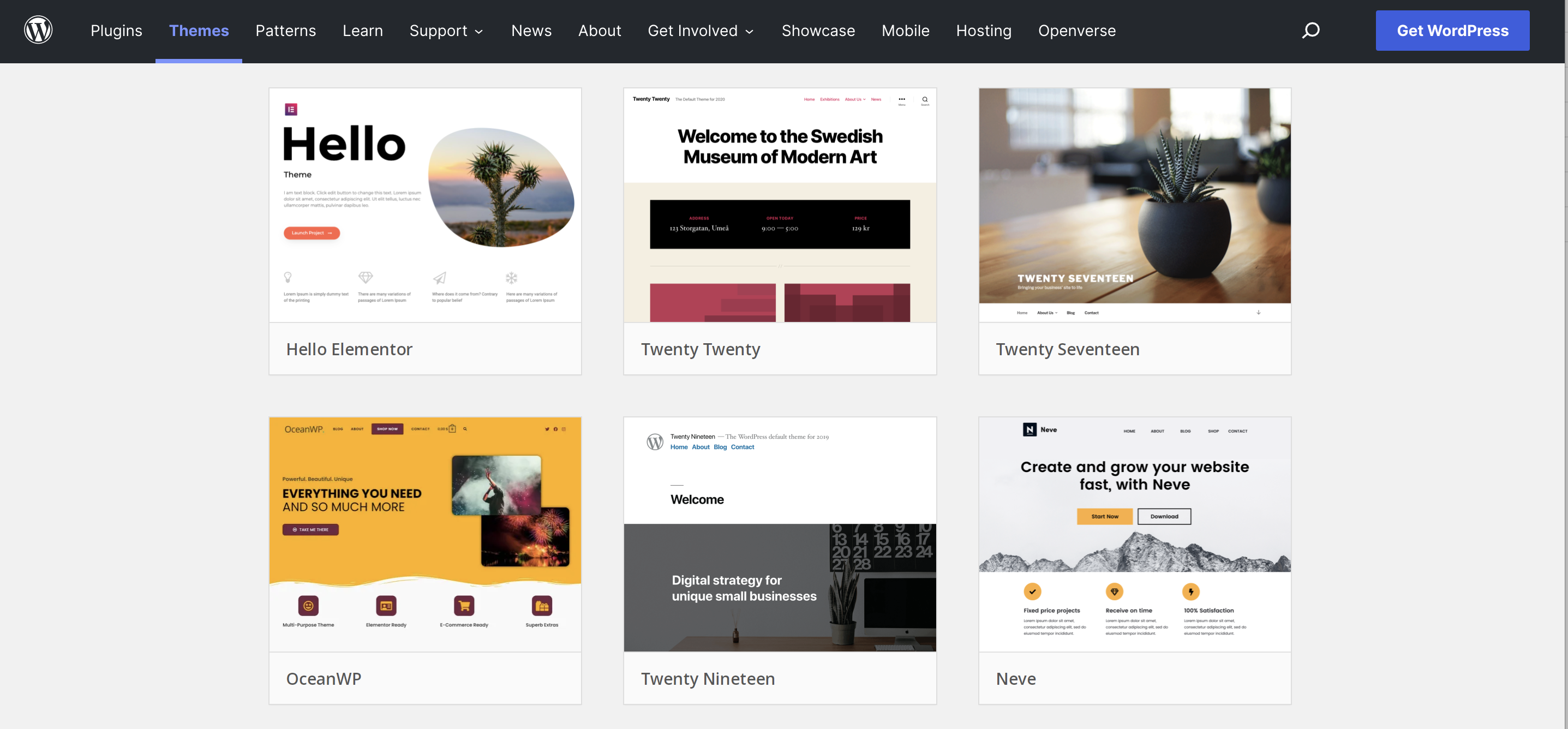
Choosing The Right Theme
Free themes are good for beginners. They cost nothing. These themes offer basic features. But they may lack support. Premium themes cost money. They often have better support. These themes offer more features and updates. Choosing between them depends on your needs.
Think about what your website needs to do. Some themes have special functions. Like e-commerce or photo galleries. Make sure the theme you pick has the tools you need. Check if it is easy to use and setup.
Your site should look good. Pick a theme that fits your brand. Colors and fonts matter. They should match your logo. A consistent look makes your site attractive. Choose a theme that you can customize. This helps your site stand out.
Credit: jetpack.com
Installing A Theme From The WordPress Repository
Login to your WordPress site. Find the Dashboard on the left side. Look for Appearance and click it. This is where themes live. It’s easy to find.
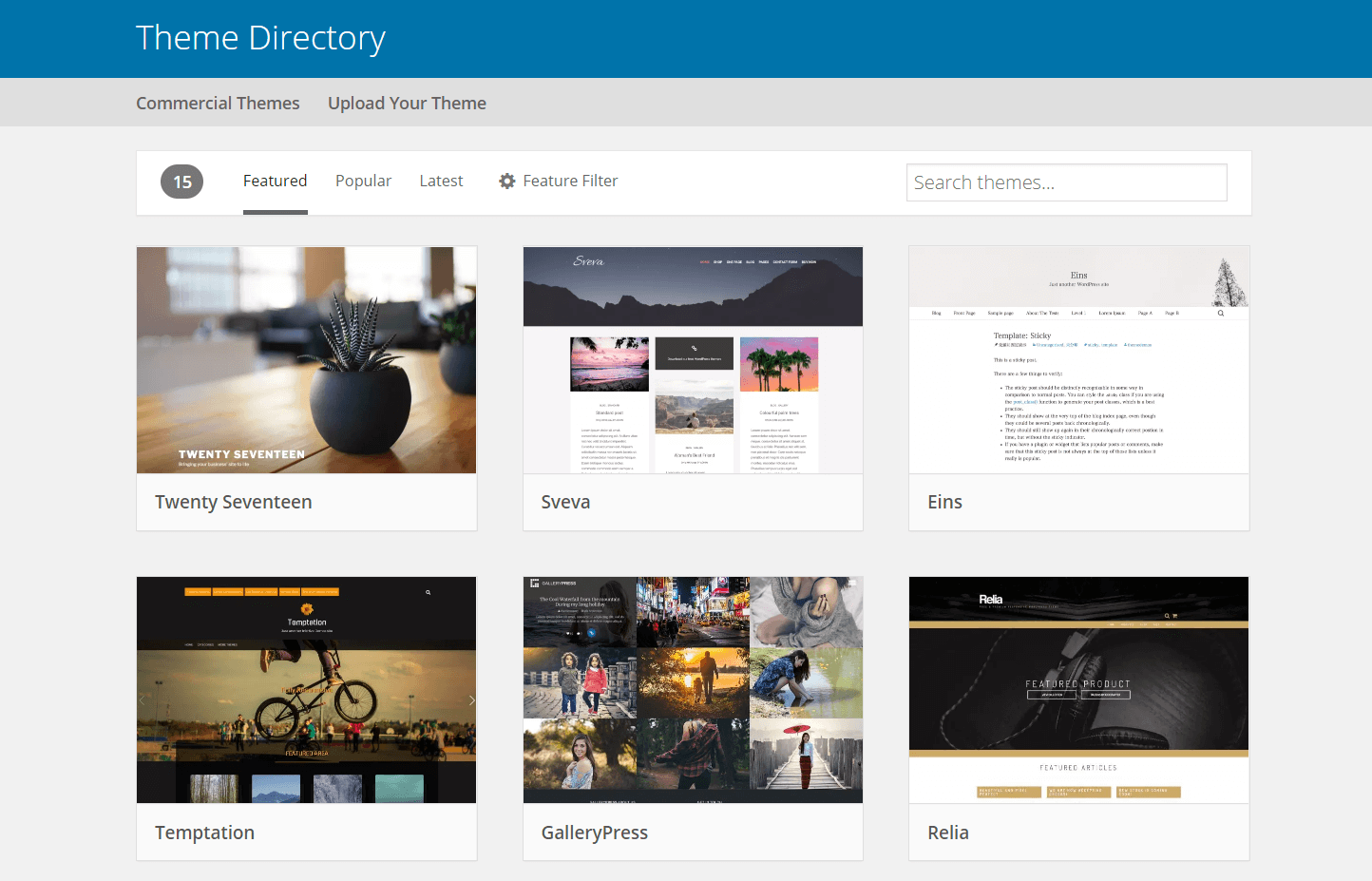
Use the search box to find themes. Enter a theme name or type. You can also filter by features. Find the perfect theme for your site. It’s like shopping but faster.
Click on a theme to see a preview. Check if it looks right. If it’s good, click Activate. Your site changes instantly. You can always change back.
Uploading A Theme From A Zip File
First, find a theme you like. Many themes are free. Some you need to buy. Make sure to download the theme as a zip file. Save it on your computer. Check the file size. It should not be too big.
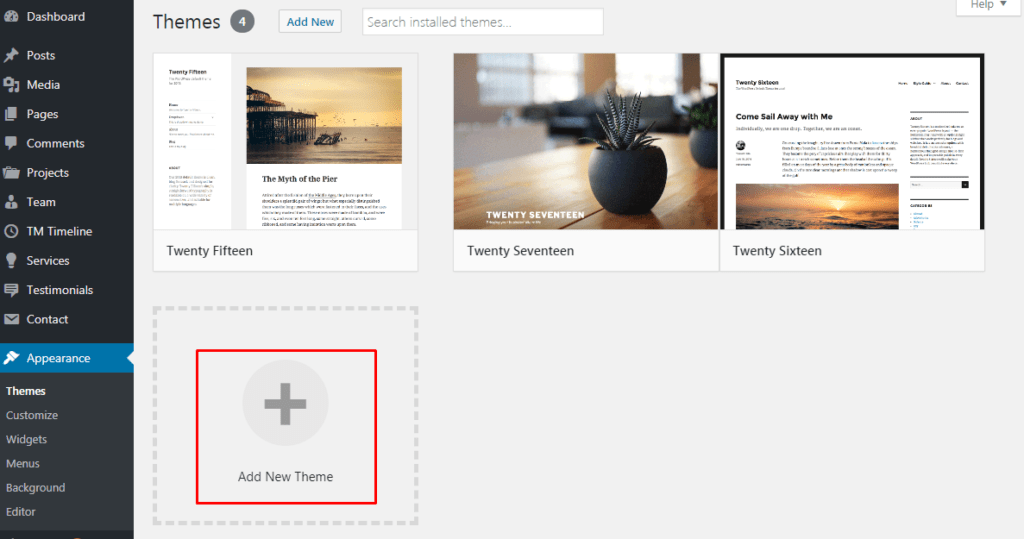
Open your WordPress dashboard. Look for the Appearance menu. Click on Themes. Now, find the button that says “Add New”. Click it. Next, click “Upload Theme”. Choose the zip file you downloaded. Click the “Install Now” button. Wait a bit for it to upload.
Once uploaded, you will see an “Activate” button. Click it. Your new theme will be live now. Check your website. Make sure everything looks fine. If there are any issues, try another theme.
Credit: wpengine.com
Using Ftp To Add A Theme
First, get your FTP credentials from your hosting provider. You need a username, password, and server address. Use an FTP client like FileZilla to connect. Enter your details and hit connect. A successful connection shows files on your server.
Download your theme file to your computer. It should be a .zip file. Extract the contents to a folder. In your FTP client, navigate to /wp-content/themes/. Drag and drop the theme folder from your computer to the server. Wait for the upload to finish.
Go to your WordPress dashboard. Find the Appearance menu and click on Themes. Your uploaded theme will appear in the list. Click on Activate to set it live. Your website now has a new look. It’s simple and quick.
Customizing Your Theme
The WordPress Customizer is a tool for theme changes. It is easy to find. Look for it under “Appearance.” Click “Customize” to start. You can see changes right away. Play around with options. Change colors, fonts, and more. Save when happy.
Layouts can be changed. You can make columns or rows. It is fun to try different styles. Colors can also be set. Pick from a range of shades. This makes your site look unique. Bright colors can make things pop. Soft colors are calming.
Widgets add features. They can be placed anywhere. Menus help users find stuff. Adding them is simple. Use the menu section in the customizer. Arrange items neatly. Keep it easy to use.
Credit: www.templatemonster.com
Keeping Themes Updated
Updating themes on WordPress ensures security and performance. Access the dashboard, navigate to “Appearance,” then “Themes,” and select “Add New. ” Choose a theme and install it. Regular updates keep your site fresh and safe.
Importance Of Theme Updates
Theme updates are very important for your website. They help keep your site secure and fast. New updates often fix bugs and add new features. Without updates, your site might be at risk. Hackers can easily target outdated themes. Always check for updates regularly. Your site will run smoother and better.
Using Automatic Updates
Automatic updates make life easier. You don’t have to worry about missing an update. WordPress can update themes for you. Just turn on automatic updates in your dashboard. This way, you save time. Your site stays safe and up-to-date. It’s a simple and effective solution.
Checking For Compatibility Issues
Before updating, always check compatibility. Some updates might not work well with your plugins. It’s important to test updates in a safe environment. This is called a staging site. It helps avoid problems on your live site. If everything works, you can update your live site safely.
Troubleshooting Common Issues
Encountering issues while adding a theme on WordPress is common. Ensure the theme is compatible with your WordPress version. Check your internet connection if the upload fails, and verify permissions in your WordPress dashboard.
Theme Not Displaying Correctly
Sometimes a new theme does not look right. Check if the theme is compatible with your WordPress version. Update your WordPress if needed. Clear your browser cache to see changes. Refresh the page to see if the theme loads properly. Make sure you have not skipped any steps during installation. Verify that all theme files are present. Missing files can cause display issues.
Resolving Plugin Conflicts
Plugins may stop a theme from working well. Disable all plugins to see if the theme works. Activate each plugin one by one. This helps find the problem plugin. Consider updating your plugins. Old plugins may not work with new themes. Check plugin compatibility with your theme. Use plugins recommended by the theme developer. This avoids conflicts.
Reverting To A Previous Theme
Sometimes you need to go back to an old theme. First, go to the WordPress dashboard. Click on ‘Appearance’ then ‘Themes’. Select your old theme from the list. Click ‘Activate’ to use it again. Always backup your site before changing themes. This saves your data. Ensure your old theme is up-to-date. This keeps your site secure and running well.
Frequently Asked Questions
How To Install A WordPress Theme?
To install a WordPress theme, navigate to the dashboard. Click on “Appearance,” then “Themes. ” Choose “Add New” to browse available themes. Select a theme and click “Install. ” After installation, click “Activate” to apply the theme to your site.
Ensure compatibility with your WordPress version before activating.
Can I Upload A Custom Theme To WordPress?
Yes, you can upload a custom theme in WordPress. Go to the dashboard, click “Appearance,” then “Themes. ” Select “Add New,” then “Upload Theme. ” Choose the theme’s ZIP file from your computer and click “Install Now. ” After installation, activate the theme to apply it to your site.
How Do I Preview A Theme Before Activation?
To preview a theme before activation, go to “Appearance” in your dashboard. Click “Themes,” then “Live Preview” under the desired theme. This allows you to see how your site looks with the theme without activating it. You can make adjustments before deciding to activate it.
Why Can’t I Change My WordPress Theme?
If you can’t change your WordPress theme, check user permissions. Ensure you have admin rights to make changes. Some themes require certain plugins; verify compatibility. Clear your browser cache and try again. If issues persist, contact your hosting provider for assistance with server settings.
Conclusion
Adding a theme to WordPress can transform your site’s look. It enhances functionality and boosts user engagement. Follow simple steps to install and activate themes. Start by accessing your WordPress dashboard. Choose a theme that aligns with your content and audience.
Ensure compatibility with your plugins. Preview the theme to check its appearance. Activate it once satisfied. Regularly update themes for security and new features. Personalize it for your brand and style. Explore customization options to fit your needs. Enjoy a refreshed site that attracts visitors and improves user experience.
Ready to give your site a fresh look? Dive into theme customization today!


