
Have you ever wanted to give your WordPress site a fresh look without the headache of starting from scratch? You’re not alone.
Many website owners like you wish to explore new themes without the fear of disrupting their entire site. The good news is, it’s possible to add a new theme and keep your existing content intact. Imagine transforming your site’s appearance while preserving your hard-earned SEO rankings and content layout.
This guide is crafted to show you exactly how to do that. By the end of this article, you’ll have a clear roadmap to refresh your site’s look effortlessly. Curious to learn how? Let’s dive in and discover the secrets to a seamless theme transition.

Credit: docs.themeisle.com
Choosing The Right Theme
Think about what your site needs. Do you need a blog? Or maybe a store? List your needs on paper. This helps find the best theme. A good theme matches your goals.
Many sites use plugins for extra features. Check if the theme works with popular plugins. Plugins help with SEO, security, and speed. A good theme won’t break your plugins.
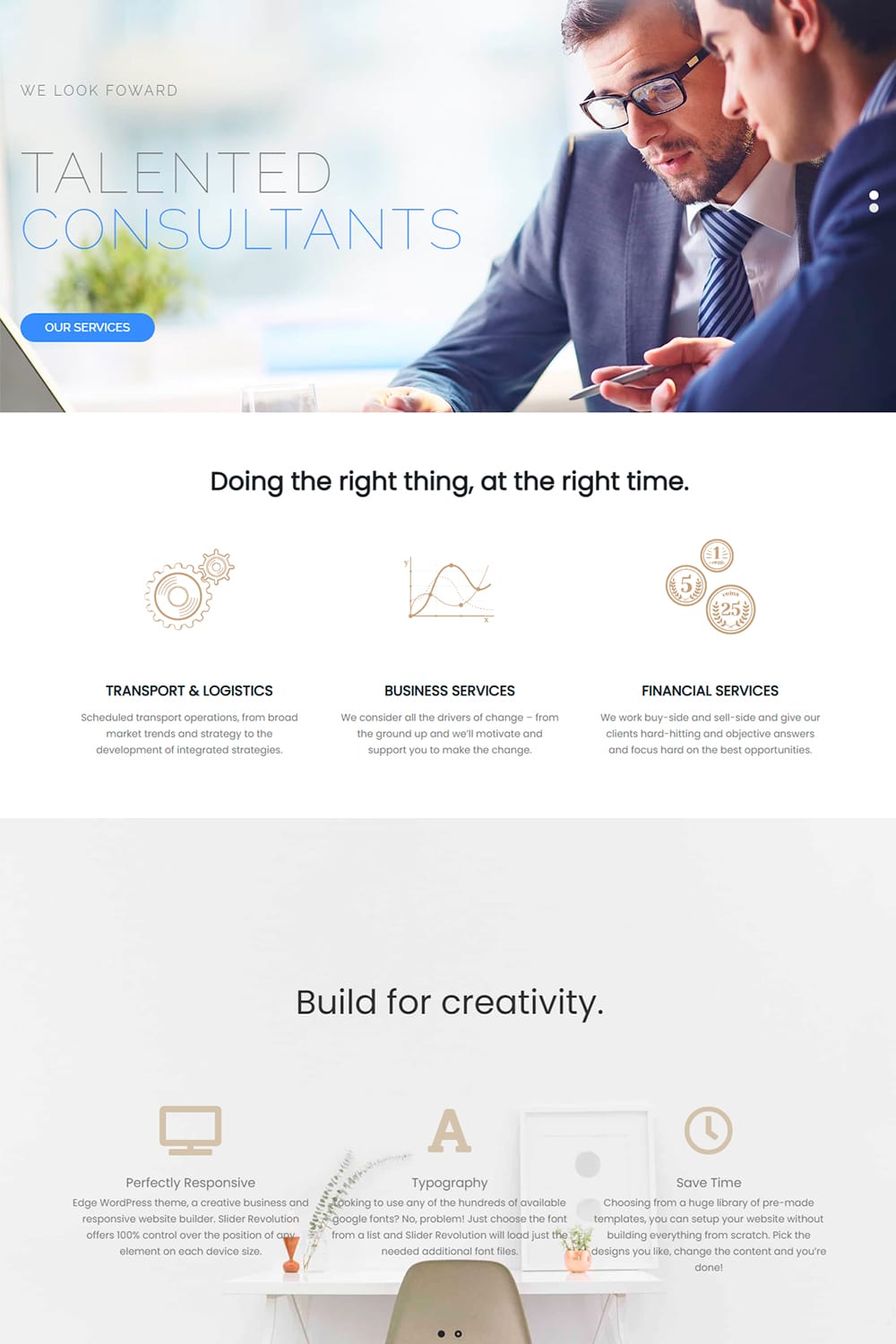
People use phones and tablets. Your site should look good on all devices. Responsive themes fit any screen size. This keeps visitors happy. They stay on your site longer.
Credit: visualmodo.com
Backing Up Your Current Site
Backing up your current site ensures safety before adding a new WordPress theme. This process keeps your content intact. Easily switch themes without losing posts or pages by using backup plugins.
Database Backup
Creating a database backup is very important. Use tools like phpMyAdmin. Export the database to a safe location. This keeps your site data secure.
File Backup Methods
File backup protects your site. Copy files using FTP software. Save them on your computer or cloud. This ensures you don’t lose anything.
Using Backup Plugins
Backup plugins help automate backups. Install plugins like UpdraftPlus or BackupBuddy. These plugins save time and effort. They offer easy backup solutions.
Installing A New Theme Safely
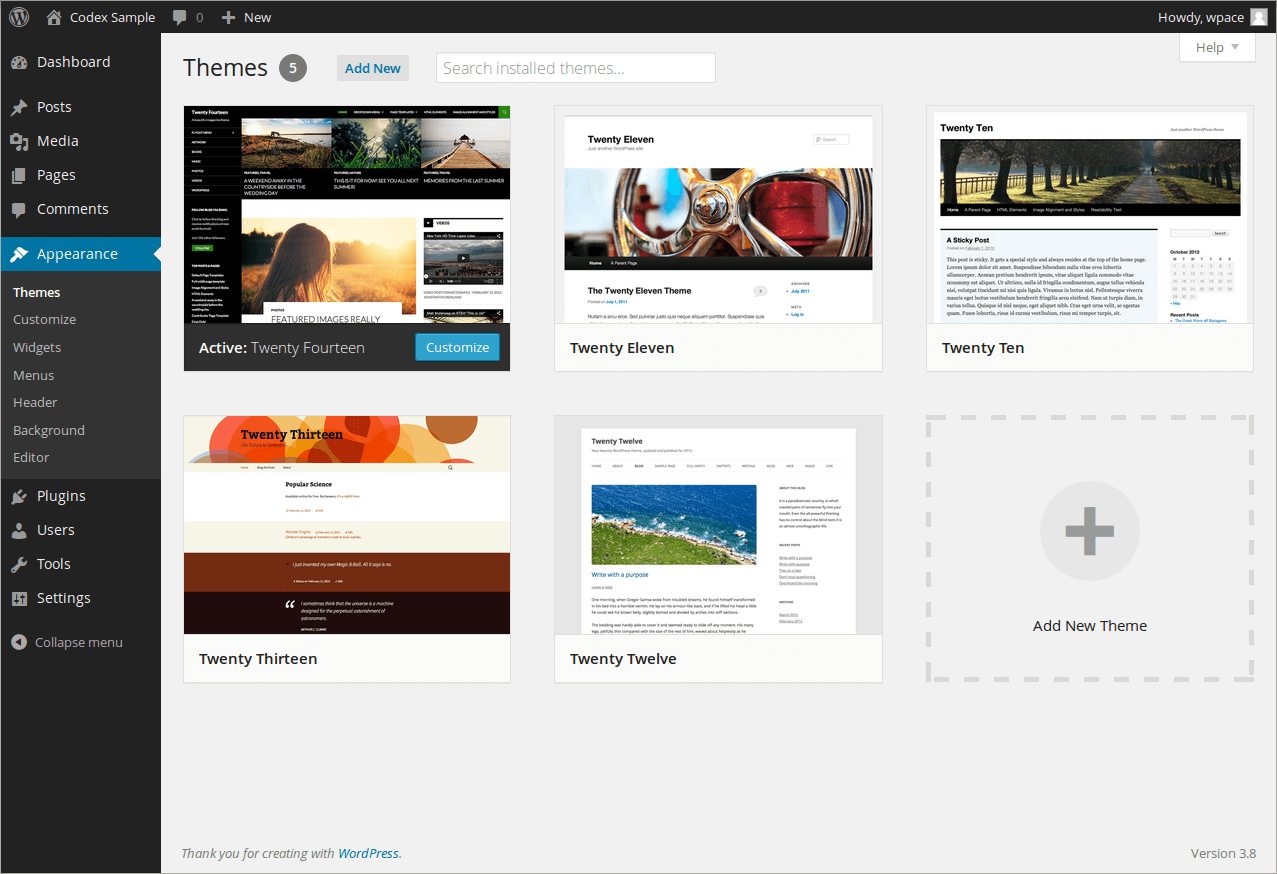
Always check the new theme before using it. WordPress lets you preview themes. This way, you see how your site looks without changing it. Go to your dashboard and find the Appearance tab. Click on Themes and then Live Preview. Look at each page to be sure it’s right. This keeps your site safe and keeps your look the same.
Creating a child theme helps keep changes safe. A child theme saves your custom tweaks. This way, updates won’t erase them. To make one, create a new folder in the themes directory. Add a style.css file inside. This file tells WordPress about the new theme. Use this to keep your website’s look intact.
Before making big changes, test on a staging site. This is a copy of your real site. It lets you try things without risk. Many hosts offer staging sites. If not, use a plugin to create one. Test new themes here first. This way, your live site stays safe and sound.
Preserving Site Content
Changing a theme should not affect your menus. Always check the menu location. Ensure widgets are visible. Widgets might disappear after a theme change. Drag them back if needed. Use the same widget areas. This keeps your site looking neat. Set the menu to the right place. This helps users find their way. Keep these elements safe. They make your site special.
Custom post types add unique content. Themes should not break them. Post types need to stay visible. Use plugins to support custom posts. Check settings after theme change. Ensure post types are still there. Do not lose any content. Custom posts make the site unique. Keep them safe.
Custom CSS styles your site. Themes may erase these styles. Store CSS in a safe place. Use a plugin or child theme for CSS. This keeps styles safe. Check CSS after a theme change. Adjust if needed. Preserve your site’s look. Styles help your site stand out. Protect your custom CSS.
Customizing The New Theme
The theme customizer is a useful tool. It lets you change your theme without breaking your site. You can make changes and see them live. Adjust headers, footers, and sidebars. Keep your site looking neat and tidy.
Change the layout to fit your needs. Switch between one, two, or three columns. Pick colors that match your brand. Use contrasting colors for better readability. Save changes to keep your work safe. Your site should look pleasing and easy to read.
Add custom code for more control. Use simple HTML or CSS. Insert code in the right places. Do not overdo it. Too much code can slow your site. Keep it simple and clean. Make small changes to improve your site’s look.
Testing And Tweaking
Browsers show things differently. Test your site on Chrome, Firefox, and Safari. Also check on Internet Explorer. Ensure everything looks and works the same. Look at text and images. They should not move or look strange. Links and buttons should work well. Click them to see if they do. If something is wrong, fix it quickly.
Most people use phones to browse. Your site must look good on small screens. Check on different devices like phones and tablets. Text should be clear and big enough to read. Images must fit the screen. Buttons need to be easy to tap. If users struggle, they might leave. Fix issues to keep them happy.
A slow site can lose visitors. Speed up your site using smaller images. Use caching to save time. This helps pages load faster. Limit plugins to only what you need. Too many can slow things down. Test your site speed with online tools. If slow, find ways to improve it.
Finalizing And Launching
Easily add a new WordPress theme without altering existing content. First, back up your site. Use the WordPress Customizer to preview changes. Carefully select compatible themes to maintain layout and style.
Seo Considerations
Search engines love fresh and unique content. Make sure your site maps are updated. Use strong keywords that fit your theme. Check your meta tags and descriptions. They should match your new look.
Monitoring For Errors
Errors can happen when updating themes. Check your website on different browsers and devices. Look for broken links or missing images. Use online tools to find errors. Fix them quickly to keep your site running well.
Gathering User Feedback
Ask your visitors what they think. Use simple surveys or feedback forms. This helps you know what works and what does not. Make changes based on what users say. Happy users mean a better site.
Credit: www.hostpapa.com
Frequently Asked Questions
How To Safely Change A WordPress Theme?
To safely change a WordPress theme, use a staging site to test changes. Backup your site before proceeding. Preview the new theme and check compatibility with plugins. Ensure settings like menus and widgets are correctly configured. After confirming everything looks and works well, activate the new theme on your live site.
Will Changing Theme Affect Seo?
Changing a theme can impact SEO if not handled correctly. Ensure the new theme is mobile-friendly and fast-loading. Maintain consistent URL structures and meta tags. Use SEO plugins to transfer settings. Test your site after activation to ensure it retains ranking and visibility in search engines.
How Do I Retain My Site’s Design?
To retain your site’s design, choose a theme similar to your current one. Customize it to match your existing style. Use child themes to make design changes without affecting core files. Keep backups of your site to restore design elements if needed.
Carefully review your site after activation.
Can I Keep My Plugins With A New Theme?
Yes, you can keep your plugins when changing themes. Ensure the new theme is compatible with your existing plugins. Test functionality on a staging site before activation. Check plugin settings after switching themes to ensure everything works properly. Regularly update plugins to maintain compatibility and performance.
Conclusion
Changing your WordPress theme can be simple. Choose a theme that aligns well. Keep your site’s structure intact. Save your settings beforehand. Backup files to prevent data loss. Test your new theme thoroughly. Ensure plugins are compatible. Review your site on mobile devices.
Check loading speed and functionality. Update content as needed. A seamless theme change refreshes your site. Enhances user experience without drastic changes. Focus on design harmony. Maintain your brand identity. Follow these steps for smooth transitions. Your website remains consistent and engaging.
Enjoy your refreshed WordPress site!


