
Have you ever wished your WordPress website could look just a bit more unique or functional? Templates are your secret weapon for achieving this!
By adding templates to your WordPress theme, you can transform your site’s appearance and usability without having to start from scratch. Imagine having the power to customize your site to perfectly reflect your brand and engage your audience in ways you’ve always wanted.
Whether you’re aiming to create stunning landing pages, dynamic blog layouts, or specific page designs, templates can make it possible. In this guide, you’ll discover how easy it is to add templates to your WordPress theme and unlock a world of possibilities for your site. Ready to take control and elevate your WordPress game? Let’s dive in!
Credit: www.elegantthemes.com
Choosing The Right Template
Templates help shape your website’s look. There are many template types to choose from. Each one has a unique style. You can find templates for blogs, shops, or photos. Picking the right type is important. It should match your site’s purpose. A blog template is great for writing. A photo template is better for images. Think about what you need before choosing.
Not all templates fit all themes. Check if the template works with your theme. Some templates are special. They only work with certain themes. A good match will make your site look better. Check the template’s details. See if it lists your theme. This step saves time and trouble later. Using the right template makes your site look nice and works well.

Credit: wordpress.org
Locating Template Files
Find the theme directory in your WordPress. Use a tool like FTP. This helps you see all your files. The directory is inside the wp-content folder. Every theme has its own folder. Check the names to find your theme. Open the folder to explore.
Template files make your site look nice. Some files are important. Look for index.php, style.css, and functions.php. These files control how your site works. You also find header.php and footer.php. They manage top and bottom parts of the page. Be careful when changing these files.
Creating Custom Templates
PHP is a powerful tool for custom templates. It helps create unique designs. You can use it to add special features. First, open your theme files. Find the right file to edit. Next, write your PHP code. This code should match your design needs. Save the file and check your site. The changes should appear right away.
HTML and CSS are also important. They shape how your site looks. HTML gives structure to your pages. CSS makes them look nice. Together with PHP, you can make amazing templates. Use HTML to add elements. Use CSS to change colors and fonts. Combine all these tools for a stunning site. Your custom template will look just right.
Installing Templates Via Dashboard
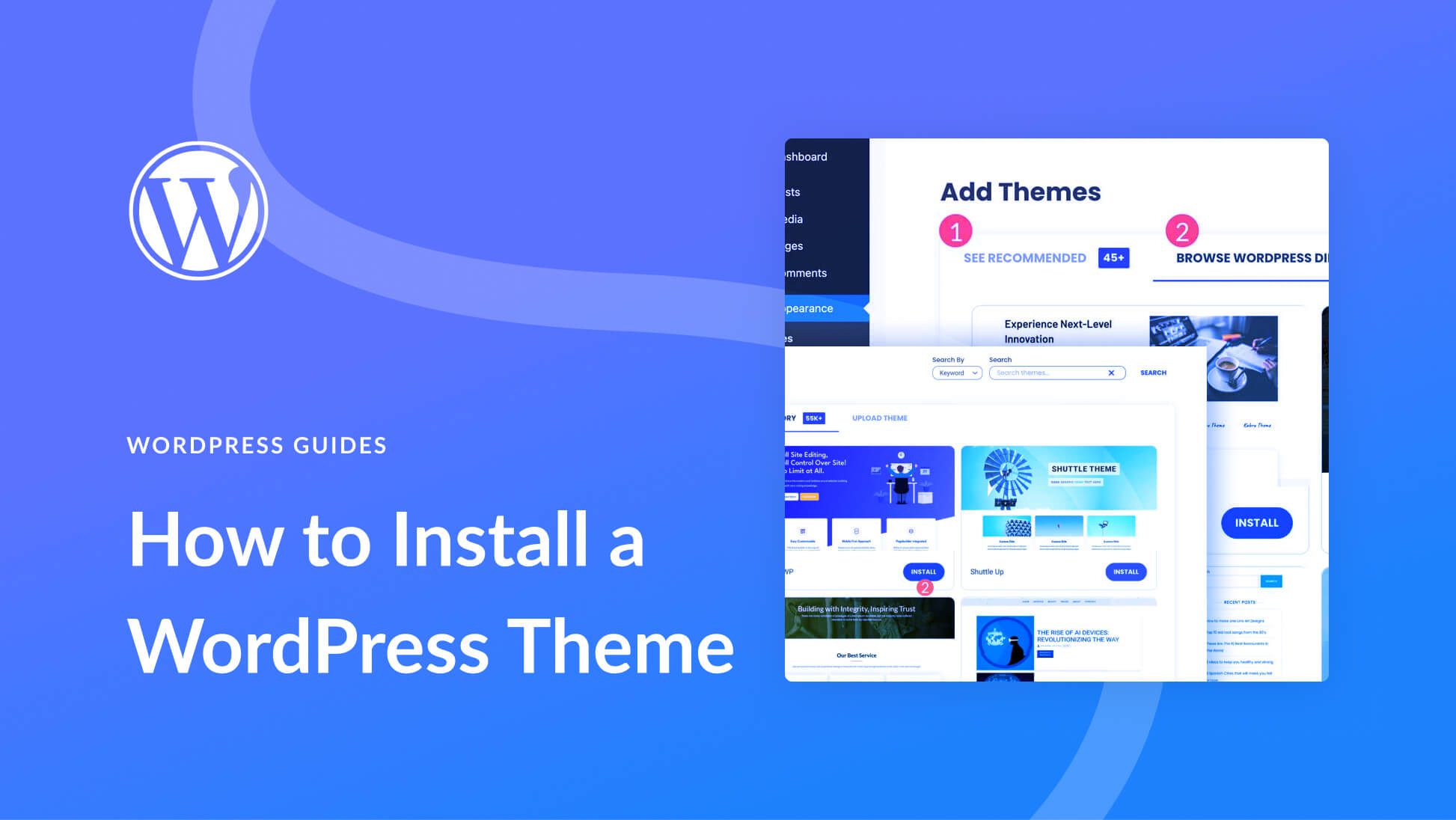
First, go to your WordPress dashboard. Find the Appearance tab. Click on Themes. Now, click the Add New button at the top. Next, click the Upload Theme button. Choose your template file. The file should be in a .zip format. Click Install Now. Wait for the installation to complete. Then, you will see a success message.
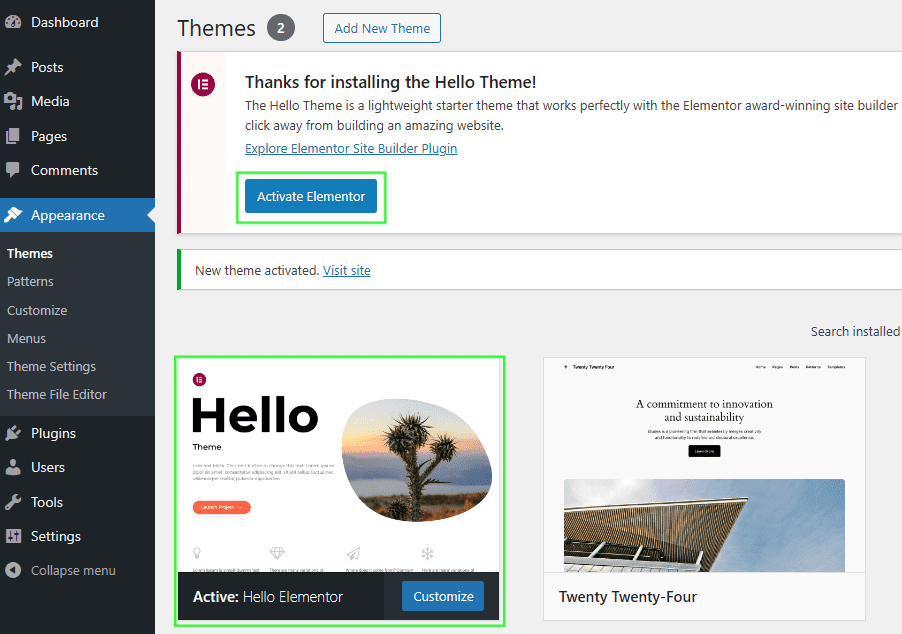
After uploading, go back to the Appearance tab. Click on Themes again. Here, you will see your new template. Click Activate. This will apply the template to your site. Check your website to see the changes. If you face issues, consider reinstalling the template.
Editing Template Files
Using the WordPress Editor is easy. It helps you change theme files. Open the editor from your dashboard. Choose the file you wish to edit. Click on it to see the code. Make changes carefully. Check twice before saving.
Utilizing WordPress Editor
Use the editor to change template files
Always back up your files before editing. This keeps your work safe. Test changes on a local server first. Check how your site looks after changes. Use child themes for safe editing. This way, updates won’t affect your work.Best Practices For Customization
Testing The New Template
Checking for Responsiveness is very important. Templates should fit all screen sizes. Test on phones and computers. Make sure everything looks nice. Look for any stretching or shrinking. Fix issues quickly. People use different devices. Responsive design is key.
Ensuring Cross-Browser Compatibility keeps your site looking good. Check on Chrome, Firefox, and Safari. Open your site on each browser. Look for missing images or broken links. Fix anything odd. Some features work differently on browsers. Consistent experience is necessary.
Troubleshooting Common Issues
Adding templates to your WordPress theme often involves navigating the theme editor. Ensuring compatibility and proper file placement is crucial. Always back up your theme before making changes to avoid issues.
Fixing Template Errors
Template errors can be frustrating. These errors might break your site. Ensure the template matches your WordPress version. Update your theme regularly. Check for missing files in the template. Errors often come from missing files. Use a reliable FTP client to upload files. Check file permissions. Incorrect permissions can cause errors. Set permissions correctly to avoid problems.
Resolving Compatibility Problems
Compatibility issues can affect site performance. Ensure the template is compatible with other plugins. Test templates in a staging environment first. Disable plugins one by one to find conflicts. Update plugins to their latest versions. Sometimes, older plugins cause issues. Check the PHP version of your server. Templates may need specific PHP versions. Consult your hosting provider for support.
Credit: help.elements.envato.com
Frequently Asked Questions
How Do I Add Templates To WordPress?
To add templates to WordPress, access your theme’s folder via FTP or WordPress dashboard. Create a new file with a unique name and include necessary PHP code. Add template header, save and upload. In WordPress admin, select the template under page attributes.
Can I Create Custom Templates In WordPress?
Yes, you can create custom templates in WordPress. Begin by creating a new PHP file in your theme’s directory. Add a template header at the top. Customize the code to fit your needs. Save and upload the file. Assign it via the page attributes section in WordPress admin.
What Is The Role Of Page Templates?
Page templates define the layout and design of individual pages in WordPress. They allow customization beyond the default theme options. You can create unique designs for different pages. This enhances user experience and improves site aesthetics. Assign templates through the WordPress admin under page attributes.
Are There Plugins To Manage WordPress Templates?
Yes, several plugins can help manage WordPress templates efficiently. Plugins like Elementor or Beaver Builder offer drag-and-drop interfaces. They simplify template creation and customization. These tools provide pre-designed templates and layouts. Using plugins can enhance productivity and streamline your design process.
Conclusion
Adding templates to your WordPress theme enhances your site’s look. It offers unique design options. You can tailor your site without coding skills. This improves user experience and engagement. Follow the steps to ensure easy template integration. Keep experimenting to find the best fit for your site.
Remember, each template serves a different purpose. Choose wisely based on your site’s needs. Regular updates and tweaks keep your site fresh. Templates are tools that help. Use them effectively for a polished, professional appearance. Your WordPress site deserves the best.
Make it stand out.


