
Are you looking to enhance your WordPress site with custom template pages? If you’re eager to give your website a unique look and feel, adding template pages to your WordPress theme is a game-changer.
Imagine having complete control over your site’s design, allowing you to tailor every page to perfectly match your vision. This not only makes your website more appealing but also ensures a better user experience for your visitors. In this guide, you’ll discover the simple steps to seamlessly integrate template pages into your WordPress theme.
Get ready to transform your site, captivate your audience, and keep them coming back for more. Dive in, and let’s make your website stand out!
Choosing The Right Template
Think about what your website needs. What kind of pages do you want? Maybe a blog page or a contact page? List these pages. This helps in choosing the right template. Templates can save time and make your site look good. Make sure the template matches your site’s style. If your site is about food, find a food-related template.
There are many template options. Free templates are available. Some templates cost money. Free templates are a good start. Paid templates can offer more features. Look at different templates. Read reviews and see what others say. Find a template that fits your need.

Credit: wordpress.org
Creating Custom Template Files
Setting up a child theme is important. It keeps your changes safe. Start by creating a new folder. Name it after your theme and add “-child”. Inside, make a file called style.css. This will hold your custom styles. In style.css, add a header with theme info. The Template line should match your parent theme’s folder name. Next, make a functions.php file. This is where you add code to load the parent theme’s styles.
Copy the file you want to change from the parent theme. Paste it into your child theme folder. Now you can edit it without worry. Changes here won’t affect the parent theme. For example, if you want to change page.php, copy it to your child theme. Then, open it and make changes. Remember to save your work. This keeps your custom design intact.
Adding New Template Pages
Start by creating a new file. You can use any text editor. Name the file with a unique name. Use the .php extension for this file. Save it on your computer. Ensure that the file name is clear. This helps you identify it easily later.
Open your WordPress theme folder. Navigate to the “wp-content/themes” directory. Find the folder with your theme’s name. Upload your template file to this folder. Use an FTP client or cPanel. Make sure the file is in the correct folder. This way, WordPress can find and use it.

Credit: www.cloudways.com
Assigning Templates To Pages
Easily add template pages to your WordPress theme by accessing the page editor and selecting your desired template. Customize your website’s appearance and functionality without coding. Enhance user experience by utilizing pre-designed layouts tailored to your needs.
Accessing Page Attributes
WordPress is user-friendly. To use a custom template, start by editing a page. Look for Page Attributes on the right side. This section is very helpful. It helps you choose different templates. Click on it to see a list. You will find options for your page.
Selecting The Custom Template
To select a custom template, find the Template dropdown. It’s under Page Attributes. Click on it to see templates. Each template offers different designs. Choose the one you like. Press the Update button to save. Your page now uses the new template. It’s that simple and fun to do!
Testing And Troubleshooting
Previewing Template Changes is an important step. Use the WordPress preview feature. This shows how templates look. It helps spot errors early. Check every page for issues. Some changes might look different. You might need to tweak them.
Resolving Common Issues takes patience. Sometimes, templates do not display correctly. Try clearing your browser cache. This fixes many problems. Check your theme settings. Ensure everything is correct. Look for any missing files. Missing files can cause errors. Update your theme regularly. This prevents many issues.
Enhancing Template Functionality
Custom scripts make your site unique. To add them, locate your theme’s functions file. Open it and add your script code. You can use wp_enqueue_script to load scripts. This method keeps them organized. Always test your scripts. Ensure they work correctly. Errors can break your site. It’s important to backup your files. This saves time if issues arise.
Dynamic content changes based on user actions. It makes pages interactive. Use PHP code to fetch data. Display different content based on conditions. For example, show special offers to logged-in users. This keeps your site engaging. Check your dynamic features regularly. Ensure they display correctly. Always update your code. This keeps it secure and efficient.
Credit: www.smashingmagazine.com
Frequently Asked Questions
How To Create A Template Page In WordPress?
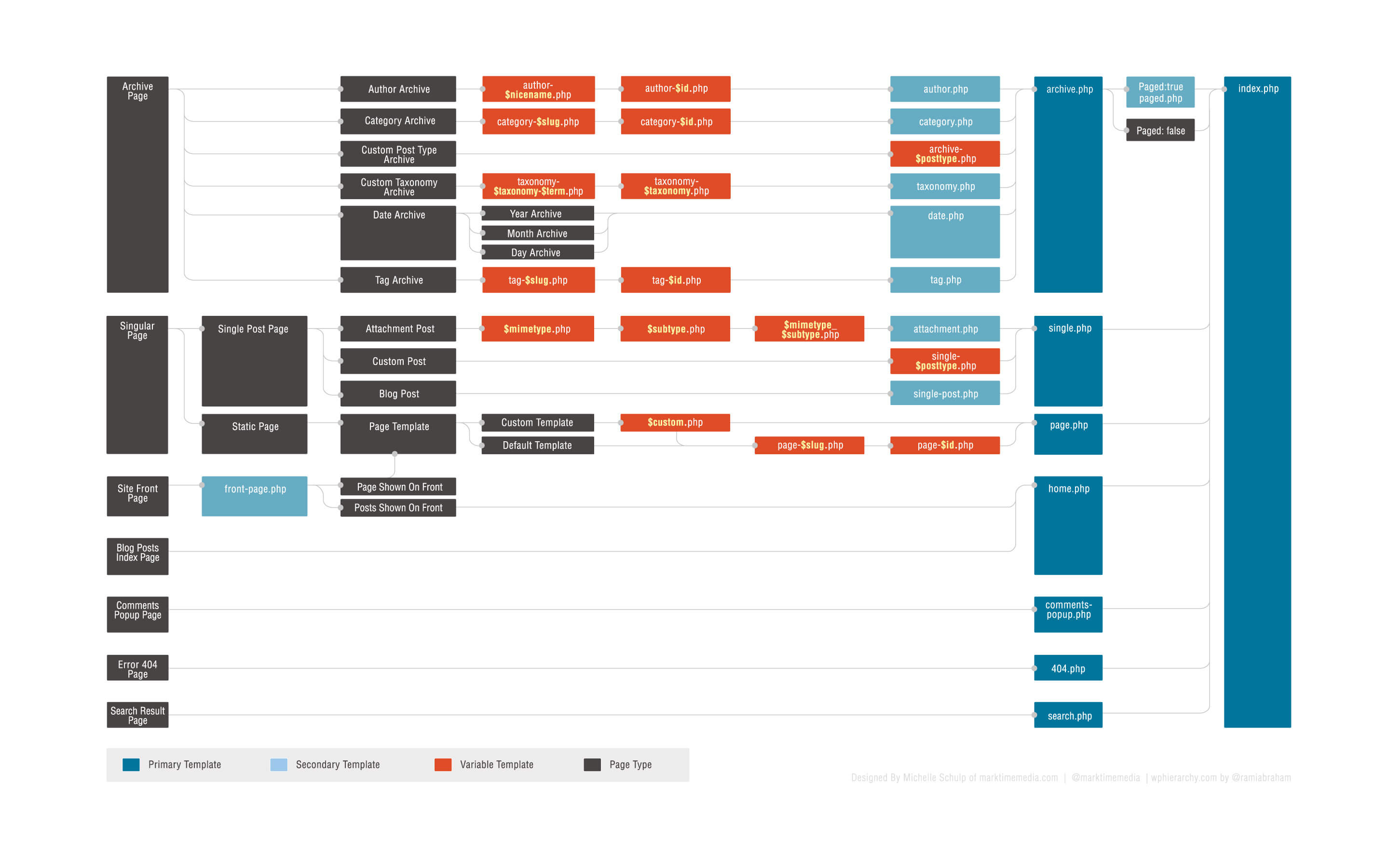
Creating a template page involves adding a PHP file in your theme folder. Name it appropriately, like `template-custom. php`. Use the WordPress template hierarchy to define its structure. Add header, footer, and other necessary elements. Ensure to include the `/* Template Name: Custom Page */` comment at the top.
Can I Add A Template Without Coding?
Yes, you can use page builder plugins like Elementor or Beaver Builder. These tools offer drag-and-drop interfaces to create custom layouts without coding. They provide pre-designed templates and elements, helping you design pages visually. Customize elements, arrange them, and save your design as a template.
Why Use Custom Template Pages In WordPress?
Custom template pages offer flexibility in design and functionality. They allow unique layouts different from standard pages. You can add custom features, styles, and scripts. This enhances user experience and aligns the design with branding. It’s ideal for creating landing pages, portfolios, or other specialized content.
How To Assign A Template To A Page?
In the WordPress admin panel, go to Pages, then Edit the desired page. On the right, find the Page Attributes section. Select your custom template from the dropdown menu. Update or publish the page to apply changes. This assigns the selected template to the page.
Conclusion
Adding template pages to your WordPress theme is straightforward. It enhances site design and user experience. Follow the steps carefully to ensure a smooth process. Customize templates to meet your specific needs. Experiment with different layouts for diverse page presentations.
Remember to save changes regularly to avoid losing progress. Test each template thoroughly before going live. Use these tips to create professional, functional pages. Your website can look unique and appealing. Explore other customization options within WordPress. Keep learning to improve your skills.
Enjoy the creative journey with WordPress templates.


