
Are you eager to enhance your WordPress site with a fresh, personalized look? Learning how to add a template to your WordPress theme can open up a world of design possibilities, making your website stand out in the crowded digital landscape.
Whether you’re a seasoned web developer or a curious beginner, understanding this process is crucial for customizing your site to reflect your unique style and brand identity. Imagine the satisfaction of seeing your vision come to life with just a few clicks.
This guide will walk you through the steps you need to take, simplifying the technical aspects and empowering you to make your website truly yours. Let’s dive in and unlock the potential of your WordPress theme!
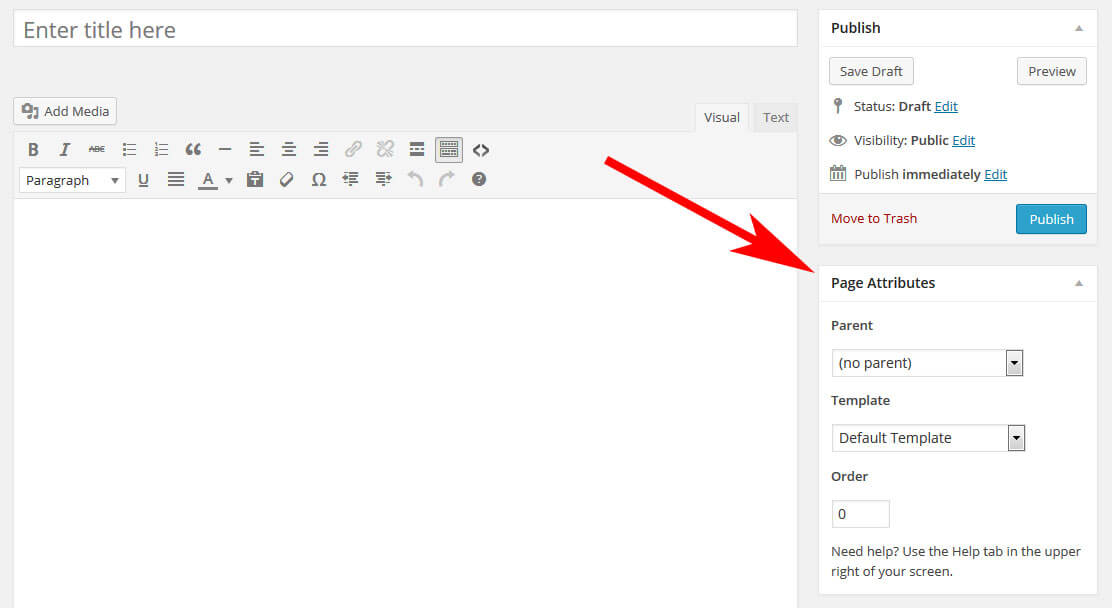
Credit: www.smashingmagazine.com
Choosing The Right Template
Find out what you need. Do you want a blog or store? Each website has different needs. Make a list. Write down your goals. Do you need a clean look or many features? This helps in choosing a template.
Look for templates online. Many websites offer free and paid templates. Compare different templates. Check reviews and ratings. Look at the features they offer. Are they easy to use? Do they have good support? Choose the template that fits your needs.
Preparing Your WordPress Environment
Backing up your site is very important. It keeps your data safe. Use a plugin for backups. There are many good plugins available. Choose one that suits your needs. Save the backup to a safe place. You can use cloud storage or a hard drive.
Keeping WordPress up-to-date is crucial. It helps protect your site. Check for updates regularly. Plugins also need updates. Outdated plugins can cause problems. Update them to get new features. Make sure everything is working fine after updates.
Installing A WordPress Template
First, log in to your WordPress admin panel. Find the Appearance tab on the left. Click it. You will see the Theme Editor option. Click on it. This will open the theme files. Here, you can edit or add new files. Be careful while editing. Wrong changes can break the site. Always make a backup before you start. This ensures your site is safe.
Go to the Appearance section again. Click on Themes. Now, click Add New. You will see an Upload Theme button. Click it. Choose the template file from your computer. Make sure it is in .zip format. Click Install Now. Wait for the upload to finish. After that, click Activate. Your new template is now live. Check your site to see the changes.
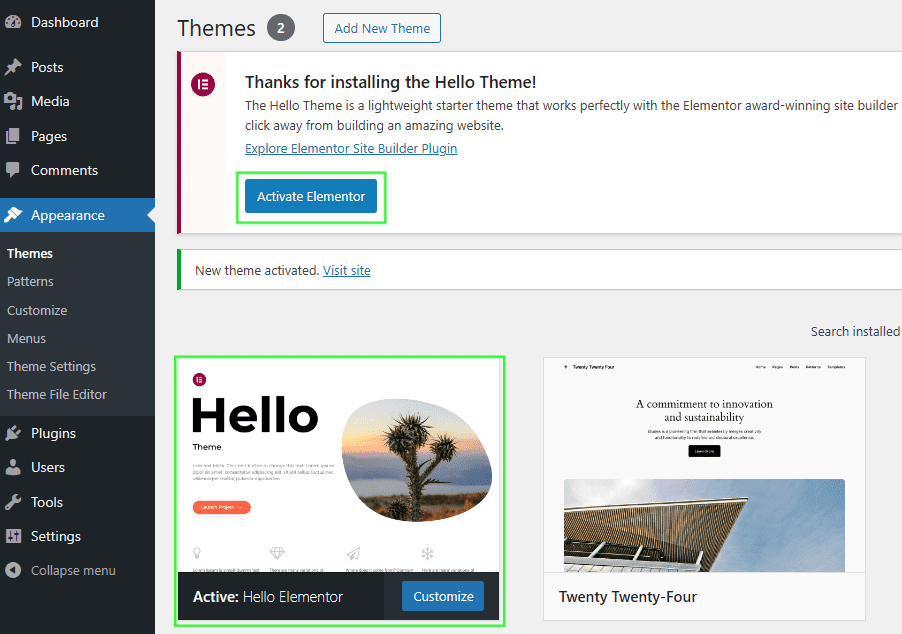
Credit: help.elements.envato.com
Customizing The Template
Start by finding the theme editor in WordPress. You can locate it under the Appearance menu. Click on it, and you will see all the files. Choose the file you want to edit. It is important to backup before making changes. This helps to restore your site if something goes wrong. Open the file to see the code. Make your edits carefully. Save your changes by clicking the update button. Refresh your site to see the updates.
Go to the WordPress customizer for easy adjustments. This tool helps you change settings like colors and fonts. Look for the settings option in the menu. Click and explore the options. You can change the layout and design here. Each change shows a preview. This way, you see how your site looks instantly. Once satisfied, click the save button. These settings help your site look nice and neat.
Testing The New Template
Explore how to add a new template in a WordPress theme. Start by accessing your WordPress dashboard. Navigate to Appearance, then select Editor. Follow simple steps to integrate the template smoothly. Enhance your website’s design effortlessly.
Checking For Compatibility
Before using a new template, make sure it’s compatible. Check if it works well with your current plugins. Some templates might not support all plugins. This can cause errors or slow down your website. Always look for templates that match your WordPress version. This ensures everything runs smoothly. A quick test can save a lot of time later.
Ensuring Responsiveness
Templates should look good on all devices. This means they must be responsive. A responsive template adjusts to different screen sizes. Check it on phones, tablets, and computers. A good template should look neat everywhere. Visitors use different devices to view your site. Ensuring responsiveness keeps them happy. Test by resizing your browser window. This helps see how the template changes.

Credit: www.cloudways.com
Troubleshooting Common Issues
Adding a template to a WordPress theme can be confusing. Start by accessing the theme editor. Then, create a new file with the appropriate PHP code. Save changes and refresh your site to see the new template.
Resolving Conflicts
Sometimes, themes and plugins do not work well together. Conflicts can cause problems. Try deactivating plugins one by one. See if the problem goes away. If it does, that plugin is the problem. Update or replace it. This often fixes the issue.
Themes can also have conflicts. Switch to a default theme. Check if the problem is gone. If yes, then your theme may have a problem. Contact the theme developer for help. They often have solutions ready.
Fixing Display Errors
Display errors can make your site look strange. Check if your theme supports the template. If not, it may not show right. Ensure that your WordPress and theme are up to date. Updates fix many problems.
Clear your cache after updates. This helps see changes. Use a tool like Google Chrome DevTools. It shows errors in detail. Then, you know what to fix. If still confused, ask for help in WordPress forums. Many users offer advice.
Optimizing Template Performance
Adding templates in WordPress themes boosts performance. Navigate to the WordPress dashboard, select ‘Appearance’, then ‘Editor’. Locate the desired theme file, click ‘Add Template’, and customize your layout for a better website experience. Make sure to save changes and preview the template for optimal results.
Improving Load Times
Fast websites make users happy. Reduce image sizes to speed up pages. Use tools like TinyPNG to compress images. Avoid heavy scripts that slow down the site. Choose lightweight plugins and themes. Minimize CSS and JavaScript files. Use Caching plugins to save server resources. A fast site boosts user experience and helps SEO.
Enhancing Seo Settings
Good SEO means better site visibility. Use SEO plugins like Yoast or All in One SEO. Add keywords in titles and headings. Write clear meta descriptions. Create SEO-friendly URLs. Use alt text for images. Link pages internally and externally. These steps improve search engine ranking.
Frequently Asked Questions
How Do I Create A Template In WordPress?
Creating a template involves designing a custom layout. Use a child theme or a page builder plugin. Follow WordPress coding standards for PHP and HTML. Test the template for responsiveness across devices. Save your template file in your theme’s folder.
Can I Add A Template Without Coding?
Yes, you can use page builder plugins like Elementor or Beaver Builder. These plugins offer drag-and-drop functionality. They allow you to customize layouts without coding. Choose a plugin that fits your design needs. Ensure your theme is compatible with the plugin.
Where Do I Upload WordPress Template Files?
Upload template files in your theme’s directory. Access the directory through FTP or your hosting panel. Place files in the appropriate folder, usually the ‘templates’ folder. Ensure files have the correct PHP and HTML format. Check theme documentation for specific instructions.
Why Use A Child Theme For Templates?
Child themes prevent changes from being lost during updates. They allow customization without affecting the parent theme. Create a child theme to safely add templates. Use the WordPress Codex as a guide. Always back up your theme before making changes.
Conclusion
Adding templates to WordPress themes enhances your website’s functionality. It allows customization without complex coding skills. Follow the steps and create unique designs effortlessly. Remember to backup your site before making changes. This prevents data loss in case of errors.
Regularly update your themes and plugins. It ensures optimal performance and security. Experiment with different templates to find the best fit. This makes your site more engaging and user-friendly. Explore WordPress forums and communities for tips. They offer valuable insights and support.
Start customizing today and make your WordPress site stand out.


