

Are you struggling to add superscript text in your WordPress posts or pages? Whether you want to show mathematical exponents, trademark symbols, or footnotes, knowing how to insert superscript can make your content clearer and more professional.
In this guide, you’ll discover simple and effective ways to add superscript in WordPress—no coding skills needed. Keep reading, and you’ll learn quick tricks that save you time and help your content stand out instantly.
Credit: rankmath.com
Why Use Superscript
Superscript is a small text format that appears slightly above the normal line of text. It looks smaller and raised. Using superscript makes your content look neat and professional. It helps show special information without breaking the flow of your writing. This simple style can improve how readers understand your message.
Common Uses In Content
Superscript often appears in scientific and mathematical writing. It shows exponents, like in “x²” or “10³”. People also use superscript for footnotes or references. For example, a small number after a word points to extra information at the page bottom. In dates, it marks ordinal numbers, such as “1st” or “2nd”. These uses make text clearer and easier to follow.
Benefits For Readability
Superscript helps separate extra details from main text. This separation stops clutter and keeps writing clean. Readers can quickly spot important notes without losing focus. It also saves space on the page, making content less crowded. Using superscript smartly guides readers through complex information smoothly.
Superscript In WordPress Editor
Adding superscript text in WordPress helps show footnotes, mathematical powers, or trademarks. The WordPress editor supports this feature in different ways. You can easily insert superscript using either the Classic Editor or the Block Editor. Both methods let you format your content clearly and professionally.
Using The Classic Editor
The Classic Editor uses a simple toolbar similar to word processors. To add superscript, highlight the text you want to format. Then, click the “Toolbar Toggle” button if the second row of icons is hidden. Look for the “Superscript” button labeled “x2” and click it. The selected text changes to superscript immediately.
This method does not require any HTML coding or plugins. It is quick and user-friendly. Editing superscript is just as easy. Select the superscript text again and click the button to remove it.
Using The Block Editor
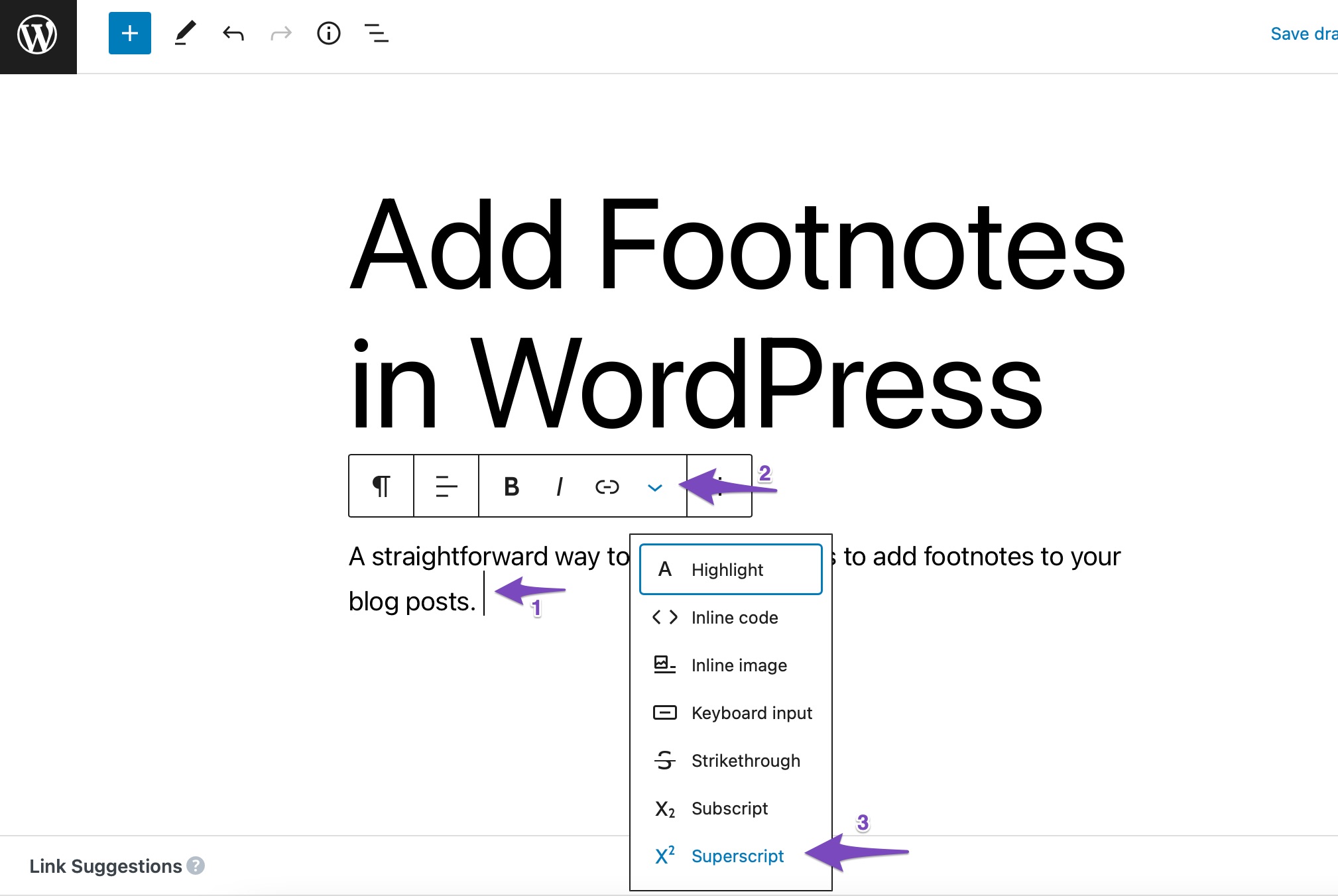
The Block Editor, or Gutenberg, works with blocks of content. To add superscript, select the text inside a paragraph block. Next, click the “More rich text controls” button in the toolbar. Choose “Superscript” from the dropdown menu.
This adds the superscript style to the selected text instantly. The Block Editor also allows switching between visual and code editors. You can view the HTML with the tag to check your formatting.
Both editors make adding superscript clear and simple for all users.
Html Method For Superscript
Using HTML to add superscript in WordPress gives you precise control. It works well for small text changes in posts or pages. This method uses simple code that browsers understand easily. No plugins or extra tools needed.
HTML superscript tags place text slightly above the normal line. This is useful for footnotes, mathematical powers, or chemical formulas. The code is short and clean, keeping your content neat.
Adding Superscript With Sup Tags
To add superscript, wrap your text in and tags. For example, writing H2O shows H2O. This code tells the browser to raise the number 2.
Insert the tag directly in the WordPress text editor. Use the “Text” or “HTML” view to see and edit the code. This method keeps your superscript clean and consistent.
When To Use Html
Use HTML superscript for precise, small text formatting. It is perfect for scientific formulas and footnote numbers. HTML code works in most WordPress themes and editors.
Avoid using HTML for large blocks of superscript text. It can become hard to read and edit. For complex formatting, consider other tools or plugins.

Credit: www.youtube.com
Plugins For Superscript
Plugins simplify adding superscript in WordPress. They save time and avoid manual coding. Using plugins, you can format text easily in posts and pages. Many plugins offer extra features like subscript and special characters too.
Top Plugins To Consider
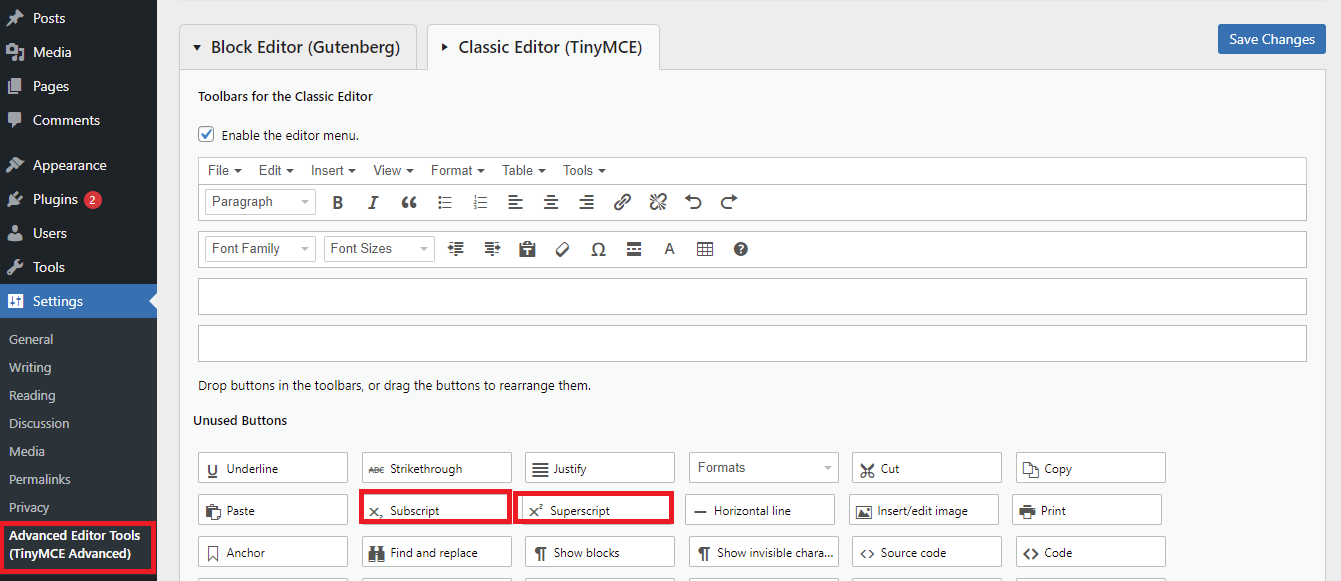
Superscript plugins vary in features and ease of use. Some popular options are “TinyMCE Advanced,” “Superscript and Subscript Buttons,” and “WP Edit.” These plugins add buttons to your editor toolbar. You click the button to apply superscript quickly. They work well with both Classic and Block editors.
Installation And Setup
Go to your WordPress dashboard and open the Plugins menu. Click “Add New” and type the plugin name in the search box. Find the plugin and click “Install Now.” After installation, click “Activate” to enable the plugin.
Most plugins work immediately after activation. Some let you customize button placement in editor settings. Adjust settings as needed for your workflow. Save changes, then start using superscript in your posts.
Tips For Consistent Formatting
Consistent formatting improves your blog’s readability and professionalism. Using superscript correctly helps keep your content clear and neat. Follow simple tips to maintain the same style across all posts. This avoids confusion and keeps readers engaged.
Avoiding Common Mistakes
Do not use the superscript tag for regular text or emphasis. It is only for footnotes, powers, or trademarks. Avoid mixing superscript with different font sizes or colors. This breaks the look and feels unprofessional. Always preview your post to check if superscript displays correctly.
Maintaining Style Across Posts
Create a style guide for your blog’s text. Use the same font and size for superscript every time. Stick to one method to add superscript, either HTML code or the WordPress editor. This keeps your posts uniform and easier to edit later. Consistent styling builds a strong brand image.
Credit: ltheme.com
Frequently Asked Questions
How Do I Add Superscript In WordPress Editor?
To add superscript in WordPress editor, highlight the text, then click the “Superscript” button in the toolbar. If unavailable, use HTML tags like text in the Text editor mode for precise formatting.
Can I Use Shortcuts For Superscript In WordPress?
WordPress does not have built-in keyboard shortcuts for superscript. However, you can use HTML tags or install plugins that enable shortcut functionality for easier superscript input.
Which WordPress Plugins Help Add Superscript Easily?
Plugins like “TinyMCE Advanced” or “Advanced Editor Tools” enhance the editor toolbar. They add superscript buttons for quick formatting without writing HTML code in WordPress posts.
Is Superscript Supported In All WordPress Themes?
Most modern WordPress themes support superscript formatting. However, ensure your theme’s CSS styles do not override or hide superscript tags for consistent display across devices.
Conclusion
Adding superscript in WordPress is simple and quick. Use the built-in editor or HTML code. Both ways work well for small text above the line. This helps make your posts clear and professional. Practice these steps to get comfortable with the process.
Soon, you will add superscripts without any trouble. Keep your content neat and easy to read. Superscripts can improve how you share information online. Try it today and see the difference yourself.


