
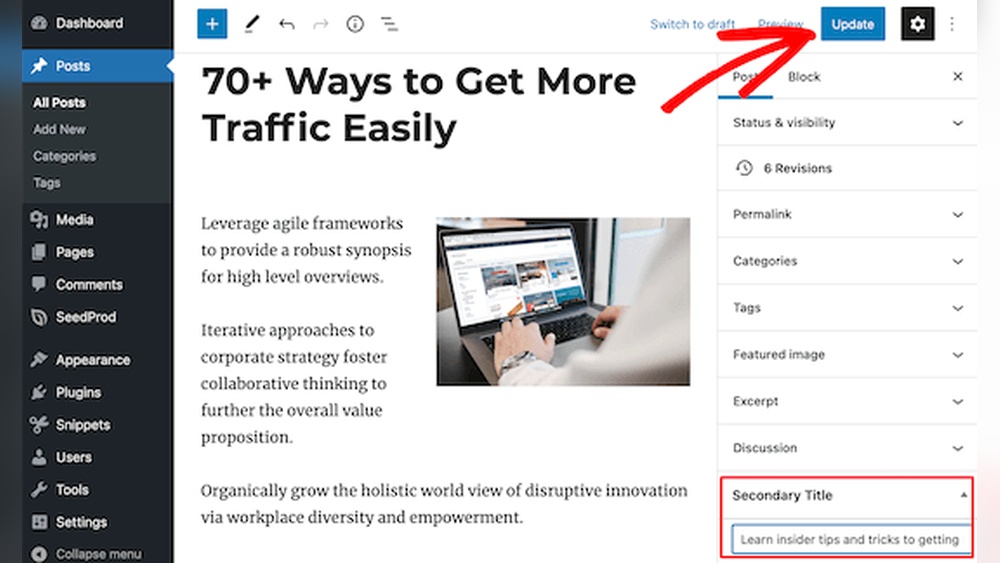
Are you looking to make your WordPress posts stand out? Adding a subtitle can grab your readers’ attention and give extra clarity to your content.
But how exactly do you add a subtitle in WordPress without any hassle? If you want a simple, step-by-step guide that anyone can follow, you’re in the right place. By the end of this article, you’ll know exactly how to add subtitles that boost your blog’s appeal and keep your visitors hooked.
Let’s dive in and make your posts more engaging right now!
Credit: www.wpbeginner.com
Benefits Of Adding Subtitles
Adding subtitles to your WordPress posts or pages brings many benefits. They make your content easier to read and understand. Subtitles break up large blocks of text, helping readers follow your message clearly. Subtitles also support search engines in finding and ranking your content better. They guide users through your articles, keeping them interested and engaged.
Enhancing Readability
Subtitles divide text into smaller, manageable sections. This helps readers scan content quickly. People can find information without reading everything. Clear subtitles reduce confusion and improve focus. They create a smooth reading flow.
Boosting Seo
Search engines use subtitles to understand content better. Including keywords in subtitles can improve your page ranking. Subtitles help organize content, making it easier for search engines to index. This increases your chances of appearing in search results.
Improving User Engagement
Subtitles catch readers’ attention and keep them interested. They highlight key points and make content more appealing. Users spend more time on pages with clear subtitles. This lowers bounce rates and encourages sharing.
Methods To Add Subtitles In WordPress
Adding subtitles in WordPress helps clarify your content. Subtitles give readers a quick idea about your post. They improve readability and user experience. Several methods exist to add subtitles easily. Choose one that fits your skill level and site needs.
Using Built-in Block Editor
The WordPress block editor allows subtitle addition without extra tools. Insert a new block below your title. Select the “Paragraph” or “Heading” block for the subtitle. Customize font size and style to make it stand out. This method is simple and quick for basic subtitles.
Installing Subtitle Plugins
Subtitle plugins add advanced subtitle options. Search for plugins like “Easy Subtitles” or “WP Subtitle” in your dashboard. Install and activate the plugin. Configure subtitle settings in the plugin menu. Plugins offer automation and styling features for better subtitle control.
Customizing Themes For Subtitles
Some WordPress themes support subtitles natively. Check your theme’s documentation for subtitle options. Use the theme customizer to enable subtitles if available. For custom themes, add subtitle code in the template files. This method suits users comfortable with basic coding.
Step-by-step Guide With Block Editor
The block editor in WordPress makes adding subtitles easy. It lets you add and style subtitles without any coding. Follow these simple steps to create clear, attractive subtitles for your posts.
Creating A Subtitle Block
Open your post in the block editor. Click the plus icon to add a new block. Search for the “Paragraph” or “Heading” block. Use this block to write your subtitle. Place it right below the main title. This separates the subtitle from the rest of the content.
Styling Subtitles
Click on the subtitle block to see style options. Change the font size to make it smaller or bigger. Pick a color that matches your theme. Use bold or italics for emphasis. Keep the style simple and clear. This keeps the subtitle readable and neat.
Previewing And Publishing
Use the preview button to see how the subtitle looks. Check on different devices for best appearance. Adjust font size or color if needed. Once satisfied, click the publish button. Your subtitle will show on the live post.

Credit: www.youtube.com
Top Plugins For Subtitles
Adding subtitles to your WordPress site makes your content clearer. Subtitles improve user experience and SEO. Plugins help you add subtitles easily. Below are the best plugins and tips for subtitles.
Features To Look For
Choose plugins that support multiple subtitle formats. Easy editing and styling options help customize subtitles. Compatibility with popular themes and page builders is important. Fast loading speed keeps your site smooth. Plugins with translation support are useful for global audiences.
Popular Subtitle Plugins
“Easy Video Player” adds subtitles to videos with simple controls. “Subtitle Press” lets you add text subtitles to posts and pages. “WP Subtitle” shows subtitles under your post titles automatically. “MediaElement.js” supports audio and video subtitles on WordPress sites.
Plugin Installation And Setup
Go to your WordPress dashboard. Click “Plugins” and then “Add New.” Search for the subtitle plugin you want. Click “Install Now” and then “Activate.” Follow the plugin’s instructions to add subtitles. Customize subtitle appearance and placement in settings.
Customizing Subtitles With Themes
Customizing subtitles with themes allows you to control how subtitles appear on your WordPress site. Themes often have built-in styles for subtitles. Changing these styles can improve your site’s look and feel. You can make subtitles match your brand or design preferences. This section covers how to edit theme files, add subtitle support, and use child themes safely.
Editing Theme Files
Theme files control how your site displays content. Editing these files lets you change subtitle styles directly. Look for files like single.php or content.php. These files usually contain the code that shows post titles and subtitles.
Add or modify HTML around the subtitle text. Use CSS to style the subtitles. Make sure to back up files before making changes. Small errors in code can break your site.
Adding Subtitle Support
Not all themes support subtitles by default. You can add this feature using code. Use WordPress functions like add_theme_support() to enable subtitles. You might need to add custom fields or use plugins for subtitle input.
Once supported, update your theme files to display subtitles. Use functions like get_post_meta() to fetch subtitle data. This method ensures subtitles appear with your posts.
Using Child Themes Safely
Editing a parent theme directly is risky. Updates can overwrite your changes. Child themes solve this problem. Create a child theme to hold your custom code.
Copy only the files you need to change into the child theme folder. Edit these files without affecting the parent theme. This keeps your subtitles customized and your site safe during updates.

Credit: qodeinteractive.com
Tips For Writing Effective Subtitles
Effective subtitles make your WordPress posts clearer and more inviting. They help readers quickly understand what the post is about. Good subtitles grab attention and keep visitors reading. Below are some simple tips to write subtitles that work well.
Keeping It Concise
Short subtitles work best. Use fewer than 10 words if possible. Clear and brief subtitles help readers scan your content fast. Avoid long sentences or complex phrases. Stick to the main point without extra details.
Using Keywords
Include important keywords in subtitles. This helps search engines find your post. Keywords should fit naturally in the subtitle. They improve SEO without sounding forced. Choose words your audience searches for.
Matching Post Tone
Make subtitles match the style of your post. If the post is casual, keep subtitles friendly. For formal posts, use professional language. Consistent tone helps readers feel connected. It also supports your blog’s brand.
Troubleshooting Common Issues
Adding subtitles in WordPress is usually simple. Sometimes, issues appear that stop subtitles from showing correctly. Knowing common problems helps fix them fast. This section covers common troubles and how to solve them.
Subtitles Not Showing
Subtitles may not appear on your site for several reasons. Check if you saved your subtitle after adding it. Sometimes, the subtitle field stays empty. Clear your browser cache and reload the page. This helps to display the latest content.
Make sure the subtitle feature is enabled in your WordPress settings. Some themes hide subtitles by default. Look at your theme options or customizer to enable subtitles. Also, verify the subtitle plugin is active and updated.
Plugin Conflicts
Plugins can clash and stop subtitles from working. Deactivate all plugins except the subtitle plugin. Check if subtitles appear now. If yes, activate plugins one by one to find the conflict.
Conflicts often happen with SEO or page builder plugins. Update all plugins to their latest versions. Outdated plugins cause more problems. Use only trusted plugins with good reviews.
Theme Compatibility
Some themes do not support subtitles well. This causes subtitles to disappear or show incorrectly. Switch to a default WordPress theme like Twenty Twenty-Three to test. If subtitles show, the problem is your theme.
Check your theme’s documentation for subtitle support. Contact the theme developer for help or updates. Custom code may be needed to add subtitle support to some themes.
Frequently Asked Questions
How Do I Add Subtitles To WordPress Posts?
To add subtitles in WordPress, use a subtitle plugin or custom fields. Install a plugin like “Subtitle” and enter your subtitle below the post title. This enhances SEO and improves reader engagement by providing more context.
Can I Add Subtitles Without A Plugin In WordPress?
Yes, you can add subtitles without a plugin by editing your theme’s code. Use custom fields or modify the single. php file to display subtitles below titles. This method requires basic coding knowledge and careful theme editing.
Will Subtitles Improve My WordPress Seo Ranking?
Subtitles can improve SEO by adding relevant keywords and enhancing readability. They help search engines understand content better and boost user engagement. Always use clear, concise subtitles related to your post topic.
Which WordPress Themes Support Subtitles By Default?
Many themes like Astra, GeneratePress, and OceanWP support subtitles or secondary titles by default. Check your theme documentation or customize the theme to display subtitles for better content organization and visual appeal.
Conclusion
Adding subtitles in WordPress makes your content clearer and more accessible. It helps readers understand your message faster. You can easily add subtitles using built-in tools or plugins. Keep your subtitles short and relevant. This small step improves your site’s user experience and SEO.
Start adding subtitles today to make your posts stand out. Simple changes can bring better results.


