

Are you looking to organize your WordPress site better and make it easier for visitors to find what they need? Adding subcategories is a simple way to do just that.
By breaking down your content into clear sections, you help your readers navigate smoothly and keep them engaged longer. In this guide, you’ll learn exactly how to add subcategories in WordPress step-by-step, even if you’re not tech-savvy. Keep reading, and you’ll have a cleaner, more professional site in no time.
Credit: 10web.io
Setting Up Categories In WordPress
Setting up categories in WordPress helps organize your content clearly. Categories group posts by topics. This improves navigation for your readers. It also helps search engines understand your site better. Proper categories make your blog look neat and professional. Start with main categories before adding subcategories.
Accessing The Categories Section
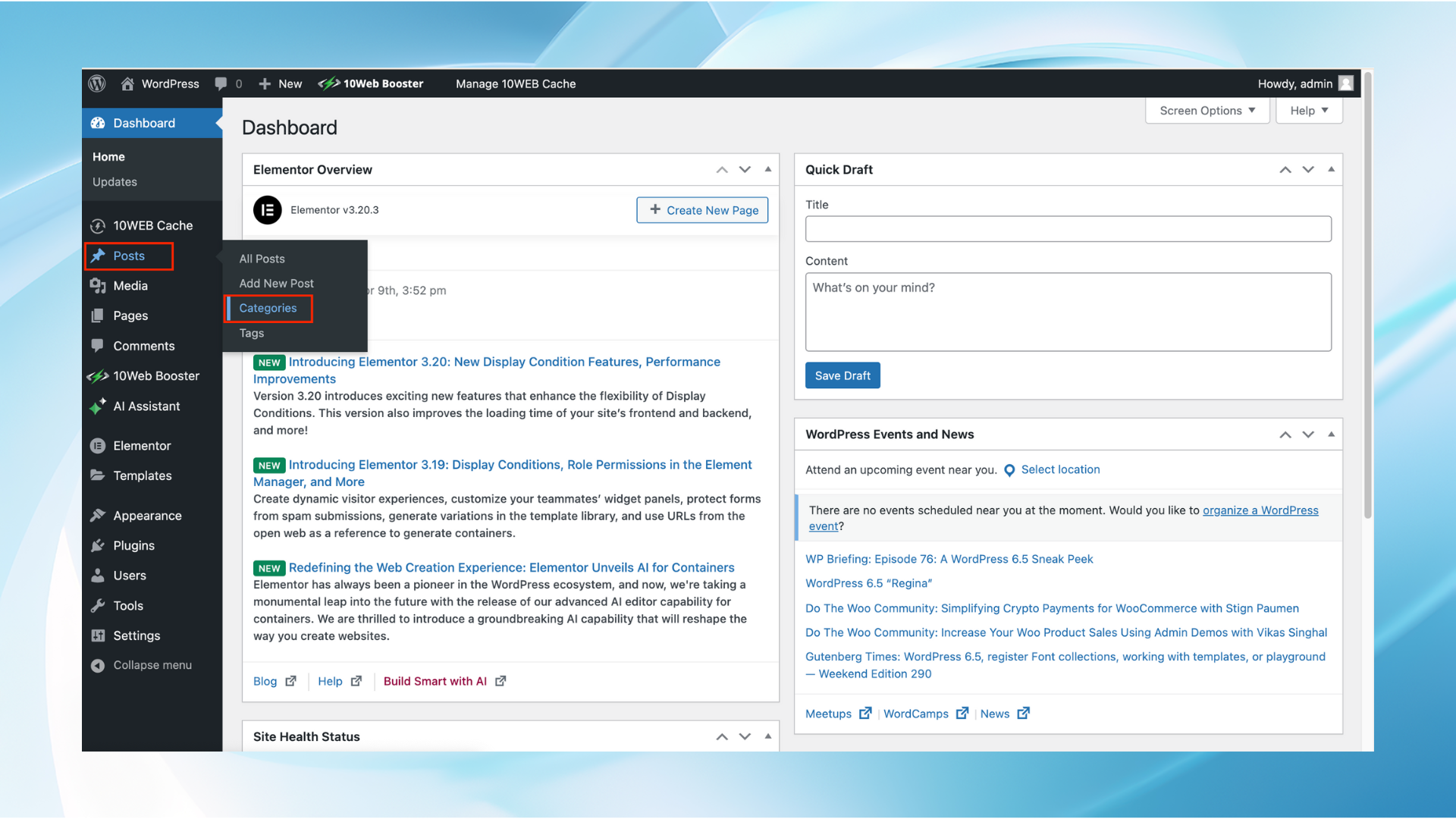
Log in to your WordPress dashboard first. Look for the “Posts” menu on the left side. Click on “Categories” under the Posts menu. You will see a page with category options. This is where you create and manage categories.
Creating Main Categories
On the Categories page, find the form on the left. Enter the name of your main category. For example, “Technology” or “Travel”. Skip the parent category option to keep it main. Add a short description to help explain the category. Click “Add New Category” to save it. Your main category now appears on the right list.
Creating Subcategories
Creating subcategories in WordPress helps organize your content. It groups related posts under a main category. This makes it easier for readers to find topics they like. Follow these steps to create subcategories smoothly.
Choosing A Parent Category
Start by selecting a parent category. This is the main category your subcategory belongs to. In WordPress, you will see a dropdown menu for this. Pick the parent category that fits best with your new subcategory. It keeps your site structure clear and neat.
Naming Your Subcategory
Choose a simple and clear name for your subcategory. Use words that describe the content well. Keep the name short and easy to remember. This helps visitors understand what to expect inside the subcategory.
Saving The Subcategory
After naming and selecting the parent category, save your subcategory. Click the “Add New Category” button in WordPress. The subcategory will appear under the parent category. Now, you can start adding posts to it.
Assigning Posts To Subcategories
Assigning posts to subcategories helps organize your content better. It makes your site easier to navigate. Visitors find related posts quickly. Search engines also understand your site structure well. This improves your SEO and user experience.
Editing Existing Posts
Open the WordPress dashboard and go to Posts.
Find the post you want to edit and click Edit.
On the right side, locate the Categories box.
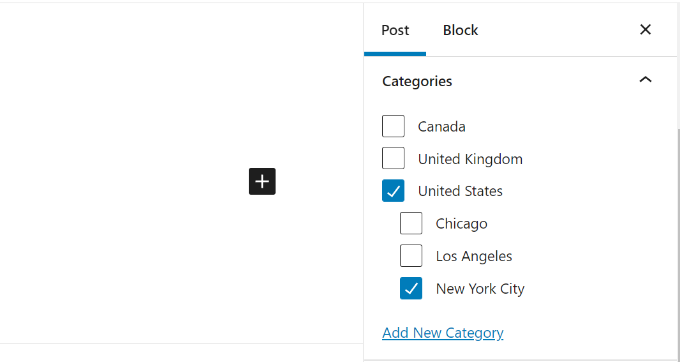
Expand the list to see main categories and subcategories.
Check the subcategory or subcategories that fit the post.
Save the changes by clicking Update.
The post now belongs to the selected subcategories.
Selecting Subcategories While Posting
Start a new post by clicking Add New under Posts.
Write your content and prepare for publishing.
Look for the Categories box on the right.
Click to expand and see all categories and subcategories.
Select the subcategories that match your post topic.
Publish or schedule your post as usual.
The post will appear under the chosen subcategories.

Credit: www.greengeeks.com
Managing And Editing Subcategories
Managing and editing subcategories in WordPress keeps your site organized and user-friendly. It helps visitors find content faster. This section explains how to rename and delete subcategories easily. These tasks take just a few clicks and improve your site’s structure.
Renaming Subcategories
Start by going to the WordPress dashboard. Click on “Posts” and then “Categories.” Find the subcategory you want to rename in the list. Hover over it and click “Edit.”
Change the name in the “Name” field. You can also update the slug, which appears in the URL. Save your changes by clicking “Update.” The new name will show on your site immediately.
Deleting Unwanted Subcategories
Access the “Categories” page from the dashboard. Locate the subcategory you want to remove. Hover over it and click “Delete.”
WordPress will ask for confirmation. Confirm to delete the subcategory. Posts in this subcategory will not be deleted but will lose this category tag. This keeps your content safe while cleaning your categories.
Displaying Subcategories On Your Site
Displaying subcategories on your WordPress site helps visitors find content easily. It organizes your site better. Visitors can see related topics under main categories. This improves navigation and user experience. Showing subcategories also helps with SEO. Search engines understand your site structure well.
Using Widgets
Widgets are a simple way to show subcategories. Go to the WordPress dashboard and open Appearance > Widgets. Choose the “Categories” widget. Drag it to your desired widget area, like a sidebar or footer. You can set the widget to show subcategories only. This makes your site look neat and organized.
Customizing Menus
Menus give you full control over subcategory display. Go to Appearance > Menus in your dashboard. Create or edit a menu and add categories and subcategories. Drag subcategories under main categories to make them appear as dropdowns. Save the menu and assign it to a location. This method improves navigation and keeps your site tidy.
Credit: www.wpbeginner.com
Troubleshooting Common Issues
Troubleshooting common issues helps you fix problems fast. When adding subcategories in WordPress, some issues may appear. These problems can stop your subcategories from showing or cause permalink conflicts. Understanding these issues lets you solve them with ease.
Subcategories Not Showing
Sometimes subcategories do not appear on your site. This may happen if you forget to assign posts to the subcategory. Check if you linked posts correctly. Also, your theme might not support subcategory display. Try switching to a default theme to test this.
Clear your site cache. Cached pages might not update immediately. Go to WordPress dashboard, then clear cache from your caching plugin. Refresh the page to see changes. If subcategories still do not show, check your menu settings. Make sure the subcategory is added to your menu.
Permalink Conflicts
Permalink conflicts occur when URLs for subcategories clash with other pages. This causes errors or redirects. To fix this, go to WordPress settings and click “Permalinks.” Save the settings again to refresh the URL structure.
If conflicts continue, rename the subcategory slug. Use unique names that do not match other pages or posts. Avoid using special characters in slugs. Also, check for plugins that might change permalinks. Temporarily disable them to see if conflicts stop.
Frequently Asked Questions
How Do I Create Subcategories In WordPress?
To create subcategories, go to Posts > Categories in your dashboard. Add a new category and select a parent category to make it a subcategory. Click “Add New Category” to save.
Can I Add Multiple Subcategories Under One Category?
Yes, WordPress allows multiple subcategories under a single parent category. Simply create new categories and assign the same parent category to each.
How Do Subcategories Affect Website Navigation?
Subcategories improve website navigation by organizing content logically. They help visitors find related topics easily and enhance user experience.
Are Subcategories Important For Seo In WordPress?
Yes, subcategories help structure your site’s content. They improve internal linking and keyword relevance, boosting your WordPress SEO performance.
Conclusion
Adding subcategories in WordPress helps organize your content clearly. It makes navigation easier for visitors on your site. You can create subcategories quickly through the WordPress dashboard. This simple step improves your site’s structure and user experience. Keep your categories and subcategories relevant to your topics.
Regularly update them to keep your site fresh and organized. Start adding subcategories today to keep your content neat and easy to find. This small change can make a big difference for your readers.


