

Are you looking to organize your WordPress website better and make it easier for visitors to find what they need? Adding sub pages can help you do just that.
When you create sub pages, you build a clear structure that guides your audience smoothly through your content. You’ll learn exactly how to add sub pages in WordPress step by step. By the end, you’ll have the confidence to create a well-organized site that keeps your visitors engaged and coming back for more.
Let’s get started!

Credit: wordpress.org
Why Use Sub Pages
Using sub pages in WordPress helps organize your website content clearly. Sub pages create a hierarchy under a main page. This structure makes navigation easier for visitors. It also improves the way search engines understand your site.
Sub pages keep related content grouped. Visitors find information faster without confusion. This improves user experience and keeps people on your site longer.
Benefits Of Sub Pages
Sub pages help keep your site neat and tidy. They reduce clutter on main menus. This makes your website look professional and simple.
Search engines like organized sites. Sub pages help improve your site’s SEO. They show which content is connected and important.
Sub pages make managing content easier. You can update related pages together. This saves time and effort.
Common Use Cases
Businesses use sub pages for services under one main page. For example, a main “Services” page can have sub pages for each specific service.
Blogs use sub pages to group posts by topics. This helps readers find articles on their favorite subjects.
Online stores use sub pages to organize products by category. It guides buyers to the items they want quickly.
Credit: www.acmethemes.com
Preparing Your WordPress Site
Preparing your WordPress site is the first step before adding sub pages. This stage helps ensure a smooth experience. Organize your site well to make page management easy. Pay attention to basic settings and design choices.
Accessing The Dashboard
The WordPress dashboard is the control center of your site. Log in to your WordPress account to reach it. Use your username and password to sign in. After login, you will see the dashboard menu on the left side. This menu lets you manage pages, posts, and settings. Spend some time exploring the dashboard to get familiar.
Choosing The Right Theme
The theme controls your site’s look and feel. Choose a theme that supports sub pages easily. Some themes have built-in options for page hierarchy. Pick a clean and simple design for better user experience. Check that the theme is responsive for mobile devices. You can change the theme anytime from the dashboard.
Creating A Main Page
Creating a main page in WordPress is the first step to organizing your website. This page acts as the parent for sub pages. It helps visitors find related content easily. A clear main page improves site navigation and user experience.
Start by adding a new page. Then, set up the page content that fits your website’s theme. Follow these simple steps to get started.
Adding A New Page
Log in to your WordPress dashboard. Look for the “Pages” menu on the left. Click “Add New” to create a new page. Enter a clear and simple title for this page. This title will show in menus and links.
Do not publish yet. Save the page as a draft or publish it if ready. This page will serve as the main page for your sub pages.
Setting Up Page Content
Use the WordPress editor to add content to your page. Keep text short and easy to read. Add headings to break up the text. Include images or videos to make the page more engaging.
Focus on what your visitors need to know. Avoid clutter and keep the layout clean. Preview the page to see how it looks on different devices.

Credit: wpwax.com
Adding Sub Pages
Adding sub pages in WordPress helps organize your content better. Sub pages, also called child pages, sit below a main page. They create a clear structure for your site. This makes it easier for visitors to find information. Follow these simple steps to add sub pages to your WordPress site.
Creating A Child Page
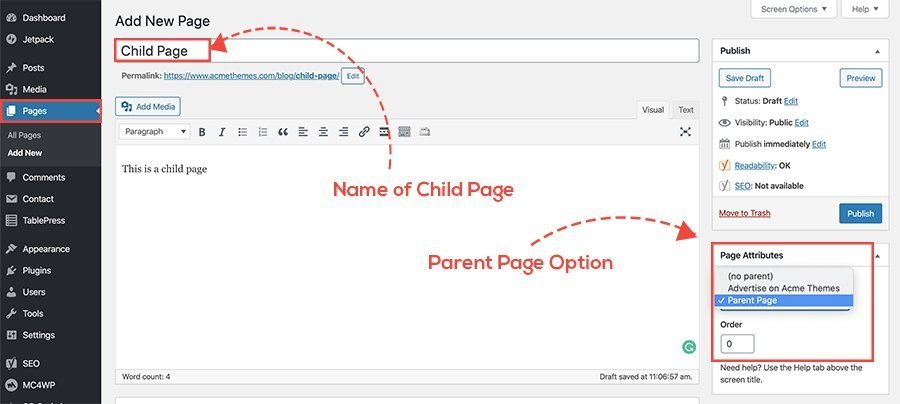
Start by logging into your WordPress dashboard. Go to the “Pages” section and click “Add New.” Enter the title and content for your child page. This page will be a sub page under a main page. You can write any content you want here.
Save your draft or publish the page once ready. The next step is to assign a parent page.
Assigning The Parent Page
On the right side of the editor, find the “Page Attributes” box. Look for the “Parent” dropdown menu. Click it and select the main page you want as the parent. This will link your new page under the main page. Click “Publish” or “Update” to save changes.
Your child page now appears under its parent page in the menu. This helps keep your site neat and easy to navigate.
Customizing Sub Page Settings
You can customize sub page settings for better display. Some themes allow unique layouts for child pages. Check your theme options under “Appearance” and “Customize.” Adjust settings like sidebar position or header style for sub pages.
Plugins can also add special features to your sub pages. Use them to improve user experience and site design. Always preview changes before publishing to ensure everything looks right.
Organizing Pages In Menus
Organizing pages in menus helps visitors find your content easily. Clear menus improve user experience and site navigation. Sub pages make your menu look neat and structured. They show the connection between main pages and their topics.
Creating a simple menu structure guides visitors through your website. This section explains how to manage menus and add sub pages in WordPress.
Navigating To Menus
Start by logging into your WordPress dashboard. Look for the “Appearance” option on the left side. Click on “Menus” to open the menu editor. Here, you can see existing menus or create a new one. This is where you control your website’s navigation.
Adding Sub Pages To Navigation
Find the pages you want to add in the list on the left. Check the boxes next to these pages. Click the “Add to Menu” button to include them. To make a page a sub page, drag it slightly to the right under a main page. This creates a drop-down effect in the menu.
Arranging Menu Structure
Drag and drop menu items to change their order. Place the most important pages at the top. Keep related sub pages grouped under their parent page. Save the menu after arranging. Check your website to see the new menu layout.
Tips For Managing Sub Pages
Managing sub pages in WordPress requires a clear plan. Organizing these pages helps visitors find information quickly. A good structure also improves site performance and user experience.
Using the right tools and following SEO rules keeps your sub pages effective. Focus on keeping control and making pages easy to find.
Using Plugins For Better Control
Plugins simplify managing sub pages. They let you reorder pages easily. Some plugins add drag-and-drop features for quick changes.
Plugins can also create custom menus. This helps keep your site navigation neat. Choose plugins with good reviews and regular updates. Avoid plugins that slow down your site.
Seo Best Practices For Sub Pages
Use clear, descriptive titles for each sub page. Titles help search engines understand your content. Add unique meta descriptions to improve page visibility.
Keep URLs short and include keywords. Use headings properly to organize content. Internal links between sub pages boost SEO and user navigation. Regularly update content to keep it relevant.
Frequently Asked Questions
How Do I Create A Sub Page In WordPress?
To create a sub page, go to Pages > Add New. Set a parent page under “Page Attributes” on the right. Publish your new page as a child of the parent page.
Can I Reorder Sub Pages In WordPress?
Yes, reorder sub pages by editing the “Order” value in the “Page Attributes” box. Lower numbers appear first in menus.
How Do Sub Pages Affect Website Navigation?
Sub pages create a hierarchical structure, improving navigation clarity. They group related content under main pages for better user experience.
Are Sub Pages Seo Friendly In WordPress?
Yes, sub pages help organize content hierarchically, aiding search engines. Proper structure improves crawlability and keyword relevance for SEO.
Conclusion
Adding sub pages in WordPress helps organize your website better. It makes navigation easier for visitors. You can create a clear structure with just a few clicks. This improves user experience and keeps your site neat. Try adding sub pages regularly to keep content grouped well.
It also helps search engines understand your site. Keep practicing these steps to get comfortable. Soon, managing pages will feel simple and natural. Start now and build a well-structured WordPress site today.


