
Are you looking to give your WordPress site a fresh, unique look? Adding custom CSS can be the perfect way to inject personality and style into your theme.
Whether you’re a beginner or have some experience with WordPress, understanding how to effectively add CSS to your theme can elevate your site’s design and functionality. Imagine the satisfaction of transforming your website into something truly remarkable, capturing the attention of every visitor who lands on your page.
In this guide, you’ll discover simple steps to seamlessly integrate CSS into your WordPress theme, allowing you to enhance your site’s aesthetics and make it stand out in the digital crowd. Ready to dive in and unlock the potential of your WordPress theme? Let’s get started!
Credit: www.hostinger.com
Choosing A Theme
Picking the right theme is important. It sets the foundation for your site’s look. Choose a theme that is easy to customize. Check if the theme supports style CSS. Themes with this support make styling easier. Some themes may need extra plugins for CSS. Read reviews before choosing. Many themes offer free trials. Use these trials to test how they work. Make sure the theme is responsive. A responsive theme works well on phones and tablets. This helps users access your site easily. Check for theme updates. Updated themes are more secure. They have fewer bugs. A good theme makes CSS styling smoother and simpler.
Credit: help.market.envato.com
Using The WordPress Customizer
First, log in to your WordPress account. Then, find the Appearance tab on your dashboard. Click on it to see the Customize option. This opens the WordPress Customizer. The Customizer lets you change many parts of your theme. You can change colors, fonts, and layouts here. It is user-friendly and helps you see changes live.
Within the Customizer, locate the Additional CSS section. Click it to open a text box. This is where you can write your CSS code. Make sure to type correctly. CSS changes the look of your site. You can make text bigger or change colors. After typing, click Publish to save your changes. You will see the changes on your website instantly. This is a simple way to customize your theme.
Editing The Theme’s Style.css File
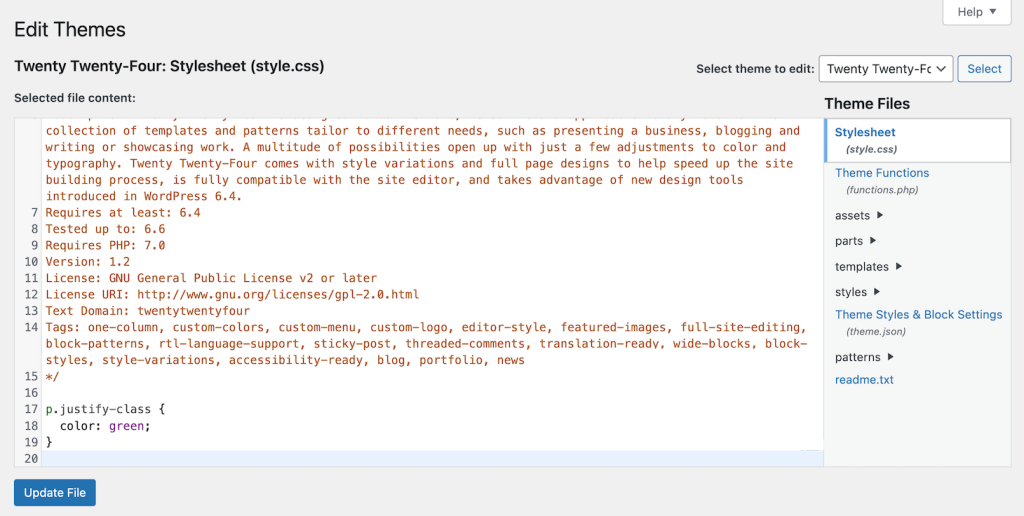
Find the style.css file in your theme folder. Use the WordPress dashboard. Go to Appearance and then Theme Editor. This file contains all the style rules for your site. You can also use FTP software. Connect to your site’s server. Look for the wp-content/themes folder. Open the folder of your active theme. Inside, you will see the style.css file.
Open the style.css file. You can edit it directly. Add or change CSS rules to customize your site. Be careful while editing. A small mistake can break the design. Always keep a backup. You can copy and paste the code into a text editor. Save it as a backup file.
After editing, click Update File to save changes. Then, go to your site. Refresh the page to see the changes. If something looks wrong, check your edits. Fix any mistakes in the code. You can also use the Inspect tool in your browser. It helps you find and fix CSS issues quickly.
Utilizing A Child Theme
Create a child theme to keep your edits safe. First, make a new folder in your themes directory. Name it something related to your theme. Add a style.css file inside this folder. Don’t forget to add a template line at the top. This tells WordPress which parent theme to use. Now, add a functions.php file. This file helps load the parent theme’s CSS. Paste in the correct code to make sure it works.
Custom CSS changes the look of your site. Open the style.css file in your child theme. Write your CSS rules inside. Save the file after making changes. Refresh your site to see the changes. Check if everything looks good. If not, edit your CSS again. Use easy CSS rules. This keeps your site looking neat. Test your site on different browsers. This makes sure everyone sees the same style.
Using Plugins For Css Customization
Many WordPress themes need extra styling. That’s where CSS plugins help. SiteOrigin CSS is a top choice. It offers a visual editor. You can see changes live. Simple Custom CSS is another good plugin. It’s easy to use. Just add your CSS code. It works with all themes. YellowPencil helps design pages. You don’t need coding skills. It includes a visual editor too. Each plugin offers unique features. Choose one that fits your needs.
Plugins need proper installation. Go to your WordPress dashboard. Click on the “Plugins” menu. Select “Add New” option. Search for your chosen plugin. Click “Install Now” button. After installing, activate the plugin. Some plugins need settings adjustment. Visit the plugin settings page. Customize as needed. Add your CSS code there. Save changes before leaving. Always back up your site first. This protects your data.
Advanced Customization With Code Editors
Picking a good code editor is important. Many people like Visual Studio Code. It is free and easy to use. Sublime Text is another good choice. It’s fast and has many features. Notepad++ is simple and great for beginners. All these editors help you write clean code. They highlight errors and help you fix them. Choose the one you like best.
You need to connect to your WordPress files to add styles. Use a tool called FileZilla. It helps you transfer files to your website. First, open FileZilla and enter your FTP details. Then, click Connect. Now, you can see all your WordPress files. Find the style.css file. This is where you add your custom CSS. Save your changes and check your site.
Best Practices For Css In WordPress
Organize CSS files with clear names. Use comments to explain sections. Group related styles together. This makes code easy to read. It helps others understand your work. It is important for big projects. Clean code is happy code.
Make sure your site looks good on phones. Use media queries for different screen sizes. Test your design on many devices. Keep buttons big enough for fingers. Remember, many users browse on mobile. Good design attracts more visitors.
Test your site on different browsers. Chrome, Firefox, and Safari are popular ones. Each browser shows styles differently. Fix bugs that appear. This ensures everyone sees your site correctly. Consistency matters.
Troubleshooting Common Issues
Easily add style CSS to your WordPress theme by accessing the WordPress dashboard. Navigate to Appearance and select Customize. Locate Additional CSS, then paste your CSS code and click Publish to update your theme’s style.
Identifying Css Conflicts
Many CSS issues arise due to conflicts with other styles. Themes have their own styles. Plugins can add extra CSS. Check if two styles clash. Inspect elements using browser tools. This helps find conflicting rules. Look for overlapping selectors. Modify or remove the conflicting style. Test changes on different pages. Ensure the theme looks good everywhere.
Reverting To Previous Versions
Sometimes changes don’t work. It’s wise to revert to an older version. Backup CSS before making changes. WordPress offers revision history. Use it to restore old styles. Visit theme editor to find past changes. Select the version that worked well. Reverting can solve many issues. Always backup CSS files. This prevents loss of good styles.

Credit: developer.wordpress.org
Frequently Asked Questions
How Do I Add Css To A WordPress Theme?
To add CSS to a WordPress theme, use the Appearance > Customize > Additional CSS option. Alternatively, edit the theme’s style. css file via Appearance > Theme Editor. Ensure changes remain after updates by using a child theme or custom CSS plugin.
Backup files before making any edits.
Where Is The Css File In WordPress Theme Style?
The CSS file in a WordPress theme is typically located in the theme’s directory under “style. css”. Access it via Appearance > Theme Editor in your WordPress dashboard. This file controls the visual styling of your site and is crucial for design customization.
Always back up before editing.
How Do You Add Css Style?
Add CSS styles by using the “ tag in HTML or linking a CSS file via the “ tag. Apply styles directly to HTML elements using inline `style` attributes. Use selectors in CSS files or “ tags to target specific elements for styling.
Are Style Css Files Mandatory For A WordPress Theme?
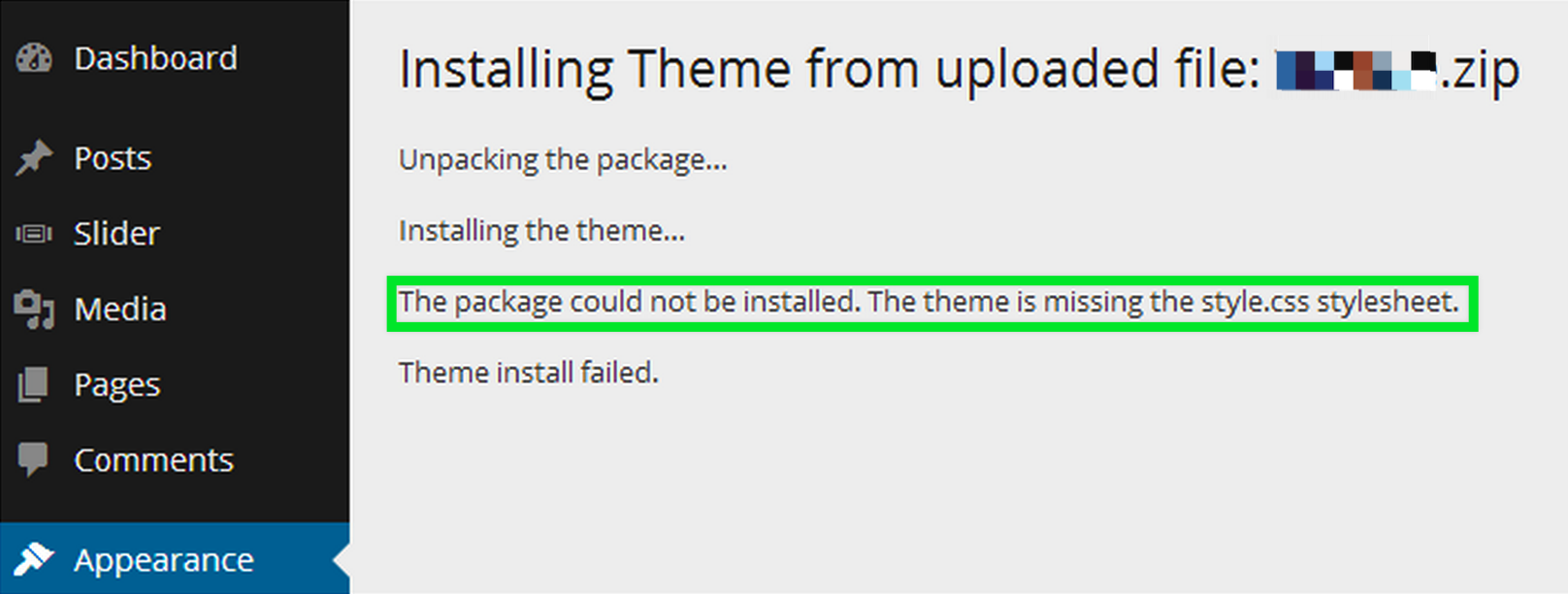
A style CSS file is essential for a WordPress theme. It defines the appearance and layout. Without it, your theme won’t function properly. It helps ensure consistent design across pages and enhances user experience. A well-crafted CSS file improves your site’s SEO and performance.
Conclusion
Adding CSS to a WordPress theme enhances your website’s design. It allows you to customize styles and improve user experience. Follow the steps discussed for a seamless integration. Practice regularly to get comfortable with the process. This ensures your site looks professional and appealing.
Use WordPress’s built-in tools for easy changes. Remember, keeping your styles organized is key. Always back up your files before making edits. This way, you protect your work. Start experimenting with different styles today. Your website deserves a unique look.
Happy styling!


