
Are you ready to transform your WordPress site with a fresh, modern look that captivates your visitors from the first glance? Adding the Spacious theme to your WordPress website could be the game-changer you’ve been searching for.
Imagine a theme that not only looks stunning but is also easy to navigate, making your content shine. In this guide, you’ll discover step-by-step instructions on how to effortlessly install and customize the Spacious theme. Whether you’re a seasoned WordPress user or just starting out, this guide will empower you to create a visually appealing and functional website.
Keep reading to unlock the secrets to a more engaging and professional online presence.

Credit: wphoot.com
Why Choose Spatious Theme
Spatious theme is easy to use and looks great. It offers a clean design that fits many types of websites. The theme is also mobile-friendly. This means your site will look good on phones and tablets. Customizing the theme is simple. You can change colors and fonts easily. Spatious also supports widgets. You can add these to your site for extra features. The theme is also SEO-friendly. This helps your site rank better in search engines. Spatious is a good choice for both beginners and experts. It is free to use, but has extra features if you pay. Try Spatious if you want a friendly and flexible theme.
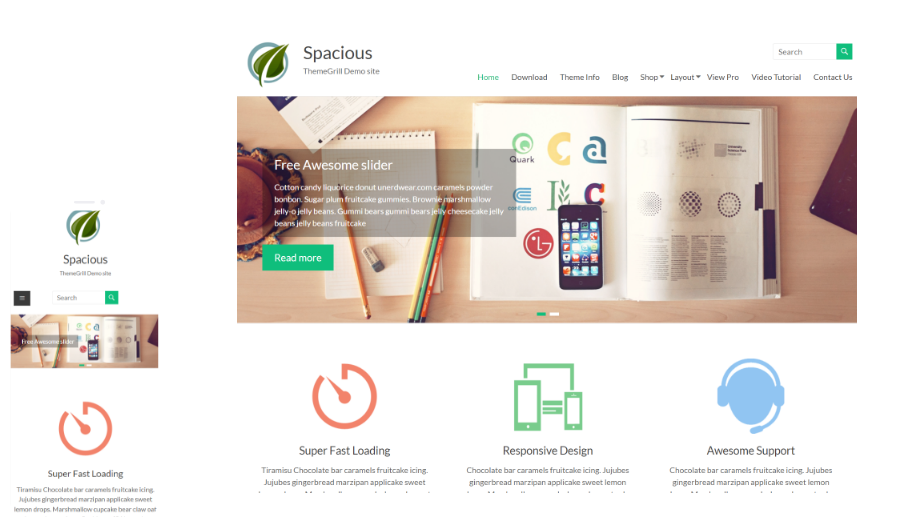
Credit: themegrill.com
Requirements And Compatibility
Spatious theme works on WordPress version 4.7 or newer. It needs PHP version 5.6 or above. Make sure your hosting supports these versions.
Check your server settings. It must allow the theme installation. Some hosts may block large files.
Your website should have enough storage. Themes may require some space. Check your plan limits.
Spatious theme supports all popular web browsers. This includes Chrome, Firefox, and Safari.
Ensure your plugins are compatible. Outdated plugins might cause issues. Update them if necessary.
Spatious theme is mobile responsive. Your site will look great on all devices. No need for extra mobile plugins.
Installing Spatious Theme
Adding the Spatious theme to WordPress is straightforward. Go to your WordPress dashboard, click “Appearance,” then “Themes,” and select “Add New. ” Search for “Spatious,” install, and activate it. This enhances your website’s layout and functionality effortlessly.
Accessing The Theme Repository
Open your WordPress dashboard. Look for the Appearance tab. Click on it. Now, select Themes. You will see a button named Add New. Click on it. This takes you to the theme repository. Here, you can find many themes. Use the search box to find Spatious.
Downloading The Theme
Click on the Spatious theme. You will see an Install button. Click this button. Wait for the theme to download. This might take a few seconds. After this, you will see an Activate button. Click it to use the theme.
Uploading To WordPress
If you have the theme file, you can upload it. Go to the Add New theme page. Look for the Upload Theme button. Click on it. A new box will appear. Click on Choose File. Select the Spatious theme file. After selecting, click Install Now. Wait for it to upload. Once done, click Activate.
Activating The Theme
Log into your WordPress dashboard. On the left, click on Appearance. Then select Themes. You will see a list of themes. Look for the Spatious Theme. If you can’t see it, use the search bar. Type Spatious and press enter. Once you find it, click on Activate.
The theme is now active. Check your website. The look should change. Spatious gives a clean and modern feel. If you want to customize, go back to Appearance. Click on Customize. Here, you can change colors and fonts. Explore the options. Make your site unique.
Customizing Theme Settings
Using the Customizer in WordPress is simple. First, go to the dashboard. Then, click on ‘Appearance’. Choose ‘Customize’. Here, you will see many options. You can change the site title. Add a logo if you want. You can even select menu locations.
In the Adjusting Layout Options section, decide how your site looks. Pick a full-width layout. Or choose a grid style. You can move widgets around. This helps make your site unique. It’s like building with blocks.
Under Color and Typography Settings, select colors for your site. You can pick a background color. Or choose text color. Change the fonts too. There are many font styles available. Make your site colorful and fun.
Adding Widgets And Menus
Widgets help show extra content on your site. They can be added easily. Go to the Appearance tab. Click on Widgets. Drag widgets to the sidebar or footer. You can add text, images, or links. Customize each widget. Make your site look good. Save changes to see them live.
Menus help visitors find pages. Start by clicking Appearance. Then click Menus. Create a new menu. Add pages to it. Arrange them in order. You can add categories or custom links too. Pick a location for the menu. Save your menu. Check the front of your site. Make sure it looks right.
Enhancing With Plugins
Plugins make your site better. Yoast SEO helps with search engines. Contact Form 7 lets visitors contact you. WP Super Cache makes your site faster. Elementor helps design pages. WooCommerce is for selling things online. These plugins help your website work well.
Go to your WordPress dashboard. Click on Plugins. Then click Add New. Type the plugin name in the search box. Find the plugin and click Install Now. After installation, click Activate. Your plugin is now ready. Repeat for other plugins. Always check for updates. Updates keep plugins safe and working well.
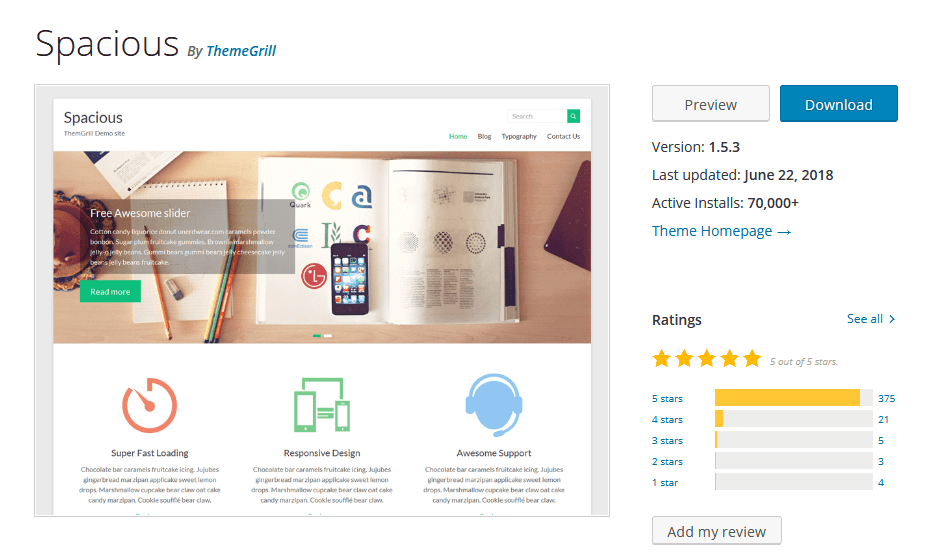
Credit: www.hiddentechies.com
Optimizing For Performance
Enhance your WordPress site by installing the Spatious theme. This theme offers a clean, responsive design. Boosts site performance and user experience with its lightweight structure and customizable options. Perfect for those seeking a professional look.
Speed Enhancement Tips
Make your website load fast. Use a lightweight theme like Spatious. It helps in speeding up your site. Compress images to save space. Smaller images load quickly. Install a caching plugin. It stores data for quick access. This reduces load time. Consider using a Content Delivery Network (CDN). It delivers content from the nearest server. This boosts speed. Regularly update plugins and themes. Updates keep your site fast and safe.
Ensuring Mobile Responsiveness
Check if your site looks good on phones. Mobile-friendly sites rank better. Use responsive design features of the Spatious theme. It adjusts automatically for different screens. Test your site on different devices. Ensure buttons and text are easy to tap and read. Avoid using large images that take time to load. Optimize your site for touch navigation. This helps mobile users a lot. Keep your layout simple and clean. It improves the user experience.
Troubleshooting Common Issues
Discover effective solutions for adding the Spatious Theme to WordPress. Navigate settings, activate the theme, and address common installation errors with ease. Troubleshoot effectively to ensure a smooth setup experience.
Resolving Installation Problems
Installation issues can be frustrating. First, check your internet connection. A stable connection is crucial for downloading. Next, ensure your WordPress is up to date. Old versions might cause conflicts. If installation fails, try disabling plugins. Some plugins can interfere with the theme. Re-enable them after the theme installs.
Use the WordPress dashboard for installation. Manual uploads might lead to errors. Always download themes from trusted sources. Avoid third-party websites. They might provide corrupted files. Double-check the downloaded file size. It should match the original size. Contact support if issues persist.
Addressing Compatibility Conflicts
Compatibility issues can arise with themes. Ensure all plugins are compatible. Check plugin documentation for version support. Some plugins might need updates. Outdated plugins can break the theme.
Use the theme’s support forum for help. Many users share solutions there. Test your site on different browsers. Some themes work better on specific browsers. Always keep backups. Restoring from a backup can save time.
Resources And Support
Discover how to add the Spatious Theme to your WordPress site with ease. Access step-by-step guides and reliable support to ensure a smooth installation. Get started today and enhance your website’s design effortlessly.
Accessing Theme Documentation
The Spatious theme documentation is easy to find. It provides detailed instructions. You can follow them step-by-step. It helps users understand theme features. Installation guides are included for beginners. Advanced tips are available for expert users. Visual aids like images clarify instructions. Each section addresses specific theme aspects. Common issues are covered with solutions. The documentation is regularly updated. This ensures accurate information for users.
Engaging With Community Forums
Community forums are vital for support. Users share experiences and tips. You can ask questions and get answers quickly. Experienced users offer helpful advice. Forums are a place for learning. Feedback improves the theme over time. Engaging in forums builds connections. You can help others by sharing knowledge. Discussion threads are easy to navigate. Forums keep users informed about updates.
Frequently Asked Questions
How Do I Install Spatious Theme?
To install the Spatious theme, navigate to your WordPress dashboard. Click on ‘Appearance’ and then ‘Themes. ‘ Search for ‘Spatious’ in the theme repository. Click ‘Install’ and activate the theme. Customize it according to your preferences using the theme options available.
Is Spatious Theme Free?
Yes, Spatious offers a free version with basic features. You can download and install it from the WordPress theme repository. For advanced features, consider purchasing the premium version. It offers more customization options and additional functionalities to enhance your website.
Can I Customize Spatious Theme Easily?
Spatious theme is designed for easy customization. Use the WordPress Customizer to change colors, fonts, and layouts. You can also add widgets and modify settings without coding. The theme is user-friendly, making it suitable for beginners and advanced users alike.
Does Spatious Theme Support Plugins?
Yes, Spatious theme supports various plugins to enhance functionality. It is compatible with popular plugins like WooCommerce, Contact Form 7, and Yoast SEO. This compatibility allows you to add features like e-commerce, forms, and SEO optimization easily.
Conclusion
Adding the Spatious theme to WordPress is straightforward. Follow the steps, and your site will look modern. This theme offers clean design and flexibility. Perfect for beginners and experts alike. Customize your website with ease. Enjoy the responsive layout and user-friendly interface.
Your website visitors will appreciate the smooth navigation. Enhance your online presence effectively. No need for complex coding skills. Just a few clicks, and you’re done. Spatious theme makes your WordPress site attractive and functional. Now, you can focus on creating great content.
Happy blogging!


