
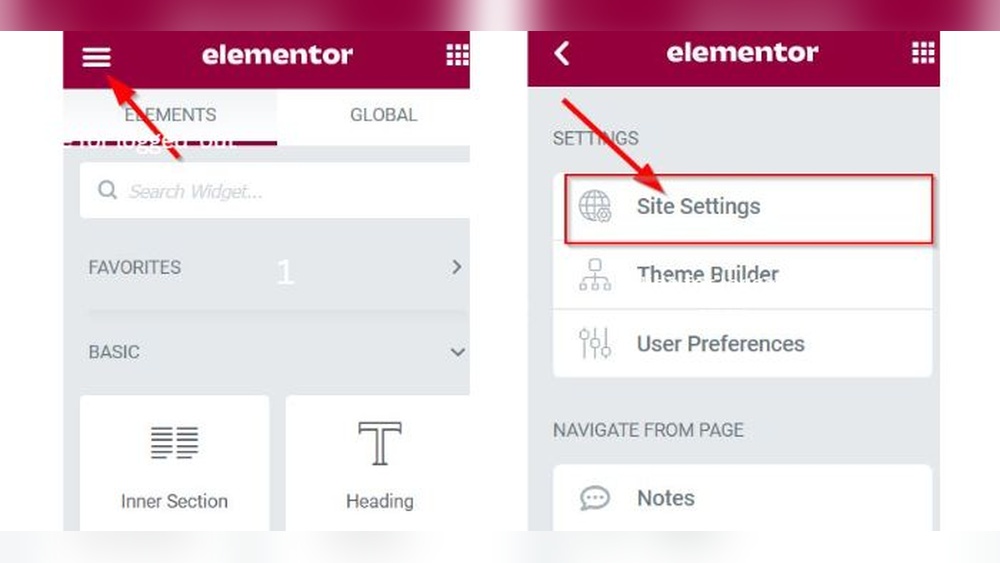
Are you struggling to make your WordPress content look clean and easy to read? Adding the right amount of space between words can make a huge difference in how your readers experience your site.
If you want your text to be clear and visually appealing, you need simple tricks that anyone can use—no coding skills required. You’ll discover exactly how to add space between words in WordPress quickly and effectively. Keep reading, and you’ll learn easy steps that will instantly improve your website’s readability and keep your visitors engaged.
Why Adjust Word Spacing Matters
Adjusting word spacing in WordPress changes how your text looks and reads. It affects how easy it is for readers to follow your content. Small changes in space can make a big difference in text clarity and flow.
Proper spacing helps guide the reader’s eyes smoothly across the page. It also makes your website appear more polished and professional. Paying attention to word spacing improves overall user experience.
Impact On Readability
Good word spacing prevents words from clumping together. It reduces eye strain and helps readers understand the text quickly. Text that is too tight or too loose slows down reading speed. Balanced spacing creates a comfortable reading pace and better focus.
Enhancing Visual Appeal
Word spacing shapes the look of your paragraphs and lines. Even spacing gives your content a clean and organized feel. It helps highlight important points and keeps the design neat. Well-spaced words improve the overall style of your website’s text.

Credit: wordpress.com
Default Word Spacing In WordPress
WordPress sets a default space between words for text in posts and pages. This spacing is controlled by the theme’s style and the browser’s rules. Usually, it looks clean and easy to read. But sometimes, you may want to change the space between words to improve the look or fit your design.
Understanding how WordPress handles word spacing helps you make better choices. It also avoids problems with text layout and readability.
How WordPress Handles Spaces
WordPress uses standard HTML to display text. Browsers show one space between words, no matter how many spaces you type. Multiple spaces get collapsed into a single space. This keeps the text tidy and prevents odd gaps.
The space size depends on the font and theme styles. WordPress themes set word spacing using CSS. Most themes keep the default spacing. Some themes add custom spacing for better style.
Common Limitations
Changing word spacing is not easy in WordPress without CSS knowledge. The default editor does not have a direct option to adjust space between words. Extra spaces typed in the editor will not show on the website.
Using HTML entities like can add space but may break the text flow. Too many non-breaking spaces cause issues on mobile screens. Also, some plugins or page builders may override spacing settings.
To change word spacing safely, you need to add custom CSS or use a plugin designed for styling text. This approach keeps the content clean and flexible.
Using The Block Editor To Add Space
The Block Editor in WordPress makes it easy to add space between words and elements. It gives you control over spacing without needing code. You can create a clean, readable layout with just a few clicks.
Using the Block Editor, you can insert spacer blocks or adjust paragraph settings. Both ways help improve text appearance and user experience. Let’s explore these simple methods.
Inserting Spacer Blocks
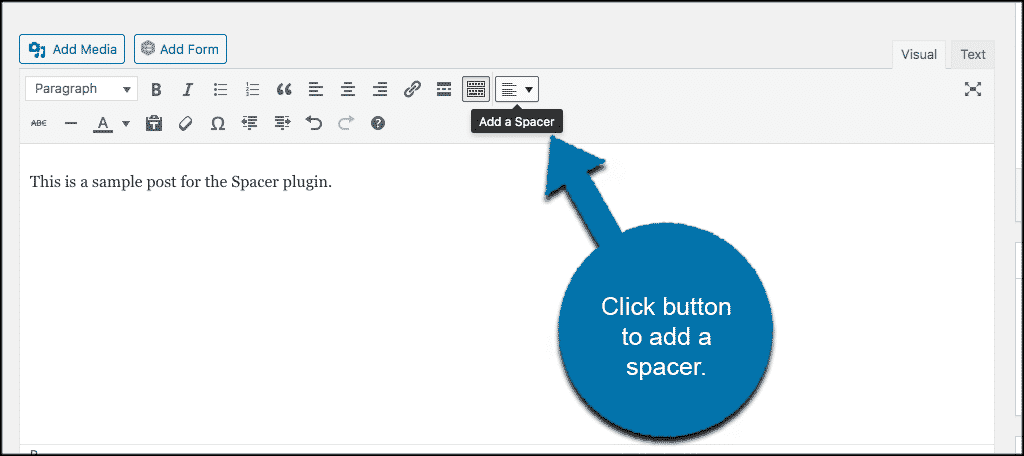
Spacer blocks add empty space anywhere in your content. Click the plus (+) icon to add a new block. Search for “Spacer” and select it.
Drag the spacer block to the desired spot between words or paragraphs. Then, use the block’s height control to set the space size. This method gives visible gaps without changing text.
Adjusting Paragraph Settings
Paragraph blocks have spacing options too. Select the paragraph you want to edit. On the right sidebar, find the “Spacing” section.
Change the line height or padding to increase space between words or lines. Adjust these settings carefully for a balanced look. This approach keeps text flow natural and neat.
Credit: www.greengeeks.com
Adding Space With Custom Css
Adding space between words can improve your website’s readability. Custom CSS lets you control this spacing easily. You can target specific text elements and adjust spacing without changing your theme files. This method keeps your design clean and consistent across your site.
Targeting Text Elements
First, identify which text needs more space. Use CSS selectors to target headings, paragraphs, or any text block. For example, target all paragraphs with p or a class like .content-text. This focus helps apply space changes only where needed.
Using Word-spacing Property
The word-spacing property controls space between words. Add CSS like word-spacing: 0.2em; to increase the gap. You can adjust the value to fit your design. This property is simple and directly affects word spacing without shifting other elements.
Applying Margin And Padding
Margins and padding add space outside or inside text boxes. Use margin-right or padding-left to create space between words or elements. This method works well if you want space around text blocks, not just between words. Combine with word-spacing for precise control.
Plugins For Enhanced Spacing Control
Plugins offer a simple way to control space between words in WordPress. They give more options beyond the default editor. These tools help adjust spacing for better readability and design.
Using plugins, you can increase or decrease space easily. Some plugins let you set spacing for paragraphs, headings, or entire pages. This control helps make your content look neat and clear.
Top WordPress Plugins
Several plugins help manage word spacing effectively. “Advanced Editor Tools” adds extra editing features, including spacing options. “TinyMCE Advanced” improves the classic editor with spacing controls. “WP Spacing Control” is a simple plugin focused on word and letter spacing. Each plugin offers unique tools for spacing customization.
How To Install And Use Plugins
Go to your WordPress dashboard and open the Plugins menu. Click “Add New” and type the plugin name in the search box. Press “Install Now” and then “Activate.”
After activation, find the plugin settings under the “Settings” or “Tools” menu. Adjust the spacing options to fit your needs. Save changes and check your page to see the effect. Plugins make spacing changes quick and easy.

Credit: themesharbor.com
Tips For Consistent Spacing Across Pages
Maintaining consistent space between words across your WordPress pages improves readability. It creates a neat and professional look. Small differences in spacing can make your site appear messy or unfinished. Following simple tips helps keep spacing uniform on all pages.
Consistent spacing also improves user experience. Visitors find content easier to scan and understand. It supports your site’s overall design and branding. Paying attention to spacing details makes a strong impression.
Creating Reusable Styles
Use reusable styles to keep word spacing consistent across pages. Create custom CSS classes with specific word-spacing values. Apply these classes to paragraphs or headings where needed. This method saves time and avoids manual edits on each page.
In WordPress, add your CSS code in the Customizer or child theme. Reusable styles ensure uniform spacing even after updates or changes. Use clear class names for easy management.
Previewing Changes On Different Devices
Check spacing on various screen sizes before publishing. WordPress editors offer preview options for desktops, tablets, and phones. Spaces may look different on small screens. Adjust styles to suit all devices for a balanced appearance.
Regular previews prevent spacing issues that affect readability. Responsive design keeps your content accessible and attractive everywhere. Make adjustments early to avoid problems later.
Frequently Asked Questions
How Can I Add Space Between Words In WordPress?
You can add space between words by using the HTML entity or by adjusting CSS word-spacing. Both methods increase space without breaking the layout.
What Is The Easiest Way To Increase Word Spacing In WordPress?
The easiest way is to use the WordPress block editor’s custom CSS feature. Add word-spacing: 10px; in the block’s advanced settings for quick spacing adjustments.
Can I Add Space Between Words Using A Plugin?
Yes, some WordPress plugins allow custom CSS or typography controls. These plugins help manage word spacing without coding knowledge.
Does Adding Spaces Affect Seo In WordPress?
No, adding spaces for readability does not harm SEO. Proper spacing improves user experience, which can indirectly benefit SEO performance.
Conclusion
Adding space between words in WordPress is simple and quick. Use the built-in editor tools or add custom code. This helps make your content clear and easy to read. Small changes like these improve your website’s look. Keep practicing to get better at formatting.
Your readers will appreciate the effort. Try these tips on your next post today.


