Are you looking to make your WordPress website more connected and engaging? Adding social media links is one of the easiest ways to do that.
When visitors can quickly find your Facebook, Instagram, or Twitter pages, they’re more likely to follow you and stay updated. But how do you add these links without any hassle or technical skills? You’ll discover simple, step-by-step methods to add social media links to your WordPress site.
By the end, your website will not only look more professional but also open new doors for growing your audience. Ready to boost your online presence? Let’s dive in!
Choosing The Right Social Media Platforms
Choosing the right social media platforms is key to growing your WordPress website. Not every platform suits every business. Picking the best ones helps you connect with the right audience. It saves time and boosts your online presence. Focus on platforms where your potential customers spend their time. This section guides you through selecting the best social media channels for your site.
Identifying Your Audience
Know who your audience is before choosing platforms. Think about their age, interests, and habits. Younger people may use different platforms than older groups. Consider what problems your audience wants to solve. This helps you pick platforms that suit their needs. Research where your audience spends most of their time online. Target those platforms to increase your website visits.
Popular Platforms For Businesses
Some social media sites are popular for many businesses. Facebook has a large and varied user base. Instagram works well for brands with strong visuals. LinkedIn is best for professional and B2B companies. Twitter suits brands that share news and quick updates. Choose platforms that match your business style and goals. These sites offer tools to help you connect with customers easily.
Niche Social Networks
Smaller, niche networks focus on specific interests or industries. These platforms often have highly engaged users. Pinterest is great for crafts, food, and fashion businesses. Dribbble and Behance are ideal for designers and artists. Reddit communities can help reach passionate groups. Find niche networks related to your market. They offer a chance to build loyal followers and stand out.

Credit: webdesign.tutsplus.com
Preparing Your Social Media Profiles
Preparing your social media profiles is an important step before adding links to your WordPress website. Clean and consistent profiles make your site look professional. They help visitors trust your brand and find you easily on social platforms.
Focus on making your profiles uniform and easy to recognize. Collect the exact URLs you will use for linking. Optimize your profiles to encourage visitors to follow or contact you.
Ensuring Consistent Branding
Use the same profile photo across all social media accounts. Pick a clear, simple image that represents your brand well. Keep your brand name consistent in every profile. Match your bio or description to reflect your website’s message. Consistent branding builds trust and recognition quickly.
Gathering Profile Urls
Visit each social media platform and copy the full URL of your profile page. Double-check the links to avoid mistakes. Store these URLs in a safe place for easy access. Accurate URLs ensure visitors reach your correct social pages without errors.
Optimizing Profiles For Links
Make sure your social media profiles are set to public. Add a clear call to action in your bio or description. Use keywords related to your niche for better visibility. Update contact information and website links. Optimized profiles encourage visitors to connect and engage.
Using WordPress Widgets For Social Links
Using WordPress widgets is a simple way to add social media links to your website. Widgets let you place links in sidebars, footers, or other widget-ready areas. This method does not require coding skills. You can choose from different widget types to show your social profiles clearly and attractively.
Accessing The Widget Area
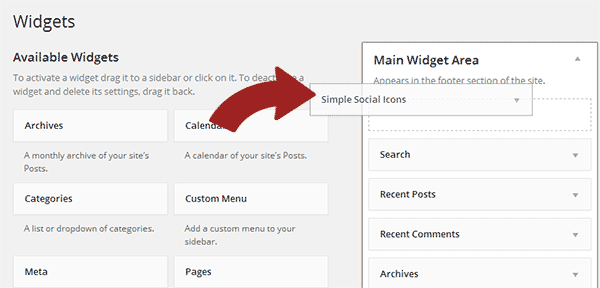
First, log in to your WordPress dashboard. Go to Appearance, then select Widgets. Here, you see all widget-ready areas of your theme. Choose the area where you want to display social links. Most themes have sidebars and footers for widgets. This step sets the stage for adding social links easily.
Adding Custom Html Or Text Widgets
To add social links manually, use the Custom HTML or Text widget. Drag the widget to your chosen area. In the widget box, add your social media links using simple HTML code. For example, use anchor tags with your profile URLs. This method gives full control over link style and content. You can add icons or text as needed.
Using Built-in Social Icons Widget
WordPress includes a Social Icons widget in many themes. Add this widget to your widget area by dragging it. Click on the widget to enter your social media URLs. The widget automatically shows icons for each link. This option is quick and looks professional without extra effort. It helps visitors find your social media profiles easily.
Credit: www.isitwp.com
Installing Social Media Plugins
Installing social media plugins on your WordPress website is a simple way to connect visitors with your social profiles. These plugins help display social icons in visible spots. They make sharing your content easier for users.
Choosing the right plugin and setting it up correctly improves your website’s interaction. Follow these steps to install and configure social media plugins smoothly.
Top Plugins For Social Links
Several popular plugins add social media links to WordPress sites. Some well-known options include:
- Simple Social Icons – Easy to use and customize.
- Social Icons Widget – Offers multiple icon styles.
- Smash Balloon Social Photo Feed – Shows your social media photos.
- Social Media Share Buttons & Social Sharing Icons – Adds share buttons.
Each plugin has unique features. Choose one that fits your design and needs.
Plugin Installation And Activation
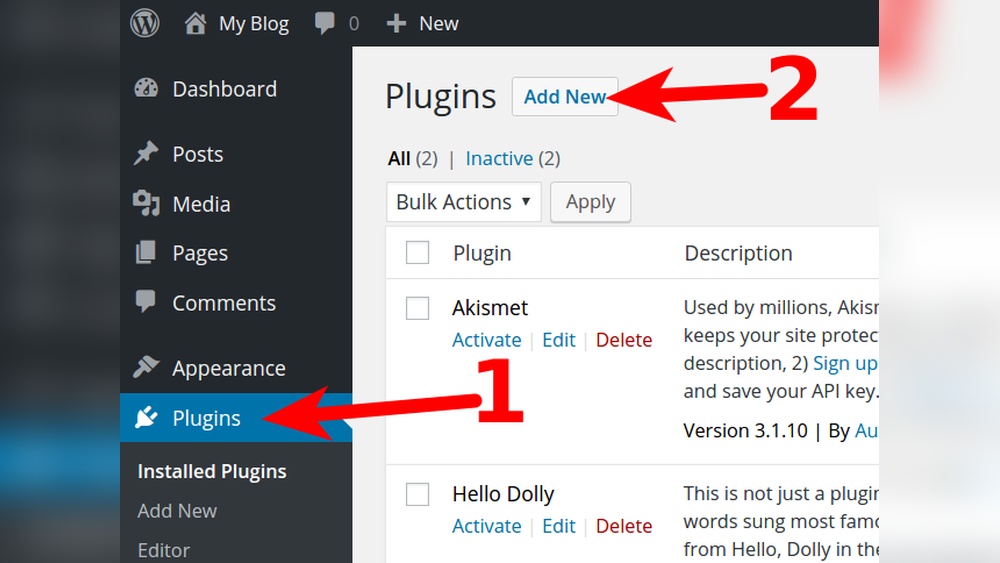
Go to your WordPress dashboard. Click on “Plugins” then “Add New.”
Type the plugin name in the search bar. Find the plugin and click “Install Now.”
After installation, press “Activate” to enable the plugin on your site.
Configuring Plugin Settings
Open the plugin settings from the dashboard menu. Set your social media profiles by entering URLs.
Choose icon style, size, and placement on your website. Options often include header, footer, or sidebar.
Save the changes. Check your site to see the social links appear as configured.
Adding Social Links To Menus
Adding social links to menus helps visitors find your social profiles fast. It keeps your site clean and easy to use. Social icons in menus show your active presence and invite clicks. This method works well for all WordPress themes.
Creating Custom Links
Start by opening the WordPress dashboard. Go to Appearance > Menus. Choose the menu to edit or create a new one. Click on “Custom Links.” Enter the full URL of your social profile. For example, https://facebook.com/yourpage. Add a simple link text like “Facebook.” Click “Add to Menu.”
Inserting Links Into Navigation Menus
After adding custom links, drag them to the desired position in your menu. You can place social links at the top, bottom, or side of the menu. Save the menu once the order looks good. Check your website to see the links live in the menu bar.
Styling Menu Icons
Icons make social links clear and attractive. Use a plugin like “Menu Icons” to add icons easily. Choose icons that match each social platform. Adjust icon size and color to fit your site’s style. Test on desktop and mobile to ensure good visibility.
Customizing Social Icons Appearance
Customizing the look of your social media icons helps match your website style. Social icons should blend well with your site’s design. This makes your site look neat and professional.
You can change icon style, size, color, and where they appear on your pages. These tweaks improve user experience. Visitors will find your social links easily and enjoy clicking them.
Selecting Icon Styles
Choose icon shapes that fit your website theme. Round, square, or simple line icons are popular. Pick styles that do not distract from your content. Some WordPress plugins offer many icon designs. Test a few to see which looks best.
Adjusting Size And Color
Set icon size so they are easy to see but not too big. Small icons can be missed. Large icons can overwhelm the page. Use colors that match your brand or website palette. Bright colors attract attention but use them wisely. Keep good contrast between icons and the background.
Positioning On Your Website
Place social icons where visitors can find them fast. Common spots include header, footer, or sidebar. Ensure icons do not block important content. Align icons horizontally or vertically for neatness. Consistent placement helps users navigate your social links easily.
Testing Links And Mobile Responsiveness
Testing links and checking mobile responsiveness are key steps after adding social media links to your WordPress site. These steps help ensure visitors can use the links easily. A smooth experience keeps users engaged and encourages them to follow your social profiles.
Testing also helps find errors early. Fixing these improves your site’s trust and usability. Below are ways to test your social media links and ensure they work well on all devices.
Verifying Link Accuracy
Click each social media icon on your website. Make sure the link opens the correct social media page. Check the URL carefully for typos or missing parts. Use different browsers to confirm the links work everywhere. Broken or wrong links can frustrate visitors.
Checking On Different Devices
View your website on phones, tablets, and desktop computers. Check if social media icons display correctly and are easy to click. Test on both iOS and Android devices. Responsive design means your links adjust to any screen size. This keeps your site user-friendly on mobile.
Fixing Common Issues
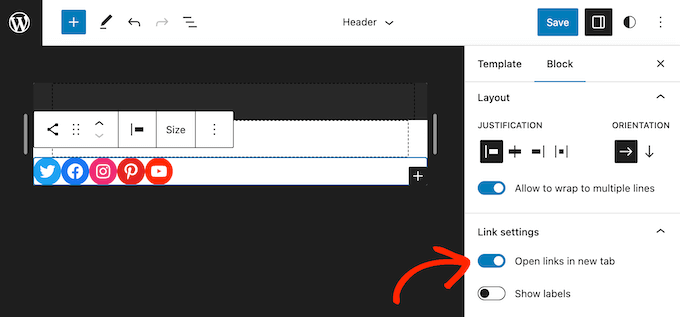
If a link does not work, double-check the URL in WordPress. Refresh your cache to see recent changes. Icons that are too small or overlap text need resizing or repositioning. Use WordPress plugins or themes that support mobile-friendly design. Clear, clickable links improve user experience.
Credit: www.wpbeginner.com
Boosting Engagement With Social Links
Adding social media links to your WordPress site does more than just show icons. It helps build a connection with visitors. Social links invite users to follow your profiles. This keeps them updated with your latest news and content. Engaging visitors on social media can turn casual readers into loyal followers. These links also encourage sharing, which spreads your message wider.
Setting up social links correctly can increase interaction. A well-placed link guides visitors to your social pages easily. This simple step improves your site’s overall engagement and reach.
Encouraging Followers
Place social icons where visitors easily see them. Use clear and simple designs for the icons. Show social links in your website header or footer. Add links at the end of blog posts for more reach. Brief text near icons can invite users to follow you. For example, “Follow us for updates” works well. Make following your pages feel natural and friendly.
Adding Call-to-actions
Call-to-actions (CTAs) motivate visitors to click social links. Use short, direct phrases like “Join our community” or “See more on Facebook.” Place CTAs near social icons for better visibility. Encourage specific actions, such as liking, sharing, or commenting. CTAs help visitors understand what to do next. Clear CTAs boost clicks and social interaction.
Tracking Clicks And Performance
Track social link clicks to know what works best. Use tools like Google Analytics or WordPress plugins. Monitor which social networks bring the most traffic. Check click rates to improve link placement and design. Tracking helps you focus on channels your audience prefers. Adjust your strategy based on real data for better results.
Frequently Asked Questions
How Do I Add Social Media Icons In WordPress?
You can add social media icons using plugins like “Social Icons Widget” or by adding HTML code in widgets. Customize icons and link them to your profiles for easy visitor access.
Which WordPress Plugin Is Best For Social Media Links?
Popular plugins include “Smash Balloon Social Photo Feed” and “Social Icons Widget. ” They offer easy setup, customization, and responsive design to match your site’s look.
Can I Add Social Media Links To WordPress Menus?
Yes, add social media links to your WordPress menu by creating custom links in Appearance > Menus. This increases visibility and user engagement.
Is It Possible To Add Social Media Links Without Plugins?
Yes, you can manually add social media icons using HTML and CSS in widgets or theme files. This approach requires basic coding knowledge but avoids extra plugins.
Conclusion
Adding social media links helps visitors connect with you easily. It also boosts your website’s reach and engagement. Choose clear icons and place them where users can find them fast. Keep your links updated to stay relevant. Small steps like these improve user experience.
Try different placements and see what works best. Your website will feel more interactive and friendly. Simple changes can make a big difference over time. Start adding social media links today and watch your site grow.