

Want to make your WordPress site more engaging and easy to connect with? Adding social media icons to your header is a simple step that can boost your online presence instantly.
Imagine your visitors clicking directly to your profiles without searching around. In this guide, you’ll learn exactly how to add social media icons to your WordPress header—no confusing tech talk, just clear steps you can follow right away. Keep reading to unlock a quick way to make your site more social and user-friendly.
Credit: ltheme.com
Choose Your Social Media Platforms
Choosing the right social media platforms matters a lot for your website. The icons you add should match your audience and business goals.
Focus on platforms where your visitors spend time. This makes your social links useful and increases engagement.
Identify Your Audience’s Favorite Platforms
Think about where your audience spends time online. Are they mostly on Facebook, Instagram, or Twitter? Knowing this helps select the best icons for your header.
Select Platforms Relevant To Your Brand
Pick social networks that fit your brand style. For example, LinkedIn suits professional sites. Instagram fits visual or creative businesses.
Limit The Number Of Icons
Too many icons can clutter your header. Choose a few key platforms. This keeps your website clean and easy to navigate.
Check Platform Popularity And Trends
Some networks grow fast and attract many users. Adding icons for popular platforms can draw more visitors to your profiles.
Credit: docs.themeisle.com
Select A Suitable Icon Style
Selecting the right icon style is key to a clean and professional header. Icons must match your website’s look and feel. They should be easy to recognize and click. A good style makes your social media links stand out without being distracting.
Think about your site’s colors, theme, and layout. The icon style should blend well with these elements. This helps visitors find your social profiles quickly and improves user experience.
Flat Vs. 3d Icon Styles
Flat icons have simple colors and shapes. They look modern and clean. Flat style fits well with minimal or modern themes.
3D icons have shadows and gradients. They look more detailed and eye-catching. Use 3D styles on creative or colorful websites.
Colored Icons Or Monochrome
Colored icons use the official brand colors. They make each social media platform easy to spot. Colored icons add vibrancy to your header.
Monochrome icons use one color only. They keep the design subtle and neat. Monochrome suits professional or simple designs.
Square, Rounded, Or Circular Shapes
Square icons offer a sharp, modern look. Use these for a bold statement.
Rounded corners soften the icon edges. This style feels friendly and approachable.
Circular icons are popular and balanced. They fit well in most header designs.
Use WordPress Customizer For Icons
The WordPress Customizer offers a simple way to add social media icons to your website header. It lets you see changes live as you make them. This tool is user-friendly and requires no coding skills. You can easily place icons that link to your social media profiles. It helps visitors find your pages quickly. Customizing the look of icons is also straightforward here.
Access The Customizer
Go to your WordPress dashboard. Find the menu labeled “Appearance.” Click on “Customize.” This opens the WordPress Customizer panel. It shows a preview of your site on the right side. The menu on the left has options to change your site’s look. Look for “Widgets” or “Header” sections. These control the header area where icons go.
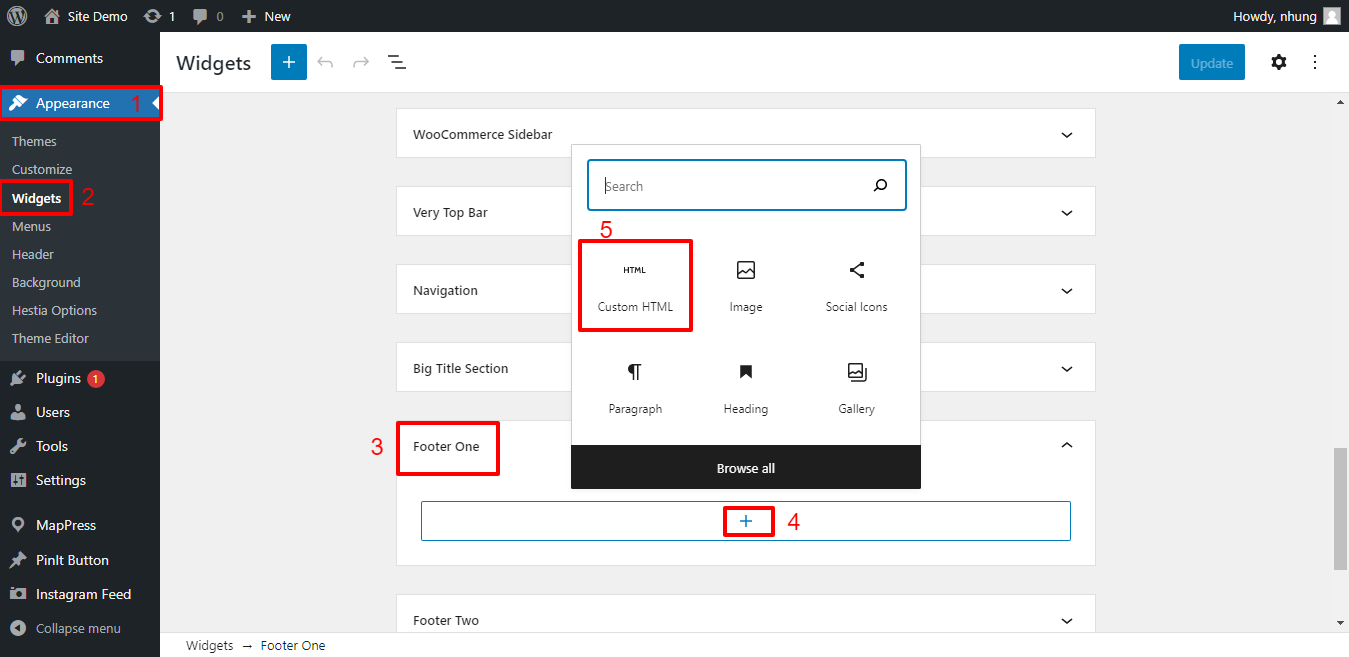
Add Icons Using Widgets
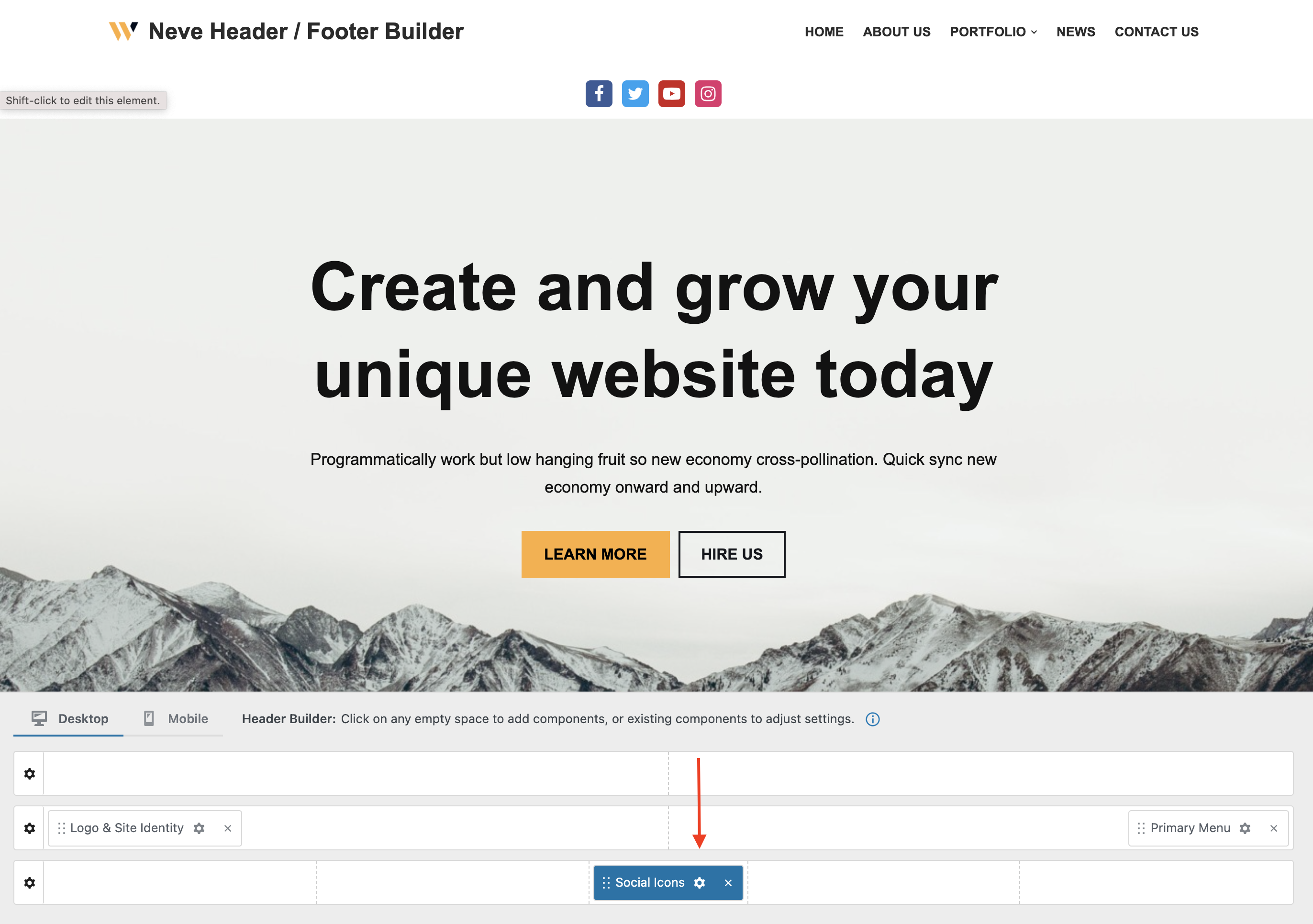
Inside the Customizer, select “Widgets.” Choose the header widget area. Click “Add a Widget.” Search for a widget named “Social Icons” or “Custom HTML.” Use the Social Icons widget to add links easily. Paste your social media URLs one by one. The widget will turn them into clickable icons. Save your changes to see icons in the header.
Customize Icon Appearance
Many themes let you change icon size and color here. Find options like “Icon Color” or “Icon Size” in the Customizer. Adjust colors to match your website’s style. Change the size for better visibility. Some themes allow icon shape changes too. Preview your changes in real time. When satisfied, click “Publish” to save.

Credit: specia.ticksy.com
Add Icons With A Plugin
Adding social media icons to your WordPress header can boost your site’s engagement. Using a plugin makes this task simple and quick. No need for coding skills or complex steps.
Plugins offer many icon styles and placement options. They help you link directly to your social profiles. This method keeps your site clean and professional.
Find The Right Plugin
Search for social media icon plugins in the WordPress plugin directory. Check user ratings and number of active installs. Choose one that updates regularly and supports popular networks.
Look for plugins with easy setup and customization features. Some plugins also offer icon animation and size control. Pick a plugin that fits your site’s style and needs.
Install And Activate The Plugin
Go to your WordPress dashboard and open the Plugins menu. Click “Add New” and type the plugin name in the search box. Find the plugin and click “Install Now.”
After installation, click “Activate.” The plugin is now ready to use. Some plugins add a new menu item for settings.
Configure Icon Settings
Open the plugin settings from the WordPress dashboard. Enter your social media URLs for each platform you want to show. Choose icon style, size, and position in the header.
Save your changes and visit your site to see the icons. Adjust settings if needed for better look and function. The icons should link to your social pages smoothly.
Insert Icons Manually With Code
Inserting social media icons manually in your WordPress header gives full control over design and placement. It requires editing your theme files and adding some code. This method works well if you want a simple and clean look without extra plugins. You can customize the icons exactly how you want.
Below are the basic steps to add social media icons using code. You will locate the header file, insert HTML for the icons, and style them with CSS. Finally, link each icon to your social media profiles.
Locate Header Template File
First, find the header template file in your theme folder. Usually, it is named header.php. You can access it via WordPress dashboard under Appearance > Theme Editor or using an FTP client. Open this file to edit the header area where you want to place the icons.
Look for the section with the site logo or navigation menu. This is often a good spot for the icons. Be careful not to change other important code.
Add Icon Html And Css
Insert the HTML code for social media icons inside the header file. Use simple tags with or
Next, add CSS styles to control icon size, color, and spacing. You can place the CSS in your theme’s style.css file or use the Customizer’s Additional CSS section. Keep the design consistent with your site’s look.
Link Icons To Profiles
Make each icon clickable by adding your social media profile URLs. Put the full URL inside the href attribute of the anchor tag. Check the links carefully to avoid errors.
Set each link to open in a new tab using target="_blank". This keeps visitors on your website while they visit your social pages. Add rel="noopener" for better security.
Test Icon Display And Links
Testing your social media icons is important after placing them in the header. It helps ensure they show up properly and link correctly to your profiles. This step avoids broken links and invisible icons that can confuse visitors.
Check each icon for clear display and correct size. Icons should be easy to see on both desktop and mobile screens. Make sure the colors match your website style and stand out enough.
Next, test every link. Click each icon to confirm it opens the right social media page. Links should open in a new tab to keep visitors on your site. Fix any broken links immediately to maintain trust.
Check Icon Visibility On Different Devices
View your website on phones, tablets, and computers. Icons should appear the same on all devices. Adjust icon size or spacing if they look crowded or too small.
Verify Url Accuracy For Each Icon
Copy and paste your profile URLs carefully. Double-check for typos or missing parts in the links. Use full URLs starting with http or https to avoid errors.
Test Link Behavior In Browsers
Open your site in various browsers like Chrome, Firefox, and Safari. Confirm links open in new tabs consistently. Check no warnings or errors appear when clicking icons.
Optimize Icons For Mobile Devices
Optimizing social media icons for mobile devices improves user experience. Mobile users expect fast loading and easy navigation. Small screens need clear, visible icons that are easy to tap.
Proper icon size and placement prevent clutter. This helps visitors find and use social links without frustration. Optimization also supports faster site speed and better SEO.
Choose The Right Icon Size
Icons should be large enough to tap easily on small screens. A minimum size of 40×40 pixels works well. Avoid making icons too big; they can crowd the header.
Use Responsive Design
Make icons adjust automatically to different screen sizes. Use CSS media queries to change icon size and spacing. This keeps the header neat on phones and tablets.
Place Icons Strategically
Position icons where users expect to find them. Common spots include the top right or left corner. Keep some space around icons to avoid accidental taps.
Optimize Icon Loading Speed
Use lightweight icon files like SVG or compressed PNG. Avoid large images that slow down page loading. Fast loading icons improve overall mobile site performance.
Test On Multiple Devices
Check how icons look and work on different phones and tablets. Make sure they are clear and easy to tap. Testing helps catch issues before visitors do.
Frequently Asked Questions
How To Add Social Media Icons In WordPress Header?
To add social media icons in your WordPress header, use a plugin or theme customizer. Upload icon images or use built-in icon fonts. Place icons in the header widget area or menu for easy access and visibility.
Which Plugins Help Add Social Media Icons In Header?
Popular plugins include Social Icons Widget, Simple Social Icons, and Smash Balloon. They offer easy icon customization and placement. These plugins integrate smoothly with most WordPress themes for quick header icon setup.
Can I Add Social Media Icons Without Plugins?
Yes, you can add icons manually by editing your theme’s header. php file. Use HTML and CSS to insert and style icons. This method requires basic coding knowledge and careful theme file editing.
How To Customize Social Media Icons Appearance?
Customize icons by changing size, color, and spacing through plugin settings or CSS. Many plugins allow hover effects and different icon styles to match your website’s design seamlessly.
Conclusion
Adding social media icons to your WordPress header helps visitors find you easily. It makes your site look professional and connected. You just need simple steps to add icons quickly. Choose the right plugin or use your theme’s built-in options.
Place the icons where they are easy to see. This small change can improve user experience on your site. Try it today to make your website more interactive and friendly.


