

Want to make your WordPress site more engaging and keep visitors coming back? Adding a social media feed is one of the best ways to do just that.
Imagine your latest posts, tweets, or photos showing up right on your website, fresh and alive. It grabs attention, builds trust, and encourages people to connect with you across platforms. If you’ve ever wondered how to add a social media feed to your WordPress site without hassle, this guide is for you.
Keep reading, and you’ll discover simple, step-by-step methods to make your site more dynamic and interactive—no tech skills needed.
Credit: tagembed.com
Choosing The Right Social Media Feed Plugin
Choosing the right social media feed plugin is key to a smooth website experience. The right plugin shows your posts clearly and fits your site’s design. It should load fast and work well on all devices. A good plugin helps connect your visitors to your social media pages easily.
Popular Plugins For WordPress
Several plugins stand out for adding social media feeds on WordPress. Smash Balloon Social Photo Feed is popular for Instagram feeds. Feed Them Social supports Facebook, Twitter, and Instagram. Flow-Flow Social Stream lets you combine feeds from many platforms. Each has its unique style and features for your site.
Features To Look For
Focus on ease of use and customization options. Look for plugins that let you change colors, layout, and feed size. Check if it supports multiple social networks. Fast loading times matter to keep visitors happy. Mobile-friendly design is a must for all modern sites. Also, see if the plugin offers moderation tools to control what appears.
Free Vs. Premium Options
Free plugins work well for basic needs and small sites. Premium versions offer extra features like more networks and better support. Paid plugins often update more frequently for security and new options. Think about your budget and website goals before choosing. Starting with a free plugin can help test what works best.
Preparing Your Social Media Accounts
Preparing your social media accounts is the first step to show your feeds on WordPress. This process ensures your content is ready and accessible for your website visitors. You must check settings and permissions carefully. Also, get the necessary keys or tokens for connection. This step helps to avoid errors and keeps your feed updated.
Ensuring Public Access
Your social media profiles must be public. Private accounts block content from appearing on your website. Open your profile settings on each platform. Change privacy options to allow public viewing. This setting lets visitors see your latest posts. Public access is essential for a smooth feed display.
Generating Api Keys Or Tokens
API keys or tokens act like passwords for apps. They let WordPress connect safely to your social media accounts. Visit the developer section of each social network. Follow instructions to create these keys or tokens. Keep them secure and do not share with others. These keys make your feed update automatically.
Linking Multiple Accounts
You can connect more than one social media account. This lets you show feeds from all your profiles. Use plugins that support multiple accounts. Enter API keys or tokens for each profile. Check that all accounts are linked correctly. Multiple feeds increase content variety and visitor interest.
Installing And Activating The Plugin
Installing and activating a social media feed plugin is the first step to show your social updates on WordPress. This process is simple and does not need any coding skills. You just need to follow a few clear steps to get the plugin ready for use. This guide will help you find, install, and configure the plugin easily.
Finding The Plugin In WordPress Repository
Start by logging into your WordPress dashboard. Navigate to the “Plugins” section on the left menu. Click on “Add New” to open the plugin search page. Type “social media feed” in the search bar. Look through the results for a plugin that fits your needs. Check ratings and reviews to pick a reliable one. Once you find the plugin, click “Install Now.”
Step-by-step Installation Guide
After clicking “Install Now,” wait a few seconds. The button will change to “Activate.” Click on “Activate” to enable the plugin on your site. The plugin is now ready to use. You will see a new menu or settings option related to the plugin. This means your plugin is active and can be set up.
Configuring Basic Settings
Go to the plugin’s settings page from the WordPress menu. Enter your social media account details as required. Choose which social feeds to display on your site. Set the display style, such as grid or list. Save the settings to apply the changes. Your social media feed will now show on your site.
Credit: www.solwininfotech.com
Customizing Your Social Media Feed
Customizing your social media feed makes it fit your website style and audience. It helps you control how your posts appear and what visitors see. A well-customized feed can keep visitors interested and encourage them to follow your social accounts.
Selecting Feed Layouts
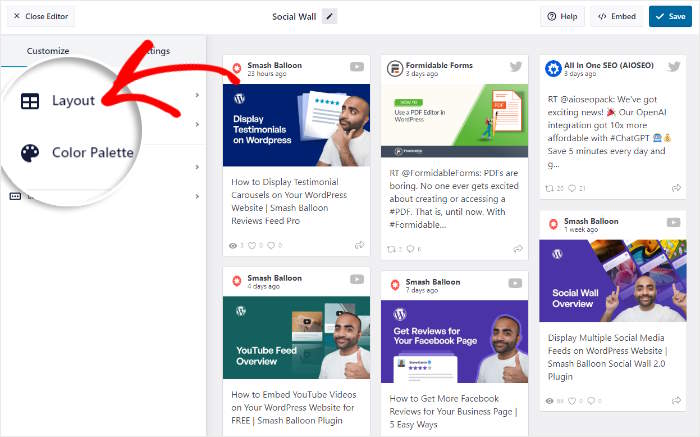
Choose a layout that matches your website design. Common layouts include grid, list, and carousel. Grids show multiple posts at once, creating a clean look. Lists display posts vertically, making them easy to read. Carousels let users scroll through posts horizontally. Pick a layout that fits your page and content style.
Filtering Content And Posts
Control which posts appear in your feed. Filter by hashtags, keywords, or post types like images or videos. Remove posts that are not relevant or low quality. Filtering helps keep the feed focused and engaging. It ensures visitors only see your best or most important content.
Adjusting Colors And Styles
Match the feed colors to your website theme. Change backgrounds, text colors, and button styles. Use colors that improve readability and look good on all devices. Adjust fonts to keep the feed clear and easy to read. Small style changes make your feed feel part of your site.
Embedding The Feed On Your Website
Embedding a social media feed on your WordPress site helps visitors see your latest posts. It keeps your content fresh and engaging. Many methods exist to add feeds easily. Choose the one that fits your site design and needs.
Using Shortcodes
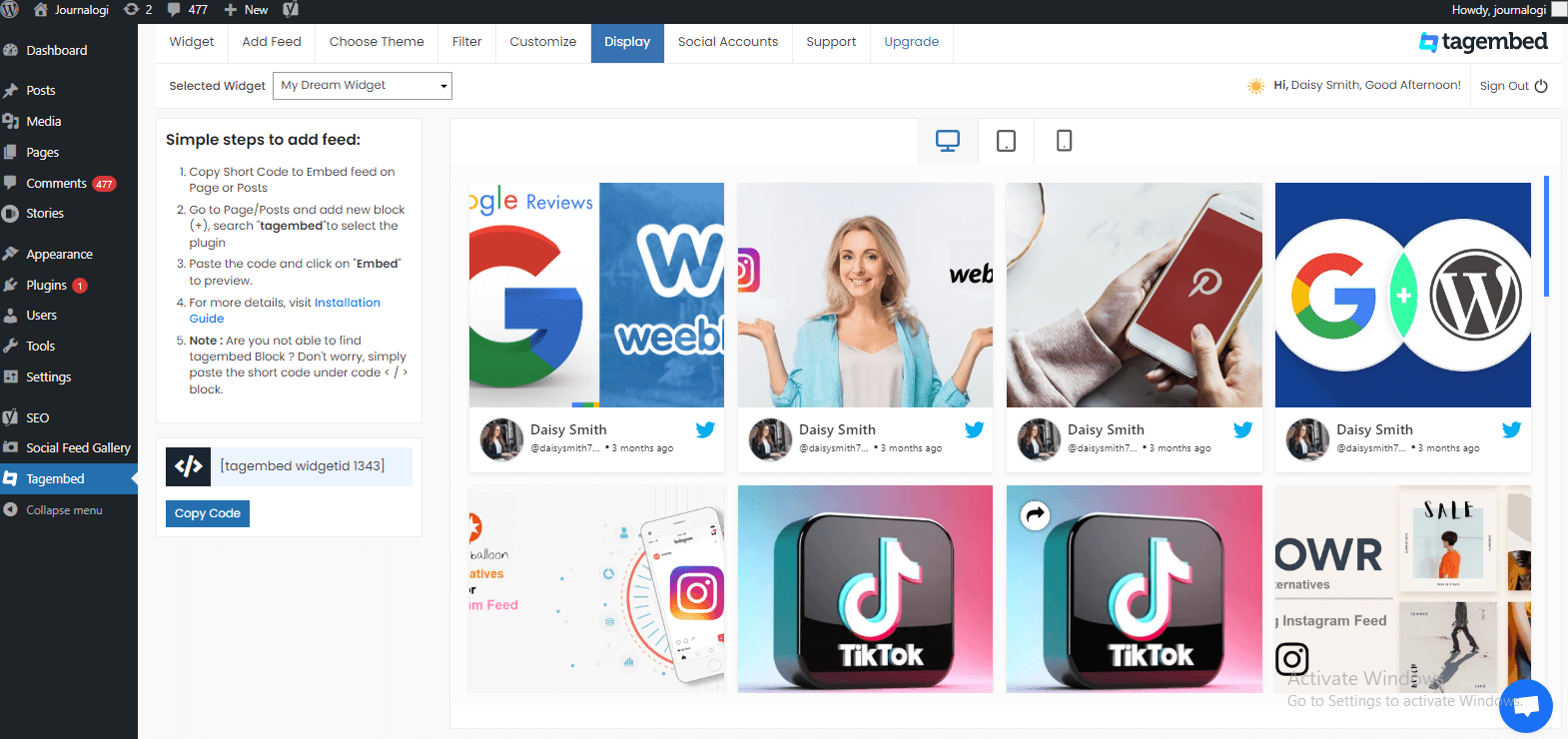
Shortcodes are simple codes that display content anywhere on your site. Most social media plugins offer shortcodes for feeds. Copy the shortcode from the plugin settings. Paste it into any post, page, or widget area. The feed will show up automatically where you place it.
This method is fast and needs no coding skills. You can move the feed by moving the shortcode. It works well for posts and pages with flexible layouts.
Adding Widgets To Sidebars
Widgets add content blocks to sidebars or footers. Open the WordPress dashboard and go to Appearance > Widgets. Find the social feed widget from the list. Drag and drop it into the sidebar or footer area.
Set up the widget to connect your social account. Adjust display settings if available. Widgets keep the feed visible on all pages using that sidebar. This method is great for constant visibility.
Placing Feeds In Posts And Pages
Embedding feeds directly in posts or pages gives control over placement. Use the WordPress block editor to add a shortcode block. Paste the social feed shortcode inside it. Preview the post to see the feed live.
Some plugins provide blocks specifically for feeds. Search for the social feed block in the block library. Insert it and connect your account. This method blends the feed with your content smoothly.
Optimizing Feed Performance
Optimizing the performance of your social media feed on WordPress is key to a smooth user experience. A well-performing feed loads quickly and looks good on any device. Slow feeds can frustrate visitors and increase bounce rates. Focus on techniques that improve speed and ensure the feed adapts to different screen sizes.
Caching Techniques
Caching stores feed data temporarily to reduce load times. Use plugins or built-in caching to save the feed content. This limits requests to social media servers. Cached feeds load faster for repeat visitors. Set cache durations based on how often your feed updates. Clear cache regularly to show fresh content.
Managing Load Times
Load times depend on feed size and server speed. Limit the number of posts displayed to reduce data. Use lazy loading to load images only when visible. Compress images to lower file size without losing quality. Avoid scripts that block page rendering. Fast load times keep visitors engaged and improve SEO.
Mobile Responsiveness
Mobile users expect feeds to fit their screen perfectly. Choose responsive feed plugins that adjust layout automatically. Test the feed on various devices and screen sizes. Use flexible grid layouts and scalable images. Ensure buttons and links are easy to tap. A mobile-friendly feed improves accessibility and user satisfaction.
Troubleshooting Common Issues
Adding a social media feed to WordPress can improve your site’s engagement. Sometimes, problems may stop the feed from showing properly. Troubleshooting helps fix these common issues quickly. This section explains how to solve typical errors. Follow these tips to keep your feed working smoothly.
Feed Not Displaying
Check if the feed URL is correct. A wrong URL stops the feed from loading. Clear your site cache and browser cache. Cached data may block the feed from updating. Make sure your social media account is public. Private accounts often hide posts from the feed. Refresh the feed plugin or widget to reset it.
Authentication Errors
Authentication errors happen when login details are wrong. Verify your username and password for the feed plugin. Renew the access token if it expires. Some platforms require regular token updates. Ensure your app permissions allow data sharing. Without proper permissions, the feed cannot connect. Reconnect the social media account to fix errors.
Plugin Conflicts
Plugins may clash and cause the feed to break. Deactivate other plugins one by one to find conflicts. Update all plugins to their latest versions. Older plugins may not work well with new WordPress versions. Use only one feed plugin at a time. Multiple feed plugins can cause display problems. Test your site after each change to spot issues.
Keeping Your Feed Updated
Keeping your social media feed updated on WordPress is essential. Fresh content keeps visitors interested. It also improves your site’s SEO. Updated feeds show your brand is active and trustworthy.
Regular care helps avoid broken feeds and errors. Follow a few simple steps to keep your feed running smoothly.
Regular Plugin Updates
Plugins power your social media feeds. Developers fix bugs and add new features often. Updating plugins keeps them compatible with WordPress. It also protects your site from security risks. Check for updates at least once a week. Use the latest plugin version to ensure smooth performance.
Monitoring Api Changes
Social media platforms use APIs to share data. They change these APIs sometimes. Changes can stop your feed from working. Stay informed about API updates from platforms you use. Adjust your feed settings if needed. This helps avoid sudden feed breaks on your website.
Refreshing Content Automatically
Set your feed to refresh automatically. This keeps your content new without manual work. Most plugins allow you to set refresh intervals. Choose a frequency that fits your needs. Automatic updates improve user experience and keep visitors coming back.
Credit: smashballoon.com
Frequently Asked Questions
How Do I Add A Social Media Feed To WordPress?
To add a social media feed, use plugins like Smash Balloon or Custom Twitter Feeds. Install and activate the plugin, then connect your social media account. Customize the feed display, and embed it using a shortcode or widget on your WordPress site.
Which Plugin Is Best For WordPress Social Media Feeds?
Smash Balloon is a top-rated plugin for social media feeds. It supports Facebook, Instagram, Twitter, and YouTube. It offers easy setup, responsive design, and customization options. It’s SEO-friendly and regularly updated for security and performance.
Can I Display Multiple Social Media Feeds Together?
Yes, you can display multiple feeds using plugins that support multiple platforms. Smash Balloon allows combining Facebook, Instagram, Twitter, and YouTube feeds. Customize each feed’s layout and merge them into one combined feed for better user engagement.
Is Adding A Social Media Feed Seo Beneficial?
Yes, social media feeds can boost SEO by increasing user engagement. Fresh, dynamic content keeps visitors longer and reduces bounce rates. Feeds also encourage sharing, driving more traffic and improving search rankings.
Conclusion
Adding a social media feed to your WordPress site keeps content fresh. Visitors see your latest posts without leaving your page. It helps build trust and shows activity. Choose a plugin that fits your needs and is easy to use.
Set it up step-by-step and customize the look. Test the feed to make sure it works well. Keep your site lively and connected with your audience. Simple steps can make a big difference for your website. Try adding a feed today and watch your site grow.


