
Want to make your WordPress site more connected and engaging? Adding social links is the easiest way to do that.
When you put your social media profiles right where visitors can see them, you invite more interaction and build trust. But if you’re not sure how to add those links quickly and smoothly, don’t worry—you’re in the right place. Keep reading, and you’ll learn simple, step-by-step methods to get your social icons up and running in no time.
Your audience is waiting to connect with you!
Choosing The Right Social Links
Choosing the right social links for your WordPress site helps visitors connect with you easily. It shows where you are active and what platforms you prefer. Picking the best links can boost your site’s reach and trust. Focus on platforms your audience uses most. Avoid cluttering your site with too many icons. Keep it simple and clear.
Popular Social Platforms
Facebook remains a top choice for many users. It works well for sharing updates and engaging with followers. Twitter suits quick news and short messages. Instagram is great for sharing photos and stories. LinkedIn fits professional and business connections. Pinterest helps with visual content and ideas. Choose platforms that match your content style and audience habits.
Customizing Link Selection
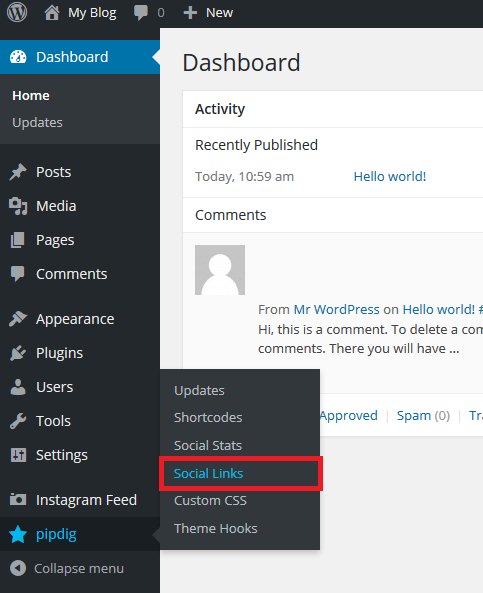
Not all social links fit every website. Pick only those that add value to your site. Think about your goals and audience needs. Use icons that match your site’s design. Arrange links in a clear, easy-to-find spot. Test how the links look on mobile devices. Update your links if your focus or platforms change.
Credit: support.pipdig.co
Using WordPress Widgets
Using WordPress widgets is a simple way to add social links to your website. Widgets let you place social icons in sidebars, footers, or other widget-ready areas. This method does not need coding skills and works well with most themes.
Widgets help you quickly show social media profiles. Visitors can easily find and follow you on different platforms. This section shows how to use WordPress widgets for social links.
Accessing The Widget Area
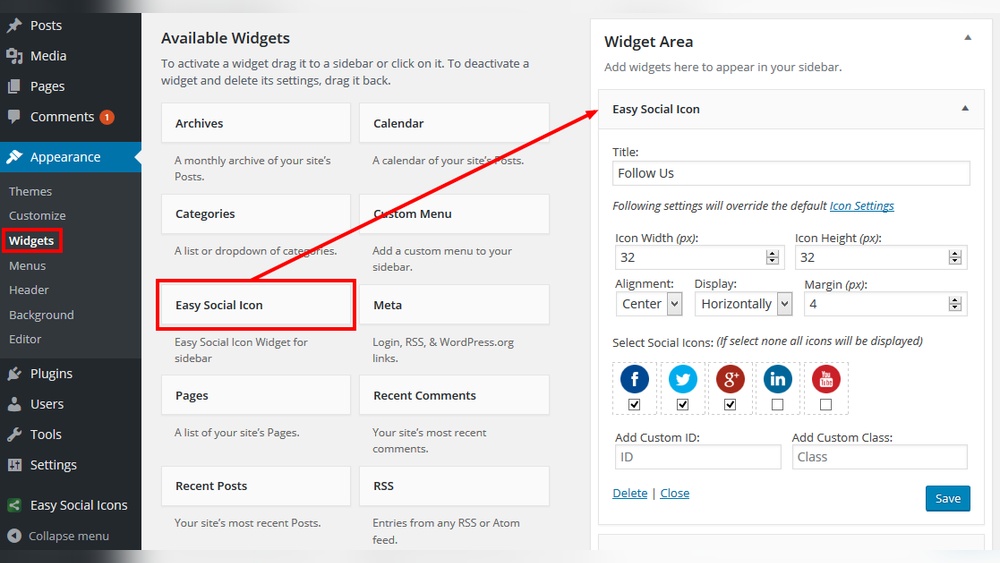
Log in to your WordPress dashboard. Go to Appearance and select Widgets. You will see the widget areas your theme supports. These areas can be sidebars, footers, or headers.
Choose the area where you want the social links to appear. Click on it to open the widget list. This is where you add or remove widgets.
Adding Social Icons Widget
Look for the Social Icons widget in the available widgets list. Drag the Social Icons widget to your chosen widget area. Some themes may name it differently, like Social Links or Follow Us.
After placing the widget, it will open for editing. This is where you will add your social media URLs.
Configuring Social Links
Enter the full URLs of your social media profiles. For example, add https://facebook.com/yourpage for Facebook. Add as many social links as you want.
Save the widget settings. Visit your site to check if the social icons appear correctly. The icons will link visitors to your social profiles.
Using Plugins For Social Links
Adding social links to your WordPress site helps visitors connect with you on different platforms. Using plugins makes this process simple and quick. Plugins offer ready-made tools to place social icons anywhere on your site.
This method requires no coding skills. You can choose from many plugins that fit your needs. Plugins also let you customize the look of your social links easily.
Top Social Link Plugins
Several plugins stand out for adding social links. Some popular choices include:
- Social Icons Widget by WPZOOM
- Simple Social Icons
- Social Media Share Buttons & Social Sharing Icons
- Ultimate Social Media Icons
These plugins support many social networks. They offer different styles and layouts to match your theme.
Installing And Activating Plugins
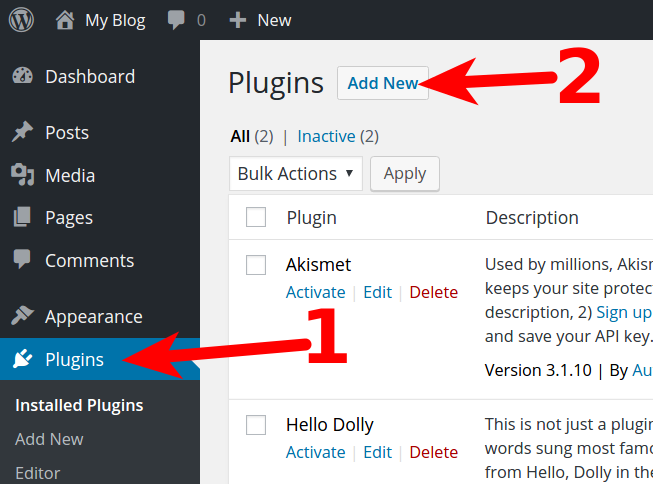
Go to your WordPress dashboard. Click on Plugins > Add New. Search for the plugin name you want.
Click “Install Now” and then “Activate” after installation. The plugin will appear in your dashboard menu.
Most plugins have a setup guide or help section. Follow these steps to get started quickly.
Setting Up Links Via Plugins
Open the plugin settings in your dashboard. Enter the URLs of your social media profiles.
Select the icon style and size. Choose where to display the icons on your site.
Some plugins allow adding icons to menus, widgets, or footers. Preview the changes before saving.
Check your site on different devices to ensure icons look good everywhere.
Credit: www.inmotionhosting.com
Adding Social Links To Menus
Adding social links to menus makes your website more interactive. Visitors can easily find your social profiles. This helps grow your audience and keeps users connected. WordPress allows simple ways to add these links to your menus. Follow clear steps to create and place social links effectively.
Creating A Custom Menu
First, go to your WordPress dashboard. Navigate to Appearance > Menus. Click on “Create a new menu.” Give your menu a clear name, like “Social Links.” Save the menu to start adding items. Custom menus help organize your social links neatly.
Adding Social Links To Menu Items
Next, add your social media URLs as menu items. Click “Custom Links” on the left side. Enter the full URL of your social profile. For example, “https://facebook.com/yourpage.” Name the link with the social network’s name. Repeat for all social platforms you want to include. Save the menu after adding all links.
Placing Menus In Site Locations
Finally, assign the menu to a location on your site. Go to “Manage Locations” tab in the Menus section. Choose where the social menu should appear, such as the header or footer. Select the menu you created from the dropdown. Click “Save Changes” to apply. Now, your social links show up in your site’s menu area.
Adding Social Links In Footer
Adding social links to your WordPress footer helps visitors connect with your profiles easily. The footer is visible on every page, making it a smart spot for social icons. It improves user experience and boosts your online presence.
Using Footer Widgets
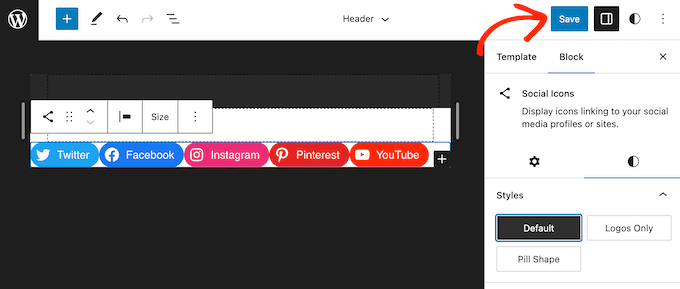
WordPress offers footer widgets to add social links quickly. Go to Appearance > Widgets in your dashboard. Drag a “Custom HTML” or “Text” widget to the footer area. Paste your social media icons or links here. Many themes also have a built-in “Social Icons” widget. Choose the one your theme supports for easy setup.
Customizing Footer Layout
Customize your footer layout to fit social links nicely. Use your theme’s customizer under Appearance > Customize > Footer. Adjust columns or widget areas to place social icons. Keep the design clean and simple. Avoid clutter to help visitors find links easily.
Ensuring Mobile Responsiveness
Make sure social links look good on all devices. Test your site on phones and tablets. Use responsive themes that adjust footer layout automatically. Check icon size and spacing for easy tapping. A mobile-friendly footer improves visitor engagement and site usability.
Credit: www.wpbeginner.com
Testing And Optimizing Social Links
Testing and optimizing social links on your WordPress site helps ensure visitors have a smooth experience. It also boosts your site’s credibility and engagement. Simple checks can catch broken links early. Small design tweaks can make links more inviting. Tracking clicks shows what works best for your audience.
Verifying Link Functionality
Check each social link to confirm it opens the correct page. Test links on different devices and browsers. Make sure links do not lead to error pages. Update broken or outdated URLs promptly. Functional links build trust and encourage visitors to connect.
Improving Link Appearance
Use clear, recognizable social icons for each platform. Choose colors that match your website design. Ensure icons are large enough to tap on mobile screens. Add space around icons to avoid clutter. Clean, attractive links invite more clicks from visitors.
Tracking Clicks And Engagement
Install tracking tools like Google Analytics for your social links. Monitor how many clicks each link receives daily. Check which social platforms drive the most traffic. Use this data to focus on popular networks. Tracking helps improve your social media strategy over time.
Frequently Asked Questions
How Do I Add Social Links To WordPress Menu?
Go to Appearance > Menus in your WordPress dashboard. Add custom links with your social URLs. Save the menu to display social icons.
Which Plugins Help Add Social Media Links In WordPress?
Popular plugins like Social Icons Widget, Simple Social Icons, and Smash Balloon make adding social links easy and customizable.
Can I Add Social Links Without A Plugin?
Yes, you can add social links using widgets or by manually adding HTML in your theme’s footer or sidebar.
How To Customize Social Icons On WordPress?
Use plugins or theme settings to change icon style, size, color, and alignment for social media links on your site.
Conclusion
Adding social links to your WordPress site helps visitors connect with you. It makes sharing your content easier and grows your online presence. Choose clear icons and place them where users can easily see. Regularly check your links to keep them working well.
Small steps like these improve your website’s user experience. Start adding social links today and watch your site become more interactive. Simple, effective, and helpful for any website owner.


