
Want to make it easy for visitors to connect with you on social media? Adding social links to your WordPress site is the perfect way to boost your online presence and grow your audience.
If you’re unsure where to start or worried it might be complicated, don’t worry—you’re in the right place. You’ll learn simple, step-by-step ways to add social links that look great and work smoothly. Keep reading, and by the end, you’ll have your site ready to turn clicks into followers.
Credit: www.wpbeginner.com
Choosing The Right Social Platforms
Choosing the right social platforms is key to growing your online presence. Not all platforms work the same for every website. Picking the right ones helps you reach the right people. Focus on platforms where your audience spends time. This makes your social links more effective and your website more engaging.
Identify Your Audience
Know who visits your website. Are they young or old? What are their interests? Understanding your audience helps you choose platforms they use. For example, younger people like Instagram and TikTok. Professionals prefer LinkedIn. Tailor your social links to meet your audience’s habits. This way, your social media efforts will have better results.
Popular Platforms To Consider
Facebook remains popular for all ages. It is good for community building and sharing updates. Instagram focuses on images and short videos. It works well for brands with visual content. Twitter is great for quick news and updates. LinkedIn suits professional and business networking. Pinterest attracts users interested in ideas and inspiration. Choose platforms that fit your content and audience best.
Credit: support.pipdig.co
Preparing Your Social Media Links
Preparing your social media links is the first step to adding them on your WordPress site. Proper preparation ensures the links work correctly and lead visitors to the right pages. It also helps keep your site organized and professional.
Gathering Urls
Start by collecting the exact web addresses of your social media profiles. Visit each platform and copy the full URL from the browser’s address bar. Common sites include Facebook, Twitter, Instagram, LinkedIn, and YouTube.
Check each URL to make sure it leads to your official profile or page. Avoid shortened or incomplete links. Accurate URLs improve user experience and boost SEO.
Creating Custom Links
Custom links let you control how your social media URLs appear. You can shorten them or use branded links to look cleaner and easier to remember. Many services offer free URL shortening tools.
Adding custom links also helps track clicks and engagement on your social icons. Use descriptive names or tags in your links to stay organized. This step makes your social media integration smarter and more effective.
Using WordPress Widgets
Using WordPress widgets is a simple way to show your social links on your website. Widgets let you place social icons in sidebars, footers, or other widget-ready areas. This method needs no coding and works well for beginners.
WordPress offers built-in social icons widgets that connect to popular social media platforms. You can add these widgets quickly and link your social profiles. This makes it easy for visitors to find your social pages.
Adding Social Icons Widget
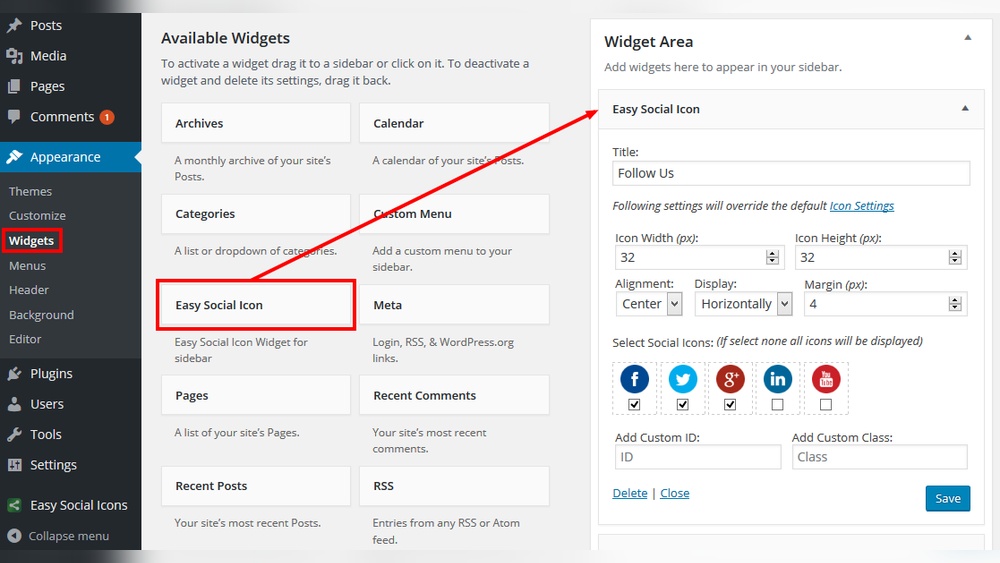
Go to your WordPress dashboard. Navigate to Appearance > Widgets. Find the Social Icons widget in the list. Drag and drop it into your chosen widget area.
Click the widget to open its settings. Add links to your social media profiles. Each link creates a matching social icon. Save your changes and check your site.
Customizing Widget Appearance
After adding the widget, customize its look. Many themes allow you to change icon size and color. Adjust spacing and alignment to match your site style.
Use simple settings to keep icons clear and easy to click. Avoid clutter or too many icons. Keep the design neat for better visitor experience.
Installing Social Media Plugins
Installing social media plugins is an easy way to add social links to your WordPress site. These plugins help connect your visitors to your social profiles. They also make your site look more interactive and modern.
Most plugins offer ready-made buttons for popular social networks. You can place these buttons in different parts of your site. This improves user experience and encourages sharing.
Top Plugins For Social Links
Many plugins provide simple social link features. Some popular options include:
- Simple Social Icons – Easy to use and customize.
- Social Icons Widget by WPZoom – Offers various icon styles.
- Smash Balloon Social Photo Feed – Great for Instagram feeds.
- Social Media Share Buttons & Social Sharing Icons – Supports many networks.
Choose a plugin based on your needs and style preferences.
Configuring Plugin Settings
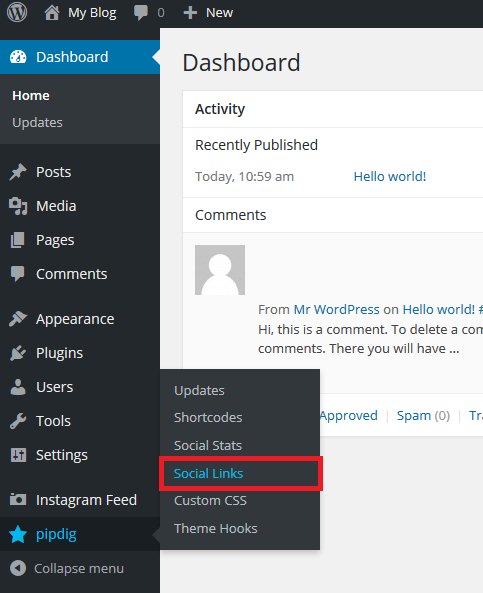
After installation, access the plugin settings from your WordPress dashboard. Enter the URLs of your social profiles in the provided fields. Adjust the icon size, color, and style to fit your website design.
Decide where to display the social icons—header, footer, sidebar, or posts. Preview the changes before saving. Make sure the buttons are easy to see and click on all devices.
Manually Adding Links To Menus
Manually adding social links to your WordPress menus gives you full control over where and how they appear. This method works well for simple customization without extra plugins. You can create custom menu items that link directly to your social profiles.
This process is straightforward and fits nicely with your website’s design. It helps visitors find your social pages easily. Let’s explore how to create these custom menu items and style them for a better look.
Creating Custom Menu Items
Go to your WordPress dashboard and open the Appearance menu. Click on Menus to start editing your site’s navigation. Select the menu where you want to add social links.
On the left side, find the Custom Links option. Enter the full URL of your social profile, like https://facebook.com/yourpage. In the Link Text box, type the name of the social network, such as Facebook.
Click Add to Menu. The new link will appear in the menu structure. Drag it to the position you want. Save the menu to apply your changes.
Styling Menu Links
Style your social links to make them stand out. Use custom CSS to change colors, fonts, or add icons. Many themes let you add CSS in the Customizer under Additional CSS.
Target the menu items by their CSS classes or IDs. For example, add a class like “social-link” to your menu items. Then write CSS rules to style these links.
Try changing link colors on hover or adding a small icon before the text. This improves user experience and highlights your social profiles. Keep styles simple and consistent with your site’s look.
Incorporating Social Links In Posts And Pages
Incorporating social links in your WordPress posts and pages helps visitors find your social profiles easily. These links increase your online presence and encourage sharing. Social links can be added in various ways, making your content more interactive and connected.
Using Block Editor Social Icons
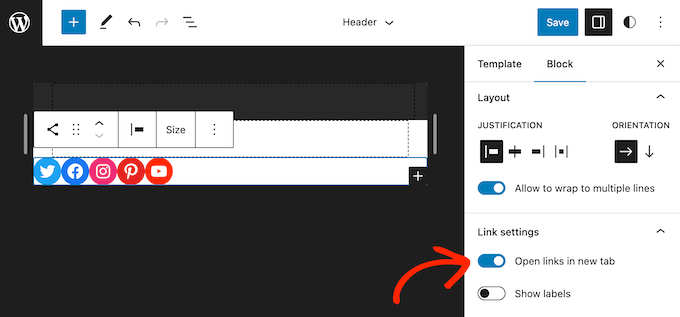
The WordPress Block Editor offers a simple way to add social links directly in posts or pages. Use the Social Icons block to insert icons for Facebook, Twitter, Instagram, and more. Each icon links to your social profile.
Click the plus (+) button to add a new block. Choose “Social Icons” from the block list. Then, click each icon to add your social URL. You can add as many icons as needed and arrange them easily.
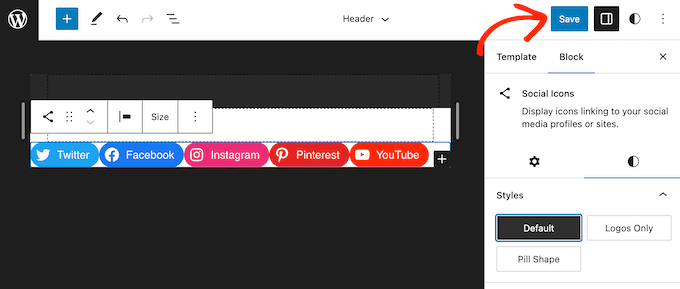
The icons are customizable. Change their size, color, or alignment to match your site design. This method keeps your social links visible within your content, improving user engagement.
Adding Links In Sidebars And Footers
Sidebars and footers are perfect places to display social links site-wide. Use the WordPress Widgets section to add social icons here. These areas stay visible as visitors browse your site.
Go to Appearance > Widgets in your WordPress dashboard. Find the “Social Icons” widget and drag it to your sidebar or footer area. Add your social URLs to each icon.
Widgets let you control where and how social links appear. This approach boosts visibility without cluttering your main content. Visitors can connect with you anytime from any page.
Optimizing Social Links For Mobile
Optimizing social links for mobile is essential for a smooth user experience. Many visitors use smartphones or tablets to browse websites. Social links must look good and work well on smaller screens. This helps keep visitors engaged and encourages sharing.
Responsive Design Tips
Use flexible layouts that adjust to screen size. Avoid fixed widths for social icons. Choose icons that scale without losing quality. Place social links in easy-to-tap areas, such as the top or bottom of the screen. Increase the size of icons to prevent accidental taps. Keep spacing consistent to avoid clutter. Use simple, clear icons that load quickly on mobile data.
Testing Across Devices
Check how social links display on different phones and tablets. Use tools like Chrome DevTools or BrowserStack for testing. Test on popular screen sizes to catch layout issues. Ensure icons respond to touch and open the correct pages. Verify that links load fast and do not block page content. Regular testing helps maintain a smooth mobile experience over time.
Boosting Engagement With Social Links
Social links are powerful tools to increase visitor interaction on your WordPress site. They connect your audience to your social profiles easily. This helps build trust and encourages visitors to follow you. More followers mean more chances to share your content and grow your community.
Placing social links in visible spots invites users to engage. It makes sharing your posts simple and quick. Engaged visitors spend more time on your site and come back often. This boosts your site’s activity and visibility online.
Call-to-action Strategies
Use clear and simple calls to action near your social links. Phrases like “Follow us,” “Join the conversation,” or “Share this post” guide visitors. They make the purpose of the links obvious. Position calls to action close to your social icons for better clicks.
Try placing social links at the top, bottom, or side of pages. Add them inside blog posts to encourage sharing. Use buttons or icons that stand out but fit your site’s design. These small changes help users notice and act on your social links.
Tracking Clicks And Performance
Tracking social link clicks shows what works best on your site. Use tools like Google Analytics to monitor visitor actions. Check which social platforms bring the most traffic. This data helps improve your social link placement and calls to action.
Regularly review click patterns and update your social links accordingly. Remove links that get little attention. Focus on channels that engage your audience the most. Tracking performance helps keep your social links effective and your visitors active.
Credit: www.wpbeginner.com
Frequently Asked Questions
How Do I Add Social Media Links In WordPress?
To add social media links, use the WordPress Customizer or a social icons plugin. Insert URLs to your profiles, and choose icon styles to match your site’s design.
Which WordPress Plugins Are Best For Social Links?
Popular plugins include Smash Balloon, Social Icons Widget, and Simple Social Icons. These plugins offer easy integration and customizable icon displays for your site.
Can I Add Social Links Without Plugins In WordPress?
Yes, you can manually add social links using HTML in widgets or menus. This method requires basic coding and customization skills for proper icon placement.
Where Should I Place Social Media Links On My Website?
Place social links in the header, footer, or sidebar for easy access. These locations improve visibility and encourage visitors to connect on social platforms.
Conclusion
Adding social links to your WordPress site boosts your online presence. It helps visitors find and follow your profiles easily. Use simple tools or plugins to place links in visible spots. Keep the icons clear and consistent with your site’s style.
Regularly check that all links work properly. This small step can grow your audience and improve engagement. Start adding social links today to connect better with your visitors.



