
Are you looking to enhance your WordPress Kale theme by adding social icons, but don’t know where to start? You’re not alone.
Social media has become an integral part of our lives, and integrating these platforms into your website can significantly boost your online presence. Imagine your visitors landing on your site and instantly connecting with you on their favorite social networks.
It’s not just about adding a feature; it’s about building a bridge between you and your audience. This guide will walk you through the simple steps to seamlessly incorporate social icons into your Kale theme, ensuring that your website not only looks professional but also becomes a hub for social interaction. Ready to transform your site and engage with your audience like never before? Let’s dive in and make those social icons shine!
Choosing The Right Social Icons
Social icons help you connect with your audience. They make your site look good. Some popular icon sets include Font Awesome, Ionicons, and Material Icons. These sets offer many styles. You can choose from flat, rounded, or 3D. Each style fits different site themes.
Think about your website’s look. Do you want it to be modern or classic? Choose icons that match your theme’s colors. A good match makes your site look nice. Also, pick icons that are easy to see. Your visitors should find them quickly.
Installing A Social Icons Plugin
Social Icons can make your site look professional. Plugins like Simple Social Icons and Social Media Widget are popular. They are easy to use and have good reviews. Simple Social Icons lets you pick colors. Social Media Widget offers a range of icon styles. Both work well with the Kale theme.
First, open your WordPress dashboard. Go to Plugins. Click Add New. In the search box, type the plugin name. Click Install Now. Wait a few seconds. Click Activate to make the plugin work. You will see new options in your dashboard. Customize the icons to match your site.
Customizing Social Icons
Enhance your WordPress Kale theme by seamlessly adding custom social icons. Navigate through theme settings to personalize your social media links. Display these icons attractively, improving engagement with your audience.
Adjusting Icon Size And Color
Social icons can be changed in size and color. Use the WordPress customizer tool. Icons should match your theme style. Adjust the size using sliders. Choose colors that fit your website. This makes your site look nice. Users find icons quickly. Small icons can be hard to see. Bright colors catch attention. Always preview changes before saving. Make sure they look good.
Aligning Icons With Theme Design
Icons should match the theme design. Place them in spots where users expect them. Top or bottom of pages work well. Align them with other elements. Check spacing between icons. Icons should not overlap. Use tools in WordPress to adjust. Keep your design clean and simple. This helps with user experience. Proper alignment makes the site look professional. Test on different devices.
Adding Icons To Header Or Footer
Start by opening the WordPress Customizer. This tool helps you make changes easily. Look for the section named Menus. Here, you can add new items. Choose Custom Links. Enter the URL for your social media. Give it a name, like Facebook or Twitter. Click Add to Menu. Now, your icon is ready to show up. Save your work by clicking Publish. Check your site to see the new icons.
Locate your theme files in the WordPress dashboard. Find the header.php or footer.php file. Open it to make changes. Add HTML code for your social icons. Use Font Awesome or similar services. They provide the icon codes. Insert the code where you want the icons. Save the file after editing. Always make a backup before changes. This keeps your site safe.
Incorporating Icons In Blog Posts
Shortcodes help add social icons easily. WordPress has many shortcode options. Find them in your theme settings. They work well in blog posts. Copy the shortcode for the icon you need. Paste it in your post editor. Save the changes. Check your post preview. Icons should appear. Readers can click them to visit social pages.
Widgets help place icons in sidebars. Go to the WordPress dashboard. Click on ‘Appearance’. Then select ‘Widgets’. Drag the social icon widget to a sidebar. Configure it by entering your social links. Save the settings. View your site. Icons should be visible. Visitors can see and use them easily. It’s a simple way to connect with audiences.

Credit: mhthemes.com
Ensuring Mobile Responsiveness
Testing on different devices is important. Each device can show different results. A phone might show a different view than a tablet. Make sure your website looks good everywhere. Use friends’ devices if needed. Ask for help. Everyone’s phone or tablet can help. Observe how the website looks. Check if the social icons are visible. Make sure they are in the right place. If not, adjust them.
Sometimes, changes are needed. Mobile screens are small. Icons might look too big. Adjust their size. Make them smaller if needed. Check the spacing between them. They should not be too close. They need to be easy to tap. Use tools to help with adjustments. Some tools show how the site looks on phones. Use these tools. They can save time. They make changes easy.
Troubleshooting Common Issues
Sometimes, social icons don’t show up on the website. Check if the icons’ plugin is active. Go to the plugin page. Look for errors or warnings. Make sure the theme supports social icons. Sometimes, a theme update helps. Use the latest version of the theme. Clear the browser cache often. This can solve display issues. If icons still don’t show, try contacting support. They might help find the issue.
Plugins can sometimes clash with each other. If icons are missing, disable other plugins. Do this one at a time. After disabling, check if the icons appear. This helps find the troublesome plugin. Update all plugins to their latest versions. Older versions might cause problems. Use plugins that are known to work well together. This reduces the chance of conflicts. If unsure, seek help from a developer.
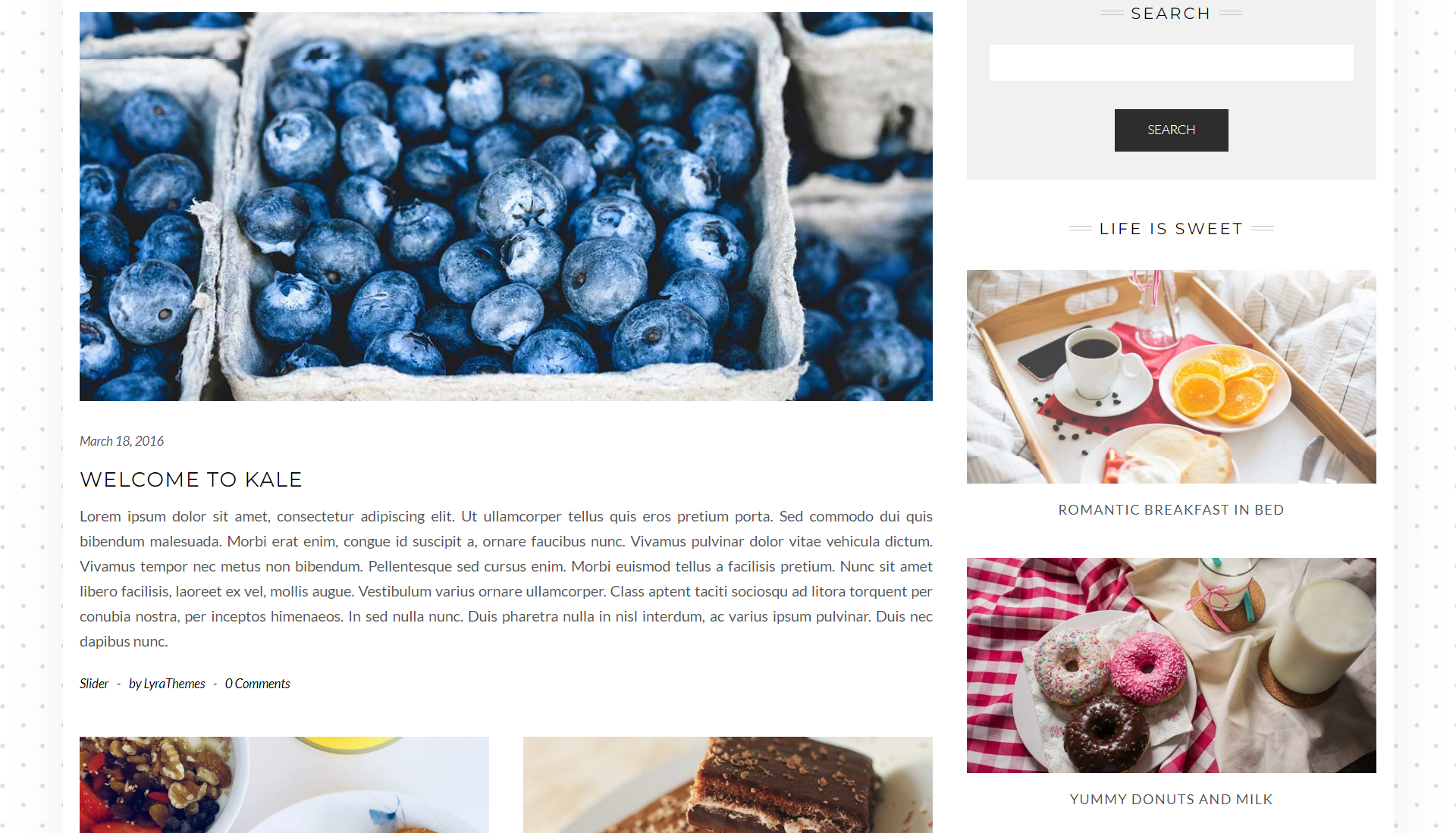
Credit: bootstrapped.ventures
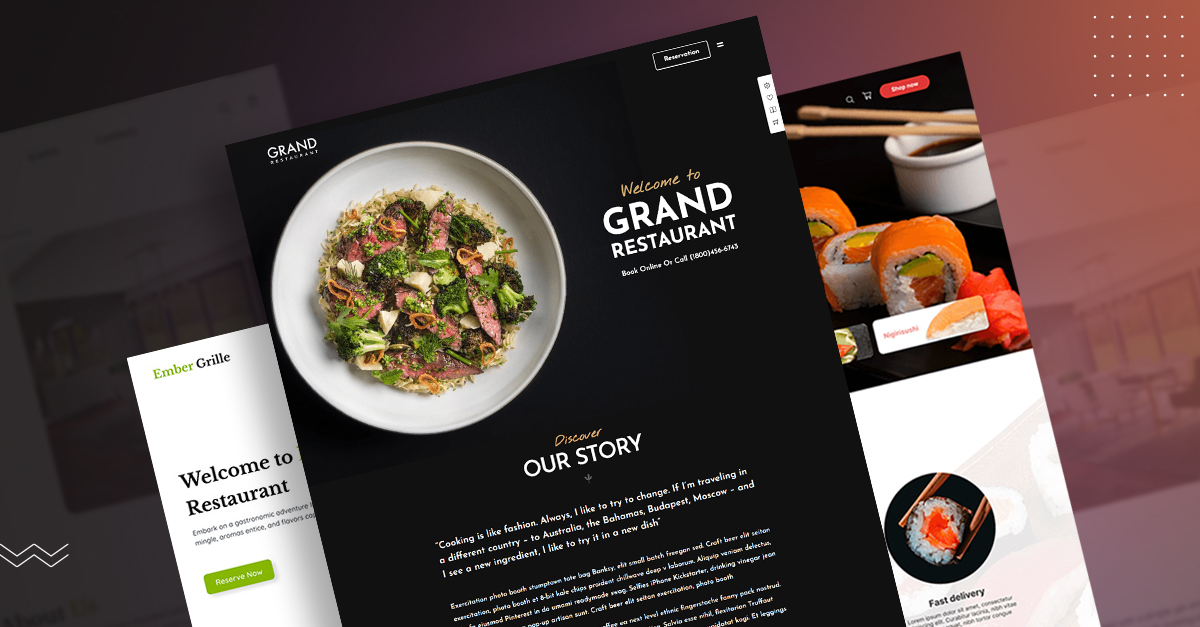
Credit: codup.co
Frequently Asked Questions
How Do I Add Social Icons In Kale Theme?
To add social icons in the Kale theme, navigate to the Customizer. Select “Menus” and create a new menu for social icons. Add the social media links and assign the menu to the “Social Menu” location. This ensures your icons are displayed on the website.
Can I Customize Social Icon Appearance In Kale?
Yes, you can customize the appearance of social icons in the Kale theme. Use the Customizer to adjust the size, color, and style of the icons. This lets you align them with your website’s overall design and branding effectively.
Is A Plugin Required For Social Icons?
No plugin is required to add social icons in the Kale theme. The theme includes built-in functionality to add and customize social media links. This simplifies the process and ensures efficient integration without additional plugins.
Where Do Social Icons Appear In Kale Theme?
In the Kale theme, social icons can appear in the header, footer, or sidebar. You can choose the location by assigning the social menu to the desired widget area. This offers flexibility in displaying the icons prominently on your site.
Conclusion
Adding social icons to the Kale theme is simple and beneficial. It enhances your site’s appearance and connects you with visitors. Following the steps, you can seamlessly integrate these icons. This boosts engagement and keeps your audience connected. Remember, accessibility is key for a better user experience.
Ensure your social links work properly. This small change makes a big difference. It invites more interaction and shares your content widely. Now, your site is ready to connect with the world. Enjoy the enhanced reach and visibility.


