
Are you looking to make your WordPress site more engaging and visually appealing? Adding a slideshow could be the perfect solution.
Not only does a slideshow capture attention, but it also allows you to showcase multiple images or content pieces dynamically. Imagine transforming your static page into an interactive experience that keeps your visitors clicking through. Whether you’re a blogger wanting to highlight your latest adventures, a business aiming to showcase products, or just someone looking to add some flair to your website, this guide will walk you through the process step-by-step.
By the end, you’ll be able to effortlessly integrate a slideshow into your WordPress theme, enhancing your site’s aesthetic and functionality. Ready to elevate your website to the next level? Let’s dive in!

Credit: docs.presscustomizr.com
Choosing The Right Plugin
Selecting the right plugin is key to adding a slideshow in your WordPress theme. Ensure it is user-friendly and compatible with your theme. This enhances your website’s visual appeal effortlessly.
Popular Slideshow Plugins
WordPress has many slideshow plugins. Some are more popular than others. Smart Slider 3 is a favorite. It is easy to use. You can make slides fast. Another popular one is Slider Revolution. It offers many features. It is great for advanced users. MetaSlider is also well-liked. It is simple and effective. Each plugin has its own benefits.
Factors To Consider
Consider the ease of use first. Beginners need simple plugins. Check plugin ratings and reviews. High ratings mean users like it. Look at the plugin’s features. More features offer more choices. Make sure the plugin is updated often. Regular updates keep it secure. Lastly, see if it fits your budget. Some plugins are free. Others may need payment.

Credit: www.youtube.com
Installing A Slideshow Plugin
Enhance your WordPress site by adding a slideshow plugin. Choose a plugin, install it, and activate it. Customize the slideshow settings to match your theme, ensuring seamless integration and improved visual appeal.
Accessing The Plugin Directory
To add a slideshow, open WordPress dashboard. Find the Plugins section. Click on Add New. Search for slideshow plugins. Popular options include MetaSlider and Slider Revolution. Choose a plugin. Click on the Install Now button.
Step-by-step Installation Guide
After installing, click on Activate. The plugin will now be active. Go to the plugin’s settings. Configure your slideshow options. Select images for your slideshow. Set transition effects and timing. Save your settings. Go to your pages or posts. Add the slideshow using the provided shortcode. Check your page to see the slideshow.
Configuring Slideshow Settings
Choose colors that match your theme. Use bright colors for the background. Pick fonts that are easy to read. Adjust the image size to fit the screen. This makes the slideshow look neat. Add a border to each slide for a clean finish. Use the style settings to make everything look nice.
Transition effects make slides interesting. Choose from fade, slide, or zoom effects. Each effect changes how slides appear. Try different effects to see what looks best. Don’t use too many effects. It can make the slideshow look busy. Keep it simple and smooth.
Decide how long each slide stays. Set a time in seconds. Maybe 3 to 5 seconds is good. This gives viewers time to see the slide. Keep the timing the same for all slides. A steady pace is easy to follow. Change the duration in the settings menu.
Adding Slides To Your Slideshow
First, go to the WordPress Dashboard. Click on Media and then Add New. Choose the images you want for your slideshow. Click Upload to add them. Use images with good quality for better results. Once uploaded, you can find them in the media library.
After uploading, edit each image. Add a caption to explain the image. Captions help users understand the slideshow better. You can also add links to images. This lets users click and go to a new page. To add a link, use the link box in the editor. Save your changes when done.
Embedding The Slideshow In Your Theme
Shortcodes make slideshows easy. Copy the shortcode from your slideshow plugin. Paste it into your post or page. This tells WordPress where to show the slideshow. Shortcodes are like magic keys. They open the slideshow quickly. Make sure to check the plugin guide. It helps you use the right shortcode.
Widgets are small blocks for your site. Go to your WordPress dashboard. Find the “Appearance” tab and click “Widgets”. Drag the “Text” widget to your sidebar. Paste the shortcode into the widget box. Now, your slideshow shows up on the sidebar. Pages work the same way. Paste the shortcode in the page editor. Easy and quick!
Troubleshooting Common Issues
Sometimes, the slideshow might not show up. Check if the plugin is activated. Ensure your theme supports slideshows. Look for any JavaScript errors in your browser. These can stop slideshows.
Plugins can sometimes conflict with each other. Deactivate all other plugins. Then check if the slideshow works. Activate plugins one by one. Find which plugin causes the problem. Once found, you can look for alternatives or updates.
Enhancing Slideshow Performance
Adding a slideshow in a WordPress theme boosts visual appeal and user engagement. Start by selecting a reliable slideshow plugin compatible with your theme. Follow the plugin’s instructions to create and customize slideshows, ensuring seamless integration and enhanced performance on your site.
Optimizing Image Files
Make images smaller for a faster slideshow. Use tools like TinyPNG or ImageOptim. These tools make pictures smaller without losing quality. Smaller images load faster. Faster loading means a better slideshow. Save images in JPEG or PNG formats. These are best for slideshows. Name your image files clearly. This helps with SEO.
Ensuring Mobile Responsiveness
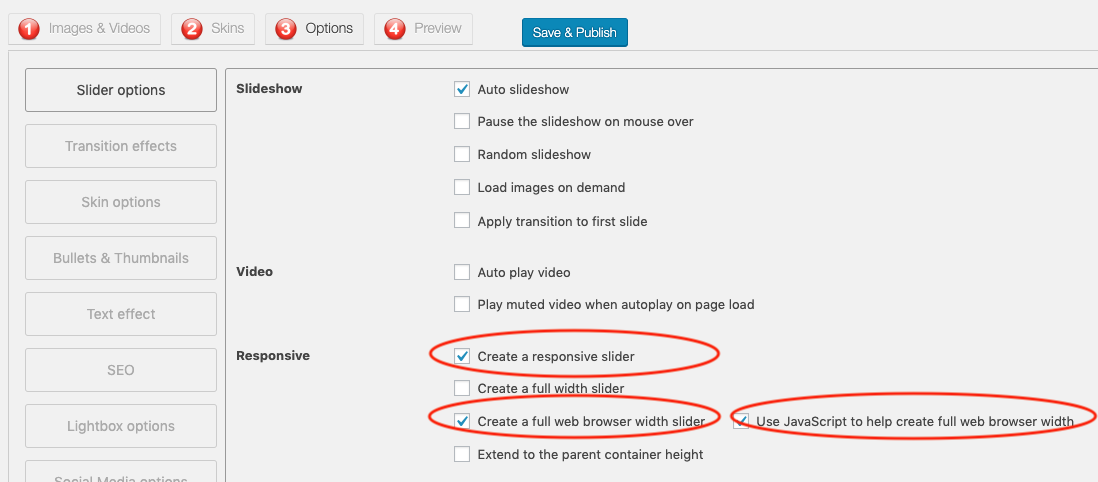
Many people use phones to see slideshows. Make sure your slideshow works on all screens. Use responsive design techniques. This means the slideshow looks good on any device. Use WordPress plugins that support mobile views. Test the slideshow on different devices. Make adjustments if needed. This ensures a good experience for everyone.
Exploring Advanced Features
Adding a slideshow to a WordPress theme enhances visual appeal and user engagement. Use plugins like MetaSlider or Smart Slider 3 for easy integration. Customize your slideshow by adjusting settings to match your website’s style.
Integrating With Other Plugins
Many slideshows work well with other plugins. Compatibility is key for smooth operation. Check if your chosen slideshow plugin supports integration. Some plugins enhance the slideshow experience. SEO plugins can optimize image tags. This boosts search visibility.
Social media plugins allow sharing of slideshow content. You can reach a wider audience. E-commerce plugins can display product slideshows. This can increase user engagement and interest. Experiment with different combinations. Find what suits your website best.
Custom Css For Slideshow
Custom CSS allows you to style your slideshow. Make it unique and match your brand. You can change colors, fonts, and transitions. This makes your slideshow more appealing. Experiment with different styles. See what looks best.
Remember to keep it simple. Too many changes can confuse users. Always preview changes before going live. Keep your design consistent across all pages.
Credit: www.wonderplugin.com
Frequently Asked Questions
How Do I Add A Slideshow To WordPress?
To add a slideshow to WordPress, install a slideshow plugin. Popular options include MetaSlider and Slider Revolution. After installation, create a new slideshow, customize it, and insert it into your desired page or post using a shortcode. This enhances your website’s visual appeal and user engagement.
Which Plugin Is Best For WordPress Slideshows?
MetaSlider and Slider Revolution are top choices for WordPress slideshows. MetaSlider is beginner-friendly with easy setup and customization. Slider Revolution offers advanced features and animations for more complex slideshows. Both plugins are highly rated and widely used, ensuring reliable performance and extensive support.
Can I Customize Slideshow Appearance In WordPress?
Yes, most slideshow plugins allow customization of appearance in WordPress. You can change slide transitions, durations, and styles. Additionally, you can adjust sizes, add captions, and include various multimedia elements. This flexibility ensures your slideshow aligns with your website’s design and enhances user experience.
Is It Possible To Create Responsive Slideshows?
Yes, creating responsive slideshows is possible with WordPress plugins. Most plugins automatically adjust slideshows to fit different screen sizes. This ensures optimal viewing on desktops, tablets, and smartphones. A responsive slideshow improves user experience and engagement across all devices, enhancing your website’s overall accessibility.
Conclusion
Adding a slideshow to your WordPress theme enhances your site’s visual appeal. It’s a simple way to engage visitors and showcase content effectively. With the right plugin, setting it up is straightforward. Follow the steps outlined, and you’ll have a dynamic slideshow in no time.
Experiment with different styles and settings to find what suits your site best. Remember to keep slides relevant and concise. This ensures viewers stay interested. Regular updates to your slideshow keep your site fresh. Embrace the creativity slideshows offer to make your website stand out.
Happy designing!


