
Are you looking to make your WordPress site more dynamic and engaging? Adding a slider to your theme might be the perfect solution.
Sliders not only enhance your website’s visual appeal but also allow you to showcase important content effortlessly. Imagine capturing your visitors’ attention with stunning images or compelling offers right from the moment they land on your page. It’s like giving your site a face-lift, making it more interactive and lively.
In this guide, you’ll discover how to seamlessly integrate a slider into your WordPress theme, transforming your site’s look and feel. Ready to captivate your audience and elevate your website? Let’s dive in!
Choosing The Right Slider Plugin
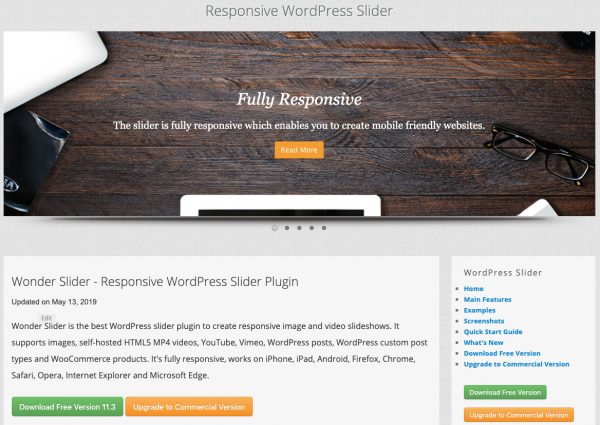
Many plugins are available for adding sliders. MetaSlider is a popular choice. It’s easy to use and works well. Smart Slider 3 offers many design options. Soliloquy is fast and simple. Each plugin has unique features.
Think about how easy the plugin is. Does it work with your theme? Check if it slows down your site. Compatibility is important. User reviews can help you decide. Look for plugins that update often. This means they fix bugs and add features. Consider the price if it’s not free. Free plugins can have limits. Paid plugins often offer more features.
Credit: www.wonderplugin.com
Installing A Slider Plugin
Start by opening your WordPress dashboard. Look for the Plugins section. Click on Add New. A search bar will appear. Type slider into the bar. Many options will show up. Choose a plugin that you like. Read the description. Make sure it fits your needs. Check the ratings. Reviews help too. Pick a plugin with good feedback. This ensures quality.
After choosing a plugin, click Install Now. Wait for the installation to finish. Once done, click Activate. Your slider plugin is now ready. Find it in the settings. Configure it as you wish. Add images to your slider. Customize the design. Make sure it looks great on your website. Test it to ensure it works. Adjust settings if needed. Enjoy the new slider.
Creating A New Slider
First, find a slider plugin for WordPress. Install and activate the plugin. Go to the slider settings in your WordPress dashboard. Click on ‘Create New Slider’. Give your slider a name. Choose the slider type, like image or video. Save your settings to create the slider.
Adding Images And Content
Select the slider you created. Click on ‘Add Slide’. Upload images from your computer. You can also select images from your WordPress media library. Add captions and descriptions to each image. You can add buttons for more interaction. Ensure each slide has unique content. Save after adding all images and content.
Configuring Slider Settings
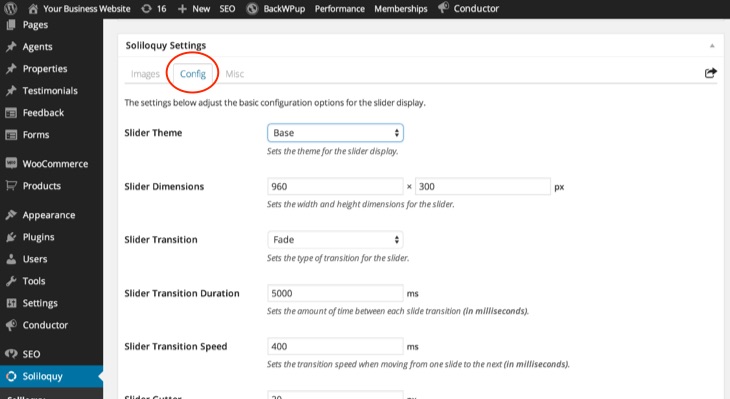
Go to the slider settings. Adjust the transition effects. Choose options like fade or slide. Set the slider speed. Decide how long each slide shows. Enable or disable autoplay. Customize the slider layout. Choose arrows or dots for navigation. Review and save your settings.
Credit: slocumthemes.com
Integrating Slider Into The Theme
Adding a slider to your WordPress theme is easy. First, pick a reliable slider plugin. Popular choices include Slider Revolution or MetaSlider. Download and install the plugin in your WordPress dashboard. After activation, find the plugin settings. Create a new slider by selecting images or content. Customize the slider’s size and effects. Ensure the design suits your website’s style. Save your changes and copy the provided shortcode.
Adding Slider To Pages Or Posts
To place the slider on a page or post, go to the editor. Paste the shortcode where you want the slider to appear. Preview your page to ensure it looks right. Adjust the settings if needed. This method lets you add sliders to multiple locations easily. Keep the design consistent for a polished look.
Incorporating Slider Into The Homepage
Adding a slider to your homepage draws attention. Use the shortcode in your homepage settings. In some themes, you might need to edit the theme files. Locate the homepage.php or similar file. Insert the shortcode where you want the slider. Save changes and check your homepage. Ensure the slider loads correctly. This feature enhances the visual appeal of your site.
Customizing Slider Appearance
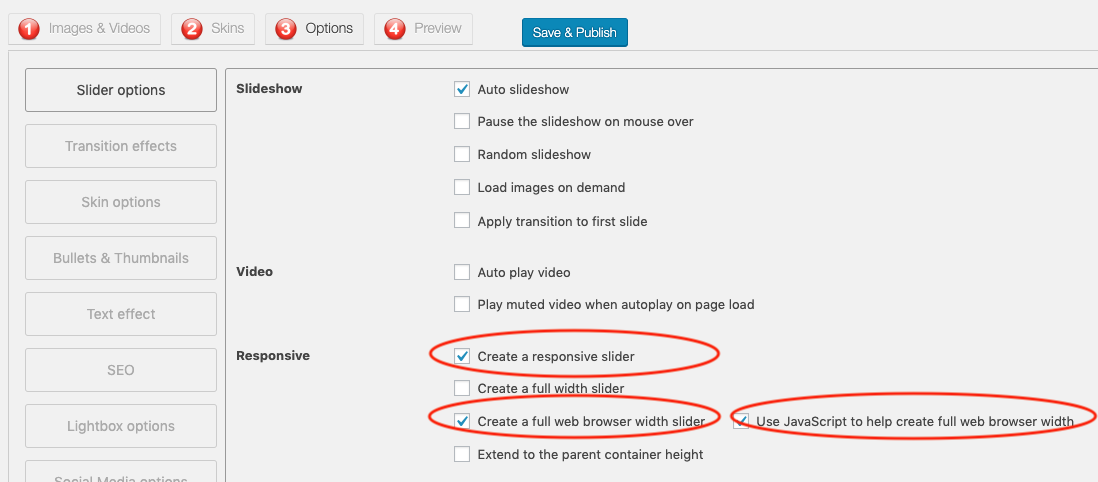
Adjusting the slider’s dimensions is important for a clean look. Choose the right width and height. This helps your slider fit well on your page. For a wider slider, increase the width. This makes images stand out. Try different sizes to see what works best. Keep the slider’s height balanced. Too tall can look awkward. Too short can cut off images.
Layout is key to a neat slider. Align images properly. Center them to look professional. Use margins to separate images. This avoids a cluttered view. Arrange text and buttons neatly. Keep them readable and accessible. Adjust placement to suit your design. This enhances user experience.
Styling With Css
CSS styles can enhance your slider. Use CSS to change colors. Bright colors attract attention. Soft colors blend well. Choose colors that match your theme. Adjust font sizes for readability. Larger fonts stand out. Smaller fonts fit tight spaces.
Adding borders can define your slider. Borders can add structure. Use them to separate content. Rounded corners can soften the look. Experiment with shadows. Shadows create depth. They make sliders pop.
Credit: www.wonderplugin.com
Testing And Troubleshooting
Ensuring Compatibility is key for your WordPress slider. Check if your theme supports sliders. Some themes might not. Install a slider plugin. See if it works. Update your theme and plugins. This helps fix any issues. Always back up before updating. Use a tool like BackupBuddy.
Resolving Common Issues is important. Sliders may not show sometimes. Check if JavaScript is enabled. Without it, sliders won’t work. Clear your cache if changes don’t show. Use a tool like WP Super Cache. Check for plugin conflicts. Disable plugins one by one. Find the one causing the issue. Update it or choose another.
Enhancing Slider Features
Adding a slider to your WordPress theme can improve its visual appeal. Choose a plugin that fits your design needs. Follow the setup instructions to customize the slider’s appearance and functionality.
Adding Animations And Effects
Adding animations makes sliders more attractive. Animations keep users engaged. Fade effects are popular and easy to use. Slide effects create smooth transitions. Bounce effects add fun to sliders. Use CSS for custom animations. Choose effects that match your theme. Make sure sliders load quickly. Slow sliders frustrate users. Test animations on different devices. Ensure they look good everywhere.
Incorporating Navigation Controls
Navigation controls help users browse sliders easily. Arrows guide users back and forth. Dots show the position in the slider. Users can click dots to jump to slides. Adding pause and play buttons lets users control speed. Keyboard navigation is useful for fast browsing. Make controls big enough to click easily. Responsive controls adjust to screen sizes. Test controls to ensure functionality. Keep controls simple and clear. They should be easy to understand.
Frequently Asked Questions
How Do I Add A Slider To My WordPress Theme?
To add a slider, install a slider plugin from the WordPress repository. Activate the plugin and create a new slider. Customize it using options provided. Finally, use shortcode or widget to insert it into your theme. Always preview changes before publishing to ensure it displays correctly.
Which Plugins Are Best For WordPress Sliders?
Popular slider plugins include Slider Revolution, Soliloquy, and Smart Slider 3. Each offers unique features, responsive designs, and customization options. Choose one based on your needs, budget, and ease of use. Always check compatibility with your theme and read reviews for user feedback before installation.
Can I Customize Slider Settings In WordPress?
Yes, slider plugins offer extensive customization options. You can adjust slide transitions, speed, and layout. Some plugins allow custom CSS for advanced styling. Explore settings in your plugin’s admin panel to tailor the slider to your website’s design and functionality requirements.
Why Is My WordPress Slider Not Displaying?
Ensure the slider shortcode or widget is correctly placed in your theme. Check plugin settings for any display conditions. Confirm your theme supports sliders. Clear your browser cache and refresh your page. Review plugin documentation or support forums for troubleshooting tips.
Conclusion
Adding a slider to your WordPress theme enhances visual appeal. It captures attention. You can easily showcase images and content. Follow these steps to integrate smoothly. Customize the slider to fit your style. Test it across devices for best results.
Keep it simple for better performance. A functional slider improves user experience. Engage visitors with dynamic visuals. A few tweaks can make a big difference. Remember, balance aesthetics with functionality. Your WordPress site will look more professional. Sliders make content interactive and engaging.
Enjoy your new design feature!


