
Imagine transforming your WordPress site into a visually captivating experience that grabs attention at first glance. Adding a slider to your WordPress theme can do just that!
Sliders are not only eye-catching but also an effective way to showcase your most important content, from stunning images to crucial announcements. But how do you seamlessly integrate a slider into your theme without getting lost in technical jargon or complex coding?
That’s exactly what you’ll discover here. Whether you’re a beginner or seasoned WordPress user, this guide will walk you through the process with ease, ensuring your site stands out and keeps visitors engaged. Ready to elevate your website’s aesthetic and functionality? Let’s dive in!
Choosing The Right Slider Plugin
Enhancing a WordPress theme involves adding a slider. Consider plugin options carefully. Opt for one that offers easy setup and compatibility. This ensures smooth integration and a visually appealing display for your site.
Popular Slider Plugins
Many plugins help add sliders to WordPress. Some well-known ones are MetaSlider, Smart Slider 3, and Slider Revolution. MetaSlider is easy for beginners. Smart Slider 3 offers creative designs. Slider Revolution is feature-rich and advanced.
Factors To Consider
Finding the perfect plugin requires thought. Check the plugin’s ease of use. Some plugins have simple interfaces. Others may need more technical skills. Consider compatibility with your theme. Some plugins fit better with certain themes. Look at the plugin’s performance. Fast plugins load quickly. Slow plugins may frustrate users. Review the plugin’s support options. Good support helps solve problems. Consider the plugin’s cost too. Some plugins are free. Others may require payment. Finally, check for updates. Updated plugins work better and are safer.
Installing A Slider Plugin
First, open your WordPress dashboard. Find the “Plugins” section on the left menu. Click “Add New”. In the search bar, type “slider plugin”. Choose a plugin you like. Click “Install Now”. Wait for the plugin to install. Once done, click “Activate”. Now, the plugin is ready to use. Go to the plugin settings. Follow the steps to create your first slider. Add images or videos to your slider. Save your settings. Now, add the slider to a page or post. Use a shortcode if needed.
Sometimes plugins do not install. Check your internet connection. Make sure your WordPress version is up to date. Some plugins need specific WordPress versions. Check plugin requirements. Also, ensure you have enough storage space on your server. If issues persist, contact plugin support. They can help solve complex problems.
Creating A Slider
Start by choosing a slider plugin for your WordPress. Install it from the plugins menu. Once installed, find the slider option in your WordPress dashboard. Click on it to create a new slider. Add your first slide by clicking “Add Slide.” Here, you can upload images or videos. Give your slide a title. This helps in organizing your slides. Don’t forget to save your changes. Now, your first slide is ready.
Click on the customization settings in the slider menu. Choose a layout that suits your design. You can change slide size, colors, and fonts. Adjust the transition effects for each slide. This makes your slider more attractive. You can also set the slide duration. It controls how long each slide shows. Save your settings to see the changes.

Credit: www.youtube.com
Integrating Slider Into Your Theme
Enhancing your WordPress theme with a slider can create dynamic visuals. Begin by selecting a reliable slider plugin from the WordPress repository. Install and activate it, then customize the settings to suit your theme’s design.
Using Shortcodes
Shortcodes make adding sliders easy. They are small bits of code. You paste them into posts or pages. Find the shortcode from your slider plugin. Copy it. Then, paste it where you want the slider. Your slider appears magically. Shortcodes are simple to use. Great for beginners.
Direct Theme Integration
Direct integration is for advanced users. It requires editing theme files. First, create a child theme. This keeps your changes safe. Open the theme’s functions.php file. Add the slider code here. This code is from your slider plugin. Save your changes. Your slider should now show on your site.
Customizing Slider Appearance
Make sliders look different by changing their styles. You can change colors and fonts. This makes sliders match your site. Use effects to make sliders more fun. Effects like fade or slide can add excitement.
Keep slider changes simple. Don’t use too many colors. This keeps things neat. Use effects that are easy to see. This helps visitors enjoy sliders. Simple styles and clear effects work best.
Sliders should work on all devices. Make sliders responsive. They should change size with screens. Big screens need big sliders. Small screens need small sliders. Test sliders on phones and tablets.
Check that text stays clear. Buttons should be easy to click. Use responsive design for happy visitors. This makes the site better for everyone. Simple, smart design keeps sliders looking nice.
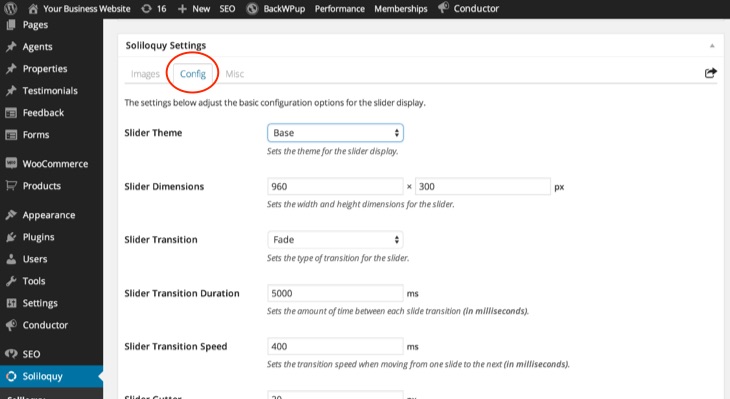
Credit: slocumthemes.com
Troubleshooting Slider Issues
Adding a slider to your WordPress theme can enhance your site’s visual appeal. Check plugin compatibility to avoid issues. Ensure proper configuration to prevent display problems.
Common Errors And Fixes
Encountering errors with sliders can be frustrating. Sliders might not load or display properly. This often happens due to outdated plugins. Always keep your plugins updated. Check your slider settings too. Sometimes, settings might get changed accidentally. Ensure your images are the right size. Large images can slow down your site. This may cause the slider to malfunction.
Plugin Conflicts
Plugins can conflict with each other. This is a common issue. Always test new plugins before using them. Disable all plugins to find the conflicting one. Enable them one by one. This helps identify the troublesome plugin. Use only necessary plugins. Too many can cause issues and slow down your site. Consider using a plugin that supports sliders well. Some plugins are designed for this purpose.
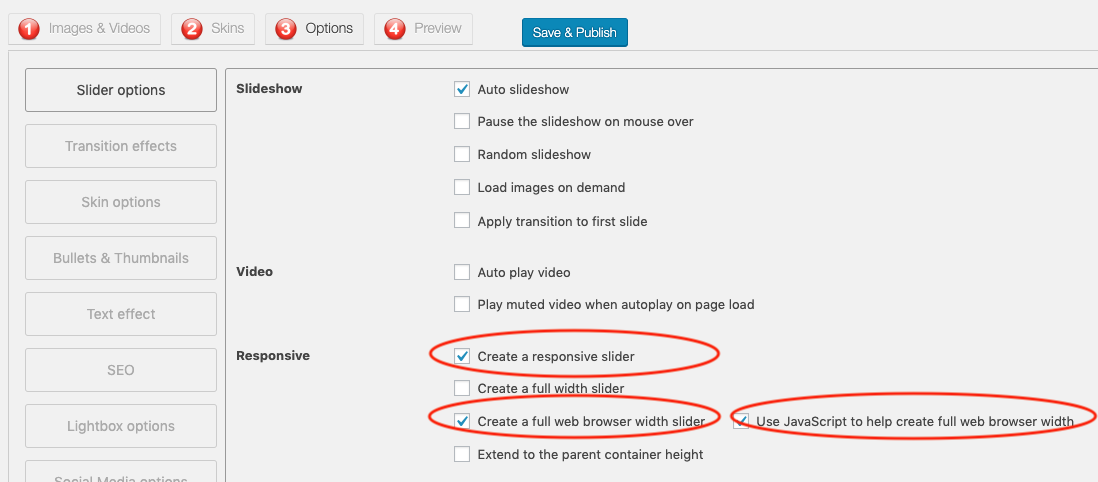
Credit: www.wonderplugin.com
Frequently Asked Questions
How Do I Add A Slider In WordPress?
To add a slider in WordPress, install a slider plugin like Smart Slider 3. Activate the plugin. Create a new slider. Customize it using provided options. Insert the slider shortcode into your desired page or post. Save and preview your changes.
Your slider should now be visible.
How Do I Add A Sliding Menu In WordPress?
Add a sliding menu in WordPress using a plugin like WP Responsive Menu. Install, activate, and configure the plugin settings. Customize the menu style and behavior to fit your theme. Save changes and check your site for the sliding menu functionality.
How Do I Add A Horizontal Slider In WordPress?
To add a horizontal slider in WordPress, install a slider plugin like Smart Slider 3. Create a new slider, customize settings, and add images. Embed the slider using shortcode in the desired page or post. Ensure responsiveness and optimize images for faster loading.
How Do I Add A Meta Slider To My WordPress Site?
Install the MetaSlider plugin from the WordPress dashboard. Activate it and create your slider. Use the shortcode provided to embed the slider into posts or pages. Adjust settings as needed for customization. Save changes to display the slider on your site.
Conclusion
Adding a slider to your WordPress theme is simple. It enhances your website’s visual appeal. Users find sliders engaging and interactive. The steps outlined are straightforward and user-friendly. Start by choosing a reliable plugin. Customize the slider to match your design.
Test its functionality to ensure smooth operation. A well-placed slider boosts user experience. It draws attention to key content. Your site becomes more dynamic and attractive. With practice, you’ll master slider creation. Enjoy the improved aesthetics on your site. Keep experimenting for better results.
Happy designing!


