
Are you looking to make your WordPress site more dynamic and visually appealing? Adding a slider to your Customizr theme could be the perfect solution.
Sliders can help you showcase stunning images, highlight key content, and engage your visitors right from the first glance. Imagine a beautifully designed slider that captures your audience’s attention and keeps them scrolling for more. In this guide, we’ll walk you through the simple steps to integrate a slider into your Customizr theme effortlessly.
Whether you’re a beginner or a seasoned WordPress user, you’ll find the process straightforward and rewarding. Stick around, and let’s transform your website into a visual masterpiece that stands out from the crowd.
Prerequisites
Start with a fresh WordPress installation. Ensure your WordPress is up to date. This helps in avoiding bugs. Use a reliable hosting service. Choose one that offers good support. You will need an admin account. This account helps you manage everything.
Install the Customizr theme from the WordPress theme library. Activate it to use its features. Customizr is flexible and easy. This theme offers many customization options. You can change colors and layouts easily. Navigate to the theme settings. Explore the options available. Check for any theme updates regularly. Updates keep your site secure and smooth. Enjoy the creative possibilities with Customizr.
Choosing The Right Slider Plugin
Slider plugins are tools to make websites look nice. Some popular ones are Smart Slider 3, MetaSlider, and Slider Revolution. Smart Slider 3 is easy for beginners. MetaSlider has many features for design. Slider Revolution is powerful but needs practice.
Think about ease of use. Some plugins are simple. Check the features. Do you need animations? Look at the compatibility. Will it work with your theme? Consider the performance. Fast loading is good. Lastly, check the support. Good help is important.
Installing A Slider Plugin
Start by logging into your WordPress dashboard. Find the menu on the left. Click on “Plugins”. Then choose “Add New”. You will see the WordPress Plugin Directory. It’s full of tools you can use. Type “Slider” in the search bar. Many sliders will show up. Pick one with good reviews.
Click the “Install Now” button next to your chosen slider. Wait for it to install. Once done, click “Activate”. The slider plugin is now active. Go to the settings to adjust it. Find the sliders in your dashboard menu. Start adding images and text. Your slider will make your website look great.
Credit: presscustomizr.com
Configuring Slider Settings
Start by choosing your favorite pictures. Upload them to your site. Each image should be clear and colorful. Use the media library to do this. After uploading, add them to your slider. Arrange them in the right order. Make sure they look nice together. This helps your site look good.
Choose how your slides will change. Pick a smooth transition style. Options may include fade or slide. Try different effects to see which you like best. Keep it simple so visitors enjoy it. Fast changes can make things hard to see. Slow changes are better.
Decide how your slider should appear. Set the size to fit your page. Choose auto-play if you want it to start by itself. Pick the speed of the slide change. Slower speeds let people see more. Make sure your slider works on phones and tablets too. This way, everyone can enjoy it.
Integrating Slider With Customizr Theme
Shortcodes make it easy to add sliders. Copy the slider shortcode from your slider plugin. Paste it into your page or post. The slider will appear where you place the code. It’s a simple way to enhance your site. You can change settings from the slider plugin. This allows more customization.
Widgets offer another way to add sliders. Go to the Widgets section in your WordPress dashboard. Drag the slider widget to your desired widget area. Adjust settings as needed. This method keeps your site organized. You can show sliders in sidebars or footers. Easy and effective.
Customizing Slider Appearance
Adding CSS can change how your slider looks. Start with the WordPress Customizer. Click “Additional CSS” to open the editor. Here, you can write CSS code. Use simple CSS rules to change colors or font size. Make your slider look unique.
Use classes like .slider-title and .slider-content. These help you style text. Want a new background? Use background-color. Change the slider height with height property. Adjust margins using margin to create space.
Advanced users can use media queries. This makes sliders fit on any screen. Add @media to your CSS. Change styles for different screen sizes. Use transitions for smooth effects. Try transition: all 0.5s;. It makes changes look cool.
Consider using custom fonts. Import them in your CSS. Use @font-face to load a new font. This can make your slider text stand out. Be creative but keep it simple. Too much styling can be confusing.
Troubleshooting Common Issues
Adding a slider to the Customizr WordPress theme enhances website appeal. Address common issues by checking plugin compatibility and theme settings. Ensure images are optimized for faster loading.
Slider Not Displaying
The slider may not show if settings are wrong. Check if the slider is enabled in the theme options. Make sure you have the right shortcode. Sometimes, a missing plugin can cause this issue. Verify that all required plugins are active.
Image Loading Problems
Images might not load due to file size. Large images take longer to appear. Try using smaller images for faster loading. Ensure images are in the correct format, like JPEG or PNG. Check if images are correctly linked in the slider settings. Missing links can stop images from loading.
Credit: presscustomizr.com
Enhancing User Experience
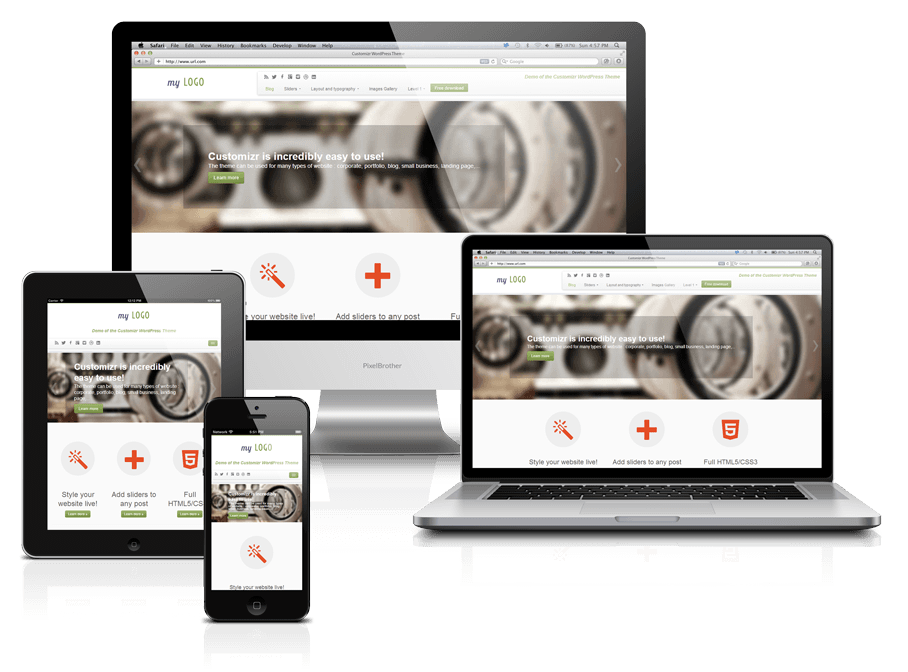
Keep sliders simple. Use clear images. Choose colors wisely. Responsive design is key. Make sure sliders fit all screens. Mobile users should see everything clearly. Test sliders on different devices. Check if they load well. Fast loading is important. No one likes waiting. Limit the number of slides. Too many slides slow things down. Simple text on slides helps. Avoid clutter. Focus on what matters. Use easy navigation buttons. Make them big enough to click. User-friendly design keeps visitors happy.
Optimize images for fast load. Use compressed images. This saves space. Lazy loading is useful. It loads images only when needed. Reduce animations. Too many animations can slow down sliders. Test slider speed. Make sure it’s fast. Keep plugins updated. Old plugins can cause issues. Check for compatibility with the theme. Regular updates fix bugs. Smooth performance keeps users engaged. A good slider should be fast and easy to use. This makes the website better.
Credit: docs.presscustomizr.com
Frequently Asked Questions
How Do I Install A Slider In Customizr?
To install a slider in Customizr, use a plugin like Smart Slider 3. Install and activate it from the WordPress dashboard. Then, create a new slider and customize it to your liking. Finally, add the slider shortcode to your desired page or post.
Can I Customize Slider Settings In Customizr?
Yes, you can customize slider settings in Customizr. Use the slider plugin’s settings to change dimensions, transition effects, and autoplay options. Tailor the slider to fit your website’s design and functionality needs.
Which Slider Plugin Works Best With Customizr?
Smart Slider 3 is a popular choice for Customizr. It offers a user-friendly interface and extensive customization options. It integrates seamlessly with Customizr, providing a smooth experience for creating stunning sliders.
Is Adding A Slider In Customizr Free?
Yes, adding a slider in Customizr can be free. Many slider plugins offer free versions with basic features. For advanced options, you might consider purchasing a premium version.
Conclusion
Adding a slider enhances your Customizr theme. It boosts visual appeal and engagement. Follow the steps for a smooth installation. Customize your slider to fit your site’s style. Experiment with settings for best results. Keep images clear and relevant. Test on different devices.
Ensure fast loading times. A well-placed slider captivates visitors. It guides them through your content. With practice, you can create stunning visuals. Your website becomes more interactive. Engage your audience effectively with beautiful sliders. Keep improving as you learn. Enjoy the creative process and watch your site shine.


