
Are you looking to make your WordPress site more user-friendly and engaging? Adding a sidebar widget is one of the easiest ways to do just that.
Imagine having a space where you can showcase important links, recent posts, or even your social media feeds—right beside your content. This small change can keep visitors hooked and help guide them through your site effortlessly. You’ll learn exactly how to add a sidebar widget to your WordPress site, step by step.
By the end, you’ll have a clear, practical way to enhance your site’s look and functionality without any hassle. Ready to boost your website’s impact? Let’s dive in!
Choosing The Right Sidebar
Choosing the right sidebar is important for your WordPress site. Sidebars help show extra information or links. They guide visitors and make your site easier to use.
Picking between default and custom sidebars affects your site’s look and function. Also, your theme must support the sidebar type you want. These choices shape your website’s user experience.
Default Vs Custom Sidebars
Default sidebars come with your WordPress theme. They are simple to use and already set up. You just add widgets and start.
Custom sidebars offer more control. You can create different sidebars for different pages or posts. This helps show the right content in the right place. Plugins or coding can help build custom sidebars.
Theme Compatibility
The sidebar must work well with your theme. Some themes support only one sidebar. Others allow multiple sidebars or widget areas.
Check your theme’s options before adding sidebars. Themes that are flexible give more design choices. A compatible theme ensures your sidebar looks good and works smoothly.
Credit: www.library.illinois.edu
Accessing The Widgets Area
Accessing the widgets area in WordPress is the first step to customize your sidebar. Widgets help add features like search bars, recent posts, and calendars. This section explains two easy methods to find and use the widgets area.
Using The WordPress Dashboard
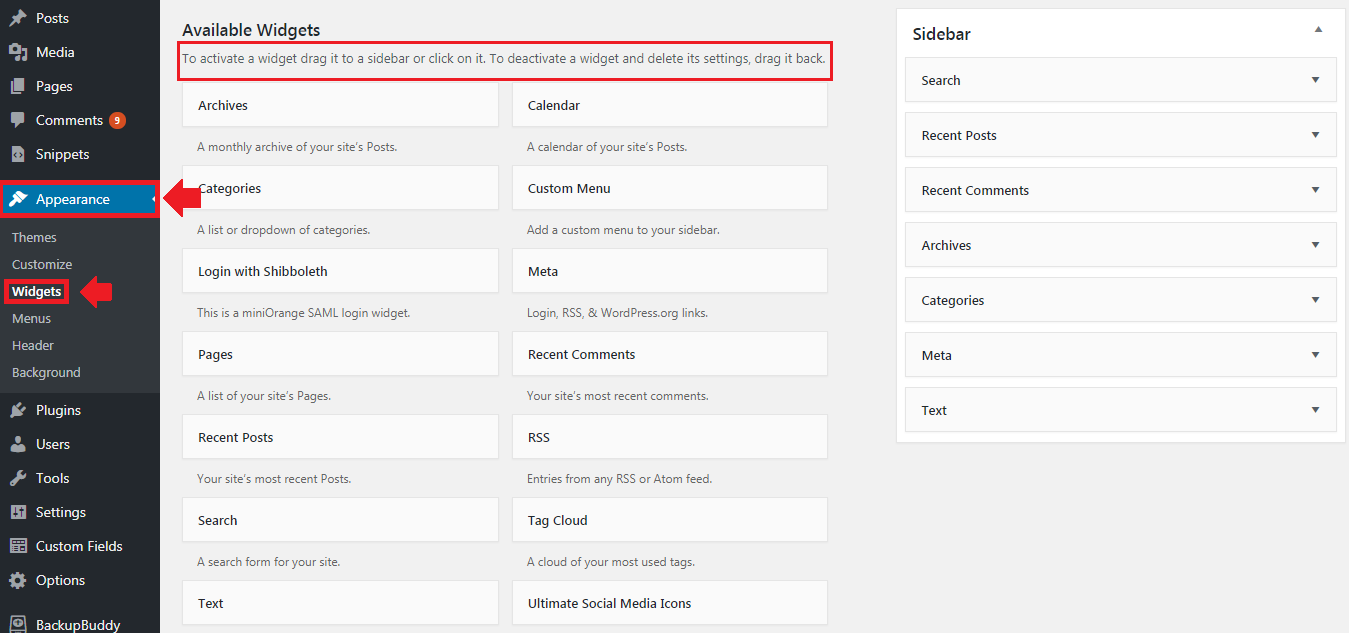
Start by logging into your WordPress dashboard. On the left menu, find the “Appearance” option. Click on “Appearance” to open a submenu. Select “Widgets” from this list. You will see the available widgets and the widget areas. Find the sidebar widget area to add or remove widgets. Drag and drop widgets into the sidebar to customize it. This method is quick and gives full control over widget placement.
Navigating The Customizer
Another way to access widgets is through the WordPress Customizer. From the dashboard, click on “Appearance” and then “Customize.” The Customizer opens a live preview of your site. Look for the “Widgets” section in the menu. Click it to see all widget areas, including the sidebar. Add, remove, or arrange widgets while watching the changes in real time. This method is user-friendly and helps you see the result before saving.
Adding Widgets To Sidebar
Adding widgets to your WordPress sidebar helps enhance your website’s functionality. Widgets allow you to display content like menus, calendars, and recent posts. They make your site more interactive and user-friendly.
This process is simple and can be done in a few clicks. You can add widgets by dragging and dropping or using the add widget button.
Dragging And Dropping Widgets
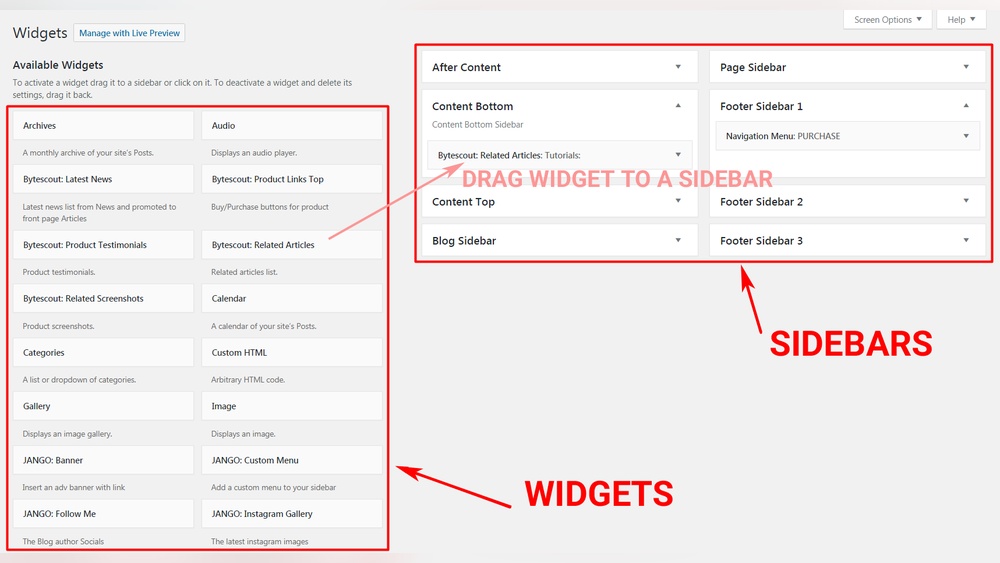
Go to your WordPress dashboard and click on Appearance, then Widgets. You will see a list of available widgets on the left. The sidebar areas will appear on the right.
Click on the widget you want and drag it to the sidebar area. Drop it where you want it to appear. You can move widgets up or down to change their order.
After placing the widget, customize its settings. Click Save to apply the changes. Check your site to see the widget in action.
Using The Add Widget Button
In the Widgets screen, find the Add Widget button near the sidebar area. Click on it to open a list of widgets. Scroll or search to find the widget you want.
Click on the widget name, and it will automatically add to your sidebar. You can then click on the widget to open its settings. Make changes and press Save.
This method works well for those who prefer clicking instead of dragging. Both methods give you full control over your sidebar content.

Credit: wordpress.org
Configuring Widget Settings
Configuring widget settings is key to customizing your sidebar in WordPress. It lets you control what your visitors see and how they interact with your site. Proper settings make your sidebar useful and neat. You can change titles, text, and how the widget looks. This section explains how to adjust these settings with ease.
Editing Titles And Content
Start by opening the widget settings in your WordPress dashboard. You can change the widget title to match your site’s style. Use clear and short titles for better understanding. Edit the content to fit your needs. Add text, links, or images depending on the widget type. Keep content simple and relevant. This helps visitors find information quickly.
Adjusting Display Options
Display options let you control the widget’s appearance and behavior. Choose where the widget shows up in the sidebar. Some widgets allow you to set visibility by page or post. Adjust colors and fonts if available to match your theme. Set widget size or layout to keep your sidebar tidy. These options improve user experience and site design.
Using Plugins For Advanced Sidebars
Using plugins for advanced sidebars can improve your WordPress site’s layout. Plugins let you create multiple widget areas beyond the default sidebars. This allows more control over where and how widgets appear. You can tailor sidebars for different pages or post types.
Plugins also simplify managing widgets. You can add, remove, or customize widgets without coding. This helps users who are not familiar with WordPress theme files. Plugins offer a user-friendly interface to handle all sidebar settings.
Popular Sidebar Plugins
Several plugins help create and manage advanced sidebars. “Custom Sidebars” is a top choice for adding new widget areas. It lets you replace sidebars on any page or post. “Content Aware Sidebars” creates sidebars that show based on conditions you set. “WooSidebars” works well if you run an online store with WooCommerce.
These plugins are easy to use and well supported. Most have free versions with essential features. Paid versions offer more options and better control. Choose a plugin that fits your needs and skill level.
Creating Custom Widget Areas
Plugins make creating custom widget areas simple. After installing, go to the plugin’s settings to add new sidebars. Give each sidebar a clear name to identify it easily. Assign these sidebars to specific pages, posts, or categories.
Once created, go to Appearance > Widgets to add widgets to your new areas. Drag and drop widgets into the custom sidebars you made. This setup improves your site’s design and user experience. Custom widget areas help display relevant content in the right places.
Previewing And Saving Changes
After adding widgets to your WordPress sidebar, previewing and saving changes is important. This step helps ensure your sidebar looks good and works well on your site. It lets you check the design and content before visitors see it.
Previewing changes lets you spot errors or adjust the layout. Saving changes makes sure your updates stay on the live site. This process is simple and quick to do inside WordPress.
Checking Sidebar Appearance
Use the WordPress Customizer to see your sidebar in real time. Click on the “Widgets” section and select the sidebar area. The preview on the right side shows how the widgets display on your site.
Look for alignment, spacing, and readability. Check if the widgets fit your site’s style and theme. Make sure the text is easy to read and links work correctly. Preview on different screen sizes for mobile friendliness.
Publishing Your Widgets
After confirming the sidebar looks right, click the “Publish” button. This saves your widget settings and applies them to your live website. Visitors will now see the updated sidebar immediately.
You can return to the Widgets area anytime to edit or add more widgets. Saving changes often helps avoid losing your work. Keep your sidebar fresh and functional with regular updates.
Troubleshooting Common Issues
Adding a sidebar widget to WordPress is usually easy. Still, some common issues can stop widgets from showing or working right. Knowing how to fix these problems saves time and keeps your site looking good.
Widgets Not Showing
Sometimes, widgets do not appear after adding them. Check if the widget is active in the Appearance > Widgets section. Also, make sure the correct sidebar is selected for your widget. Refresh your page and clear the cache to see if that helps. Some themes hide sidebars on certain pages. Test on different pages to confirm. If the widget still does not show, try disabling plugins one by one. A plugin might block the widget from displaying.
Sidebar Conflicts
Sidebar conflicts happen when two or more widgets or themes clash. These conflicts can cause layout problems or widgets to disappear. Check if your theme supports multiple sidebars. Using a theme without sidebar support can create issues. Avoid placing too many widgets in one sidebar. This can cause display errors or slow loading. Also, check for plugin conflicts by deactivating plugins temporarily. Fix conflicts by updating your theme and plugins to the latest versions. Clear your site cache to apply the changes.

Credit: www.library.illinois.edu
Frequently Asked Questions
How Do I Add A Sidebar Widget In WordPress?
To add a sidebar widget, go to Appearance > Widgets in your WordPress dashboard. Drag and drop your desired widget into the Sidebar area. Customize the widget settings, then save your changes to display it on your site’s sidebar.
Can I Add Custom Widgets To My WordPress Sidebar?
Yes, you can add custom widgets by installing plugins or using custom code. Many plugins offer unique widgets. Alternatively, developers can create custom widgets via PHP and add them to the sidebar area for tailored functionality.
Why Isn’t My Sidebar Widget Showing On My Site?
Widgets may not show if the theme doesn’t support sidebars or if no widgets are added. Check your theme’s widget areas and ensure you’ve placed widgets in an active sidebar section. Clear caches if changes don’t appear immediately.
How To Manage Sidebar Widgets In WordPress Without Plugins?
You can manage sidebar widgets from Appearance > Widgets or Customize > Widgets. WordPress’s built-in tools allow easy drag-and-drop placement and editing of widgets without needing plugins.
Conclusion
Adding a sidebar widget in WordPress is simple and fast. It helps make your website more useful and organized. You can add different widgets like menus, calendars, or text easily. Just follow the steps carefully, and you will see changes on your site.
Keep experimenting to find what works best for your visitors. A well-placed sidebar improves user experience and keeps people engaged longer. Start adding widgets today and make your WordPress site more attractive and functional.


