
Are you looking to enhance your WordPress site with a more organized and user-friendly layout? Adding a sidebar might just be the solution you need.
A sidebar can transform your website by providing a dedicated space for navigation, widgets, and additional content. This not only improves the user experience but also keeps your visitors engaged longer. Imagine having a clean, professional-looking site where your audience can easily find what they’re looking for.
In this guide, we’ll walk you through the simple steps to add a sidebar to your WordPress theme, ensuring your site is both functional and aesthetically pleasing. Stick around, and you’ll discover how this small change can make a big impact on your website’s effectiveness.
Understanding WordPress Sidebars
A sidebar is a special area on your WordPress site. It helps display extra content. You can add text, images, or links. Many themes support sidebars. It makes the site look good. Sidebars can be on the left or right. Sometimes, they are at the bottom. Widgets are small tools. They go inside the sidebar. Widgets show things like calendars or recent posts. Themes often come with built-in sidebar options. You can customize them. You can add or remove items. Use the Appearance menu. It helps manage sidebars. Drag and drop widgets into the sidebar. It is easy.
Customizing sidebars gives your site a personal touch. Try different widgets. See what works best. Sidebars can improve site navigation. Users find what they need faster. Keep your sidebar tidy. Too much content can be confusing. A clean layout is best. Sidebars enhance user experience. Make sure your theme supports sidebars.
Choosing The Right Sidebar Type
Sidebars come in many styles. Each style offers a unique look. Fixed sidebars stay in one place. They do not move with the page. Floating sidebars move as you scroll. This style helps users see them all the time. Some sites use collapsible sidebars. These can hide or show with a click.
Vertical sidebars are tall and slim. They are good for navigation. Horizontal sidebars are wide and short. They work well for banners. Custom sidebars let you pick what you want to show. You can add widgets, links, or ads. Choose a style that fits your site best.
Sidebars help organize content. They show links and ads. Users find things quickly with sidebars. They can save time. Sidebars also help with site navigation. They guide users to important pages. Widgets in sidebars can show recent posts. This keeps content fresh. A well-used sidebar improves user experience. It makes the site easier to use.
Preparing Your WordPress Theme
Ensure your theme supports sidebars. Check the theme documentation. Some themes might not support sidebars. If so, consider using a different theme. It is important to select a theme that fits your needs. Check the theme’s layout and design. Make sure it is flexible. This will help in adding a sidebar easily. A flexible theme can save a lot of time.
Always backup your data. It is a safety measure. Use a backup plugin for WordPress. Plugins like UpdraftPlus can help. They are easy to use and install. Store backups in a safe place. Cloud storage is a good option. This ensures your data is safe. If something goes wrong, you can restore it. Backup is crucial for any changes.
Creating A Sidebar In WordPress
Widgets make it easy to add stuff to your sidebar. Go to the WordPress Dashboard. Click on Appearance and then Widgets. Drag and drop the widget you want. You can add text, images, or links. Arrange the widgets in the order you like. Check your site to see the changes. It’s simple!
You can change what shows in the sidebar. Go to Appearance and then Customize. Click on Widgets and choose your sidebar. Add or remove widgets as needed. You can also change the title of each widget. Make sure to hit Publish to save your changes. Check your site to ensure it looks good. Have fun!
Adding Sidebar To Theme Files
Open the functions.php file in your theme folder. This file helps to add features to your theme. Find the spot where you can register a sidebar. Use the register_sidebar() function. It gives your theme a place for widgets. Make sure you define its ID and name. Save changes. Refresh your site to see the sidebar.
Locate the template files where you want the sidebar. These files show different parts of your website. Use get_sidebar() function. It tells WordPress to display the sidebar. Place this function where you want. Check the changes on your site. If the sidebar appears, you did it right. Sometimes, you need to style it. Use CSS to make it look good. Test on different pages to ensure it works.

Credit: www.youtube.com
Styling Your Sidebar
Enhancing your WordPress theme with a sidebar is simple and effective. A sidebar adds organization and improves navigation. Customize it with widgets to display popular posts, recent comments, or categories.
Css Customization
CSS helps style your WordPress sidebar. It changes colors, fonts, and sizes. Use CSS to make the sidebar unique. Add background colors to highlight it. Choose a font style that matches your theme. Adjust the width for balance with the main content.
Keep the sidebar clean and simple. Avoid clutter with too many elements. Use padding and margin to space items nicely. Test different styles for the best look. Check how it appears on different devices.
Responsive Design
Sidebars should work well on all screens. Use responsive design techniques. Media queries help adjust layout for mobile devices. Ensure text and images fit small screens. Avoid text that is too small to read. Make sure buttons are easy to click.
Test the sidebar on phones and tablets. Adjust settings if needed. Keep navigation easy on all devices. This improves user experience. Happy visitors stay longer!
Testing And Troubleshooting
Adding a sidebar to a WordPress theme involves testing and troubleshooting steps. Verify theme compatibility and adjust code snippets in theme files. Ensure widgets display correctly and customize settings for user-friendly navigation.
Common Issues
Sometimes, the sidebar doesn’t show up. First, check the theme settings. Ensure the sidebar is enabled. If the sidebar is empty, it may be a widget issue. Add a widget to see if it appears. Verify the WordPress version. Old versions may cause problems. Update your WordPress to fix bugs. Plugins can also conflict with the sidebar. Disable plugins one by one to find the culprit. Lastly, check the CSS. Incorrect code can hide the sidebar. Fixing these issues can make the sidebar appear.
Checking On Different Devices
Test the sidebar on various devices. Use a computer first. Then try a tablet. Finally, check on a phone. Ensure the sidebar looks good everywhere. Sometimes, it may look fine on a computer but not on a phone. Responsive themes should adjust automatically. If it doesn’t, check the theme settings. Use browser tools to see how it looks on each device. This ensures everyone sees the sidebar perfectly.
Credit: www.greengeeks.com
Utilizing Plugins For Sidebar Enhancement
Plugins make sidebars better. They are easy to use. Some plugins are very popular. Widget Options is one of them. It helps in adding features. Another one is Custom Sidebars. It lets you make different sidebars. Elementor is also a favorite. It gives drag-and-drop options. These plugins save time.
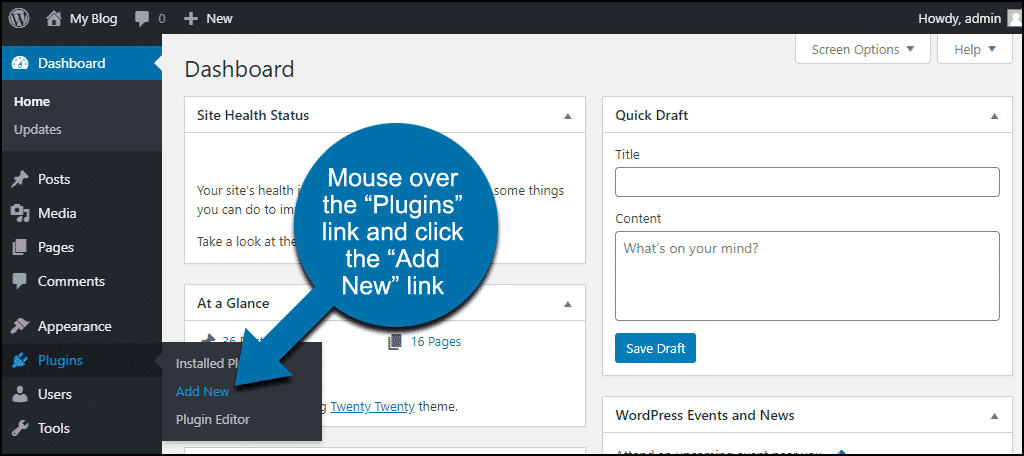
Install the plugin first. Go to your WordPress dashboard. Find the Plugins tab. Click on Add New. Search for your plugin. Click Install Now. Then click Activate. Now go to the plugin settings. Start adding new features. Add widgets to your sidebar. Arrange them as you like. Save your changes. Now your sidebar is ready.

Credit: ostraining.com
Frequently Asked Questions
How Can You Add A Sidebar To The WordPress Theme?
Add a sidebar by editing the theme’s functions. php file. Use the register_sidebar function to define sidebar properties. Then, insert dynamic_sidebar in the theme’s template files where you want the sidebar to appear. Ensure your theme supports widgets for full functionality.
Always back up files before making changes.
How Do I Add A Sidebar Link In WordPress?
To add a sidebar link in WordPress, go to the “Appearance” menu. Select “Widgets” and choose a widget for your sidebar. Add a “Custom HTML” or “Text” widget. Insert your link using HTML. Save the changes to update your sidebar with the new link.
How To Create A Left Side Menu In WordPress?
To create a left side menu in WordPress, go to Appearance > Menus. Design your menu by adding items. Then, navigate to Appearance > Widgets and add a ‘Custom Menu’ widget to the sidebar. Select your menu, save changes, and the left side menu will appear on your site.
How Do I Add A Side Column In WordPress?
Go to Appearance > Widgets in your WordPress dashboard. Drag desired widgets into the Sidebar area. Save changes. Your side column will appear on your site. Use a plugin or custom theme options if needed for additional customization.
Conclusion
Adding a sidebar to your WordPress theme enhances functionality. It organizes content and improves navigation. Customization options allow you to tailor the sidebar. This can boost user experience. Follow the steps mentioned to integrate it easily. Practice makes perfect, so don’t hesitate to experiment.
A well-placed sidebar can engage visitors. Keep design simple and intuitive. This will help users find what they need quickly. With these tips, you can enhance your website’s layout. Enjoy the benefits of a user-friendly site. Happy blogging!


