
Are you looking to make your WordPress posts more engaging and user-friendly? Adding a sidebar to your posts can be a game-changer.
It gives you space to share extra information, promote your best content, or connect with your audience in a new way. But if you’re unsure how to add a sidebar without messing up your site, don’t worry. This guide will walk you through simple, clear steps that anyone can follow.
By the end, you’ll know exactly how to add a sidebar that fits your style and boosts your blog’s impact. Ready to take your posts to the next level? Let’s dive in!
Credit: www.wpbeginner.com
Choose The Right Sidebar Plugin
Choosing the right sidebar plugin is key to adding a sidebar to your WordPress post. The plugin controls how your sidebar looks and works. It must fit your website’s style and needs. The right plugin makes your site easier to use and more attractive for visitors.
Not all sidebar plugins are the same. Some offer many features, while others keep it simple. You should pick one that matches your skills and goals. Think about how much control you want over the sidebar’s content and design.
Popular Sidebar Plugins
Several sidebar plugins are popular among WordPress users. “Custom Sidebars” lets you create different sidebars for posts or pages. “Content Aware Sidebars” automatically shows sidebars based on your content. “WooSidebars” works well if you use WooCommerce for your online store.
These plugins have good reviews and regular updates. They offer easy tools to manage sidebars without coding. You can try a few to see which one fits your site best.
Plugin Compatibility
Check if the plugin works with your WordPress version. Also, see if it fits your theme and other plugins. Some sidebar plugins may conflict with page builders or caching tools.
Test the plugin on a staging site first. This helps avoid problems on your live site. Make sure it does not slow down your site or cause errors.
Installation Tips
Install sidebar plugins from the official WordPress plugin directory. Go to your dashboard, click “Plugins,” then “Add New.” Search for your chosen plugin and click “Install Now.” After installation, activate the plugin to start using it.
Read the plugin’s settings carefully. Configure the sidebar options to suit your posts. Save your changes and preview your posts to see the sidebar in action.
Credit: elementor.com
Create A Custom Sidebar
Creating a custom sidebar in WordPress helps you show unique content on your posts. It improves user experience and makes your site look organized. You can control what appears alongside your posts easily. Let’s explore how to build a custom sidebar step by step.
Using Widgets
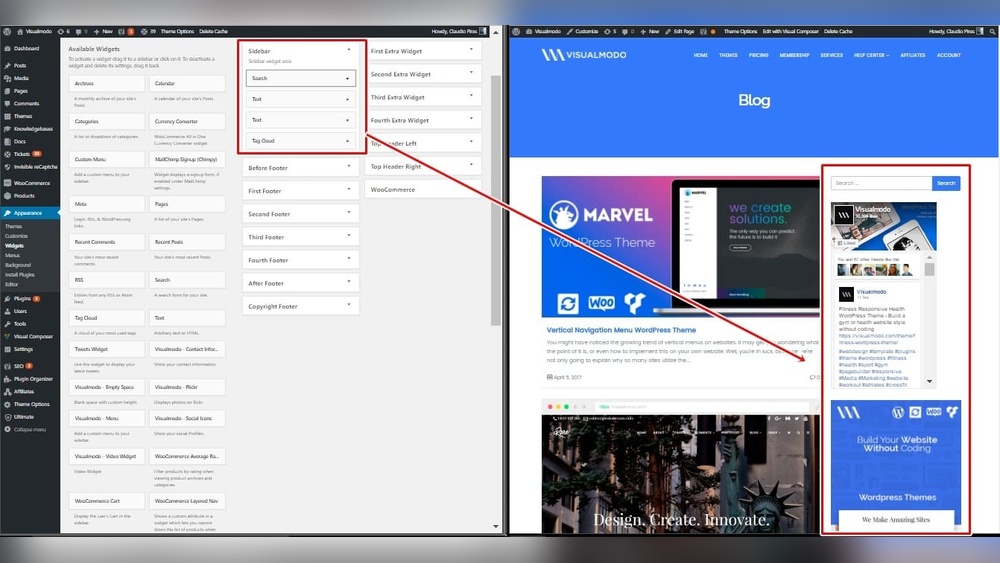
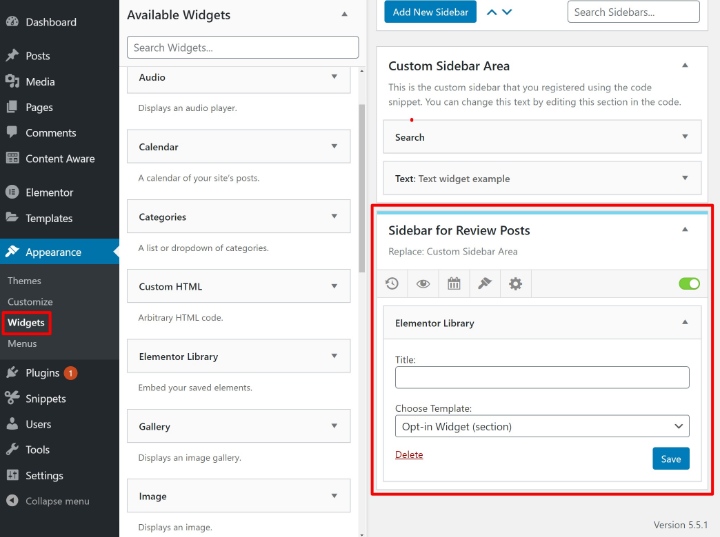
Widgets are small blocks that add features to your sidebar. WordPress offers many default widgets. You can also install plugins for more options. To add a widget, go to Appearance > Widgets in your dashboard. Drag and drop widgets into your sidebar area. You can add text, images, menus, or recent posts.
Adding Sidebar Content
Choose content that fits your site’s purpose. For example, add categories, search bars, or social links. Keep sidebar content simple and useful. Avoid clutter or too many items. Customize widget settings for better appearance. Write short titles and clear descriptions.
Managing Sidebar Layout
Sidebar layout affects how your site looks on all devices. Use your theme’s settings to control sidebar width and position. Some themes let you place sidebars on the left or right. Check how the sidebar appears on mobile screens. Adjust margins and padding for neat spacing. Test your layout to ensure easy reading and navigation.
Assign Sidebar To Specific Posts
Assigning sidebars to specific posts helps you show relevant content alongside your articles. It improves navigation and user experience on your WordPress site. You can control which sidebar appears on each post. This makes your site look more organized and professional.
Manual Assignment
Manual assignment lets you pick the sidebar for each post yourself. Open the post editor and look for the sidebar options. Some themes add a box for sidebar selection. Choose the sidebar you want to show with that post. Save or update the post to apply the change. This method works well for a few posts.
Conditional Display Rules
Conditional display rules use logic to show sidebars automatically. You set conditions like post categories, tags, or post IDs. The sidebar appears only if the post meets these conditions. Plugins like “Content Aware Sidebars” help create these rules. This saves time on large sites. It keeps sidebars relevant without manual work.
Using Page Builders
Page builders offer easy sidebar control inside their interface. Builders like Elementor or Beaver Builder have sidebar widgets. You add the widget to the post layout and customize it. Some builders support conditional display too. This method gives more design freedom. It suits users who prefer visual editing over code.

Credit: qodeinteractive.com
Edit Sidebar Appearance
Editing the sidebar appearance helps improve your post’s look. A well-designed sidebar can guide readers and highlight important content. You can change colors, fonts, and layout to match your site style. Small tweaks make a big difference.
Using simple tools and code, you can customize your sidebar easily. Focus on clear design and easy navigation. This section explains how to edit sidebar appearance in WordPress.
Customizing With Css
CSS lets you change sidebar colors, fonts, and spacing. Add custom CSS in your theme’s customizer or child theme. Target sidebar elements by their class or ID. For example, use .sidebar { background-color: f4f4f4; } to change background color.
Adjust font size with font-size property. Control padding and margins for better spacing. Test changes on different devices to ensure readability. CSS customization gives full control over sidebar style.
Changing Sidebar Position
Sidebar position affects layout balance. You can place it on the left or right side of the post. Many themes let you switch sidebar position in settings. If not, use CSS with float or flexbox to move it.
For example, use float: left; to move the sidebar left. Check how content flows around the sidebar. Keep main content easy to read by avoiding clutter. Choose the position that best fits your design.
Responsive Design Tips
Sidebars must look good on all screen sizes. Use media queries in CSS to adjust sidebar style on phones and tablets. Hide or shrink the sidebar on small screens if needed. For example, @media (max-width: 768px) { .sidebar { display: none; } }.
Ensure sidebar links and widgets remain easy to tap on mobile. Test your site on different devices often. Responsive design keeps your sidebar user-friendly everywhere.
Test Sidebar Functionality
Testing your sidebar is key after adding it to a WordPress post. It ensures the sidebar looks right and works well. Testing helps catch design or function problems early. It also improves user experience and site performance.
Previewing On Different Devices
Check how your sidebar looks on phones, tablets, and desktops. Different screens show sidebars in various ways. Use WordPress preview or browser tools to view your post. Make sure the sidebar does not block content or look crowded. Adjust settings to keep the sidebar clear and readable everywhere.
Troubleshooting Common Issues
Sidebars may not appear due to theme conflicts or plugin errors. Clear your cache to see recent changes. Disable plugins one by one to find conflicts. Check widget settings and make sure the sidebar area is active. Use WordPress support forums if problems continue.
Optimizing Sidebar Performance
Too many widgets can slow down your site. Choose only important widgets for your sidebar. Use lightweight plugins for faster loading. Compress images and avoid heavy scripts in the sidebar. Fast sidebars keep visitors happy and improve search rankings.
Frequently Asked Questions
How Do I Add A Sidebar To A WordPress Post?
To add a sidebar, go to Appearance > Widgets in your WordPress dashboard. Drag and drop widgets into the sidebar area. Then assign the sidebar to your post via the theme’s settings or a page builder.
Can I Customize The Sidebar For Each Post?
Yes, many themes and plugins allow unique sidebars per post. Use plugins like Custom Sidebars or Elementor for specific sidebar content on individual posts.
What Widgets Work Best In A WordPress Sidebar?
Popular widgets include recent posts, categories, search bar, and social media links. Choose widgets that improve navigation and engage your readers.
Does Adding A Sidebar Affect Page Loading Speed?
Sidebars with many widgets can slow your site. Optimize by using lightweight plugins and caching to keep loading fast.
Conclusion
Adding a sidebar to your WordPress post improves site navigation and user experience. It helps show important links, ads, or extra content beside your main text. You can customize sidebars with widgets to fit your site’s style. Following simple steps makes the process easy and quick.
Keep your sidebar clean and relevant for best results. Try adding one today to make your posts more interactive and useful.


