
Are you looking to make your WordPress site easier to navigate? Adding a sidebar menu can be a game-changer for your visitors.
It helps organize your content and keeps important links right where people can see them. If you want a simple way to boost your site’s usability and keep visitors engaged longer, this guide will show you exactly how to add a sidebar menu in WordPress—step by step.
By the end, you’ll have a clean, professional menu that improves your site’s look and functionality without any hassle. Let’s get started!
Choosing The Right Sidebar
Choosing the right sidebar is important for your WordPress site. It helps visitors find what they need quickly. A good sidebar improves navigation and user experience. Think about what content and features you want to show. This will guide your choice.
Default Vs Custom Sidebars
WordPress offers default sidebars with many themes. These sidebars come with preset widgets and styles. They are easy to use and need little setup. Custom sidebars allow more control and flexibility. You can create unique sidebars for different pages. This helps tailor the content to your visitors’ needs.
Default sidebars work well for simple sites. Custom sidebars fit sites with varied content. Choose the option that matches your website goals.
Sidebar Placement Options
Sidebar placement affects your site’s layout and flow. Common places are the left or right side of the page. Right side placement is popular for blog sites. Left side placement draws attention to menus and links.
Some themes support both sides or even multiple sidebars. Consider your content and design when picking a spot. Place sidebars where they add value without cluttering the page. Test different placements to see what works best for users.
Credit: www.wpbeginner.com
Using WordPress Widgets
Using WordPress widgets is a simple way to add a sidebar menu to your website. Widgets let you place different features in your sidebar without coding. You can add menus, search bars, categories, and more. This makes your site easier to navigate for visitors.
Widgets are easy to manage and customize. You can change what shows in the sidebar anytime. This flexibility helps keep your site fresh and user-friendly. Below are steps to use widgets for your sidebar menu.
Accessing The Widgets Area
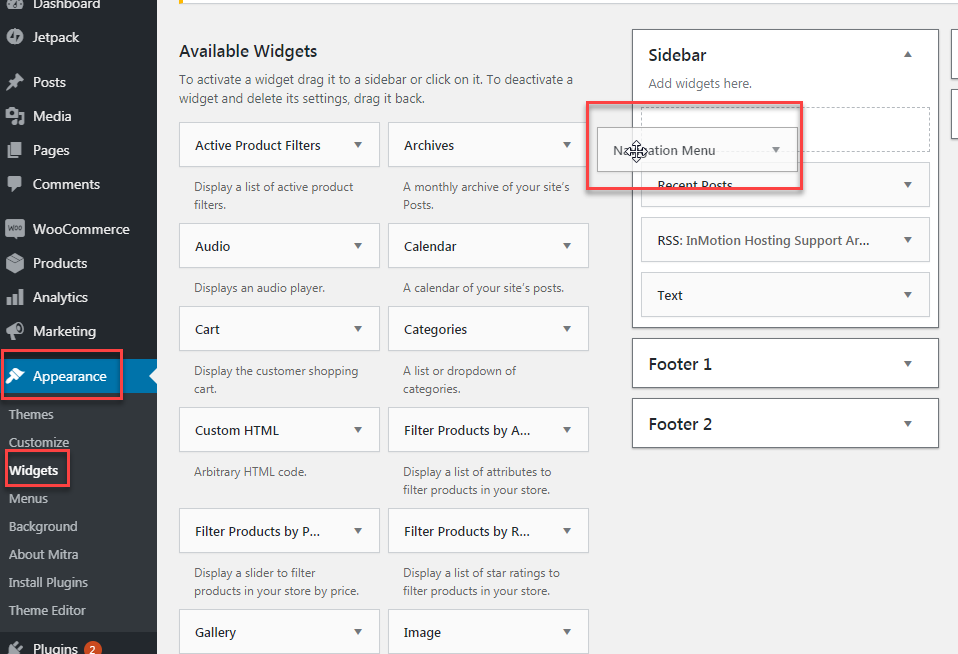
Log in to your WordPress dashboard. On the left menu, find and click “Appearance.” Then select “Widgets.” This opens the Widgets area where you control sidebar content. You will see all available widgets and your sidebar sections here.
Adding And Configuring Widgets
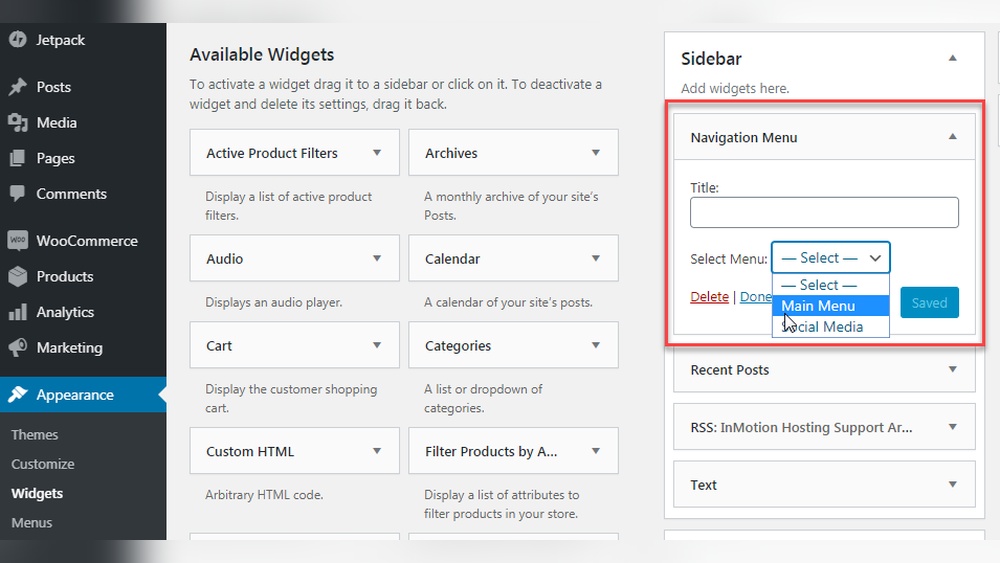
Choose a widget you want to add, like “Navigation Menu.” Drag it to the sidebar area. Click on the widget to open settings. Select the menu you want to display or create a new one. Save your changes to update the sidebar menu.
Managing Widget Order
Drag widgets up or down to change their order in the sidebar. Place the most important items at the top. This helps visitors find key links faster. Always check your site after changes to see the new widget order in action.
Adding A Sidebar With Plugins
Adding a sidebar to your WordPress site can improve navigation and user experience. Using plugins makes this task simple, even for beginners. Plugins offer easy tools to create and manage sidebars without coding.
Plugins allow you to add custom sidebars on different pages or posts. You can place widgets, menus, or other content in these sidebars. This helps organize your site and keeps it tidy.
Popular Sidebar Plugins
Several plugins help add sidebars quickly. “Custom Sidebars” lets you create different sidebars for each page. “WooSidebars” is great for online stores. “Simple Page Sidebars” offers an easy way to add sidebars per post or page. These plugins have good reviews and regular updates.
Installing And Activating Plugins
Go to your WordPress dashboard. Click on “Plugins” then “Add New.” Type the plugin name in the search box. Find the plugin and click “Install Now.” After installing, click “Activate” to start using it. The plugin settings usually appear in the dashboard menu.
Creating Custom Sidebars
Open the plugin settings from your dashboard. Choose “Add New Sidebar” or similar option. Name your sidebar clearly. Assign it to specific pages or posts as needed. Drag and drop widgets into the new sidebar. Save your changes and check your site to see the sidebar live.
Editing Sidebar With Custom Code
Editing your WordPress sidebar with custom code gives you full control over its look and function. You can add new menus, widgets, or other features that fit your site’s needs. This method requires some coding, but it offers the most flexibility and uniqueness.
Before making changes, understanding how WordPress themes work helps. The sidebar usually lives in theme files like sidebar.php. Editing these files directly can affect your whole site. It is important to edit safely to avoid problems.
Modifying Theme Files Safely
Always back up your site before editing theme files. Use a code editor to open files like sidebar.php. Make small changes and save often. Test your site after each change. Avoid editing files on a live site to prevent errors. Use a staging site if possible. This keeps your live site safe while you work.
Using Child Themes
A child theme lets you change your sidebar without altering the main theme. It keeps your changes safe during updates. Create a child theme folder in your WordPress themes directory. Add a style.css and functions.php file there. Copy sidebar.php into the child theme to edit it. WordPress will use your child theme’s sidebar instead of the original. This method protects your work and keeps your site stable.
Adding Sidebar Code Snippets
Sidebar code snippets add menus, widgets, or other content. Use PHP functions like register_sidebar() in functions.php. Insert HTML in sidebar.php to show your menu. Use WordPress functions like wp_nav_menu() to display menus. Keep code clean and simple for better performance. Test snippets in a child theme before going live. This approach customizes your sidebar exactly how you want it.
Design Tips For Effective Sidebars
Designing an effective sidebar is key to improving your WordPress site’s user experience. A well-crafted sidebar guides visitors to important content. It also highlights key features without cluttering the page. Focus on simplicity and relevance to keep readers engaged and help them find what they need quickly.
Choosing Sidebar Widgets Wisely
Select widgets that add real value to your visitors. Common choices include recent posts, search bars, and categories. Avoid too many widgets that distract or overwhelm users. Choose tools that support your site’s goals. Keep the sidebar clean and focused for better impact.
Ensuring Mobile Responsiveness
Many users browse on phones or tablets. Make sure your sidebar looks good on small screens. Use responsive themes or plugins that adjust automatically. Avoid wide sidebars that push content off-screen. A mobile-friendly sidebar keeps visitors engaged on any device.
Improving User Navigation
Help users find content faster with clear navigation links. Use categories or tags to organize posts. Add a search box for quick access. Keep menus simple and easy to scan. Good navigation reduces bounce rates and increases time on site.
Credit: www.inmotionhosting.com
Troubleshooting Sidebar Issues
Sometimes, sidebars in WordPress do not work as expected. This section helps you solve common sidebar problems. Fixing these issues improves your site’s look and user experience. Follow these steps to troubleshoot and fix sidebar errors fast.
Common Sidebar Problems
Sidebars may not show up on certain pages. Widgets might disappear or look broken. Sometimes, the sidebar overlaps with other content. Themes or plugins can cause conflicts. Sidebar settings could be missing or reset. Knowing these problems helps you find the right fix.
Fixing Display Errors
Check your theme settings for sidebar options. Make sure the sidebar is enabled for the page type. Deactivate recent plugins to spot conflicts. Switch to a default theme to test sidebar display. Update WordPress, themes, and plugins to the latest version. Correct any missing or broken widgets in the sidebar area.
Clearing Cache And Refreshing
Cache can show old sidebar versions. Clear your browser cache to see changes. Use caching plugins to clear site cache. Refresh your page after clearing cache. This step ensures your sidebar updates appear correctly. Repeat clearing cache if you make more changes.

Credit: www.youtube.com
Frequently Asked Questions
How Do I Create A Sidebar Menu In WordPress?
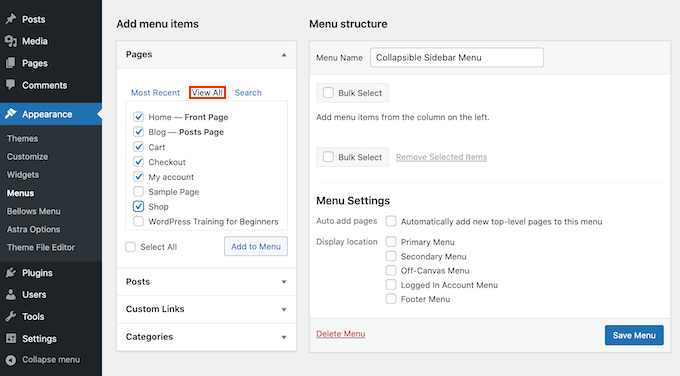
To create a sidebar menu, go to Appearance > Menus in your WordPress dashboard. Create a new menu, add items, and save. Then, assign this menu to the sidebar widget area using Appearance > Widgets.
Can I Customize The Sidebar Menu Appearance?
Yes, you can customize sidebar menus using your theme’s customizer or additional CSS. Many themes offer built-in style options, and plugins can add more design flexibility.
Which Plugins Help Add A Sidebar Menu Easily?
Popular plugins like “WP Responsive Menu” and “Custom Sidebars” help add and customize sidebar menus. They offer drag-and-drop interfaces and additional styling options.
How To Make The Sidebar Menu Mobile-friendly?
Use responsive themes or plugins that support mobile menus. Ensure the sidebar collapses or converts to a hamburger menu on small screens for better usability.
Conclusion
Adding a sidebar menu in WordPress makes your site easier to use. It helps visitors find important pages fast. You can customize the menu to fit your style and needs. This guide shows simple steps anyone can follow. Keep your site organized and user-friendly with a clear sidebar menu.
Try it today to improve your website’s navigation.


