
Imagine visiting a website where everything you need is right at your fingertips. That’s the power of a well-placed sidebar.
If you’re using the Twenty Seventeen theme on WordPress, you might have noticed it lacks a default sidebar option. But don’t worry, adding a sidebar can be a game-changer for your site. It can enhance navigation, improve user experience, and keep visitors on your page longer.
In this guide, I’ll walk you through the simple steps to add a sidebar to your WordPress Twenty Seventeen theme. Whether you’re looking to display recent posts, social media links, or a custom menu, a sidebar can transform your website’s layout. Ready to take your site to the next level? Let’s dive in and unlock the full potential of your WordPress theme!
Theme Customization
Easily enhance your WordPress Twenty Seventeen theme by adding a sidebar. Navigate to the WordPress dashboard, access the widget area, and customize your sidebar with desired widgets. This simple process improves navigation and user experience, making your website more functional and engaging.
Accessing The Customizer
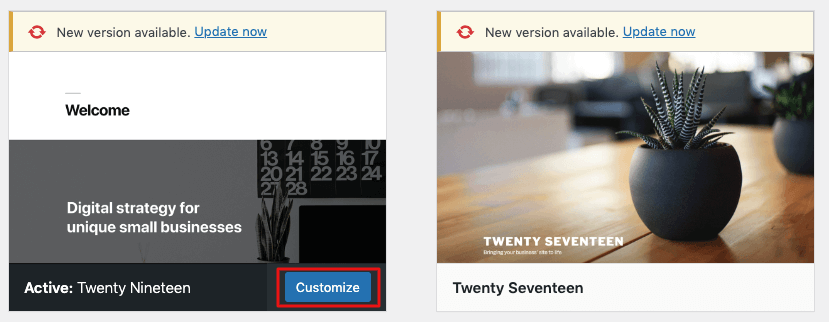
First, go to your WordPress dashboard. Find the Appearance tab. Click on Customize. This opens the customizer. Here, you can make changes to your site. Look for options on the left. These options help you modify your theme. It’s easy and fun.
Locating Sidebar Options
In the customizer, find the Widgets section. Click on it. You will see areas where you can add widgets. These areas are called sidebars. Select the sidebar you want to use. You can add or remove widgets here. Drag and drop to arrange them. It’s simple and quick.

Credit: wordpress.org
Creating A Child Theme
A child theme is like a copy of your main theme. You use it to make changes without breaking the original. This is important for updates. Updates can change your main theme. With a child theme, changes stay safe. Your design stays the same.
- Create a new folder in your themes directory.
- Name it twentyseventeen-child.
- Make a style.css file inside this folder.
- Add theme name and description in the file.
- Include Template: twentyseventeen in the file.
- Create a functions.php file.
- Add code to link the parent theme’s style.
- Activate your child theme in the admin panel.
Editing Theme Files
WordPress uses files to display content. To add a sidebar, you need to modify these files. The first file is functions.php. It helps you register the sidebar. The second file is sidebar.php. It shows the sidebar on your site. Lastly, you need to adjust the index.php or page.php to include the sidebar.
Necessary Files To Modify
| File Name | Purpose |
|---|---|
| functions.php | Register the sidebar |
| sidebar.php | Display the sidebar |
| index.php | Add sidebar to pages |
Adding Sidebar Code
First, open functions.php. Add code to register your sidebar. Next, create or edit sidebar.php. Add HTML to display your sidebar. Finally, open index.php or page.php. Add php get_sidebar(); ? to show the sidebar. Save changes and view your site. Your sidebar should be visible now.
Registering The Sidebar
Adding a sidebar in the Twenty Seventeen theme involves registering it first. Use the functions. php file to register your sidebar. Customize widgets and settings to fit your needs after registration.
Functions.php Modifications
Start by opening the functions.php file in your theme folder. This file is important. You need to tell WordPress to accept a new sidebar. Copy and paste this code in the file:
function theme_slug_widgets_init() {
register_sidebar( array(
'name' => 'Sidebar Name',
'id' => 'sidebar-id',
'description' => 'Add widgets here.',
'before_widget' => '
'after_widget' => '',
'before_title' => '',
'after_title' => '',
) );
}
add_action( 'widgets_init', 'theme_slug_widgets_init' );
This code tells WordPress to make space for widgets. You can add widgets to this sidebar. Save the file after adding the code. Now, your sidebar is ready to use.
Styling The Sidebar
Use CSS to change the look of your sidebar. Make it stand out. You can change colors, fonts, and more. Try different background colors. Maybe add a border. Use padding to make space inside. Keep text easy to read. Align text to the left for better readability.
Responsive Design Tips are important for small screens. Make sure your sidebar looks good on phones. Use media queries for different screen sizes. You can hide some parts on small screens. Or stack items vertically. Keep buttons big enough to click easily. Test how it looks on different devices.
Credit: dokan.co
Testing The Sidebar
Check your sidebar on different devices. Use a phone, tablet, and computer. This ensures it looks good everywhere. Sometimes, a sidebar might look fine on a computer. But on a phone, it could be too big or small. Always test on multiple devices. This helps catch any problems early. Make sure text is easy to read. The links should work properly. Images must not be cut off. Your users will have a better experience.
Checking On Different Devices
Use a responsive design tool. It helps you see how your site looks. You can also resize your browser window. This mimics different screen sizes. If the sidebar is not good, adjust the CSS. Sometimes, the font size needs changing. Other times, padding or margins need tweaking. Fix these issues for a better user experience.
Common Issues And Fixes
- Text overflow: Adjust the font size.
- Images cut off: Change image size settings.
- Links not clickable: Check padding and margins.
- Sidebar width: Use percentages instead of fixed pixels.
Using Plugins
Enhancing the Twenty Seventeen theme with a sidebar is simple using plugins. Install a sidebar plugin, then customize settings to suit your design needs. Experiment with widget placement for optimal functionality and aesthetics.
Recommended Plugins
Adding a sidebar in the WordPress Twenty Seventeen theme is simple. Use a plugin to make it easier. Elementor is a good choice. It lets you add a sidebar easily. Custom Sidebars is another tool. It helps you control where the sidebar shows. Consider Content Aware Sidebars too. It allows different sidebars on different pages.
Easy Sidebar Management
Plugins help manage sidebars without code. They save time and effort. Widgets can be moved with ease. Just drag and drop them. You can also change the sidebar’s look. Use the plugin settings for this. Try different options to find what you like best. Sidebars can make a website better. They organize content well. Readers find what they need fast. A good sidebar improves user experience.
Credit: derekhanson.blog
Frequently Asked Questions
How Do I Add A Sidebar In Twenty Seventeen?
To add a sidebar, use a child theme or a plugin. Edit the theme files, specifically `functions. php` and `sidebar. php`. Register your new sidebar using `register_sidebar()`. Finally, modify the template files to display the sidebar.
Can I Use Widgets In The Sidebar?
Yes, you can use widgets in the sidebar. Once you’ve added a sidebar, navigate to Appearance > Widgets. There, you can drag and drop available widgets into your new sidebar area to customize it as you like.
Is Coding Necessary For Adding A Sidebar?
Coding is often necessary to add a sidebar in Twenty Seventeen. You’ll need to modify theme files and use functions like `register_sidebar()`. Alternatively, you can use plugins like Custom Sidebars to avoid coding.
Can I Add Multiple Sidebars?
Yes, you can add multiple sidebars in the Twenty Seventeen theme. You need to register each sidebar separately in the `functions. php` file. Then, modify the template files to display these additional sidebars where needed.
Conclusion
Adding a sidebar in the Twenty Seventeen theme is simple. It enhances your website’s functionality. Visitors appreciate easy navigation and accessible information. Follow the steps outlined above. Customize your sidebar to match your site’s design. Experiment with widgets and features.
Keep your audience in mind. User-friendly layouts attract more engagement. Regular updates maintain interest. Remember, your content should reflect your brand. A well-organized sidebar boosts visibility. It also improves user experience. Take time to explore different options. Your WordPress site will benefit greatly.
Happy blogging!


