
Have you ever found yourself scrolling through a WordPress theme, wishing for a little more customization? Sidebars are a powerful tool that can transform your website’s layout and functionality.
They provide extra space for widgets, ads, or important links, enhancing the user experience. The good news? Adding a sidebar to your WordPress theme is easier than you might think. Imagine capturing your audience’s attention with a layout that’s both functional and visually appealing.
A well-placed sidebar can do just that, keeping your visitors engaged longer. You don’t need to be a coding wizard to achieve this. With a few simple steps, you can upgrade your site’s look and feel. Ready to make your WordPress theme work harder for you? Let’s dive into the details and see how a sidebar can elevate your website to the next level.

Credit: ostraining.com
Choosing The Right Theme
Ensure your theme supports sidebars. Some themes do not. Check the theme’s documentation. It usually tells you about sidebar support. Look for terms like “widget-ready” or “sidebar support”. These terms mean the theme allows sidebars. If not, you might need a different theme. Always choose a theme that fits your needs.
Many themes offer customizable options. This means you can change the sidebar’s look. You can adjust colors, fonts, and sizes. Some themes even let you move the sidebar. Try different settings to see what looks best. Always save your changes. This way, your changes won’t get lost.
Understanding WordPress Widgets
Adding a sidebar in WordPress is simple with widgets. Navigate to the Appearance menu, select Widgets, and drag your desired widget to the Sidebar area. Customize your settings to fit your theme and save changes for an updated look.
Types Of Widgets
WordPress offers a variety of widgets. Some show recent posts. Others display comments. There are widgets for categories and archives too. You can add custom HTML. Display an image or text. Use a search bar widget. Show your social media links. Widgets make your site interactive. They enhance user experience. Choose widgets that fit your needs. They should match your site’s design.
Widget Settings
Each widget has settings. You can customize them. Decide the title for your widget. Set the number of items to show. Choose a style or format. Some widgets let you pick a color. Others allow font changes. Make sure to save changes. Check your site to see updates. Adjust settings if needed. Test different options. Find what works best.
Creating A Sidebar
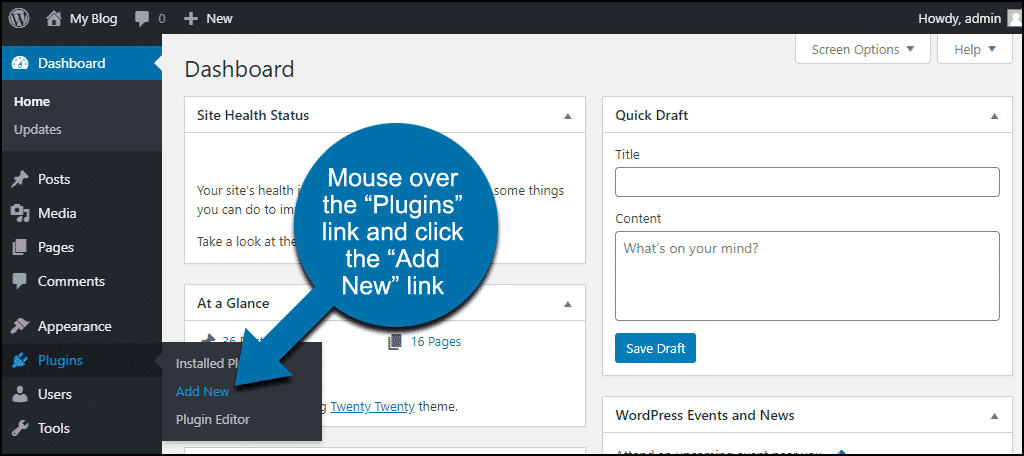
Open your WordPress dashboard. Look for the Appearance tab. Click on Widgets. Here, you can see different widget options. Drag a widget to the sidebar area. It will automatically add to your site. You can add text, images, and more. Each widget has its own settings. Customize as needed.
Access your theme files. Find the functions.php file. Add a code snippet to register a sidebar. Use this code:
function my_sidebar() {
    register_sidebar( array(
        'name' => 'My Sidebar',
        'id' => 'sidebar-1',
        'before_widget' => '',
        'after_widget' => '',
    ));
}
add_action( 'widgets_init', 'my_sidebar' );
Save your changes. Go back to the dashboard. Check if the sidebar appears in Widgets. Adjust as necessary.
Adding Sidebar To Theme Files
Open the functions.php file in your theme folder. This file tells WordPress what to do. Add code to register the sidebar. Use register_sidebar() function. It makes the sidebar ready for use. Give your sidebar a name and ID. Choose a description if you want. Save the file. Your sidebar is now part of the theme.
Locate the sidebar.php file in your theme. This file controls what shows in the sidebar. You can add widgets or custom content here. Use the dynamic_sidebar() function. It displays your registered sidebar. Add HTML to style it. Save your changes. Check your site to see the new sidebar. It’s an easy way to make your site look good.
Configuring The Sidebar
Easily configure your sidebar in a WordPress theme to improve site navigation. Add widgets to enhance functionality and user experience. Tailor the sidebar’s content to fit your website’s needs and style.
Adding Widgets
Widgets are small tools for your site. They make your sidebar useful. Go to the WordPress dashboard. Find the ‘Appearance’ menu. Click on ‘Widgets’. You will see many options. Drag a widget to the sidebar area. Drop it there. You can add text, images, or links. Each widget has settings. Click on them to change how they work. Always save changes after editing.
Organizing Widget Order
Order matters in a sidebar. It helps visitors find things easily. To change the order, go back to ‘Widgets’ under ‘Appearance’. Click and hold a widget. Drag it up or down to a new spot. Release to place it. Check if the order looks right. Repeat if needed. Each move is simple. Save changes when you finish. This keeps your sidebar neat.
Customizing Sidebar Appearance
Enhancing your WordPress theme involves adding a sidebar for better navigation. Customize the sidebar appearance by adjusting widgets and colors. Tailor the layout to fit your design needs, creating a unique and engaging user experience.
Using Css For Styling
CSS can change how your sidebar looks. It lets you add color, size, and more. You can make the sidebar match your site. Use background-color to change the color. Use padding for space inside the sidebar. Change the font-size to make text easy to read.
Add a border with border-style. Use margin for space outside the sidebar. These changes make the sidebar look neat. Use media queries to make sure the sidebar looks good on all screens.
Responsive Design Considerations
Responsive design makes your sidebar fit all devices. Use percentages for widths instead of fixed numbers. This helps the sidebar adjust to different screen sizes. Keep the sidebar simple for small screens. Use flexbox or grid to make layout easy. These tools help arrange the sidebar neatly. Test your site on different devices. Make sure everything looks right. Responsive design is key for a good user experience.
Testing And Troubleshooting
Adding a sidebar in a WordPress theme involves editing files and customizing widgets. Start by locating the theme’s sidebar template. Test your changes in a development environment to ensure everything works seamlessly. Troubleshoot any issues by checking for coding errors and reviewing WordPress support forums for solutions.
Checking For Errors
Ensure the sidebar appears correctly on your site. Look for any broken links or missing widgets. Refresh the page to see changes. Use different browsers to test the appearance. Check for responsive design on phones and tablets. Make sure the sidebar content displays clearly. If something seems off, revisit your code.
Common Issues And Fixes
Sometimes, the sidebar may not show. This can happen due to theme conflicts. Make sure you have activated the sidebar in the settings. If widgets are missing, check the widget area settings. Ensure no CSS errors are present in your theme files. Errors can also appear from plugin conflicts. Disable plugins one by one to find the problem. Always backup your site before making changes.

Credit: www.youtube.com
Credit: www.greengeeks.com
Frequently Asked Questions
How Do I Add A Sidebar In WordPress?
To add a sidebar in WordPress, navigate to Appearance > Widgets. Drag and drop widgets into the sidebar area. Ensure your theme supports sidebars. Use the WordPress Customizer to preview changes. You can also edit the theme’s files if customization is needed.
Can I Customize The Sidebar Content?
Yes, you can customize sidebar content easily. Use the Widgets area in the WordPress dashboard. Add, remove, or rearrange widgets. Plugins offer additional customization options. Some themes include custom sidebar settings. Always check theme documentation for specific customization capabilities.
What Are Common Sidebar Widgets?
Common sidebar widgets include search bars, recent posts, categories, and social media links. You can add text widgets for custom HTML or scripts. Popular plugins offer additional widgets. Always consider user experience when choosing sidebar elements.
How To Remove A Sidebar From A Theme?
To remove a sidebar, go to Appearance > Widgets. Delete all widgets from the sidebar area. Some themes allow sidebar removal via settings. You may need to edit theme files or use custom CSS. Always backup your site before making major changes.
Conclusion
Adding a sidebar in your WordPress theme is simple and effective. It enhances user experience and site navigation. With these steps, you can customize it easily. Remember to choose widgets that suit your needs. Sidebar can display recent posts, archives, or contact forms.
Always keep your design clean and responsive. A well-placed sidebar can increase engagement. It helps users find important content quickly. Experiment with different layouts to see what works best. Your website will become more user-friendly and organized. Enjoy exploring the potential of your WordPress sidebar!


