
Are you ready to unlock the full potential of your WordPress site? Imagine being able to enhance your website with dynamic features and custom functionalities without diving deep into complex coding.
That’s where shortcodes come in. Shortcodes are like magic keys that allow you to add exciting elements to your WordPress theme effortlessly. Whether you want to embed videos, create stunning galleries, or add custom forms, shortcodes make it possible with just a few clicks.
In this guide, we’ll walk you through the simple steps to add shortcodes to your WordPress theme. You’ll discover how to elevate your site’s functionality and captivate your audience’s attention with ease. Keep reading to transform your WordPress site into a more powerful and engaging platform.
What Is A Shortcode
A shortcode is a special code in WordPress. It helps add features easily. You don’t need to know complex coding. Just type the shortcode. It starts with a square bracket, like this: [shortcode]. Shortcodes can show galleries, videos, or forms. They make websites better.
Developers create shortcodes for different tasks. Each shortcode has a purpose. Some shortcodes come with plugins. Others are built into the theme. Shortcodes save time. They are quick and simple to use.
Benefits Of Using Shortcodes
Shortcodes make your WordPress site flexible. You can add features easily. No coding needed. Just insert a small code. It saves time and effort. Many themes support shortcodes. You can create buttons, galleries, or forms. Design changes are simple. Add new elements without hassle.
Shortcodes help non-tech users. They make your site look nice. You can update content quickly. It’s perfect for beginners. Customization is easy. Your site looks professional. Shortcodes are powerful tools. They enhance your theme greatly.
Locating Theme’s Functions File
First, open your WordPress dashboard. Find the Appearance menu. Click on Theme Editor. This is where you can see your theme files. On the right side, look for functions.php. This is your theme’s functions file.
Click on functions.php to open it. This file is important. It controls many things in your theme. Be careful when editing it. You can add your shortcode here. Make sure to save your changes.

Credit: premiumaddons.com
Creating A Basic Shortcode
Shortcodes are like magic words in WordPress. They are small, but they do a lot. Add a shortcode to a theme by using a simple function. First, open the functions.php file in your theme. This file is like the brain of your theme. Then, copy and paste this code:
            function my_custom_shortcode() {
                return "Hello, World!";
            }
            add_shortcode('greeting', 'my_custom_shortcode');
Now, use the shortcode [greeting] anywhere in your posts. It will show “Hello, World!” on the site. This is a basic example of how shortcodes work.
Adding Shortcode To Functions.php
Shortcodes make sites more dynamic. Adding them to Functions.php is simple. First, locate the Functions.php file. It’s in your theme folder. Open it using a text editor. Copy the shortcode function. Paste it into the file. Be careful! Errors might break your site.
Use add_shortcode() function to register the shortcode. This function links your shortcode to a callback function. Make sure the callback function is correct. Test the shortcode on a page. Check if it works as expected. Shortcodes should enhance user experience. They make content creation easier.
Keep your Functions.php clean. Remove unused code. Backup your file before editing. This prevents data loss. Shortcodes are powerful tools. Use them wisely.
Using Shortcodes In Posts And Pages
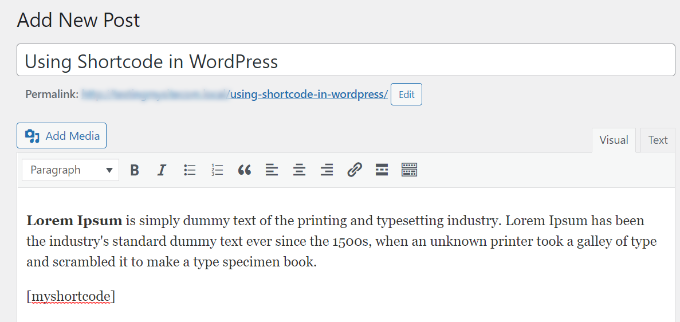
Adding shortcodes makes your content more dynamic. It saves time and effort. Insert a shortcode by typing it in square brackets. Like this: [your-shortcode]. Place it in the text editor where you want it to appear. WordPress will replace it with the desired content. You can use shortcodes for galleries, forms, and more. Shortcodes are flexible. They work in both posts and pages.
To ensure proper functioning, always check for errors. Sometimes, themes or plugins might not support certain shortcodes. Make sure to verify compatibility. Shortcodes make your WordPress experience better. They enhance the look and feel of your site.
Inserting Shortcodes In Widgets
Widgets make your WordPress site better. They add features easily. You can use shortcodes in widgets too. First, go to the WordPress Dashboard. Find Appearance and click on Widgets. Choose a widget area you want. Add a Text Widget or Custom HTML Widget.
Paste your shortcode inside the widget. Then, save your changes. You will see the magic. The shortcode shows its feature on your site. This method keeps your site neat. It is simple and useful. Shortcodes in widgets work well. They improve your site’s look. Now, your site is more fun!
Shortcodes In Template Files
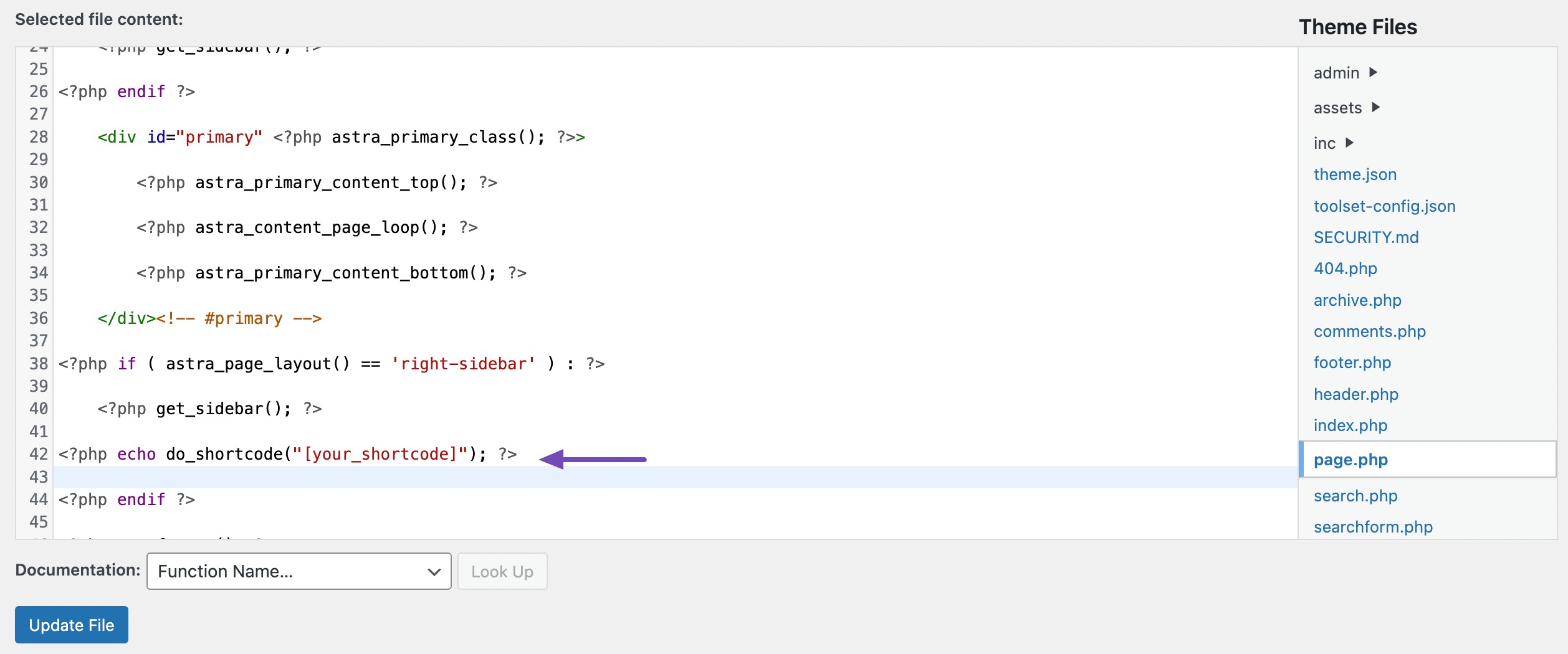
Shortcodes are tiny pieces of code in WordPress. They are like shortcuts. Adding a shortcode to a template file is easy. First, identify the file you need. This file is usually in the theme folder. Next, use the do_shortcode() function. This function helps run the shortcode. Write it like this: php echo do_shortcode(‘[your_shortcode]’); ?. Replace [your_shortcode] with the actual shortcode. Save the file after making changes. Check your site to see the changes. Shortcodes make tasks simple and quick. They can add forms, galleries, or even videos. They are powerful tools in WordPress. Using them saves time and effort.
Customizing Shortcode Output
Shortcodes make adding features easy. But sometimes, you need more control. You can change how shortcodes look on your page. This is called customizing shortcode output. Start by finding the function that creates the shortcode. It’s in your theme’s functions.php file. Open this file and look for the shortcode function.
Next, you can add your changes. Change the HTML or CSS code inside the function. Make sure to save your changes. Check your website to see if it looks right. If not, try changing the code again. Remember, always back up your files before you edit them. This helps if something goes wrong.
Credit: www.wpbeginner.com
Troubleshooting Common Issues
Sometimes, shortcodes don’t work right. Check the code for mistakes. Look for missing brackets or wrong text. Small errors can cause big problems. Use preview mode to test changes. If the code is okay, check plugin settings. Some plugins need updates. Outdated plugins can stop shortcodes. Update them regularly. If problems continue, check theme compatibility. Some themes don’t support certain shortcodes. Find themes that work well with the codes. Always back up your site. Backup saves your work if problems happen. This helps fix any issues fast.
Credit: rankmath.com
Frequently Asked Questions
What Is A Shortcode In WordPress?
A shortcode in WordPress is a small code used to add dynamic content. It simplifies embedding features like galleries or forms without coding knowledge. Shortcodes are enclosed in brackets, e. g. , [shortcode]. They enhance functionality and customization within WordPress themes.
How Do I Add A Shortcode To My Theme?
To add a shortcode to your theme, use the functions. php file. Create a function for your shortcode and register it using add_shortcode(). Then, use the shortcode in your theme templates or posts by placing [shortcode] where needed.
Can Shortcodes Be Used In Widgets?
Yes, shortcodes can be used in widgets. Add your shortcode to a text widget or a custom HTML widget. Ensure the widget area supports shortcodes by enabling shortcode execution in widget settings or functions. php if necessary.
Do Shortcodes Affect Website Performance?
Shortcodes can affect performance if not optimized. They generate dynamic content, which can increase server load. Use caching plugins and optimize shortcode functions to minimize performance impact. Well-coded shortcodes generally have a negligible effect on speed.
Conclusion
Adding shortcode in WordPress themes enhances site functionality. It’s simple and effective. Follow the steps carefully. Customize your theme without coding skills. Shortcodes save time and effort. They improve user experience on your site. Always test changes on a staging site first.
This ensures everything works smoothly. Need help? Plenty of online resources are available. Explore forums and tutorials for guidance. Practice makes perfect. Soon, you’ll add shortcodes with ease. Enjoy the flexibility and creativity that shortcodes bring to your WordPress theme.
Happy coding!


