

Are you looking to make your WordPress pages more dynamic and functional without digging into complex code? Adding a shortcode is one of the easiest ways to do just that.
Whether you want to insert a contact form, display a gallery, or embed a video, shortcodes help you do it quickly and effortlessly. In this guide, you’ll learn exactly how to add a shortcode to your WordPress page step by step.
By the end, you’ll have the confidence to enhance your site and engage your visitors like a pro. Keep reading—you’re just a few clicks away from making your WordPress pages work harder for you.

Credit: woocommerce.com
What Are Shortcodes
Shortcodes are small pieces of code in WordPress. They help you add complex features easily. Instead of writing long code, you use shortcodes to do the job fast.
Shortcodes work like shortcuts. They tell WordPress to insert content or functions. You place them inside posts, pages, or widgets. WordPress then replaces the shortcode with the actual content.
What Is A Shortcode In WordPress?
A shortcode is a simple tag in square brackets. It looks like [shortcode]. WordPress reads this tag and shows special content. This content can be a gallery, video, button, or form.
Why Use Shortcodes?
Shortcodes save time and effort. You do not need to code or learn programming. They make your pages look better and work smarter. Shortcodes keep the site clean and easy to update.
Where Can You Use Shortcodes?
Use shortcodes in posts, pages, and sidebars. They also work in text widgets. Some themes and plugins add their own shortcodes. This adds many features without extra coding.
Where To Use Shortcodes
Shortcodes are small code snippets that add features to your WordPress site. They make it easy to include complex content without writing code. Knowing where to use shortcodes helps you improve your pages and posts quickly.
Shortcodes work in many places across your WordPress site. Use them to add contact forms, galleries, videos, or buttons. Choose the right spot to get the best effect and keep your site clean.
Using Shortcodes In WordPress Pages
Pages are perfect for static content. Insert shortcodes to add forms, sliders, or custom content blocks. Edit your page, then paste the shortcode where you want the feature to show.
Using Shortcodes In WordPress Posts
Posts often need dynamic content. Shortcodes help add multimedia, special layouts, or interactive elements. Place them inside the post editor to enhance your storytelling.
Using Shortcodes In Widgets
Widgets appear in sidebars or footers. Shortcodes can add extra functions like recent posts, calendars, or social feeds. Use the text widget to paste your shortcode easily.
Using Shortcodes In Theme Files
Developers can add shortcodes directly into theme files. This method shows features site-wide or in specific areas. Use the do_shortcode() function in PHP to embed them.
Adding Shortcodes In Classic Editor
Adding shortcodes in the Classic Editor of WordPress is simple and fast. Shortcodes help insert dynamic content without coding. You can place forms, galleries, or other features quickly using shortcodes.
The Classic Editor looks like a simple text box. It allows writing and editing content easily. You just type or paste the shortcode where you want the feature to appear.
Locate The Text Or Visual Tab
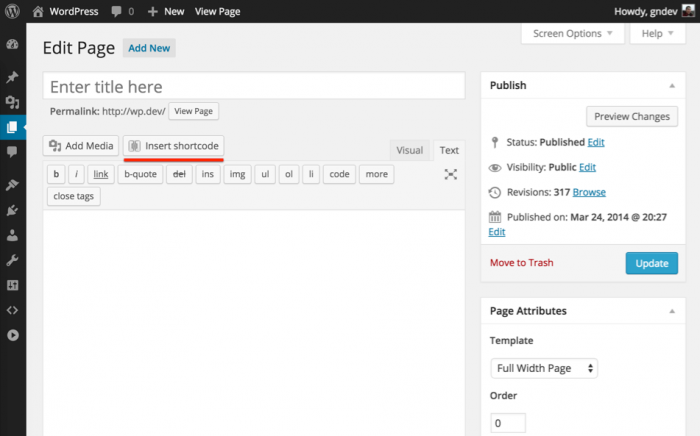
The Classic Editor has two tabs: Visual and Text. The Visual tab shows a formatted view. The Text tab shows the HTML code. Choose the Text tab to add shortcodes properly.
Paste Or Type The Shortcode
Place the cursor where you want the shortcode. Paste or type the shortcode exactly as provided. Shortcodes usually look like this: [shortcode].
Save And Preview The Page
After adding the shortcode, save your work. Click on the Preview button to see how it looks. The shortcode will display the dynamic content on the page.
Edit Or Remove Shortcodes Easily
To change or delete a shortcode, return to the Text tab. Find the shortcode in the content area. Edit the text or delete it completely, then save.
Credit: www.wpbeginner.com
Using Shortcodes In Gutenberg Editor
Using shortcodes in the Gutenberg editor is simple and fast. Shortcodes help you add special content or functions without coding. You can place them inside any page or post block. This makes your content look richer and more interactive.
The Gutenberg editor treats shortcodes as blocks. This means you can insert, edit, and move them easily. It is a flexible way to use plugins or custom features on your WordPress site.
How To Insert A Shortcode Block
First, open your page or post in the Gutenberg editor. Click the plus (+) icon to add a new block. Search for “Shortcode” in the block list. Select the Shortcode block. Paste your shortcode inside the block. Save or update your page to see the result.
Editing Shortcodes In Gutenberg
Click on the shortcode block to edit the code. You can change the shortcode text anytime. Make sure to keep the shortcode format correct. Wrong format may cause errors or no output.
Using Shortcodes With Other Blocks
You can add shortcodes near text, images, or other blocks. This helps mix content types smoothly. For example, use shortcodes for buttons or galleries inside your text areas. The editor shows a preview or shortcode text depending on your theme.
Inserting Shortcodes Via Widgets
Shortcodes make WordPress pages more dynamic and powerful. Widgets also support shortcodes. This allows you to add shortcode content in sidebars and other widget areas. It is a simple way to display custom content without editing page code.
Using widgets for shortcodes helps you show features like contact forms, galleries, or special offers. You can place these in any widget-ready area of your site. This method does not require complex coding knowledge.
Adding A Text Widget To Your Sidebar
Go to the WordPress dashboard and open Appearance > Widgets. Find the Text widget in the list. Drag and drop it into the sidebar or any widget area you want. This widget supports shortcodes easily.
Inserting The Shortcode In The Text Widget
Click on the Text widget to open its settings. Paste your shortcode into the content box. Make sure the shortcode is complete and correct. Save the widget settings to apply the changes.
Enabling Shortcodes In Widgets
By default, WordPress may not run shortcodes in widgets. Add this small code snippet to your theme’s functions.php file:
add_filter('widget_text', 'do_shortcode');This tells WordPress to process shortcodes inside text widgets. After adding this, your shortcode will display as expected in the widget area.
Credit: www.active24.de
Troubleshooting Common Issues
Shortcodes make WordPress pages powerful and flexible. Sometimes, they don’t work as expected. This section helps you fix common shortcode problems fast. Follow these tips to solve usual errors and get your shortcode running smoothly.
Incorrect Shortcode Syntax
Shortcodes must have the right format. Missing brackets or typos cause errors. Always use square brackets like this: [shortcode]. Check for spaces or wrong characters inside the shortcode. Even a small mistake stops it from working.
Plugin Or Theme Conflicts
Some plugins or themes may block shortcodes. Disable other plugins one by one to find conflicts. Switch to a default theme temporarily. If shortcodes work then, your theme or plugin is the issue. Update or replace the conflicting plugin or theme.
Shortcode Not Registered
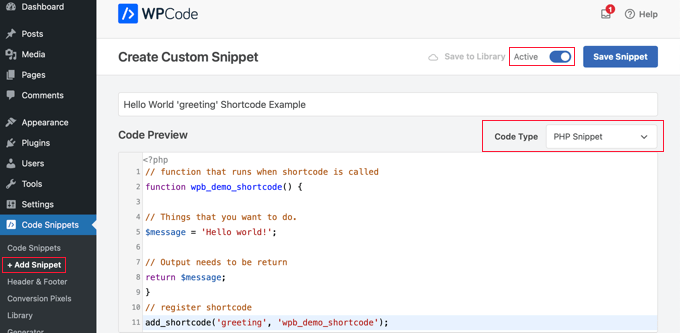
WordPress must recognize the shortcode. Custom shortcodes need to be registered in your theme’s functions.php file or a plugin. Without registration, WordPress ignores the shortcode. Make sure the registration code is correct and active.
Shortcode Displaying As Text
Shortcode appears on the page instead of content? This happens if you place shortcode inside a text widget or editor without enabling shortcode parsing. Use a shortcode widget or enable shortcode support in widgets. Paste shortcode in the block editor’s shortcode block for best results.
Cache Problems Affecting Shortcode
Cached pages may show old shortcode output. Clear your website cache and browser cache after adding or changing shortcodes. Some caching plugins need manual clearing. This step ensures visitors see the latest shortcode content.
Tips For Managing Shortcodes
Managing shortcodes well makes your WordPress site easier to update and maintain. Good shortcode management helps avoid errors and keeps pages clean. Follow simple tips to organize and use shortcodes effectively.
Use Descriptive Names For Shortcodes
Name your shortcodes clearly. Use words that show what the shortcode does. This helps you remember their purpose quickly. Avoid vague or generic names that cause confusion later.
Keep Shortcodes Organized
Group similar shortcodes together in one file or folder. This makes it easier to find and edit them. Use comments in your code to explain each shortcode’s function.
Test Shortcodes Regularly
Check shortcodes after updates or changes. Testing prevents broken pages and display issues. Use a staging site to test before applying changes live.
Limit Shortcode Use In Content
Use shortcodes only when needed. Overusing them can slow down your site. Replace some with simple HTML or blocks for better performance.
Backup Your Shortcode Files
Save copies of shortcode files regularly. Backups help recover work after mistakes or crashes. Store backups safely outside your main server.
Frequently Asked Questions
How Do I Insert A Shortcode In A WordPress Page?
To insert a shortcode, open the WordPress page editor. Paste the shortcode directly into the content area. Update or publish the page to see the shortcode output.
Can I Add Multiple Shortcodes On One WordPress Page?
Yes, you can add multiple shortcodes on a single page. Just place each shortcode where you want the respective content to appear.
What Types Of Content Can Shortcodes Display In WordPress?
Shortcodes can display galleries, forms, videos, sliders, and custom content. They simplify adding complex elements without coding.
How Do I Find Available Shortcodes In My WordPress Site?
Check your theme documentation or plugin settings. Many plugins list their shortcodes and usage examples for easy reference.
Conclusion
Adding a shortcode to your WordPress page is simple and quick. Shortcodes help you add features without coding. Just copy the shortcode and paste it into your page editor. Preview your page to see the changes. This method saves time and makes your site more dynamic.
Practice a few times to get comfortable. Soon, you will add content like a pro. Keep experimenting to improve your WordPress skills easily.


