
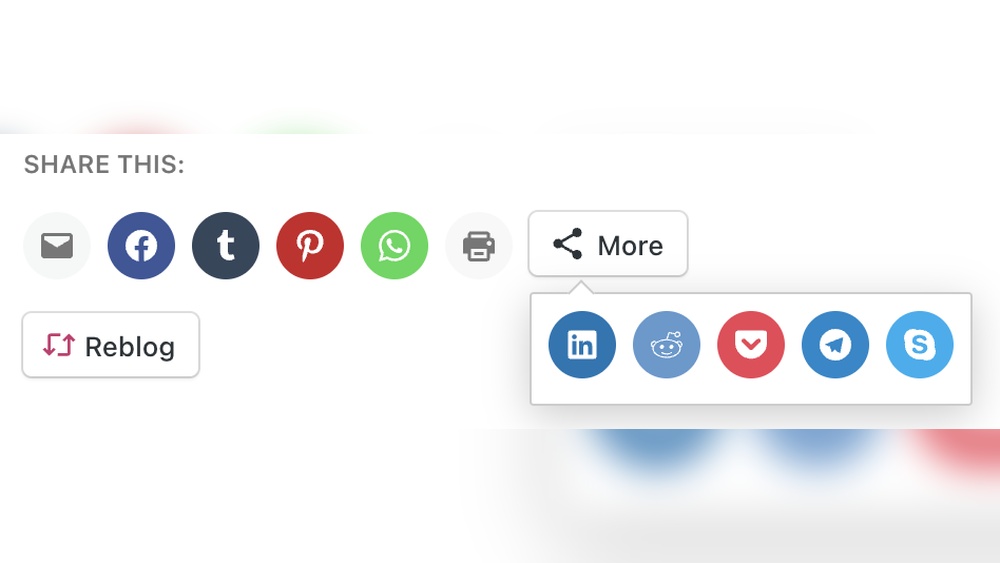
Want more people to see and share your WordPress content? Adding a share button to your site is one of the easiest ways to boost your reach and get your posts in front of a larger audience.
If you’ve ever wondered how to add a share button on WordPress but didn’t know where to start, you’re in the right place. This simple step-by-step guide will show you exactly how to do it—no technical skills required. Keep reading, and you’ll have share buttons up and running on your site in no time!

Credit: www.wpbeginner.com
Benefits Of Adding Share Buttons
Adding share buttons to your WordPress site offers many clear advantages. These buttons make it easy for visitors to share your content on social media. This sharing helps your website gain more visibility and attracts new visitors.
Share buttons also encourage visitors to spend more time on your site. They create a simple way to interact with your content and spread your message. This interaction can lead to better user experience and more loyal readers.
Increase Website Traffic
Share buttons help bring more visitors to your site. When users share your posts, their followers see your content. This exposure drives new traffic without extra advertising costs. More visitors mean more chances to grow your audience.
Enhance User Engagement
Share buttons invite users to interact with your content. Sharing feels like a simple action, but it builds a connection. Engaged users are more likely to return and explore your site further. This engagement improves your site’s value and authority.
Improve Content Reach
With share buttons, your content travels farther. Social media sharing spreads your posts across different networks. This wider reach helps attract diverse audiences. The more places your content appears, the higher your chances to gain followers.
Choosing The Right Share Button Plugin
Choosing the right share button plugin is key for your WordPress site. It helps visitors share your content easily. This can increase your traffic and engagement. Not all plugins work the same way. Some are simple, others offer many features. Pick one that fits your needs and your site’s style.
Popular Share Button Plugins
Many plugins offer share buttons for WordPress. Some of the most popular are Jetpack, AddToAny, and ShareThis. Jetpack is easy to use and has many other tools. AddToAny supports many social networks and is lightweight. ShareThis offers custom designs and analytics. These plugins have good reviews and frequent updates.
Factors To Consider
Think about ease of use. The plugin should be simple to set up and manage. Check if it slows down your site. A fast site keeps visitors happy. Look at customization options. Can you change the button style and position? Also, consider if the plugin supports all social networks you want.
Free Vs Paid Options
Free plugins work well for basic needs. They usually include popular social buttons. Paid plugins offer extra features like detailed analytics or more design choices. They may also provide better support. Choose a free plugin to start. Upgrade later if you need more features or support.
Installing A Share Button Plugin
Installing a share button plugin on WordPress is simple. This method lets you add share buttons without coding. Plugins offer many styles and options. Choose one that fits your website’s look. Follow these steps to install the plugin fast and easy.
Accessing The WordPress Dashboard
Log in to your WordPress site first. Use your username and password. After login, you see the dashboard. This is the main control panel for your website. From here, you manage all site settings and plugins.
Searching For Plugins
On the dashboard, find the “Plugins” menu on the left. Click on it, then select “Add New.” You will see a search bar. Type “share button” to find relevant plugins. WordPress will show many options to choose from.
Installing And Activating
Pick a plugin with good reviews and recent updates. Click the “Install Now” button next to it. Wait a few seconds while WordPress installs the plugin. After that, click the “Activate” button. The plugin is now ready to use on your site.
Configuring Share Button Settings
Configuring the share button settings is a key step to boost engagement. You can control which social networks appear, how the buttons look, and where they sit on your site. This helps visitors share your content easily. Proper settings improve user experience and increase shares.
Selecting Social Networks
Choose the social networks that best fit your audience. Popular options include Facebook, Twitter, LinkedIn, and Pinterest. Limit the number to avoid clutter. Focus on networks where your readers are most active. This makes sharing simple and effective.
Customizing Button Appearance
Adjust the size, shape, and color of your share buttons. Match the style to your website’s design. Use clear icons for easy recognition. Consistent colors help buttons stand out without overwhelming the page. Simple styles often work best for user clarity.
Positioning Share Buttons
Place share buttons where users naturally look for sharing options. Common spots include above or below the content, or floating on the side. Test different positions to see what works best. Proper placement encourages more clicks and shares.
Adding Share Buttons Manually
Adding share buttons manually on WordPress gives you full control over their design and placement. You can create buttons that match your site’s style perfectly. This method does not rely on plugins, which keeps your site light and fast.
Manual addition requires some basic knowledge of HTML and CSS. It also means you must insert the code carefully into your posts or theme files. Testing the buttons after adding them is important to ensure they work correctly.
Using Html And Css
Start by writing simple HTML code for each share button. Use anchor tags to link to social media sharing URLs. Add icons using images or font libraries like Font Awesome. Style the buttons with CSS to fit your site’s look. Use colors, padding, and hover effects to make buttons attractive.
Inserting Code Into Posts
Switch your WordPress editor to the Text or HTML mode. Paste the HTML code where you want the buttons to appear. For multiple posts, consider adding the code to your theme’s template files. This way, buttons show up automatically on every post. Save changes and preview the post to check placement.
Testing Button Functionality
Click each share button to test if it opens the correct social media share window. Check on different devices and browsers for consistent behavior. Fix any broken links or display issues immediately. Confirm that the buttons share the correct post URL and title. Proper testing ensures good user experience and effective sharing.
Credit: happyaddons.com
Optimizing Share Buttons For Mobile
Optimizing share buttons for mobile is essential for a better user experience. Mobile users expect quick access to sharing options without zooming or scrolling. A well-designed share button can increase the chances of content being shared. Mobile optimization ensures buttons look good and work well on small screens. Focus on clear, easy-to-tap buttons for mobile visitors.
Responsive Design Tips
Use flexible layouts that adjust to screen size. Share buttons should resize smoothly on smartphones and tablets. Place buttons where thumbs can easily reach them, usually near the bottom or side. Avoid tiny buttons that are hard to tap. Test your design on multiple devices to ensure usability.
Mobile-friendly Plugins
Choose plugins designed for mobile responsiveness. These plugins automatically adjust button size and layout. Look for options with customizable button styles and positions. Ensure plugins do not block content or slow down the site. Read reviews to find plugins trusted by other WordPress users.
Improving Load Speed
Fast load times keep mobile users engaged. Use lightweight plugins that do not add extra scripts. Optimize images and icons for share buttons to reduce file size. Minimize the use of animations or effects that slow down loading. Check your site speed regularly with online tools.
Tracking Share Button Performance
Tracking share button performance helps you understand how visitors interact with your content. It shows which posts get shared the most. This data guides you to improve your content and increase engagement. Monitoring share activity also helps you see which social platforms bring more traffic.
Using Google Analytics
Google Analytics tracks share button clicks effectively. Set up event tracking to record each share action. This data appears in your Analytics dashboard. It shows how many times users share content. You can see which pages have higher share rates. This helps identify popular content among your audience.
Monitoring Social Shares
Social share plugins often provide built-in tracking features. These tools show the number of shares per platform. They display real-time data for better insight. Monitoring shares helps you spot trends quickly. It also reveals which social networks drive more engagement. Use this data to focus your marketing efforts.
Adjusting Strategies Based On Data
Analyze the collected data to improve your strategy. Focus on content with high share rates. Try to replicate its style or topic. Test different share button placements to increase clicks. Adjust your social media campaigns based on share trends. This approach helps grow your audience and boost traffic.
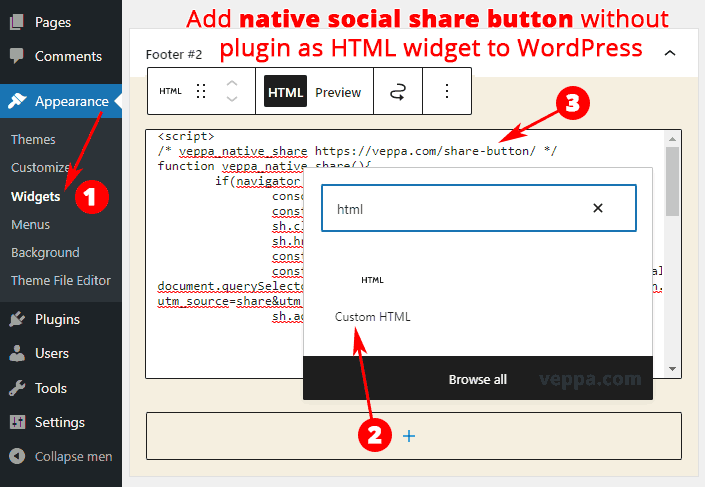
Credit: veppa.com
Common Issues And Fixes
Adding a share button on WordPress is helpful for growing your audience. Sometimes, issues stop the buttons from working well. These problems can affect how visitors interact with your site. Fixing them keeps your site user-friendly and fast.
Below are common problems and easy fixes to keep your share buttons working smoothly.
Buttons Not Showing
Buttons may not appear because of plugin conflicts or theme issues. Clear your browser cache first. Disable other plugins one by one to find conflicts. Switch to a default theme to test if your theme causes the problem. Make sure you have set the share buttons to show on the right pages.
Slow Website Speed
Adding many share buttons can slow your site. Use a lightweight plugin that loads buttons only when needed. Avoid plugins that load many scripts on every page. Optimize images and scripts to keep speed high. Fast loading helps keep visitors on your site longer.
Compatibility Problems
Share buttons might not work well with some themes or plugins. Check if your plugin supports the latest WordPress version. Update your theme and plugins regularly. Use plugins from trusted sources to reduce conflicts. Test new plugins on a staging site before using them live.
Frequently Asked Questions
How Do I Add A Share Button In WordPress?
You can add a share button using plugins like Social Warfare or AddToAny. Install, activate, then configure settings to display buttons on posts or pages.
Which Plugin Is Best For WordPress Share Buttons?
Popular plugins include Social Warfare, AddToAny, and ShareThis. They offer easy setup, customizable buttons, and support multiple social networks for better sharing.
Can I Add Share Buttons Without A Plugin?
Yes, you can add share buttons manually by embedding custom HTML and JavaScript code in your theme files. This method requires coding knowledge.
Where Do Share Buttons Appear On WordPress Posts?
Share buttons usually appear above or below post content. Most plugins allow you to choose the placement location or display on specific post types.
Conclusion
Adding a share button to your WordPress site helps visitors spread your content. It makes sharing quick and easy. More shares mean more people see your posts. Choose a plugin or add code yourself. Test the button to ensure it works well.
Keep the design simple and clear. This small step can boost your site’s reach. Start today and watch your audience grow.


