
Are you looking to enhance the functionality and user experience of your WordPress website? Adding a second menu to your theme could be the game-changer you need.
Imagine providing your visitors with easy access to more content, improving navigation, and keeping them engaged longer. It’s not just about aesthetics; it’s about creating a seamless journey for your audience. In this guide, you’ll discover the simple steps to integrate a second menu into your WordPress theme, opening up new possibilities for your site.
Ready to unlock your site’s full potential? Let’s dive in and explore how you can effortlessly add this feature to captivate and retain your audience.
Credit: docs.themeisle.com
Choosing The Right Theme
Themes can differ greatly. Some might not support a second menu. Always check the theme documentation. Look for compatibility notes. Some themes offer built-in options for extra menus. This makes adding a second menu easier. If unsure, consult the theme’s support team. They can confirm compatibility.
Not all themes are flexible. Some limit menu locations. Others might need custom coding for changes. Check the theme’s settings page. Look for sections on menu settings. If missing, you may need a theme with more features. Choose themes that are customizable. Avoid themes with rigid structures.
Creating A Child Theme
Adding a second menu to a WordPress theme involves creating a child theme. This process allows customization without altering the original theme files. By doing this, you maintain updates and ensure flexibility.
Understanding Child Themes
Child themes let you change a WordPress theme safely. They save your changes from theme updates. You need a parent theme and a child theme. The parent theme gives the main look. The child theme lets you change the style and layout. This method keeps your work safe when themes update. Use child themes to make design changes. It is easy and smart. Start with a parent theme you like. Then, create your child theme. It is simple to set up.
Setting Up A Child Theme
First, create a new folder in wp-content/themes. Name it after your child theme. Then, add a style.css file inside the folder. Write comments at the top of the file. Include the theme name and version. You also need to include the parent theme name. Next, create a functions.php file. This file will load your child theme stylesheet. Use the wp_enqueue_scripts function for this. Now, your child theme is ready. Activate it in WordPress. Enjoy your new design changes.
Registering A Second Menu
To add a second menu, open the functions.php file. This file is in your theme folder. Add a new function. Call it register_my_menus. Inside this function, use register_nav_menus(). This will register your new menu locations.
Your code might look like this:
    function register_my_menus() {
        register_nav_menus(
            array(
                'primary-menu' => __( 'Primary Menu' ),
                'secondary-menu' => __( 'Secondary Menu' )
            )
        );
    }
    add_action( 'init', 'register_my_menus' );
Save the file. Now you have two menus ready. They are called Primary Menu and Secondary Menu. You can use these in your theme.

Credit: www.youtube.com
Modifying Theme Files
Open the header.php file in your theme folder. This file controls the top part of your site. Locate the code that displays the current menu. It usually contains the function wp_nav_menu(). Copy this function and paste it where you want the second menu. Change the ‘theme_location’ parameter to a new name. This name should be unique.
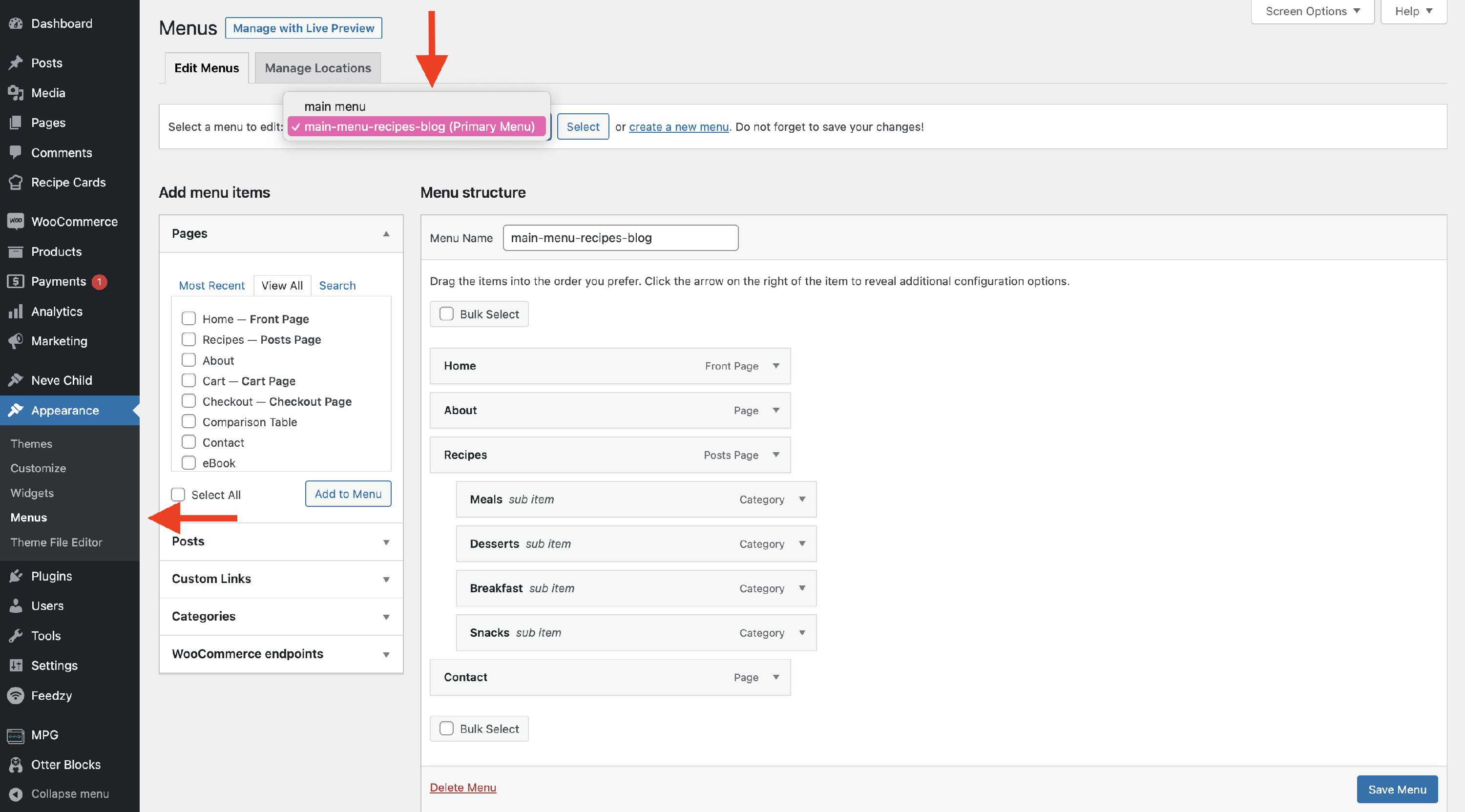
Go to your theme’s functions.php file. Register the new menu here. Use the register_nav_menus() function. Add the new menu name you chose. Save the changes. Go to the WordPress admin dashboard. Visit the Appearance tab and find Menus. Here, you can manage and assign items to the new menu. Ensure it appears where you placed it in the header file.
Customizing The Second Menu
Enhancing your WordPress theme involves adding a second menu to boost navigation. Access the WordPress dashboard to integrate a custom menu seamlessly. Utilize theme settings for easy menu placement and organization.
Styling With Css
CSS helps make your menu look nice. Use color to change the text. Change font-size to make text bigger or smaller. Add background-color to make it stand out. Use padding to add space inside the menu. Change margin for space outside. Add hover effects for fun changes when you move the mouse.
Using Javascript For Interactive Features
JavaScript makes the menu interactive. Add dropdowns for more links. Use animations for smooth effects. Click events make things happen when clicked. Hide and show parts with toggle functions. JavaScript can make your menu more dynamic and fun. Practice makes it easy to learn.
Testing The Second Menu
Enhance your website’s navigation by adding a second menu to your WordPress theme. Edit your theme’s functions. php file to register a new menu location. Customize your theme’s header or footer to display the new menu, offering visitors improved browsing options.
Checking Menu Display
The second menu must show correctly. Check on different pages. Make sure it looks right. The items should be clear. No overlapping or missing parts. Visit each page on your site. Confirm the menu works each time. Check links. They should lead to correct pages. Broken links can confuse users. Test on different browsers. Chrome, Firefox, and Safari are popular choices. Make sure the menu looks the same in each. This ensures all users see it properly.
Ensuring Mobile Responsiveness
Most people browse on phones. The menu should adjust to different screens. Check on various mobile devices. Use phones with different screen sizes. Test on tablets too. The menu should be easy to use on touch screens. Buttons should be big enough to tap. Menus should not be hidden. Check portrait and landscape views. Make sure the menu adapts well. A responsive menu improves user experience. People will find your site easier to use.
Troubleshooting Common Issues
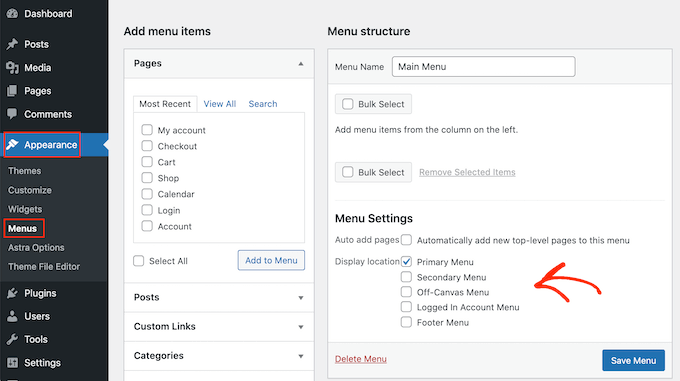
Menus not showing can be confusing. Ensure that the menu is set to display. Check the theme settings for menu locations. Some themes have specific spots for menus. Confirm if the menu is assigned to a visible location. Sometimes, a cache might hide changes. Clear the cache to see updates. Refresh the page after clearing the cache. Use the WordPress customizer to preview changes. Make sure your theme supports multiple menus. If not, consider using a plugin. Plugins can add more menu locations.
Errors in menu links can frustrate users. First, check the links for mistakes. Correct any broken URLs or typos. Ensure all menu items link to the right pages. Use the WordPress menu editor for changes. Sometimes, themes need menu support. Add support in the theme’s functions.php file. Use code to enable extra menus. Always back up files before editing them. If issues persist, consider theme updates. Updates might fix menu bugs.
Utilizing Plugins For Menu Management
Adding a second menu can be easy. Popular plugins can help. Max Mega Menu is one choice. It offers many features. WP Mega Menu is another option. It is simple and stylish. Superfly focuses on vertical menus. Each plugin has unique features. Choose based on your needs.
First, visit your WordPress dashboard. Go to the Plugins section. Click on “Add New.” Type the plugin name in the search bar. Click “Install Now” next to the plugin. After installation, click “Activate.” Follow the setup guide. Adjust settings as needed. Create and manage your second menu. Save your changes. Enjoy your new menu!
Credit: www.wpbeginner.com
Frequently Asked Questions
How Do I Add A Second Menu In WordPress?
To add a second menu, access the WordPress dashboard, go to Appearance > Menus. Create a new menu and name it. Assign it to a new theme location or widget area. Customize as needed, then save changes. This enhances site navigation and improves user experience.
Can I Customize The Second Menu Appearance?
Yes, you can customize the second menu’s appearance using CSS or the theme customizer. Access Appearance > Customize, then use the additional CSS section. Modify colors, fonts, and layout to match your site design. Ensure the changes improve usability and visual appeal.
Why Add A Second Menu To My Theme?
Adding a second menu enhances site navigation and organizes content better. It helps visitors find information quickly and improves user experience. A second menu is useful for categorizing pages, displaying secondary options, or highlighting featured content. This can boost engagement and retention.
Is It Possible To Add Multiple Menus?
Yes, you can add multiple menus in WordPress by creating new menus in Appearance > Menus. Assign each menu to different theme locations or widget areas. This flexibility allows you to tailor navigation based on site needs, improving user experience and organization.
Conclusion
Adding a second menu to your WordPress theme is easy. Follow the steps above. Customize your website for better user experience. A second menu helps organize content efficiently. Visitors find information quickly. This boosts engagement and site navigation. Practice with different styles and placements.
Experimenting can lead to the best results. Remember, well-structured menus enhance user satisfaction. Your website becomes more professional and user-friendly. Keep learning and adapting your design. Stay updated with WordPress features. This ensures your site remains effective. Happy customizing!


