
Are you struggling to add a search bar to your custom WordPress theme? You’re not alone.
Many WordPress users want to enhance their site’s functionality, but the process can seem daunting. Imagine your visitors effortlessly finding the content they need, improving their experience and increasing your site’s engagement. A search bar isn’t just a tool; it’s a gateway to better user interaction.
In this guide, you’ll discover simple steps to seamlessly integrate a search bar into your custom theme. By the end, you’ll feel empowered and ready to boost your site’s usability. Ready to transform your website? Let’s dive in!
Why Add A Search Bar
A search bar helps visitors find what they need. Fast searches make users happy. It saves time for everyone. Better navigation keeps users on your site longer. They can explore more content. This means more page views. It can help with SEO too. Search engines like organized sites. Users find content easily with it.
Custom themes can have unique designs. Adding a search bar fits the theme. It keeps the site looking good. Users get a smooth experience. They won’t leave the site frustrated. Search bars are easy to use. Everyone knows how to type a word. It’s simple and effective.
Choosing The Right Location
Header placement is very common for search bars. Users find it easily. It enhances user experience. Make sure it matches the theme. Keep the design simple and clean. Don’t overcrowd the header.
Sidebar placement works well on blogs. It is easy to spot. Users can find it quickly. You can add it to the top of the sidebar. Or place it in the middle. Make sure it doesn’t clash with other widgets.
Footer placement is less common. But it can be useful. Footer is often overlooked. Yet, it can be a hidden gem. Place it wisely. Keep it visible. Ensure it’s easy to use. Don’t let it blend in too much.
Using WordPress Widgets
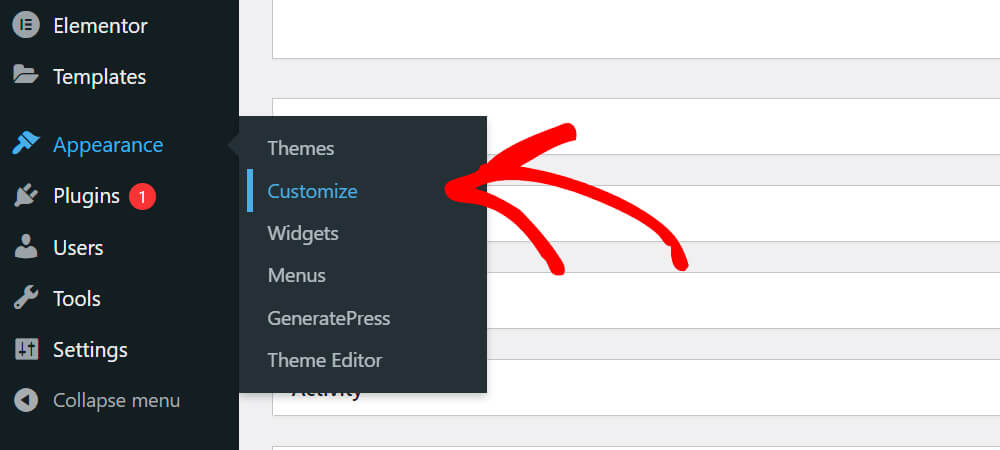
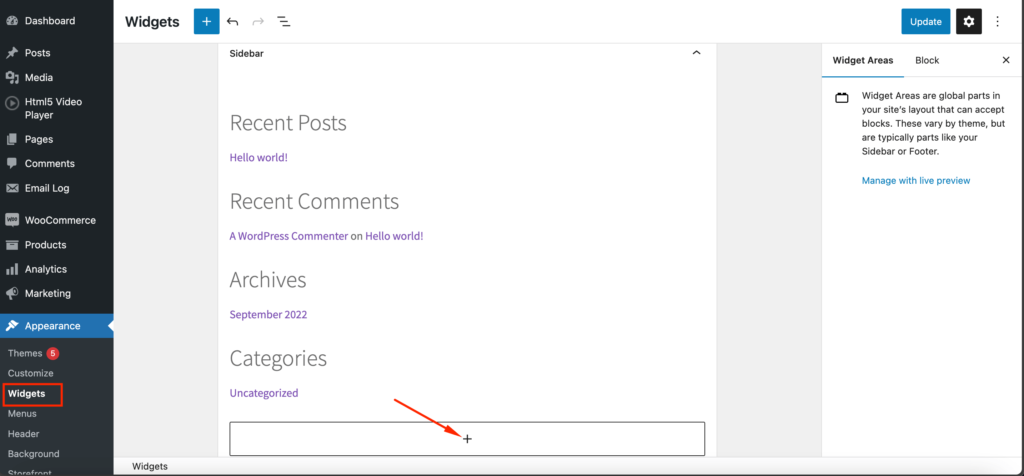
To add a search bar, start with your WordPress dashboard. Find the Appearance section. Click on it. Then, choose Widgets. This is where you can add features. Look for the sidebar area. That’s where most themes allow widgets. Now, you are ready to add your search widget.
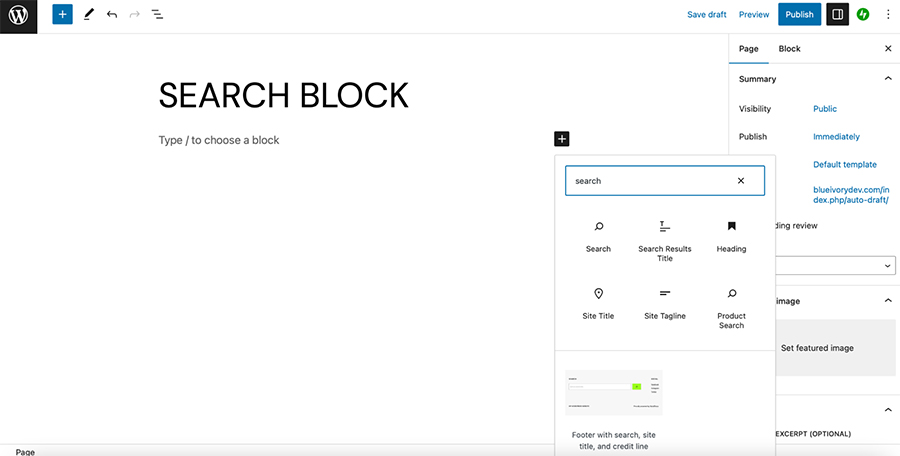
In the widgets area, find the Search widget. Drag it to the sidebar. This adds the search bar to your site. You can also add a title if you want. Type in a name like “Search Here”. Save your changes. Check your website. You should now see the search bar. It’s easy to do.
Credit: searchwp.com
Customizing The Search Bar
Integrating a search bar into a WordPress custom theme enhances user navigation. Begin by accessing the theme’s functions. php file. Use the WordPress function get_search_form() to add the search bar, ensuring seamless user experience and improved site accessibility.
Styling With Css
Use CSS to make your search bar look good. Change colors, sizes, and fonts easily. Add background colors to make it stand out. Use padding for more space around text. Change the font style to match your theme. Make it bold or italic. Adjust the width for longer search queries. Add a border for a clean look. Use hover effects for a cool interaction. Make sure it’s mobile-friendly. Test it on different devices.
Customizing With Html
Create a search bar using HTML tags. Use the and tags. Set the type to “search” for better results. Add a placeholder to guide users. Use the tag for the search icon. Place it inside the form tag. Keep it simple and neat. Ensure it is accessible to all users. Make it easy to use.
Adding Search Bar With Shortcodes
Integrating a search bar using shortcodes in a custom WordPress theme enhances user experience. Shortcodes offer an easy way to add functionality without complex coding. This approach allows quick customization, ensuring visitors can find content effortlessly.
Generating Shortcodes
Create a custom shortcode for your search bar. Go to the theme functions file. Add the code that generates the shortcode. This code makes a search bar appear. Use a plugin if needed. Plugins can help in creating shortcodes.
Embedding Shortcodes In Theme
Place the generated shortcode in your theme. Find the right spot for the search bar. Use the shortcode in a widget area. Or place it in the header or footer. Shortcodes work well in sidebars too. Ensure the shortcode is correctly formatted. Proper formatting avoids errors. Test the search bar after placing it. Make sure it works smoothly.
Implementing Search With Php
Start by finding the theme folder in WordPress. Look for header.php file there. Open it using a text editor. Place the search bar code before the closing tag. Use element for the search bar. Add for user text. Ensure the action attribute points to the search page. Save changes to the file.
Use PHP to handle search logic. Add search.php file in the theme folder. Use get_search_query() function to get user input. Use WP_Query to find matching posts. Display results using while loop. Show post titles and excerpts. Style results using CSS for better look. Save changes and test the search bar.
Enhancing Search Functionality
Integrating a search bar into a custom WordPress theme enhances user navigation. Customize your theme files to include search functionality seamlessly. Improve user experience by ensuring easy access to content through an intuitive search interface.
Using Plugins
Adding a search bar in WordPress can be simple. Use plugins like Relevanssi or SearchWP. These plugins make the search better. They help find content faster.
Relevanssi offers custom search results. SearchWP improves search by adding new features. Both plugins are easy to set up. They work well with many themes.
Advanced Search Features
Advanced features make search more powerful. Filters help users find things quickly. Sorting options organize results.
Some plugins let you add these features easily. They make the search experience better for users. A good search tool improves your website. Users stay longer and find what they need.
Credit: wedevs.com
Testing And Troubleshooting
Adding a search bar to a custom WordPress theme involves testing and troubleshooting steps. First, ensure the search function integrates smoothly with your theme design. Adjust settings and code to address any functionality issues, ensuring a seamless user experience.
Ensuring Responsiveness
Check the search bar on different devices. It should work well on phones, tablets, and computers. Use browser tools to resize your screen. See if the search bar adjusts properly. Test in landscape and portrait modes. Ensure buttons are easy to click. Text boxes should be easy to type in. If not, adjust the CSS. Make sure the design is clear on all screens. This helps users find what they need quickly.
Debugging Common Issues
Sometimes, the search bar may not work. Check if the plugin is installed correctly. Ensure your theme supports it. Look for JavaScript errors in the console. These errors can block functions. Verify your theme files for missing code. Use online forums for help. Many developers share solutions. Refresh your browser often to see changes. Small issues can cause big problems. Fix them to improve user experience.
Best Practices For Search Optimization
Adding a search bar to a custom WordPress theme enhances user experience and site navigation. Start by editing the theme files and inserting the search form code. Ensure the design matches the theme for a seamless look.
Improving Search Results
Adding a search bar helps users find things fast. It makes your site easy to use. A good search bar can boost user engagement. Users stay longer when they find what they need quickly.
Use clear labels for better results. This helps users know what they can search for. Keep your search bar in a visible spot. This makes it easy to find.
Consider using auto-suggestions. It can guide users as they type. This saves time and improves the search experience. A simple design is best. Avoid clutter around the search bar. It should stand out on the page.
User Experience Considerations
A good search bar improves user experience. Users like fast and easy searches. Make sure the search bar works on all devices. Many people use phones to search. Test the search bar often. Fix any problems quickly.
Provide feedback when no results are found. Offer suggestions or related content. This keeps users from leaving your site. A friendly search bar keeps users happy.
Credit: jetpack.com
Frequently Asked Questions
How Do I Add A Search Bar In WordPress?
To add a search bar, use the search widget in the WordPress dashboard. Navigate to Appearance > Widgets, and drag the search widget to your desired location in the theme. You can also use custom code in your theme’s header or sidebar files for more advanced customization.
Can I Customize The Search Bar Design?
Yes, you can customize the search bar using CSS. Add custom styles to your theme’s stylesheet to change its appearance. Modify elements like background color, border, and font. For more advanced changes, you might need to edit theme files directly or use a page builder plugin.
Is A Plugin Necessary For A Search Bar?
A plugin is not necessary; WordPress includes a default search widget. However, plugins can enhance functionality. Consider using plugins like “SearchWP” or “Relevanssi” for improved search features and customization options. These plugins provide better search accuracy and more flexible settings.
How Do I Enhance Search Functionality?
Enhance functionality by using search plugins such as “SearchWP” or “Relevanssi”. These plugins improve search accuracy, allow custom search fields, and provide detailed search analytics. Customizing search behavior with hooks and filters in WordPress can also offer more control over search results.
Conclusion
Adding a search bar enhances your WordPress theme. It’s straightforward and boosts user experience. Visitors find content easily. This feature keeps them engaged. Custom themes offer flexibility for design. Simple tweaks make a big difference. Code snippets are handy for custom solutions.
Remember to test before going live. Compatibility matters. Make sure it works on all devices. A seamless search function is crucial. Try different styles to fit your theme. Keep refining for better results. Your site becomes user-friendly and efficient. Enjoy the benefits of a well-implemented search bar.


