
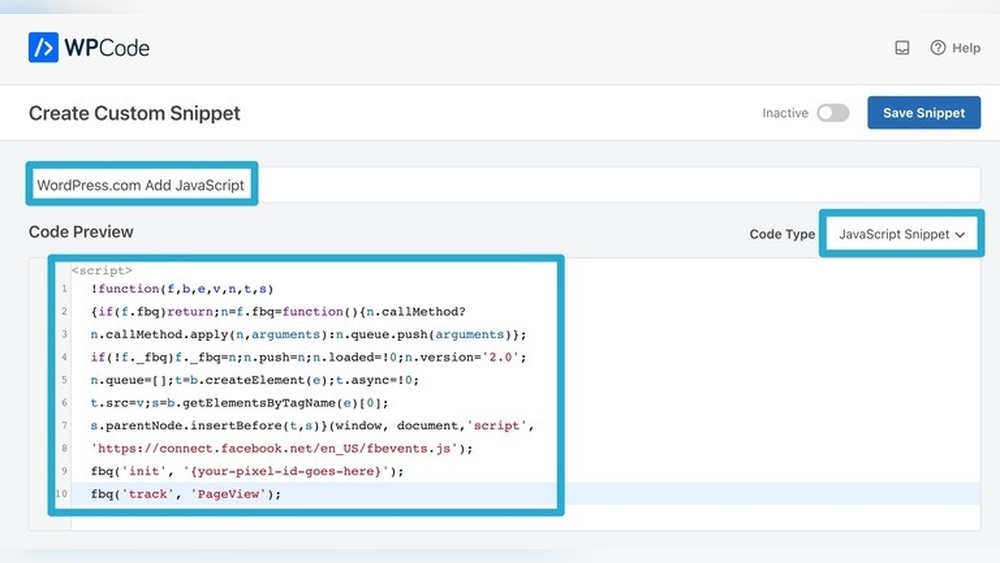
Are you looking to add a script to your WordPress site but don’t know where to start? Whether it’s a tracking code, custom JavaScript, or a widget, adding scripts can boost your site’s functionality and performance.
But doing it the wrong way can cause errors or slow down your site. You’ll discover simple, step-by-step methods to safely add scripts to your WordPress site without any hassle. By the end, you’ll feel confident making these changes yourself, improving your website exactly the way you want.
Keep reading to unlock the full potential of your WordPress site!
Choosing The Right Script
Choosing the right script for your WordPress site is important. The right script can improve site features and user experience. It also ensures your site runs smoothly without errors. Selecting the wrong script might slow down your site or cause conflicts. Understanding the types of scripts and their compatibility helps you make the best choice.
Types Of Scripts For WordPress
WordPress supports different types of scripts. JavaScript is the most common. It adds interactivity like sliders, forms, and animations. CSS scripts style your site’s appearance. PHP scripts control server-side functions and features. Each script type serves a unique purpose. Choose the one that fits your site’s needs.
Compatibility Considerations
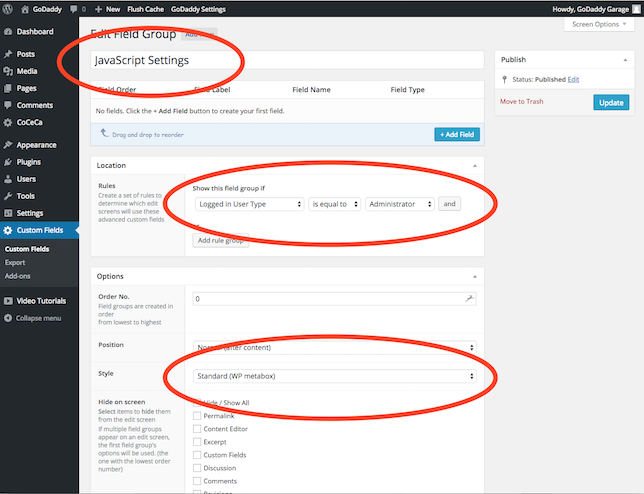
Check if the script works well with your WordPress theme. Some scripts may conflict with existing plugins. Test scripts on a staging site before adding them live. Ensure the script matches your WordPress version. Older scripts may not work with the latest WordPress updates. Good compatibility prevents errors and keeps your site fast.
Credit: www.godaddy.com
Preparing Your WordPress Site
Preparing your WordPress site is key before adding any script. It helps keep your site safe and running smoothly. Taking a few steps first will save trouble later. Follow these simple actions to get ready.
Backup Your Site
Backing up your site protects your data from loss. It creates a copy of your files and database. Use a plugin or hosting service to make a backup. Store the backup in a safe place. This way, you can restore your site if something goes wrong.
Enable Maintenance Mode
Maintenance mode hides your site from visitors during updates. It shows a simple message instead of your full site. Use a plugin to activate maintenance mode easily. This keeps visitors informed and avoids confusion. It also prevents errors while adding scripts.
Adding Scripts Using Plugins
Adding scripts to WordPress sites can be tricky. Plugins make this process simple and safe. They help place your code without editing theme files. This keeps your site stable and easy to update.
Using plugins lets you add scripts to headers, footers, or specific pages. This method is friendly for beginners and saves time. No need to touch the site’s core files or worry about breaking the layout.
Popular Script Management Plugins
Several plugins help manage scripts on WordPress. “Insert Headers and Footers” is a favorite for its simplicity. “Header Footer Code Manager” offers more control for advanced users. “Scripts n Styles” adds options to load scripts only on certain pages.
These plugins allow adding JavaScript, CSS, or tracking codes. They provide fields to paste code safely. Most have free versions and easy setup.
Step-by-step Plugin Installation
Go to your WordPress dashboard. Choose “Plugins” from the menu. Click “Add New” and type the plugin name. Click “Install Now” and then “Activate.”
After activation, find the plugin settings in the dashboard. Usually under “Settings” or a new menu item. This is where you will add your scripts.
Inserting Scripts Via Plugins
Open the plugin’s script insertion page. Paste your script in the header, footer, or body section. Save changes to apply the script site-wide or on selected pages.
Test your website to ensure the script works. Clear any caching plugins to see immediate effects. Using plugins keeps scripts organized and easy to manage.
Manual Script Insertion
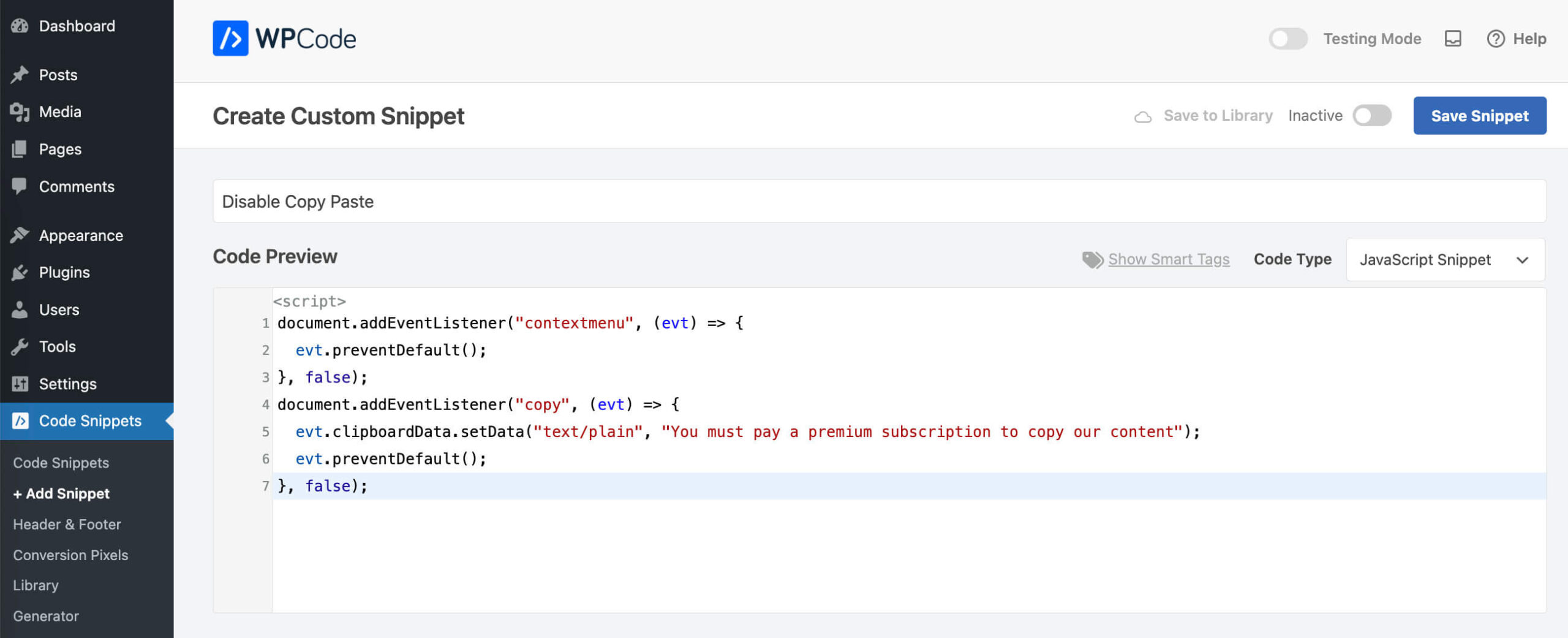
Manual script insertion lets you add custom code directly into your WordPress site. This method gives full control over where and how scripts run. It works well for adding tracking codes, custom JavaScript, or third-party widgets.
Be careful when editing files. Small mistakes can break your site. Always back up your site before making changes.
Editing Theme Files Safely
Use a child theme to avoid losing changes after updates. Access your site files via FTP or your host’s file manager. Open the theme file where you want to add the script.
Do not edit the main theme files directly. This prevents problems when the theme updates. Always make a copy of the file before editing.
Using The Functions.php File
The functions.php file allows adding scripts safely. Open it in your child theme folder. Use the wp_enqueue_script function to add JavaScript files properly.
This method keeps scripts organized and avoids conflicts. Insert your script’s URL or path inside the function. Add dependencies and load location if needed.
Adding Scripts To Header Or Footer
Scripting can go in the header or footer. Use the wp_head hook to place scripts in the header. This is good for stylesheets and early-loading scripts.
Place scripts in the footer with the wp_footer hook. This improves page speed by loading scripts last. Choose the location based on your script’s purpose and loading priority.
Using Widgets And Custom Html
Using widgets and custom HTML is a simple way to add scripts in WordPress. Widgets let you place code in special areas like sidebars or footers. Custom HTML widgets give you control over the exact code you want to use. These tools help you enhance your site without changing theme files.
Adding Scripts In Sidebar Or Footer
Sidebars and footers are common places to insert scripts. Go to your WordPress dashboard and open the Appearance menu. Click on Widgets to see available widget areas. Drag a Custom HTML widget to your chosen area, such as the sidebar or footer. Paste your script code inside this widget. Save the changes and check your site to see the script in action.
This method does not require editing any theme files. It keeps your scripts safe during theme updates. You can easily remove or change the script anytime from the Widgets page.
Using Custom Html Widgets
The Custom HTML widget is a flexible tool for adding scripts. It supports all types of HTML code, including JavaScript snippets. Open the Widgets section in WordPress. Find the Custom HTML widget and add it to the desired widget area. Enter your script code in the content box. Preview your site to ensure the script works properly.
Using Custom HTML widgets keeps your site organized. It avoids cluttering your theme files with code. This method is ideal for small scripts like tracking codes or chat widgets. You can add multiple custom HTML widgets for different scripts in different areas.
Credit: wpcode.com
Testing And Troubleshooting
Testing and troubleshooting are key steps after adding a script to WordPress. They help ensure the script works correctly and does not break your site. Careful checks can save time and prevent errors from affecting visitors.
Verifying Script Functionality
Start by checking if the script runs as expected. Open your website in a browser and look for visible changes or new features. Use the browser’s developer tools to see if the script loads without errors. Reload the page to confirm consistent behavior.
Test the script on different devices and browsers. This ensures compatibility and smooth user experience. Clear your browser cache to avoid seeing old script versions. Make small changes and re-test to isolate any issues.
Common Issues And Fixes
Scripts may fail due to incorrect placement or missing files. Confirm the script URL is correct and accessible. Check for syntax errors in the script code. Use online validators to spot mistakes quickly.
Conflicts with other plugins or themes can break scripts. Disable other plugins to identify conflicts. Switch to a default theme temporarily to test. Adjust the script or seek alternatives if conflicts persist.
Slow loading scripts hurt site speed. Optimize or delay script loading to improve performance. Use caching plugins to reduce load times. Monitor your site after changes to catch new problems early.
Best Practices For Script Management
Managing scripts in WordPress requires care. Poor script management can slow down your site and cause security risks. Following best practices helps keep your website fast and safe. It also makes maintenance easier and improves user experience.
Performance Optimization
Load scripts only when needed. Avoid loading all scripts on every page. Use asynchronous or deferred loading to speed up page rendering. Combine and minify scripts to reduce file size. Keep scripts updated to fix bugs and improve speed. Use caching plugins to serve scripts faster. Test your site after adding scripts to ensure it loads quickly.
Security Considerations
Only use trusted scripts from reliable sources. Avoid scripts with known vulnerabilities. Sanitize and validate any user input before using scripts. Keep WordPress, themes, and plugins up to date for security. Limit script permissions to reduce potential damage. Disable scripts that are not in use. Regularly scan your site for malware or suspicious code.

Credit: jetpack.com
Frequently Asked Questions
How Do I Add Custom Scripts To WordPress?
You can add custom scripts using the theme’s functions. php file or a plugin like Insert Headers and Footers. This ensures scripts load properly without editing core files, keeping your site safe and update-friendly.
Where Should I Place Scripts In WordPress?
Scripts typically go in the header or footer sections. Use wp_enqueue_script to add scripts safely, placing them in functions. php or a plugin to avoid conflicts and improve site performance.
Can I Add Javascript Without A Plugin?
Yes, by editing your theme’s functions. php file with wp_enqueue_script, you can add JavaScript manually. However, using a child theme is recommended to prevent losing changes after updates.
Is It Safe To Add External Scripts To WordPress?
Adding external scripts is safe if they come from trusted sources. Always verify the script’s origin and monitor site speed, as some scripts may slow down your website.
Conclusion
Adding scripts to WordPress can improve your site’s features. Choose the right method based on your needs. Always back up your site before making changes. Test the script to ensure it works properly. Keep your site secure by using trusted scripts only.
Now, you can easily add scripts and enhance your WordPress site. Practice these steps to gain confidence and control. Your website will become more functional and user-friendly. Simple steps lead to better results. Enjoy customizing your WordPress site with ease.


