If you want to add a script to your WordPress header but don’t know where to start, you’re in the right place. Adding scripts can boost your site’s functionality, improve tracking, or customize how your pages work.
But it can also feel tricky if you’re not familiar with coding or WordPress settings. Don’t worry—this guide will walk you through simple, clear steps to get your script in the header without breaking your site. By the end, you’ll have the confidence to manage your WordPress header like a pro.
Keep reading to unlock the easy way to add scripts and make your website work exactly how you want.

Credit: wordpress.com
Why Add Scripts To WordPress Header
Adding scripts to your WordPress header helps control how your site loads and works. The header is a key part of every webpage. It loads before the main content. Placing scripts here lets you run code early. This can improve site features and user experience. You can use scripts for many purposes. Each script can enhance your website in different ways.
Benefits Of Header Scripts
Scripts in the header load before the page shows. This means they can prepare content or features fast. They help improve site speed if used correctly. Early loading scripts can track visitor actions right away. This helps gather accurate data for analysis. Header scripts also allow custom styling or fonts to load quickly. This makes your site look better from the start. You can add important tools like analytics or chatbots here.
Common Use Cases
Many website owners add tracking codes in the header. Google Analytics and Facebook Pixel are popular examples. These tools help monitor visitor behavior and site performance. Custom fonts and styles often load through header scripts. This keeps your website design consistent. Some scripts improve SEO by managing meta tags or structured data. Others add security features or captcha checks early. Scripts for live chat or customer support can also be placed here.

Credit: kinsta.com
Prepare Your Script
Preparing your script before adding it to the WordPress header is important. It helps avoid errors and ensures the script works correctly. Proper preparation saves time and keeps your site running smoothly.
Get The Script Code
First, obtain the script code you want to add. This code might come from a third-party service or your own custom script. Copy the entire script exactly as provided. Do not change any part of the code unless you know what you are doing.
Keep the code ready in a text editor or on your clipboard. This makes it easy to paste into your WordPress header later. Having the code handy avoids interruptions during the process.
Check Script Compatibility
Not all scripts work well with every WordPress theme or plugin. Check if the script is compatible with your WordPress version. Look for any special requirements or conflicts mentioned by the script provider.
Test the script in a staging environment if possible. This helps prevent site crashes or slowdowns. Confirm that the script does not interfere with other site functions.
Method 1: Using Theme Editor
Method 1 shows how to add a script by editing your theme files directly. This method uses the WordPress Theme Editor. It is simple but requires care. One wrong move can break your site. Always back up your files before starting.
Access Theme Files
First, log in to your WordPress dashboard. Go to Appearance, then select Theme Editor. You will see a warning about editing files. Read it carefully. Click “I understand” to proceed. This area lets you edit theme files directly.
Locate Header.php
Look for the file named “header.php” in the right sidebar. This file controls your site’s header section. Click on it to open the code editor. You will see HTML and PHP code here. This is where you add your script.
Insert Script Correctly
Place your script between the and tags. Make sure the script code is complete and correct. Paste the script right before the closing tag. Save your changes by clicking the “Update File” button. Check your site to confirm the script works.
Method 2: Using A Plugin
Adding scripts to your WordPress header can improve site functionality. Using a plugin makes this process easy. It avoids the risk of editing theme files directly. Plugins also keep your scripts safe during theme updates. This method is perfect for beginners and those who want a quick solution.
Choose The Right Plugin
Select a plugin that fits your needs. Popular options include “Insert Headers and Footers” and “Header Footer Code Manager.” Check plugin ratings and reviews. Ensure it is compatible with your WordPress version. Look for plugins with regular updates and good support.
Install And Activate Plugin
Go to your WordPress dashboard. Click on “Plugins” then “Add New.” Search for the plugin by name. Click “Install Now” and then “Activate.” The plugin is now ready to use. It will add a new menu or settings page.
Add Script Via Plugin Settings
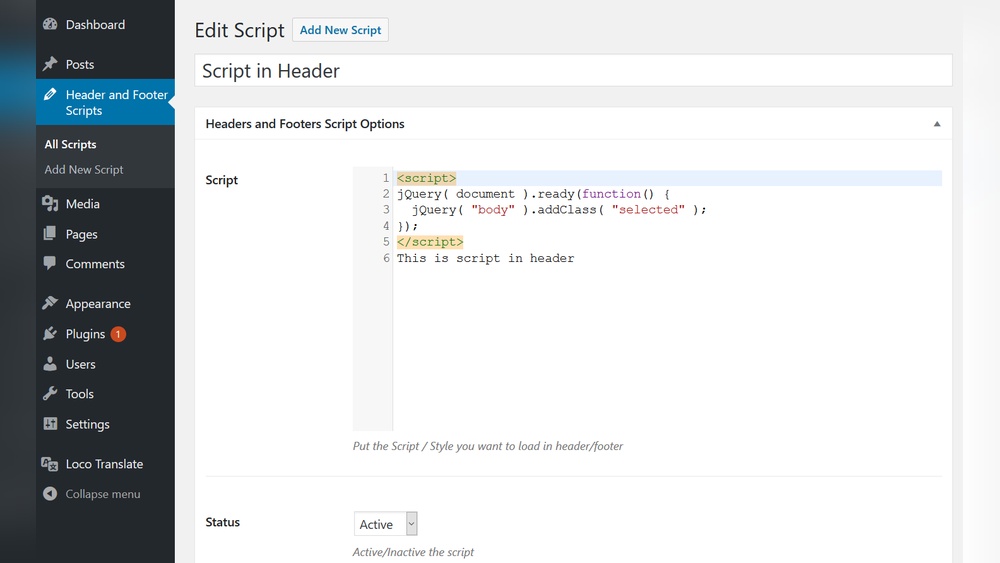
Open the plugin settings from the dashboard menu. Find the section for header scripts. Paste your script code into the box provided. Save the changes to apply the script. Visit your site to confirm the script is working. This method keeps your header code organized and easy to manage.
Method 3: Using Functions.php
Method 3 uses the functions.php file to add scripts to your WordPress header. This method is clean and keeps your site fast. It works by telling WordPress to load your script properly. You avoid problems with theme updates by using a child theme. This method is best for small code snippets or custom scripts.
Create A Child Theme
First, create a child theme. A child theme keeps your changes safe during updates. Make a new folder in /wp-content/themes/. Name it like your main theme plus -child. Add a style.css file with theme info. Create a functions.php file in the same folder. Activate the child theme in your WordPress dashboard under Appearance > Themes.
Add Script With Wp_enqueue_scripts
Open your child theme’s functions.php file. Use the wp_enqueue_scripts action hook to add scripts. Write a function that calls wp_enqueue_script(). Add your script’s URL and set it to load in the header. Example:
function add_custom_script() { wp_enqueue_script('custom-script', 'https://example.com/script.js', array(), null, false); } add_action('wp_enqueue_scripts', 'add_custom_script');The last parameter false loads the script in the header. Change the URL to your script’s location.
Test Your Changes
Save your functions.php file and reload your website. View the page source to check if the script appears in the header. Use browser developer tools to confirm the script loads correctly. Clear your cache if you do not see changes. Test on different browsers to ensure compatibility.
Verify Script Implementation
After adding a script to your WordPress header, it is important to verify that it works correctly. Verifying script implementation ensures the script loads properly and does not cause errors. This helps keep your site running smoothly and improves user experience.
Checking the script’s presence and performance is simple with the right tools. These tools help you see if the script is in the right place and if it affects your site speed. Let’s explore how to verify your script implementation effectively.
Use Browser Developer Tools
Open your website in a web browser like Chrome or Firefox. Right-click on the page and select “Inspect” or “Inspect Element.” This opens the developer tools panel.
Go to the “Elements” tab. Look for the section. Check if your script tag appears there. This confirms the script is added to the header.
You can also use the “Console” tab to see if there are any script errors. Fix any errors you find to ensure the script runs smoothly.
Check Website Performance
Use online tools like Google PageSpeed Insights or GTmetrix. Enter your website URL and run a test. These tools show how your site loads and if the script slows it down.
Look for any warnings about scripts in the header. If the script impacts speed, consider optimizing or moving it.
Regularly check your site after adding scripts. This keeps your website fast and user-friendly.
Troubleshooting Common Issues
Adding scripts to the header in WordPress can sometimes cause issues. Knowing how to fix common problems saves time and stress. This section covers frequent troubles and easy solutions. It helps ensure your script works smoothly on your site.
Script Not Loading
Scripts might not load due to incorrect placement or syntax errors. Check that the script code is complete and correctly copied. Ensure you add the script inside the section properly. Clear your browser cache to see recent changes. Try disabling browser extensions that block scripts.
Conflicts With Other Plugins
Some plugins can block or interfere with scripts in the header. Disable plugins one by one to find the conflicting one. Look for plugins related to security or optimization first. Update all plugins and WordPress to the latest versions. Use a staging site to test changes safely.
Error Messages
Error messages often show in the browser console or WordPress dashboard. Read the message carefully for clues about the problem. Common errors include missing files or wrong script paths. Fix typos in the script URL or code. Use online tools to validate your script’s syntax.
Credit: wordpress.org
Frequently Asked Questions
How Do I Add A Script To The WordPress Header?
To add a script to the WordPress header, use the theme’s header. php file or a plugin like “Insert Headers and Footers. ” Editing header. php requires coding knowledge, while plugins offer an easier, safer method without modifying theme files.
Can I Add Custom Javascript To WordPress Header Safely?
Yes, you can safely add custom JavaScript using plugins designed for header scripts. Avoid directly editing theme files to prevent issues during updates. Plugins keep your scripts intact and help manage code without breaking your site.
Why Add Scripts To The WordPress Header Instead Of Footer?
Adding scripts to the header loads them early, which is essential for tracking codes or fonts. However, heavy scripts can slow page load, so add only necessary scripts to the header and defer others to the footer for better performance.
Is Editing Header.php The Best Way To Add Scripts?
Editing header. php works but isn’t the best for beginners. It risks breaking your site if done incorrectly. Using dedicated plugins or child themes is safer and keeps your customizations update-proof.
Conclusion
Adding scripts to your WordPress header is simple and useful. It helps improve site features and tracking. Use plugins or edit the theme carefully to avoid mistakes. Always back up your site before making changes. Check your site after adding scripts to ensure everything works well.
This small step can make your website better and more functional. Keep your scripts organized for easy updates. Now, you can add scripts confidently and improve your WordPress site.