
Are you looking to keep your WordPress site fresh with the latest updates from your favorite sources? Adding an RSS feed to your WordPress site is a simple way to do just that.
It lets you automatically display new content without lifting a finger. Imagine your visitors always finding new, relevant information every time they visit. You’ll discover easy steps to add an RSS feed to your WordPress site quickly and effectively. By the end, you’ll have a powerful tool to engage your audience and save time.
Ready to boost your site’s value? Let’s dive in!

Credit: wisernotify.com
Benefits Of Adding Rss Feeds
Adding RSS feeds to your WordPress site brings many advantages. It helps you keep your content fresh and your visitors informed. RSS feeds make managing and sharing content easier. They offer a simple way to connect with your audience and other websites.
Stay Updated Automatically
RSS feeds deliver new content without manual updates. Your site updates as soon as new posts appear. Visitors get the latest news without checking often. This keeps your site lively and current. It saves time for both you and your readers.
Enhance User Engagement
RSS feeds encourage visitors to return often. They provide a steady flow of fresh content. Users can follow topics they care about easily. This builds a loyal audience over time. Engaged users spend more time on your site.
Improve Content Distribution
RSS feeds help share your content across platforms. Other sites and apps can display your updates. This increases your reach and visibility online. More people discover your content without extra effort. It boosts traffic and brand awareness effectively.

Credit: www.youtube.com
Choosing The Right Rss Feed
Choosing the right RSS feed is key for a useful WordPress blog. A good feed keeps your content fresh and interesting. It also helps attract and keep visitors. Choosing poorly can mean outdated or irrelevant posts. This section helps you pick the best RSS feed for your site.
Identify Relevant Sources
Start by finding RSS feeds that match your blog’s topic. Choose sources your readers will trust and like. Avoid feeds with too much off-topic content. Focus on quality over quantity. Select feeds that add real value to your posts.
Check Feed Compatibility
Make sure the RSS feed works well with WordPress. Some feeds may not display correctly or cause errors. Test the feed before adding it. Look for standard RSS formats like XML. This ensures smooth integration with your site.
Verify Feed Reliability
Choose feeds that update regularly and on time. A reliable feed keeps your site active with new content. Avoid feeds that stop updating or have broken links. Consistent updates improve your site’s trust and ranking.
Using WordPress Built-in Features
WordPress includes built-in tools to add RSS feeds easily. These tools help you show updates from other websites or your own blog posts. Using these features saves time and avoids extra plugins.
Add Rss Widget To Sidebar
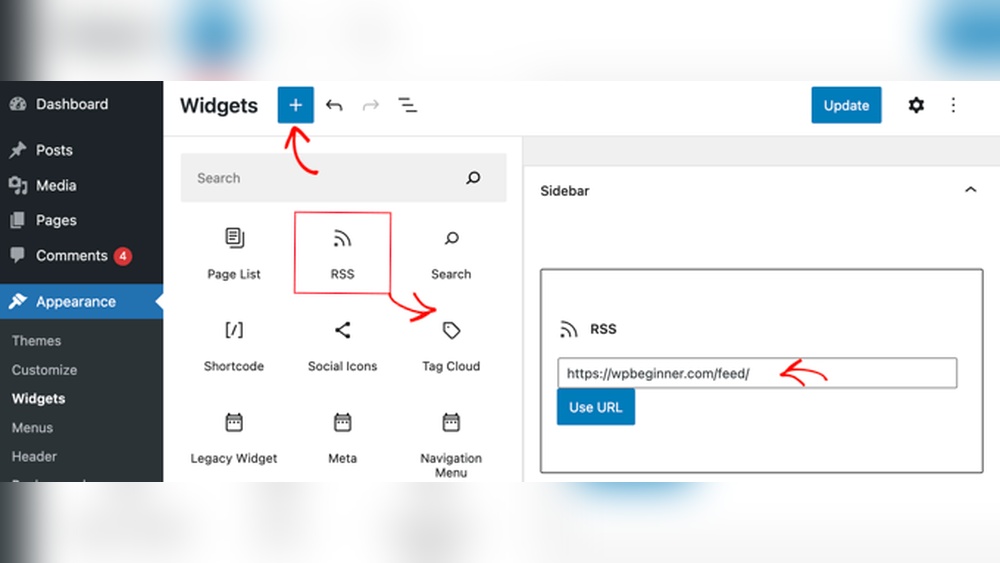
Go to the WordPress dashboard. Choose Appearance, then Widgets. Find the RSS widget in the list. Drag it to the sidebar area where you want it.
Enter the URL of the RSS feed you want to display. Click Save. The feed will now show in your sidebar for visitors to see.
Configure Feed Settings
After adding the RSS widget, you can change its settings. Set the number of items to show from the feed. Choose whether to display item content or just titles.
You can also decide to show the date of each post. These options help make your feed clear and useful for readers.
Manage Widget Appearance
Customize how the RSS feed looks in your sidebar. Use simple CSS in your theme to change font size or colors. This keeps the feed matching your site style.
Some themes allow widget title changes. Edit the title to make the feed section easy to understand. Keep the design clean and readable.
Installing Rss Feed Plugins
Installing RSS feed plugins is a simple way to add RSS functionality to WordPress. Plugins help you display feeds from other sites or share your own content easily. They provide options to control how feeds appear and update automatically.
These plugins save time and improve your site’s user experience. You do not need coding skills to use them. Just install, activate, and configure settings to fit your needs.
Popular Rss Feed Plugins
Several plugins work well for RSS feeds in WordPress. WP RSS Aggregator is a top choice for importing and displaying feeds. Feedzy RSS Feeds offers easy setup and customization. RSSImport is lightweight and simple to use. Each plugin has unique features for different needs.
Step-by-step Plugin Installation
Go to your WordPress dashboard and click Plugins > Add New. Type the plugin name in the search box. Find your chosen plugin and click Install Now. After installation, click Activate to enable the plugin. Some plugins add new menu items for settings.
Customize Plugin Options
Open the plugin settings from your dashboard menu. Set how many feed items to show. Choose display style like list or grid. Add filters to exclude unwanted content. Save changes and check your site to see the feed in action.
Embedding Rss Feeds In Posts And Pages
Embedding RSS feeds in your WordPress posts and pages helps share fresh content automatically. It keeps your site updated without much effort. You can display news, blogs, or any external updates easily. This adds value and keeps visitors engaged.
There are simple ways to embed RSS feeds. You can use shortcodes, Gutenberg blocks, or customize the feed’s look. Each method fits different needs and skill levels. Choose what works best for your site.
Use Shortcodes For Feeds
Shortcodes are small code snippets you add directly into posts or pages. WordPress supports some RSS feed shortcodes by default. You just paste the shortcode with the feed URL inside. For example, [rss feed="https://example.com/feed"] embeds that feed.
This method is quick and requires no coding skills. You can place feeds anywhere in your content. Many plugins offer custom shortcodes for better control.
Insert Feeds With Gutenberg Blocks
The Gutenberg editor has blocks made for RSS feeds. Search for the “RSS” block in the block library. Add it to your post or page and enter the feed URL. The block will fetch and show the latest items from that feed.
This visual way helps preview the feed instantly. You can move or resize the block as needed. It works smoothly with WordPress’s default editor.
Adjust Feed Display Styles
Customizing how feeds look improves your site’s style. You can change colors, fonts, and spacing using CSS. Many feed plugins let you tweak the layout without code.
Try setting the number of items to show. Also, control if you want images or just text. A clean and simple design helps visitors read better.
Credit: www.youtube.com
Troubleshooting Common Issues
Troubleshooting RSS feeds in WordPress can save time and improve user experience. Many users face common problems like feed errors or display issues. Understanding how to fix these can keep your site running smoothly.
Fix Feed Loading Errors
Feed loading errors often occur due to incorrect URLs or server issues. Check the feed URL to make sure it is correct. Clear your browser cache and refresh the page to see if the problem persists. Disable plugins one by one to find if any cause conflicts. Ensure your server supports PHP and XML, as these are needed for feeds.
Resolve Display Problems
Feeds may not show correctly due to theme or plugin conflicts. Switch to a default WordPress theme to check if the theme causes the issue. Disable caching plugins temporarily to see if they block feed updates. Use a feed plugin that supports your theme and test feed appearance on different devices. Check for HTML errors in the feed code using online validators.
Update And Maintain Feeds
Regularly update your WordPress, themes, and plugins to keep feeds working. Remove old or broken feed links from your site. Set a schedule to check feeds for errors or missing content. Backup your site before making major changes to feeds. Keep your feed source active and reliable to avoid interruptions.
Frequently Asked Questions
What Is An Rss Feed In WordPress?
An RSS feed in WordPress delivers updated content automatically. It allows users to subscribe and receive new posts instantly. This improves user engagement and website traffic by keeping readers informed without visiting the site manually.
How Do I Find My WordPress Rss Feed Url?
To find your WordPress RSS feed URL, add “/feed” at your site’s end. For example, www. yoursite. com/feed. This URL can be shared or used to add your feed to other platforms.
Can I Customize My WordPress Rss Feed Content?
Yes, WordPress allows RSS feed customization. You can modify the number of posts, include images, or add excerpts using plugins or custom code. This helps tailor the feed to your audience’s preferences.
How To Add An External Rss Feed To WordPress?
Use RSS feed plugins or widgets to add external feeds. Simply input the feed URL, and the plugin displays the content on your site. This enriches your blog with relevant third-party updates.
Conclusion
Adding an RSS feed to WordPress keeps your site fresh and active. It helps visitors get updates quickly and easily. You can share news, blog posts, or any content you like. The steps are simple and do not take much time.
Just follow the guide, and your feed will work smoothly. This small change can improve your site’s user experience. Try it today to keep your readers engaged and informed.


